Club Calendar and Scheduling
Keeping track of everything happening at your club can be a challenge, especially when you have multiple leagues running, events planned, and facilities being booked throughout the week. The ServeLeague club calendar brings all of this together into one view so you, your members, and your visitors can see what is coming up at a glance. This tutorial shows you how to use the calendar, switch between views, and filter by event type.
Step 1: Go to the Club Calendar
From your club's public page, click the Calendar tab in the main navigation. If you are an admin, you can also reach it from the admin dashboard by clicking Calendar in the sidebar.
The calendar opens in the default month view, showing the current month with colored dots or blocks on days that have scheduled activities.
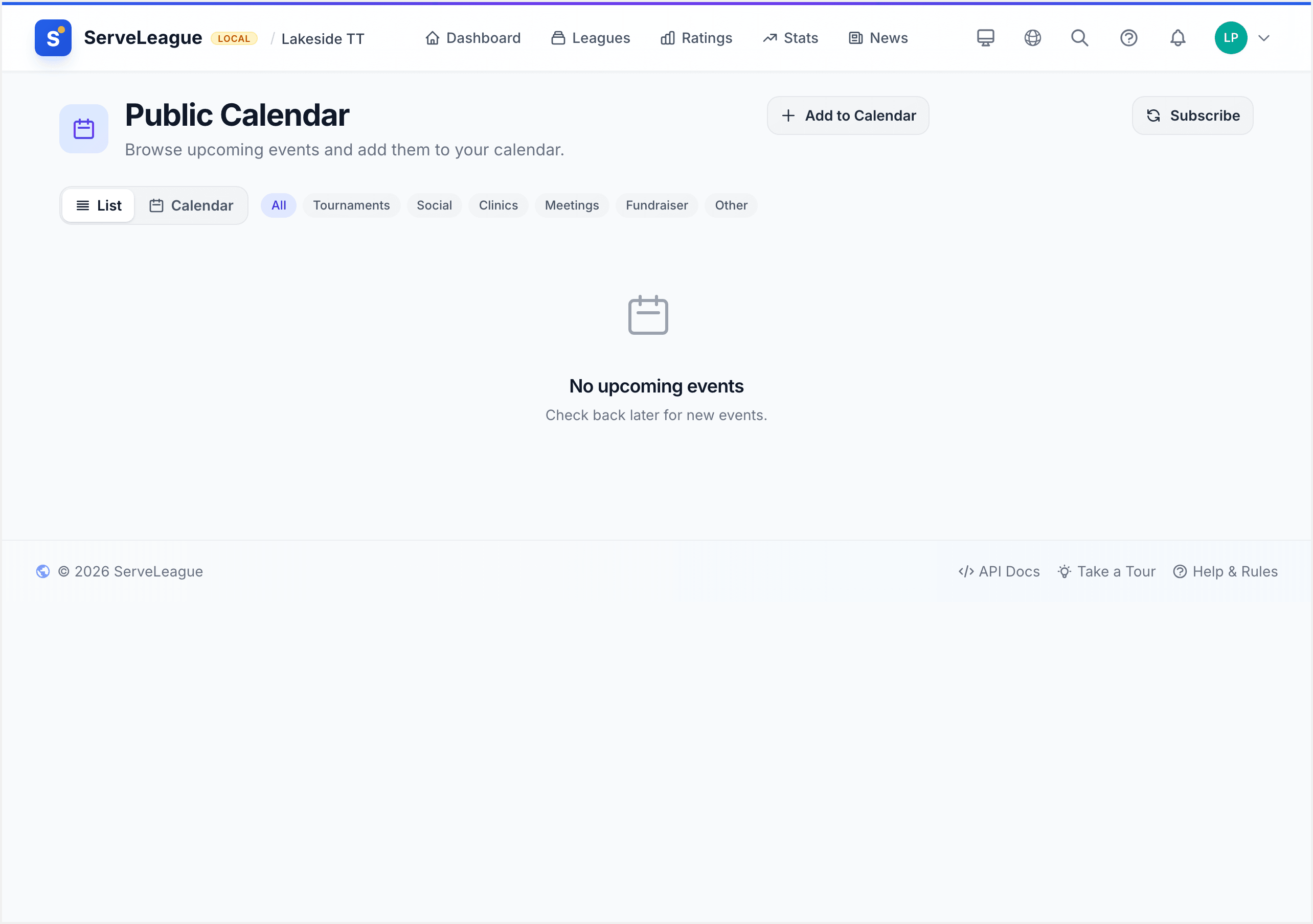
[!NOTE] The calendar is visible to anyone who visits your club's public page. Members and visitors do not need to log in to see upcoming events. However, some event details (like booking specifics) may only be visible to logged-in members, depending on your club's settings.
Step 2: Switch Between Calendar and List View
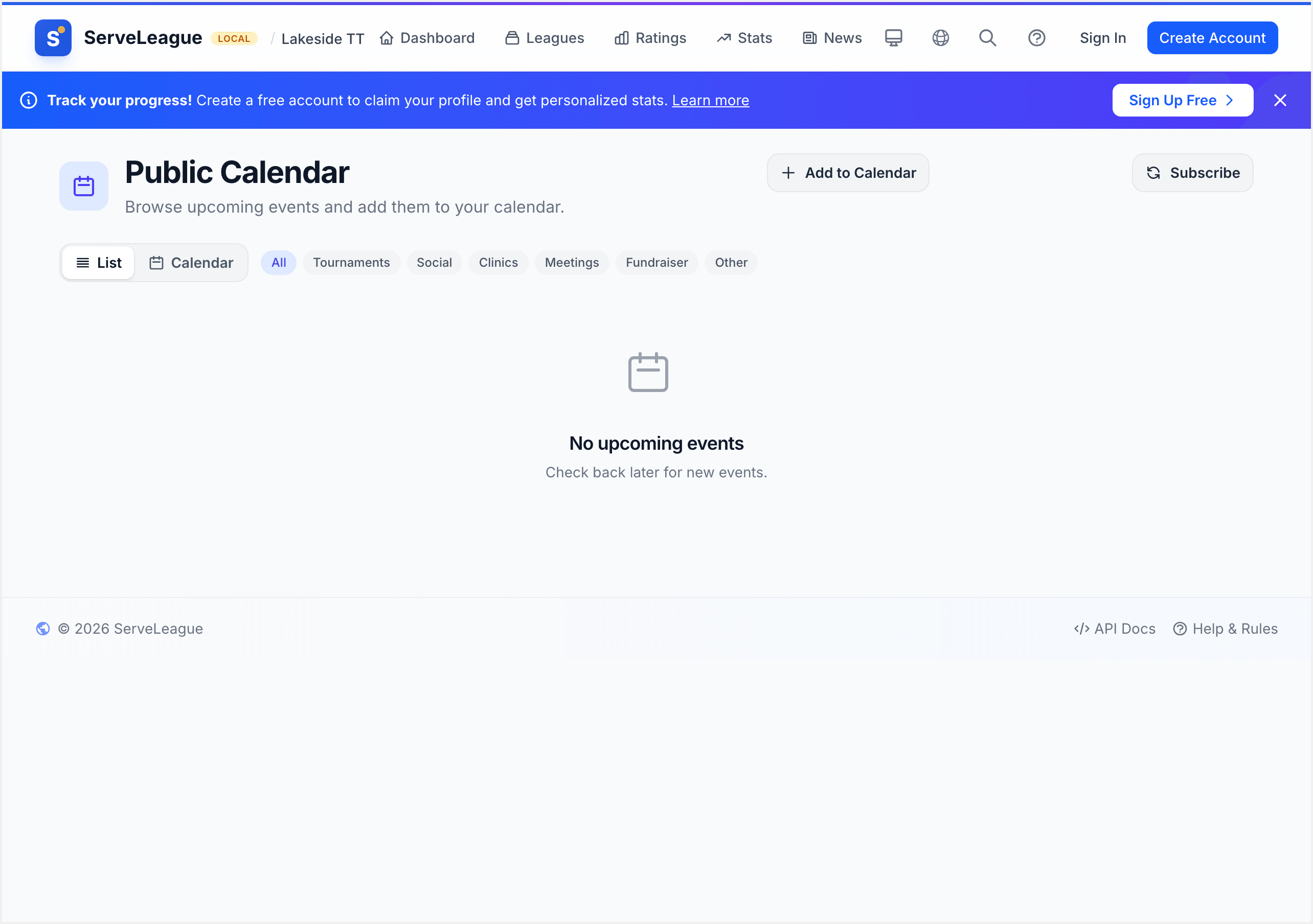
Not everyone likes reading a calendar grid. ServeLeague offers two ways to view upcoming activities:
- Calendar view: A traditional month grid where each day shows its scheduled items. Great for seeing how busy a particular week or month looks.
- List view: A chronological list of all upcoming activities, starting from today. Each item shows the date, time, type, and title. This is often easier to scan on mobile devices.
To switch views, click the Calendar or List button at the top-right of the calendar page.
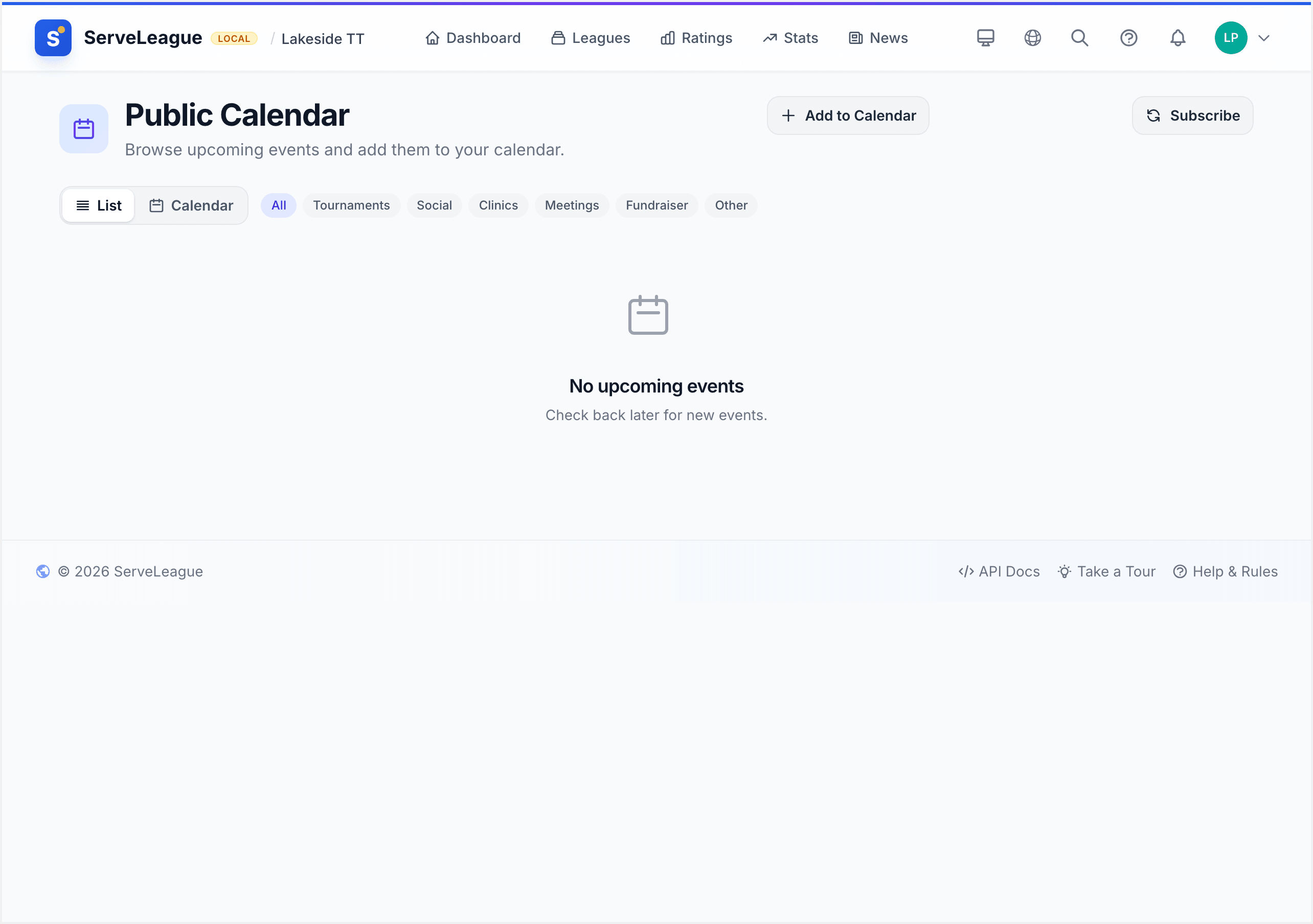
[!TIP] On phones, the list view is selected by default because it is easier to read on a small screen. You can still switch to the calendar grid if you prefer it.
Step 3: Understand What Appears on the Calendar
The calendar pulls together three types of activities, each shown with a distinct color:
League Sessions
League sessions appear when a league has scheduled sessions (for example, "Monday Night League, Week 5"). These are shown in blue and link directly to the session page where you can see matches and results.
Club Events
Events created through the Events feature (such as social gatherings, tournaments, or coaching clinics) appear in green. Clicking an event opens its details page where members can register.
Facility Bookings
If your club uses facility booking, confirmed bookings appear in purple. These show which facility is booked and for how long. This helps members see when tables, courts, or rooms are available before making their own booking.
[!NOTE] Only confirmed bookings appear on the calendar. Pending or cancelled bookings are not shown.
Step 4: Filter by Event Type
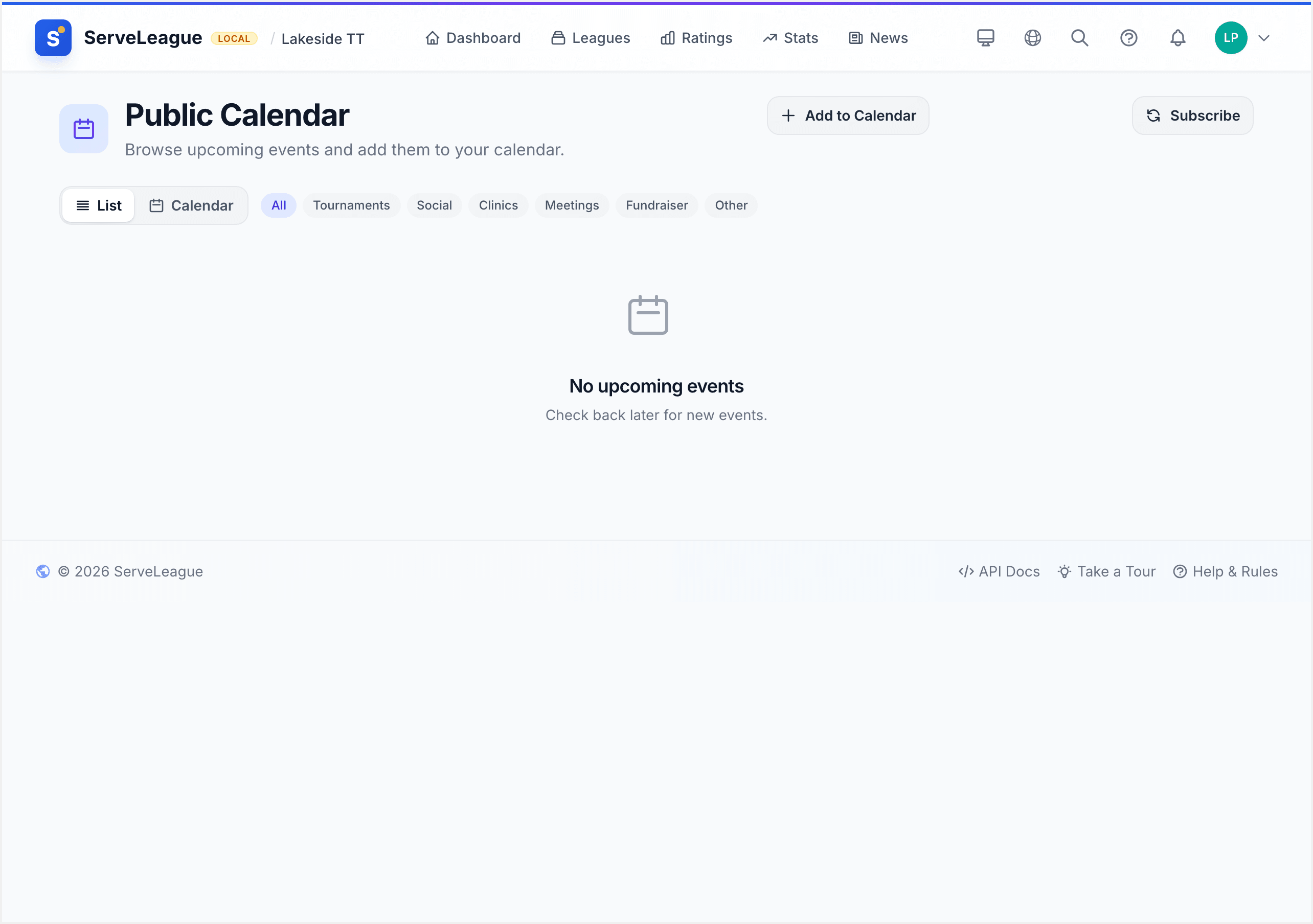
If the calendar looks busy, you can narrow it down. Use the filter buttons above the calendar to show or hide each type of activity:
- Click Sessions to turn league sessions on or off
- Click Events to turn club events on or off
- Click Bookings to turn facility bookings on or off
Active filters are highlighted. You can combine filters freely. For example, turn off bookings to focus on sessions and events only.
Step 5: Move Between Months and Weeks
Use the left and right arrows next to the month name to move backward or forward. Click the Today button to jump back to the current date at any time.
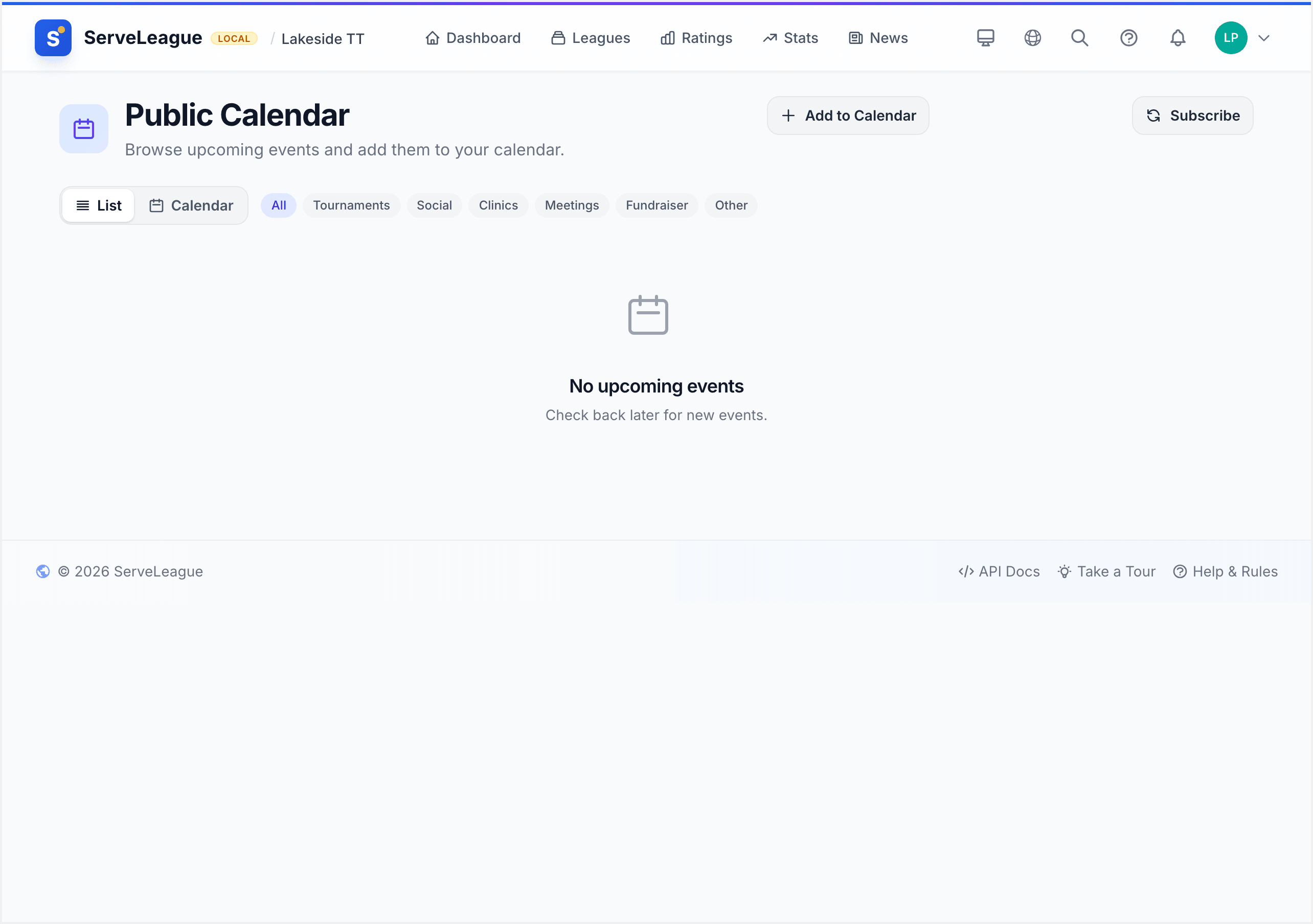
In calendar view, you will see the full month grid. Days with activities display a colored dot or block. Click on any day to expand it and see the details of everything scheduled for that date.
Day Detail View
When you click on a day, a detail panel appears listing all activities for that date. Each item shows:
- The time (if set)
- The type (session, event, or booking)
- The title (for example, "Thursday League, Round 3" or "Annual Club Social")
- A link to the full details page
This lets you see everything at a glance and jump to any activity.
Step 6: Public vs. Member View
The calendar is designed to be useful for everyone, but what visitors see depends on their relationship with the club:
- Public visitors (not logged in) can see the calendar with event names, dates, and times. This helps prospective members discover what your club offers.
- Logged-in members see the same information plus additional details like booking specifics, registration status, and links to register for events.
This means your calendar doubles as a public-facing schedule that helps attract new members while keeping current members informed.
[!TIP] Share the link to your club's calendar page on your club's website or social media. It is a great way to show prospective members how active your club is.
Summary
The club calendar gives you a single place to see all league sessions, events, and facility bookings. Switch between calendar and list views, filter by activity type, and click any day to see its details. Both members and public visitors can use the calendar, making it a valuable tool for staying organized and attracting new members.
What's Next?
Ready to add more to your calendar? Learn how to create events that members can register for in Running Club Events.