Connecting HelloClub
Many clubs run ServeLeague alongside HelloClub. Keeping two member lists in step by hand is tedious and error-prone — a new sign-up in one place is easy to forget in the other. The HelloClub integration removes that busywork. Connect once with an API key and ServeLeague pushes your members straight into HelloClub, creating new people and updating existing ones to match. When members leave, it can archive them in HelloClub too, so both systems stay tidy without you copying anything across.
This guide walks you through creating a HelloClub API key, connecting it in ServeLeague, choosing how much to sync, previewing the result, and running your first export. ServeLeague stays the source of truth throughout: it pushes its view of your roster to HelloClub, never the other way around (unless you choose import or two-way sync).
ℹ️ Note: The integrations area is part of the Pro plan and is available to club administrators only. If you don't see it, check your plan and your admin access first.
Before You Begin
You'll need a few things ready:
- Club admin access in ServeLeague (see Adding Members to Your Club for an overview of admin tasks)
- A HelloClub account where you can create API keys
- A few minutes to test the connection before your first real sync
It helps to have your member list reasonably clean in ServeLeague first. Because ServeLeague is authoritative, whatever you sync becomes the shape of your HelloClub people list, so it pays to tidy duplicates beforehand.
Step 1: Create a HelloClub API Key
In HelloClub, open Settings → Integrations → API keys and create a new key. HelloClub keys are scoped — you tick exactly which permissions the key grants. ServeLeague needs only a small set:
| What ServeLeague does | HelloClub permission |
|---|---|
| Test the connection and list people | profile:view |
| Create a member | profile:create |
| Update a member | profile:edit |
| Archive a member who has left | profile:remove |
Grant profile:view, profile:create, and profile:edit as the safe minimum. Add profile:remove only if you want ServeLeague to archive members who leave. Everything else can be left off.
Copy the key as soon as it's generated — HelloClub shows it only once. Treat it like a password.
⚠️ Warning: Anyone with this key can read and change people in your HelloClub account. Don't paste it into chat or email. ServeLeague stores it encrypted, so the safest place for it is the connection screen in the next step.
Step 2: Connect HelloClub in ServeLeague
In ServeLeague, go to Admin → Integrations. You'll see two ways to get your member data out: a File export section for one-off CSV or JSON downloads, and an external services section that includes HelloClub.
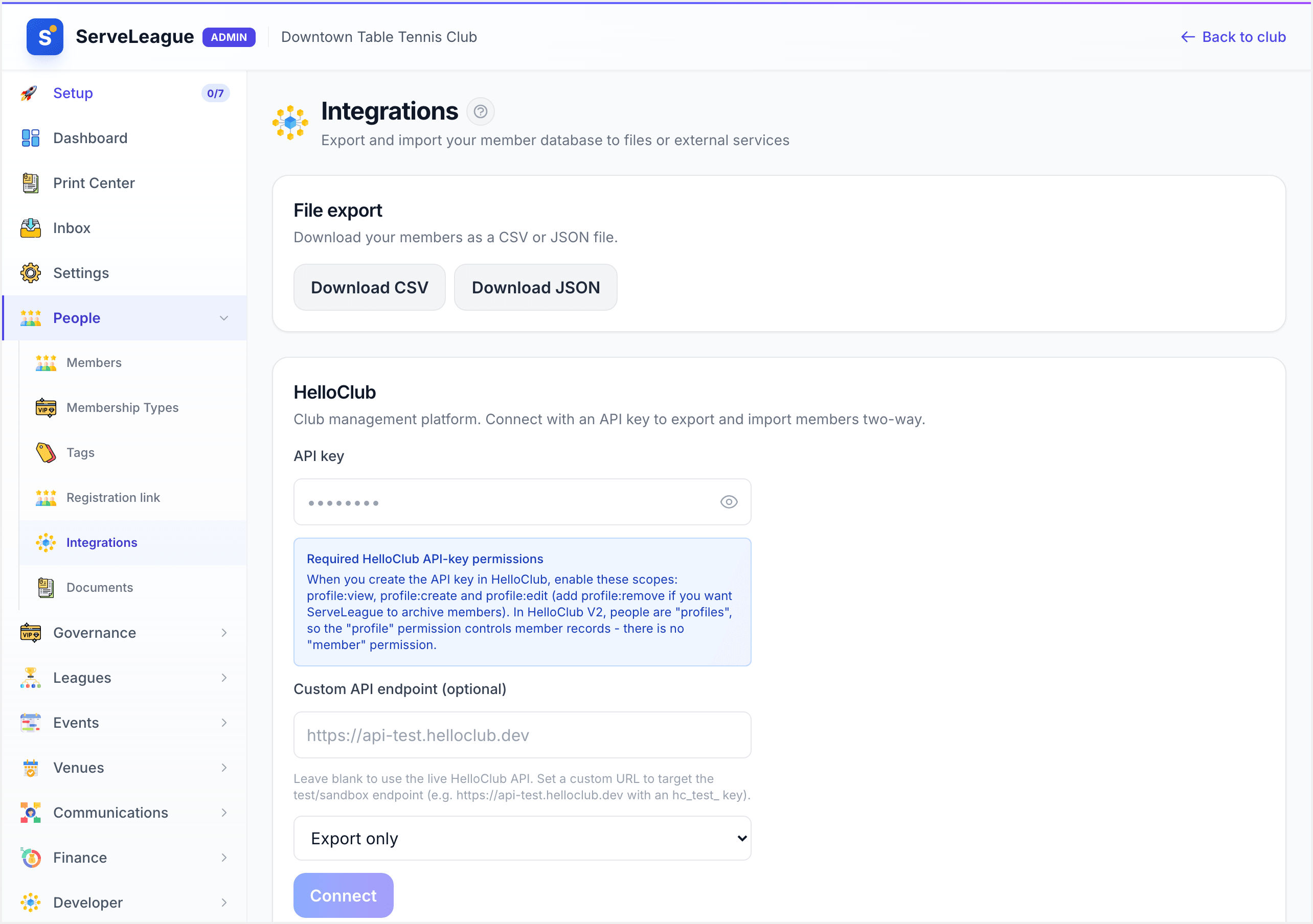
Paste your API key into the HelloClub API key box and choose Connect. ServeLeague tests the key straight away by asking HelloClub for your people list. A successful test shows HelloClub connected; if the key is wrong or missing a permission, you'll get a clear message instead of a silent failure.
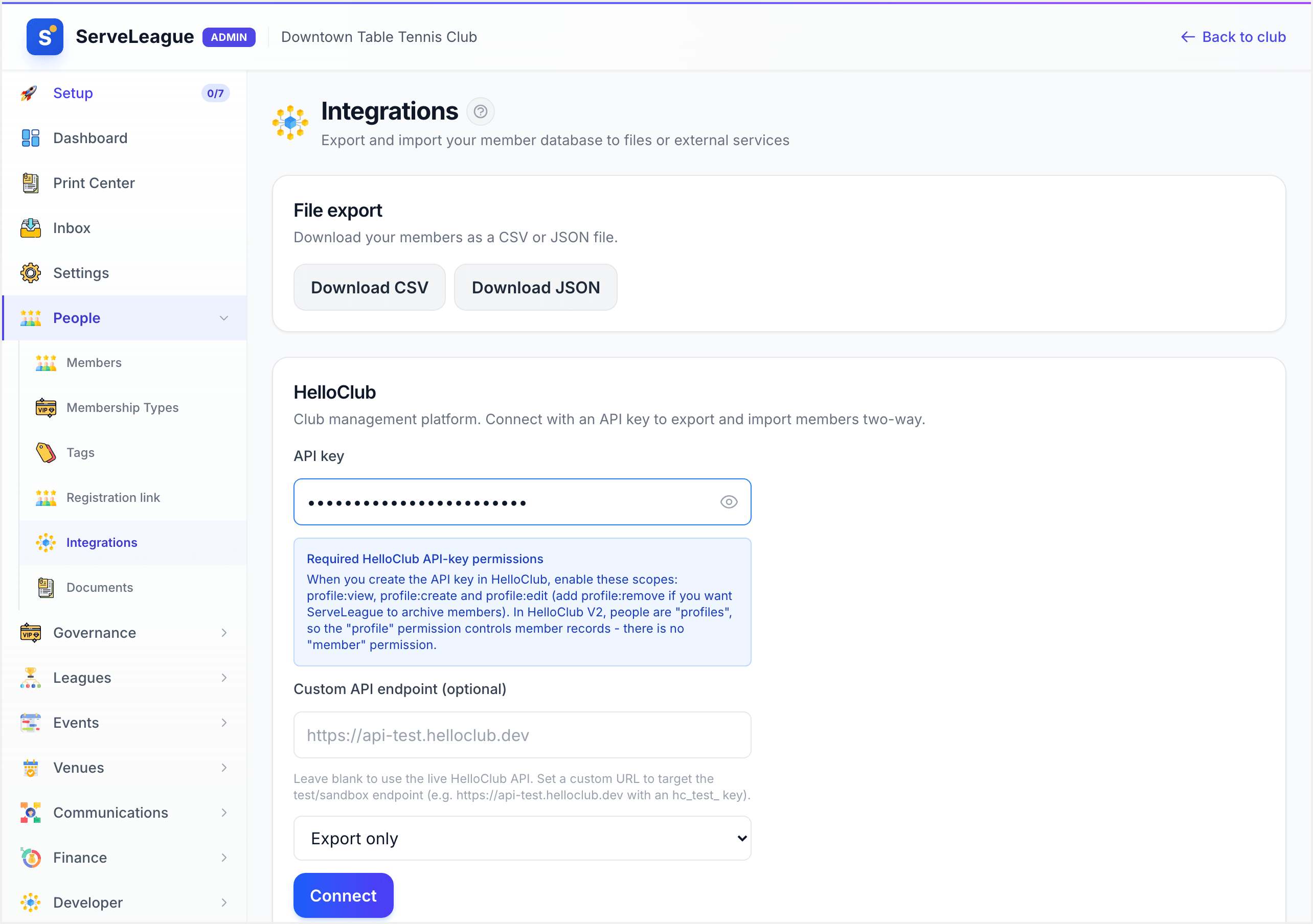
Your key is encrypted at rest, so it's never shown again after you save it. You can re-test the stored key at any time with Test, or remove it entirely with Disconnect, which clears the saved key.
Step 3: Choose Your Direction and Scope
Once connected, decide how the two systems should talk to each other:
- Export only — ServeLeague pushes members to HelloClub. This is the common choice.
- Import only — ServeLeague pulls members from HelloClub.
- Two-way — changes flow in both directions.
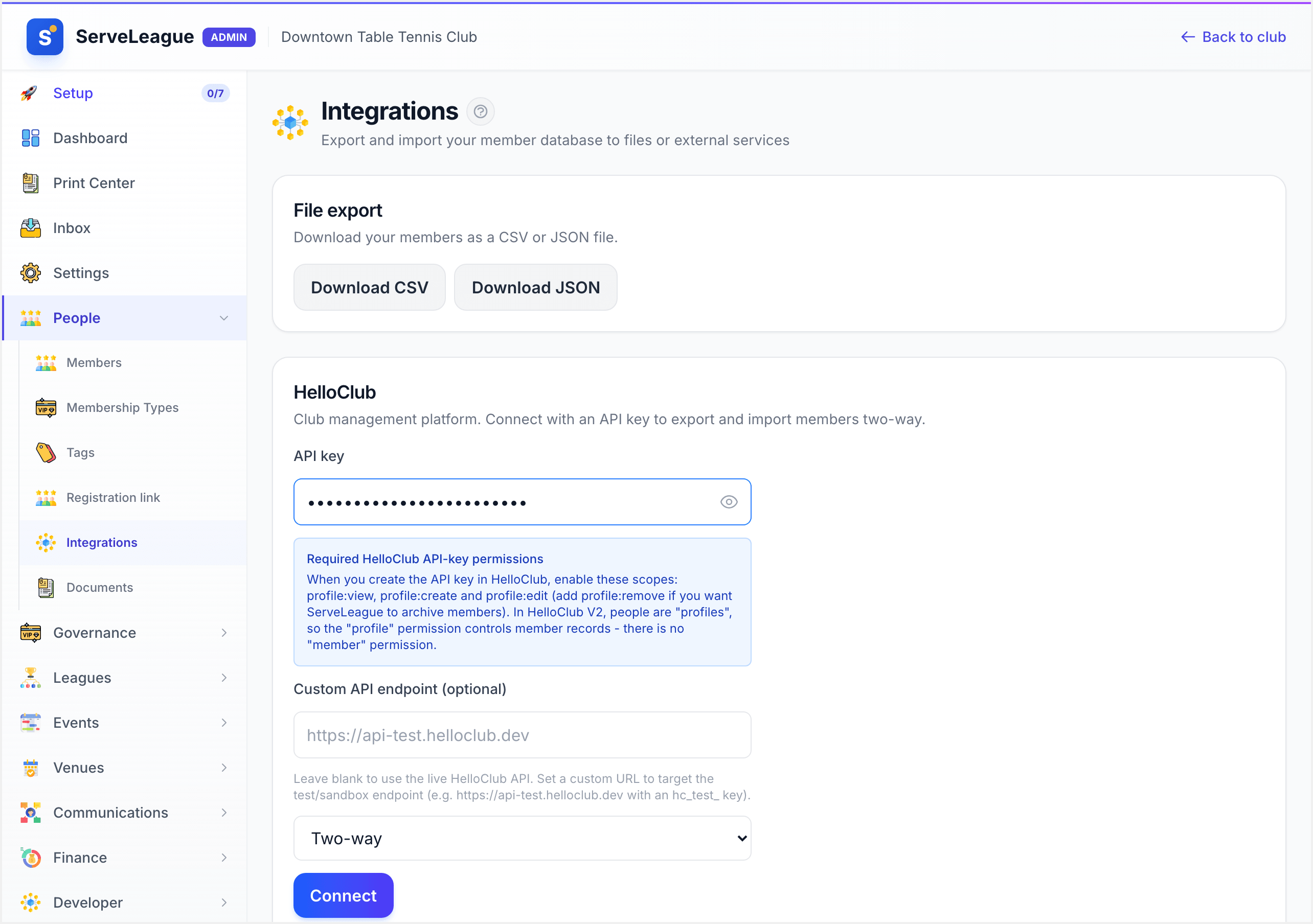
Then set the scope: which members are in play and which details go across. A typical setup is to sync only active members, so people who lapse naturally fall out of scope. This matters because "removed" in ServeLeague's view means "no longer in scope," not necessarily deleted — a lapsed member simply drops out of the active set.
Core details map across automatically: first name, last name, email, and phone. If your members carry extra custom details, ServeLeague is smart about them — values for date of birth, gender, and address are promoted into HelloClub's own dedicated fields rather than left as loose custom data.
Step 4: Preview Before You Sync
Never sync blind. Choose Preview export to run a dry run. ServeLeague works out exactly what would happen — how many members it would create, how many it would update, and, if archival is on, how many it would archive — without changing anything in HelloClub.
Read the preview carefully. If the create count is far higher than you expect, you may have duplicates in ServeLeague, or HelloClub may already hold people that ServeLeague hasn't linked yet. Sort that out before the real run.
💡 Tip: Run a preview every time you change your scope or direction. It's the cheapest way to catch a surprise before it reaches your live HelloClub data.
Step 5: Run the Export
Happy with the preview? Choose Export now. ServeLeague creates and updates members in HelloClub to match, and records a link between each ServeLeague member and its HelloClub profile. That link is what makes future syncs fast and safe:
- Unchanged members are skipped. On the next export, ServeLeague compares each member against what it last sent and only touches the ones that actually changed.
- Only members ServeLeague synced are ever archived. People created directly in HelloClub are never altered, because there's no link tying them to ServeLeague.
When the run finishes you'll see Export complete, and the Recent sync activity log lists what was synced, skipped, or failed for that run. If anything failed, the log tells you which member and why, so you can fix it and run again.
Turning On Archival (Optional)
If you granted the profile:remove permission and switched archival on, ServeLeague will archive members who leave your scope — for example, when an active member lapses. Archival is opt-in and reversible: HelloClub keeps archived people and lets you restore them, so this is a safe way to deprovision rather than a hard delete. A dry run always reports the archive plan first, so you can confirm exactly who would be archived before it happens.
File Export as an Alternative
You don't have to use the connector at all. The File export section lets you download your whole member database as a CSV or JSON file in one click. That's ideal for backups, reporting, or a one-time move into another system. The difference is upkeep: a file is a snapshot, while the HelloClub connector keeps the two systems in step over time, including removals. Use the file for migrations and the connector for ongoing sync.
What's Next
Your members now flow into HelloClub automatically. From here you might want to:
- Tidy duplicates first with Player Import, Merge & Management
- Bring an existing roster in with Importing Players in Bulk
- Review who can reach this screen in Navigating the Admin Dashboard
Re-run a preview whenever your membership changes shape, and let the activity log be your record of every sync.