Creating a Team League
Team leagues add a layer of structure and strategy on top of individual play. Players form teams, teams are organized into divisions, and each round features teams competing head-to-head in a "tie" of multiple matches. This brings team spirit, tactical lineup decisions, and a different kind of energy to your club nights.
This tutorial walks you through the entire setup process, from the creation wizard through player enrollment to running your first team session.
Before You Begin
Make sure you have:
- A club set up on ServeLeague (see Setting Up Your Club)
- Players added to your club roster (you will assign them to teams after creating the league)
- An idea of how many teams and divisions you want
Step 1: Start the Team League Wizard
From your club admin dashboard, click "Leagues" in the sidebar, then click "Create League". Select "Team League" from the format grid.
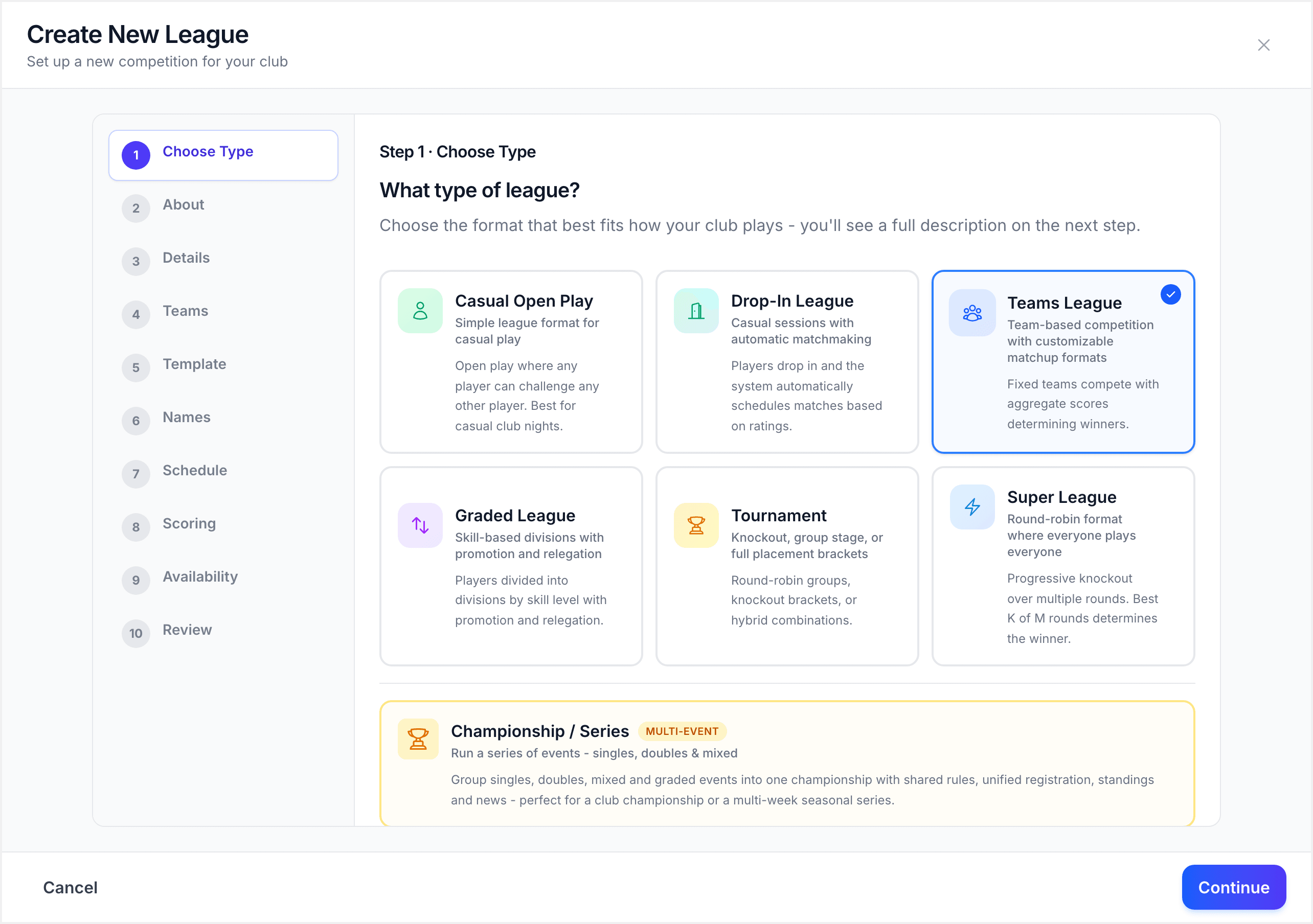
The wizard reads the format explanation page. Click "Next" to continue.
The team league wizard has eight steps:
- League Basics: name, description, and schedule
- Team Configuration: divisions, team count, players per team
- Play Order Template: the match sequence within each tie
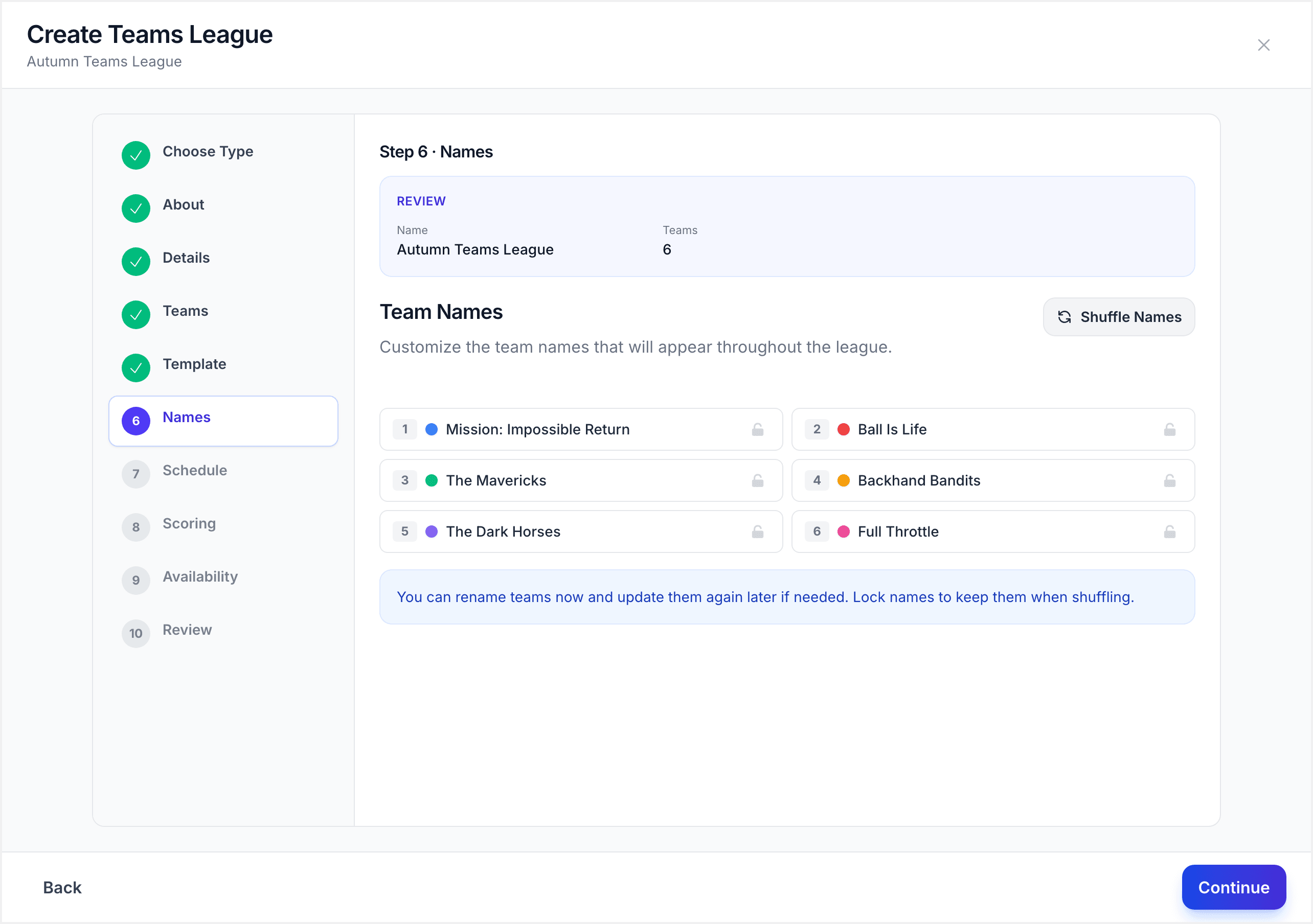
- Team Names: name each team in every division
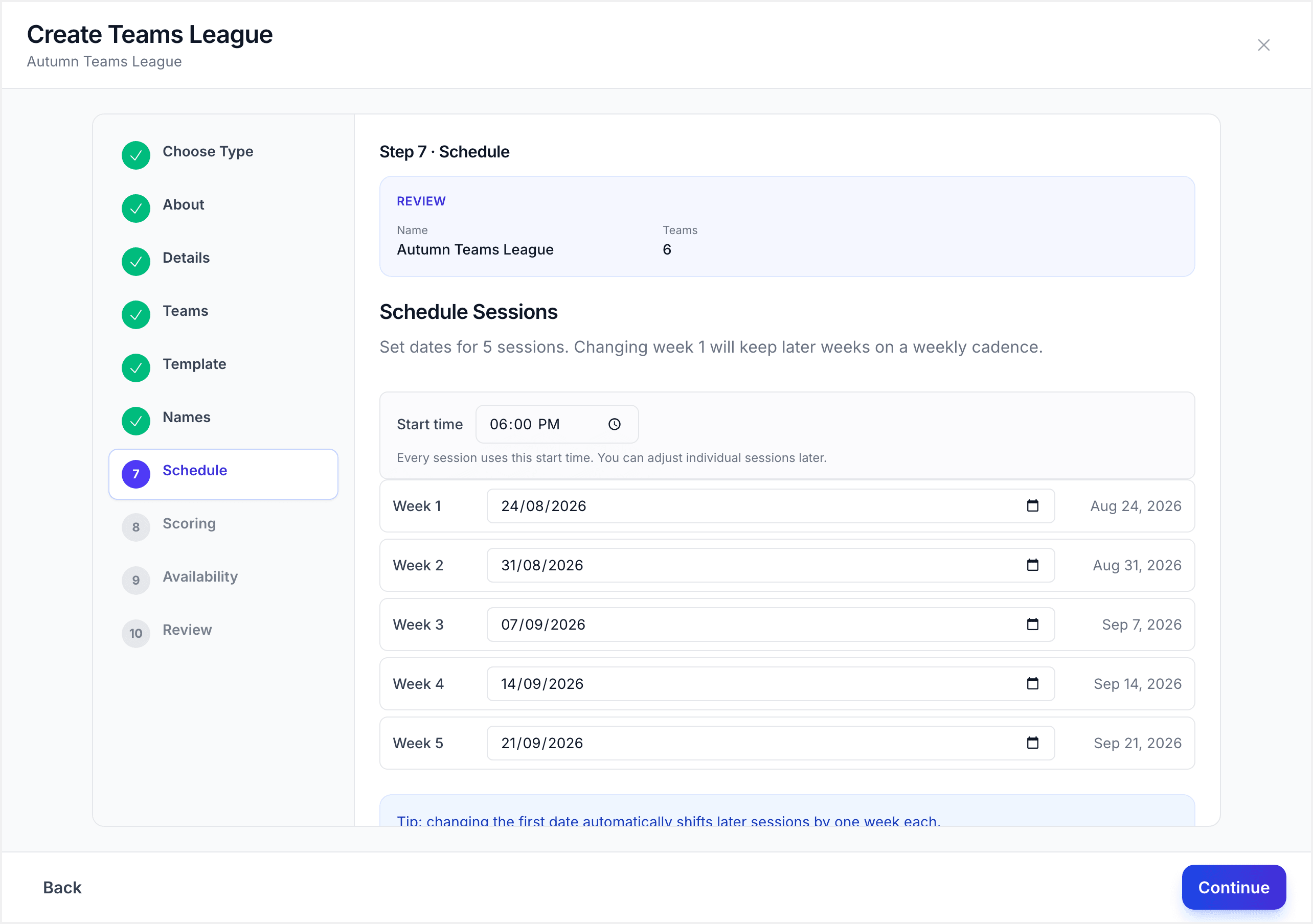
- Session Schedule: round dates and fixture generation
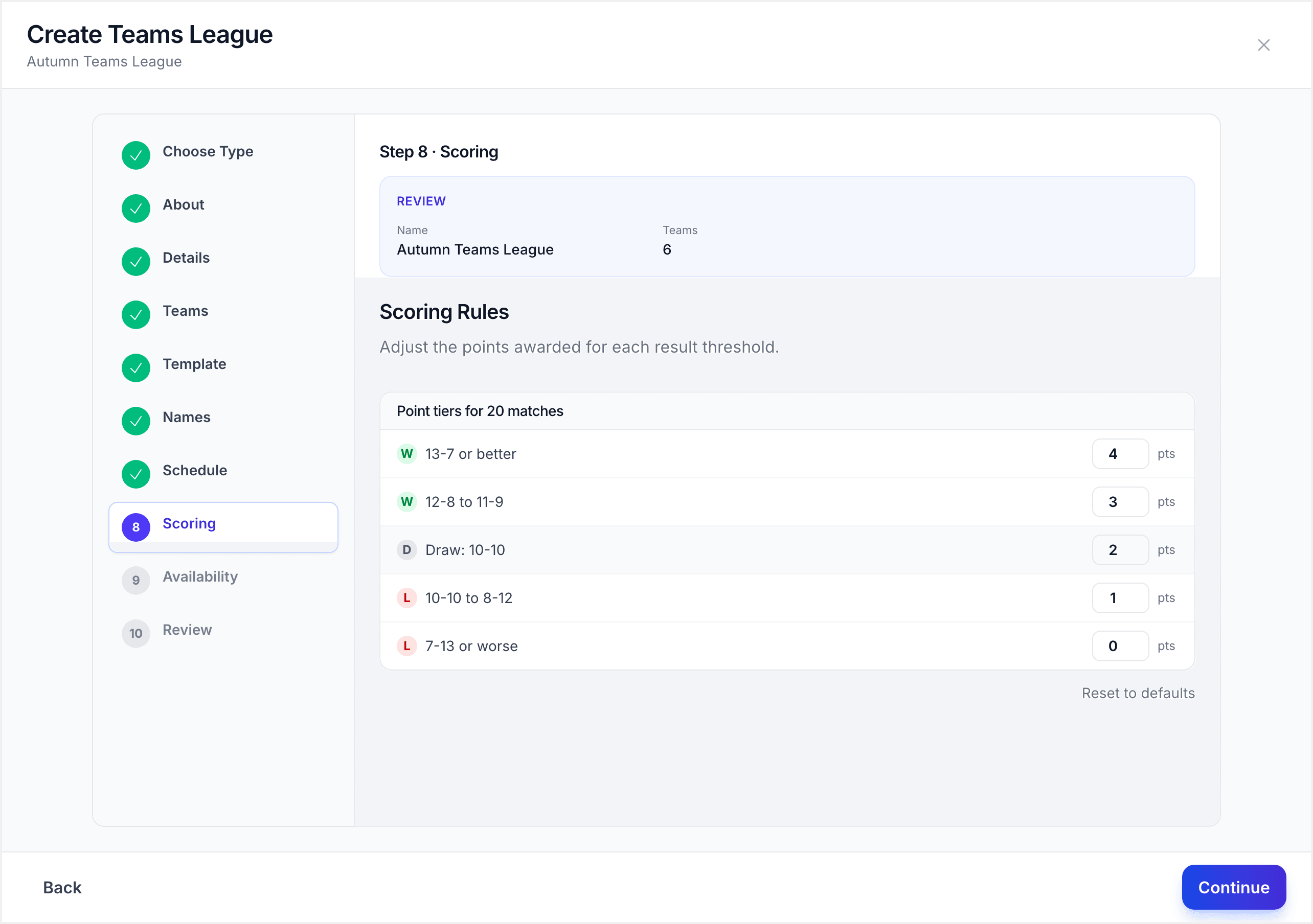
- Scoring Rules: how team points are calculated
- Availability: player availability settings
- Review and Create: confirm all settings
[!NOTE] The wizard creates the league structure (divisions, team count, schedule, scoring rules). Player assignment happens after creation on a separate setup page.
Step 2: Set League Basics
Fill in the core league details:
- League Name: a descriptive name like "Thursday Night Teams" or "Winter Team League 2026"
- Description (optional): a short note about the league for your members
- Schedule Day: the day of the week your league plays
- Schedule Time: the start time for sessions
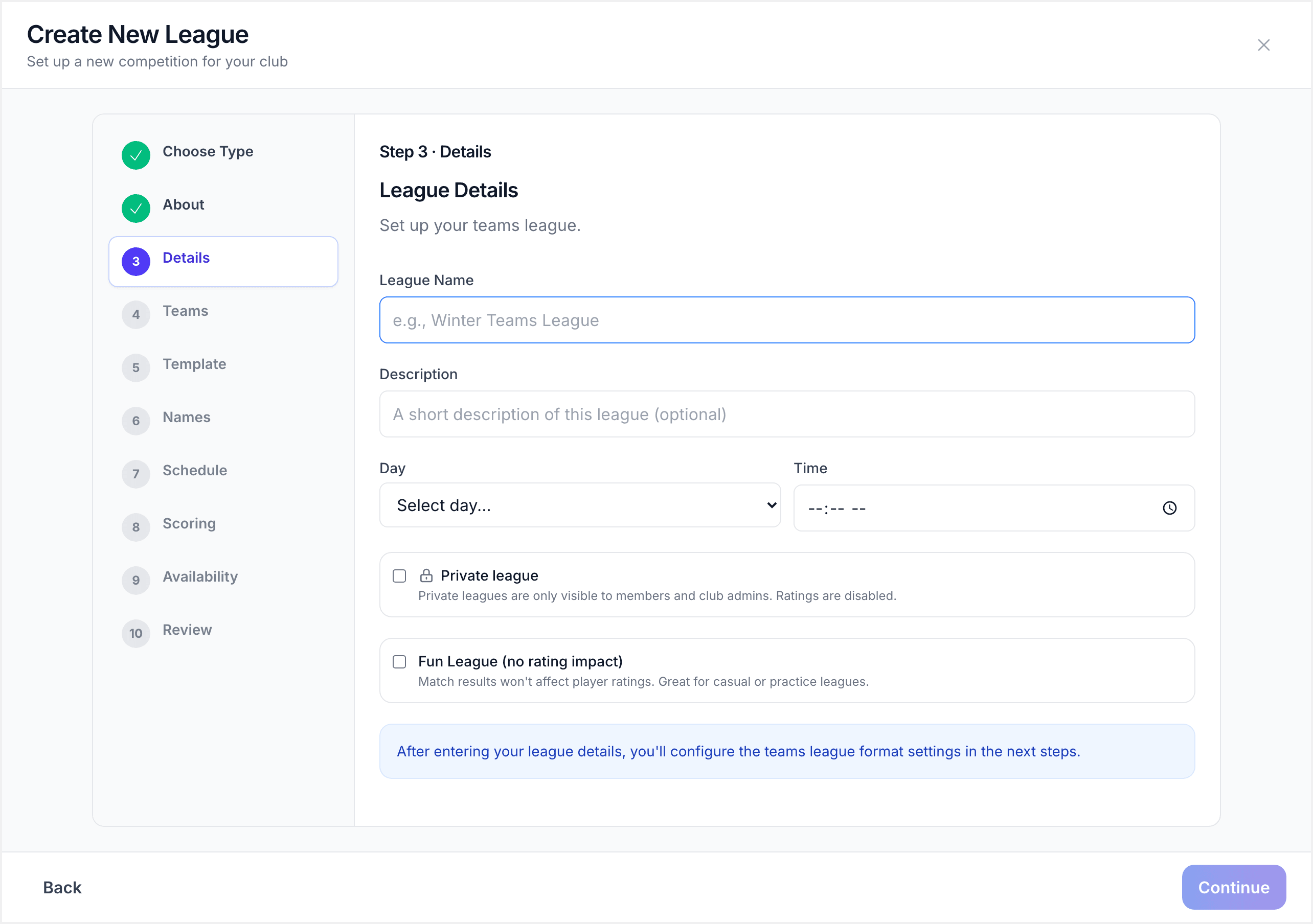
Click "Next" to continue.
Step 3: Configure Teams and Divisions
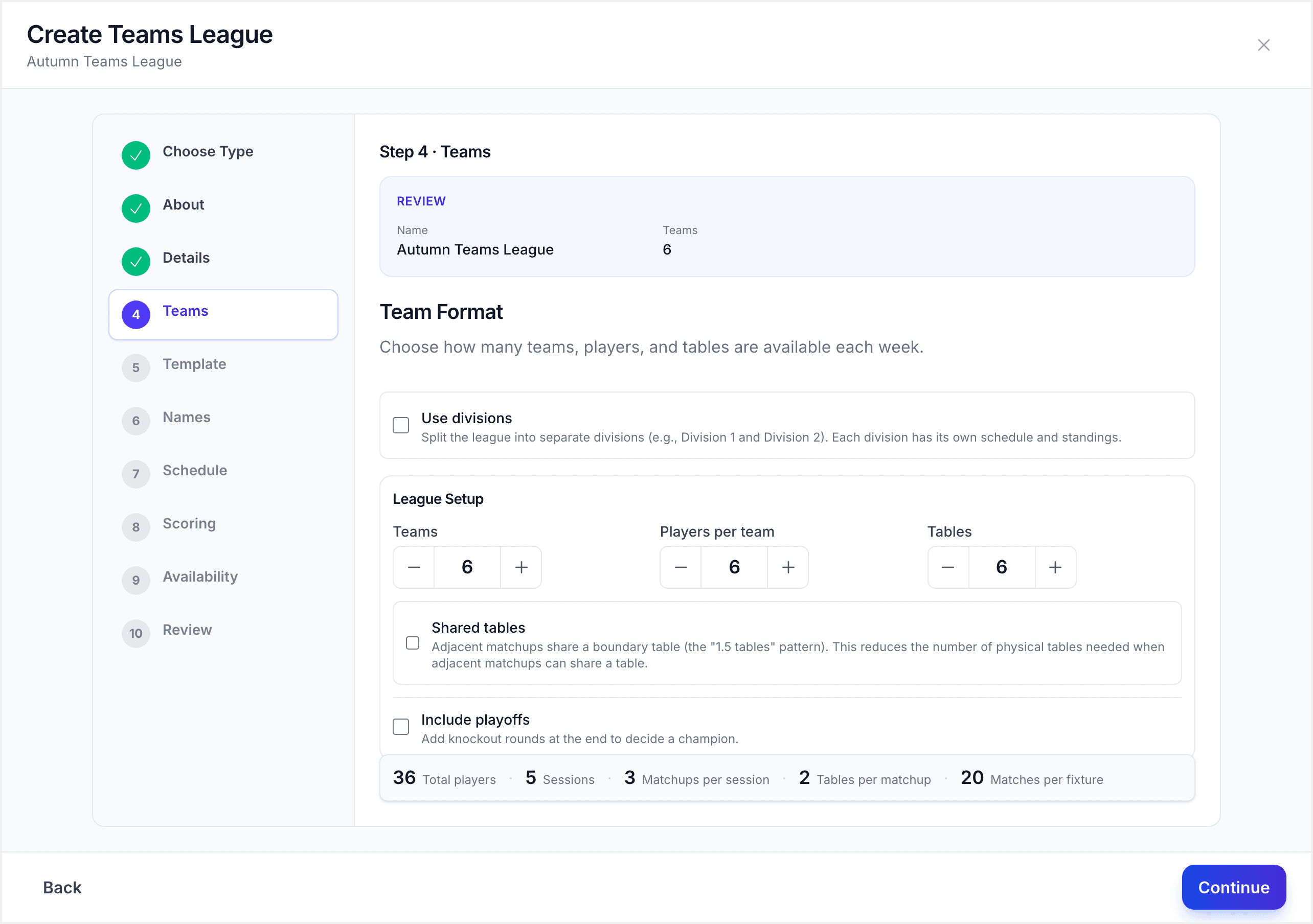
The Team Configuration step is where you define the structure of your league.
- Number of Teams: how many teams will compete. Set this based on your player count and the number of players you want per team.
- Players Per Team: how many players are on each team's roster
- Total Tables: the number of physical tables available at your venue
- Use Divisions: turn this on if you want to split teams into multiple divisions (e.g., a Premier division and Division 1)
If you enable divisions, you can configure each division separately:
- Division Name: a display name like "Premier", "Division 1", or "A Grade"
- Teams per Division: how many teams compete in this division
- Players per Team: can vary by division
- Table allocation: which tables each division uses
[!TIP] If you have an odd number of teams in a division, ServeLeague handles byes automatically when generating the fixture schedule.
Click "Next" to continue.
Step 4: Set Up Play Order Template
The play order template defines the match sequence within each tie (the head-to-head matchup between two teams). This determines which singles and doubles matches are played and in what order.
For example, a typical play order might be:
- Match 1: Singles (Player 1 vs Player 1)
- Match 2: Singles (Player 2 vs Player 2)
- Match 3: Singles (Player 3 vs Player 3)
- Match 4: Doubles (Players 1 & 2 vs Players 1 & 2)
You can drag and drop match rows to reorder them. Choose from existing templates or create your own.
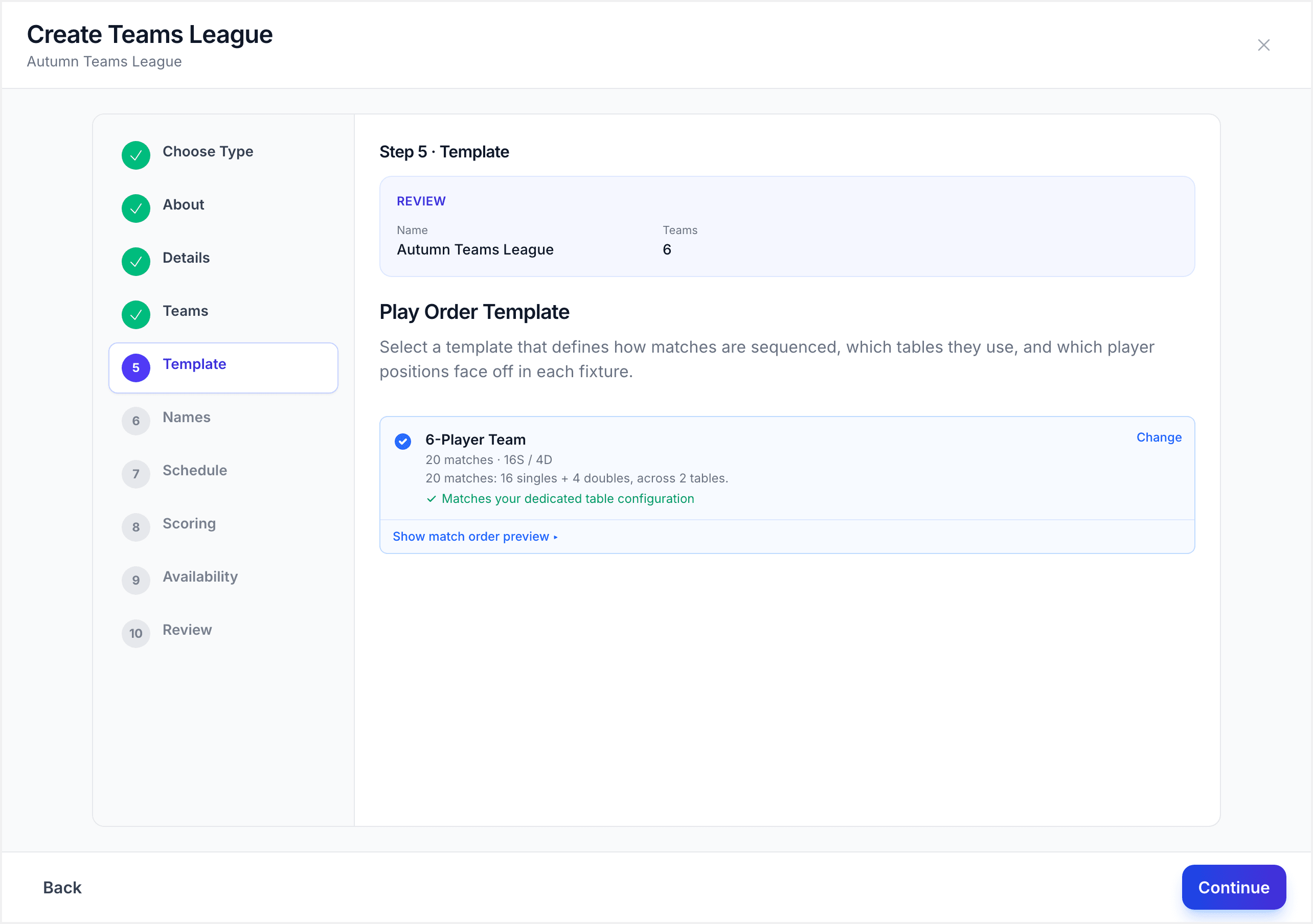
[!NOTE] The play order template sets the default match sequence. You can adjust it for individual sessions later if needed (for example, if a team is short a player).
Click "Next" to continue.
Step 5: Name Your Teams
The Team Names step lets you name each team in every division. Give teams fun, recognisable names that your players will enjoy. For example:
- "Spinners"
- "Top Edges"
- "Smash Bros"
- "Net Gains"
Each division's teams are listed separately so you can see the full lineup at a glance.
Click "Next" to continue.
Step 6: Schedule Rounds
The Session Schedule step generates round dates for the season. Configure:
- Start date: when the first round takes place
- Number of weeks: how long the season runs
ServeLeague generates a round-robin fixture list automatically so every team plays every other team in their division. The schedule shows each round date and the matchups.
[!WARNING] If you need to regenerate the schedule after matches have been played, unfinalized results will be discarded. Finalized sessions are preserved.
Click "Next" to continue.
Step 7: Configure Scoring Rules
The Scoring Rules step controls how team points are calculated from individual match results:
- Points for a win: how many team points are awarded for winning an individual match within a tie
- Bonus points: additional team points for winning the overall tie
- Threshold settings: rules for how team points convert to league standings
[!TIP] The default scoring rules work well for most team leagues. You can adjust them later from the league settings if needed.
Click "Next" to continue.
Step 8: Review and Create
The final step shows a summary of all your settings: league name, divisions, team count, play order, schedule, and scoring rules.
Read through the summary carefully. If anything needs changing, click "Back" to return to that step.
When everything looks right, click "Create" to build your team league.
Step 9: Enroll Players and Assign Teams
After creation, you are taken to the Team League Setup Page. This is where you assign players to teams.
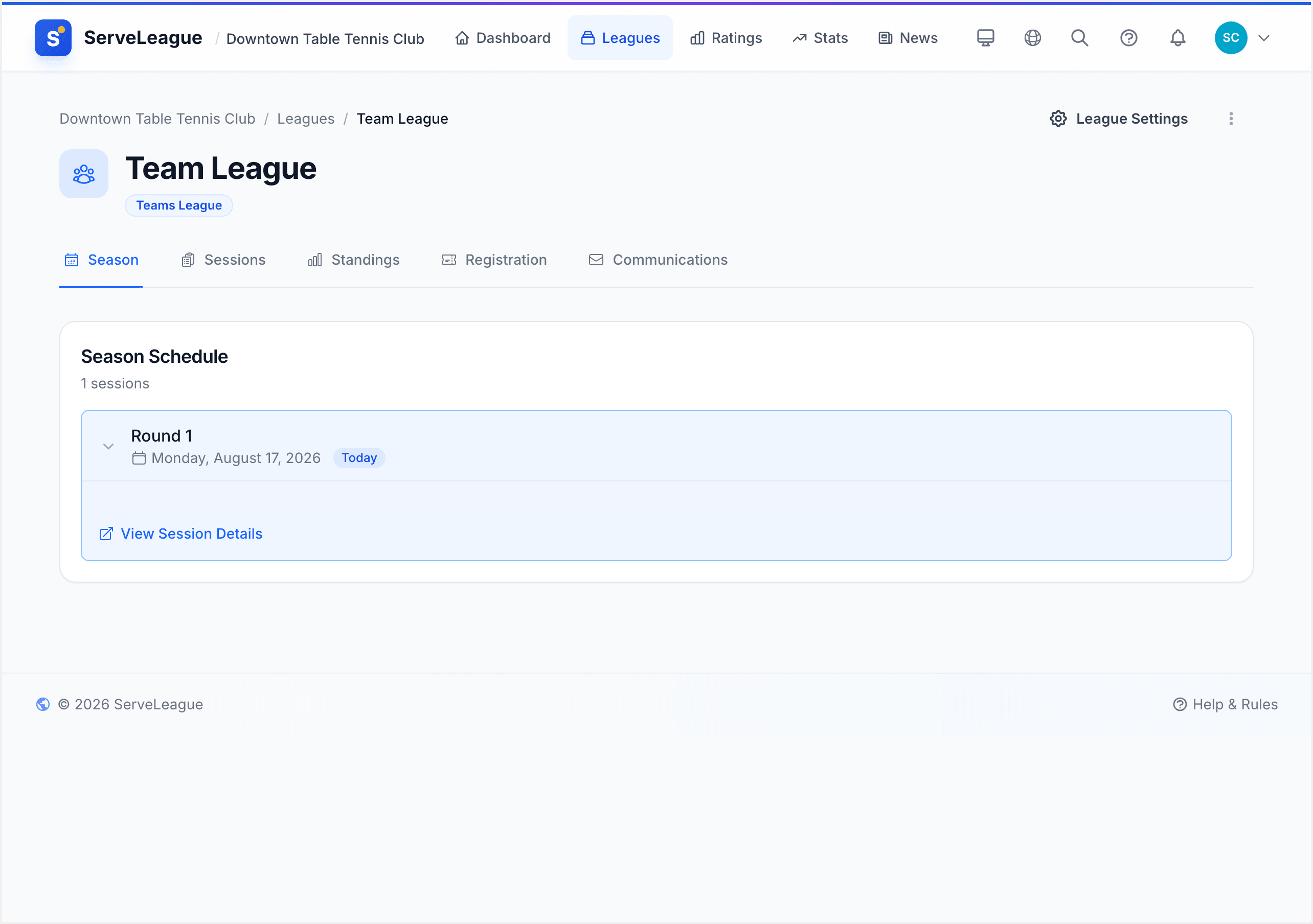
Here is how player assignment works:
- Select players from your club roster to enroll in the league
- Auto-distribute: click to automatically distribute players across teams. ServeLeague uses a round-robin algorithm based on player ratings to keep teams balanced.
- Manual override: drag players into specific team slots if you want to control the assignments. Locked placements are preserved during auto-distribution.
Once every team is full, click "Finalize Enrollment" to lock in rosters.
[!TIP] If players have already registered via a registration link, they will appear pre-selected on the setup page. You only need to assign them to teams.
Step 10: Run a Team Session
When a round is scheduled, open it from your league page and click "Open session". A team session shows:
- Tie cards for each team matchup (e.g., "Spinners vs Net Gains")
- Individual matches listed in play order within each tie
- Team score updating automatically as match results are entered
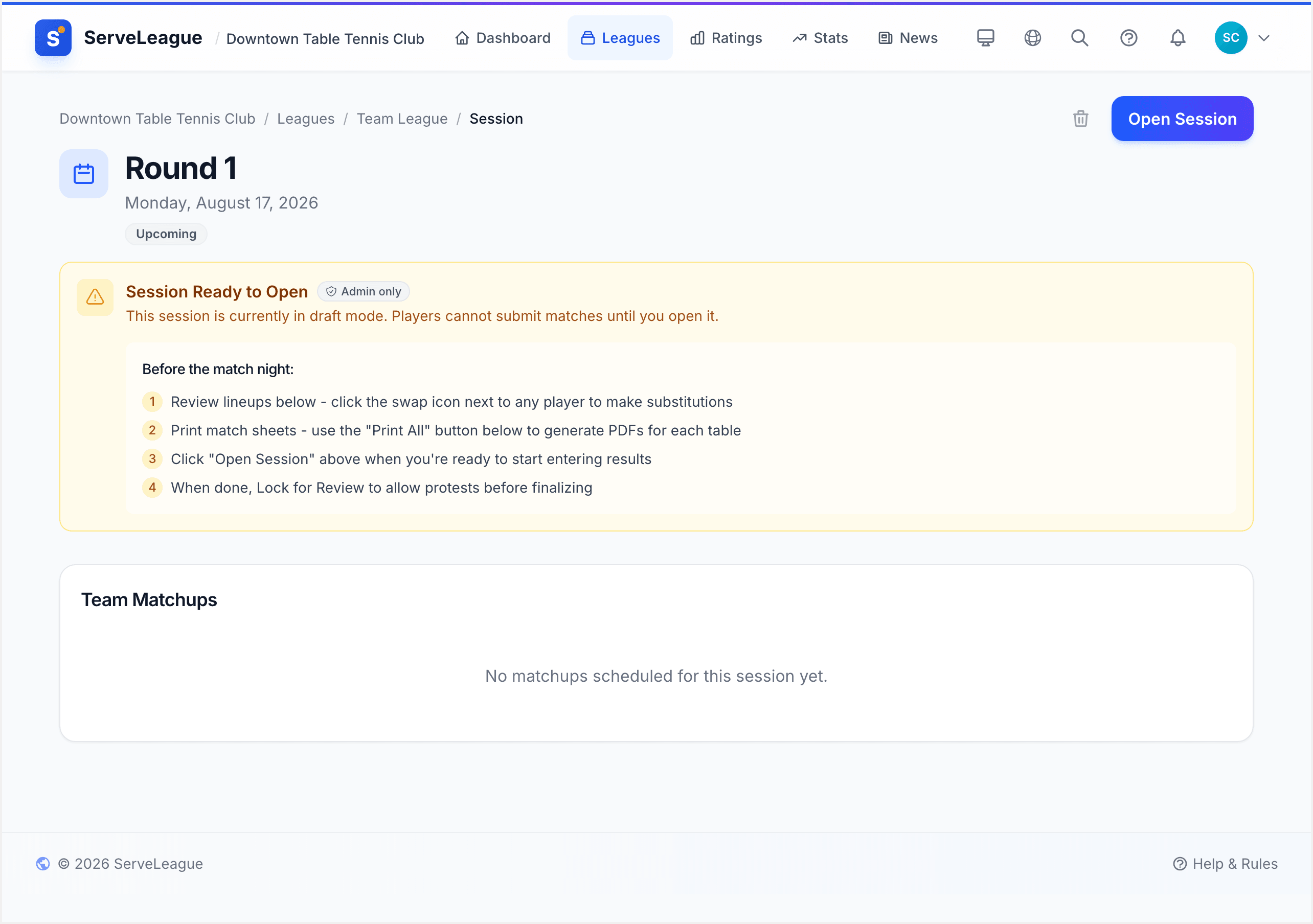
Enter scores as matches complete. The tie result updates automatically based on individual match results and your scoring rules.
When all matches are played, lock for review and finalize the session to update team standings and individual player ratings.
[!TIP] Display the league page on a large screen at your venue using Kiosk Mode so teams can track standings and upcoming matchups live.
Checking Team Standings
After sessions are finalized, the league page shows team standings for each division:
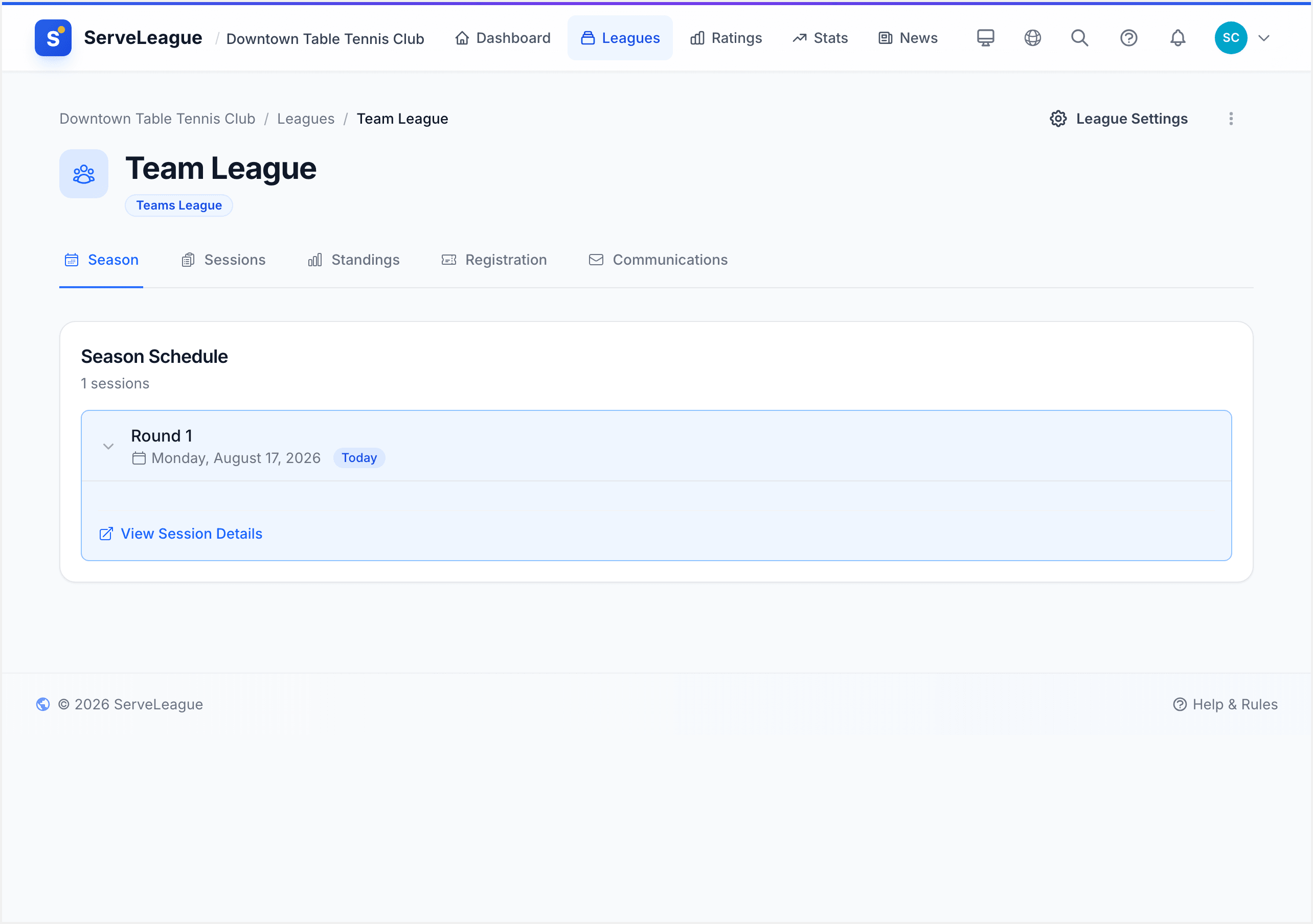
The standings show each team's points, wins, losses, and draws. Individual player ratings still update within team matches, so players can track their personal progress too.
Summary
You have created a team league with divisions, configured play order templates and scoring rules, enrolled players with rating-balanced team assignments, and run your first team session.
Here is what you accomplished:
- Created a team league with the 8-step wizard
- Set up divisions, team sizes, and table allocation
- Defined the match sequence within ties
- Generated a round-robin fixture schedule
- Assigned players to teams using auto-distribution
- Ran a team session with tie cards and automatic score tracking
Next steps:
- Running Your First Session: how individual sessions work (team sessions build on this)
- PDF Exports and Match Sheets: print match sheets and score cards for team nights
- Availability Tracking: let team members report availability before each round
- Season Management: organize team league seasons with automatic fixture generation
- Understanding Your Rating: individual ratings still update within team matches