Creating Your First League
A league is where the action happens. It is a recurring competition format that tracks your players' results and ratings over time. Whether you run weekly round-robin evenings or structured team competitions, a league is how you organize it all.
This tutorial walks you through creating your first league using ServeLeague's step-by-step creation wizard. By the end, your league will be live and ready for its first session.
Before You Begin
Make sure you have:
- A ServeLeague club set up (see Setting Up Your Club)
- At least a few players added to your club roster
Step 1: Open the League Creation Wizard
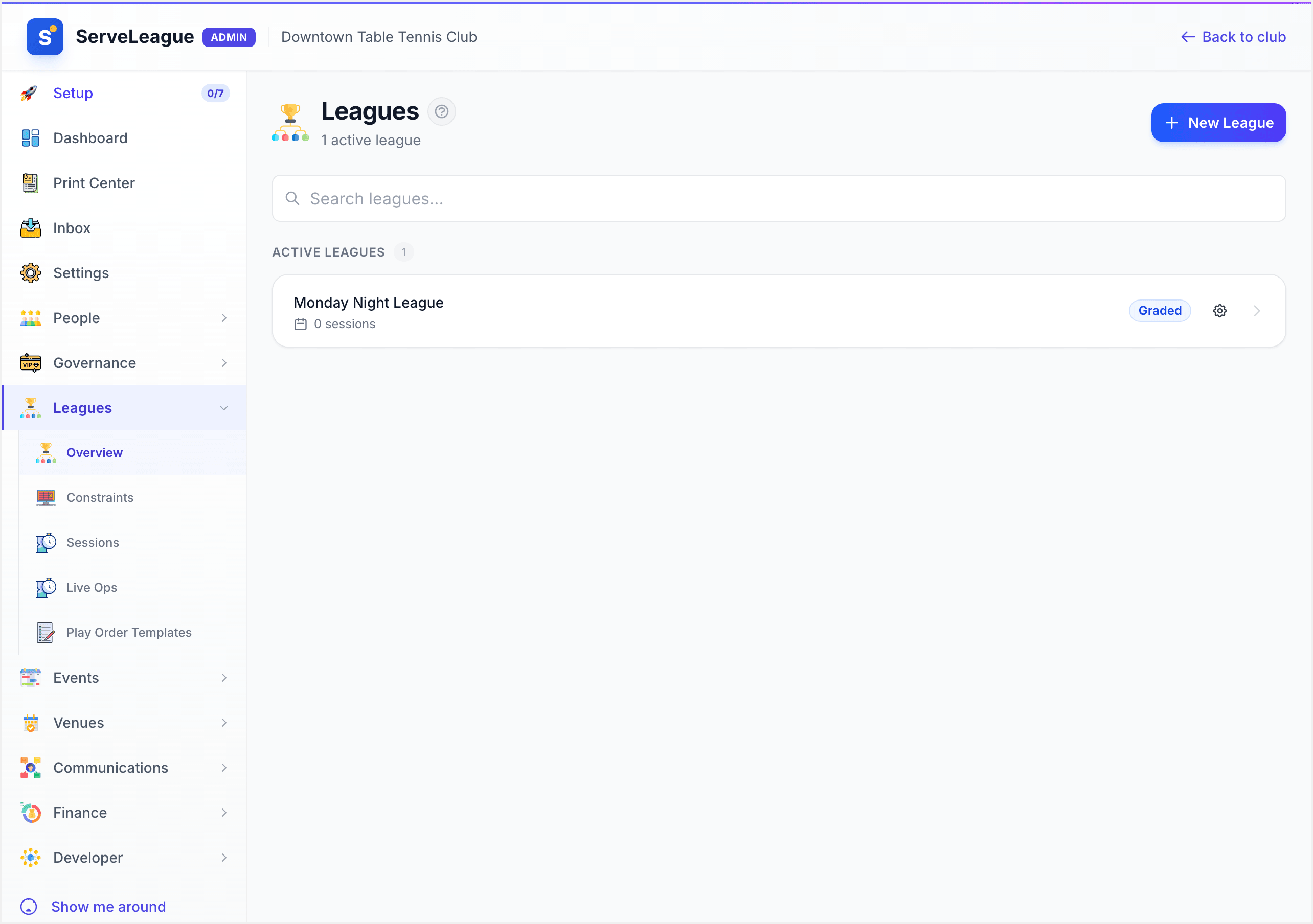
From your club admin dashboard, click "Leagues" in the sidebar, then click the "Create League" button. This opens the league creation wizard, which guides you through each decision one step at a time.
Step 2: Choose a League Type
The first wizard step shows a grid of league type cards. Each card includes a short description of when that format works best.
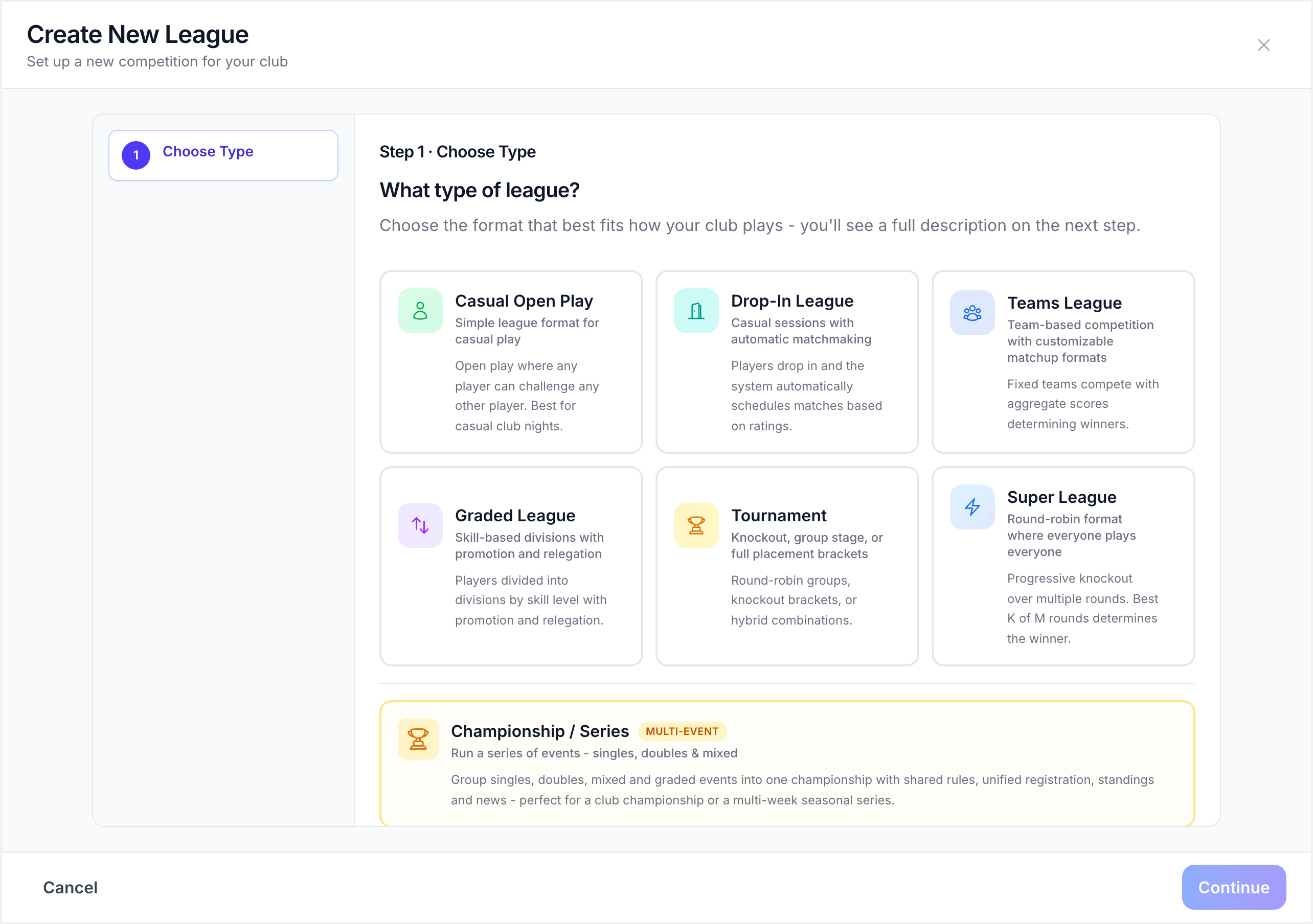
ServeLeague supports six league formats:
| Format | Best for |
|---|---|
| Casual Open Play (Standard) | Relaxed play nights with flexible round-robin groups |
| Graded League | Skill-based divisions with promotion and relegation |
| Teams League | Team-vs-team competition with fixtures and seasons |
| Drop-In | Casual nights where attendance varies week to week |
| Super League | Advanced format combining multiple divisions in a single session |
| Tournament | One-off or short-run bracket and round-robin events |
Click the card for the format you want. For your first league, we recommend Casual Open Play (Standard). It is the simplest format and a great starting point. You can always create additional leagues with different formats later.
[!TIP] Not sure which format to pick? Casual Open Play works for most clubs. Players play round-robin matches against others, and ratings update automatically after each session.
Click "Next" to continue.
Step 3: Read How the Format Works
After choosing a type, the wizard shows an explanation page with three sections:
- How it works: a plain-language description of how the format runs
- Best for: the types of clubs and situations where this format shines
- Features: the specific capabilities included (e.g., automatic match generation, rating tracking)
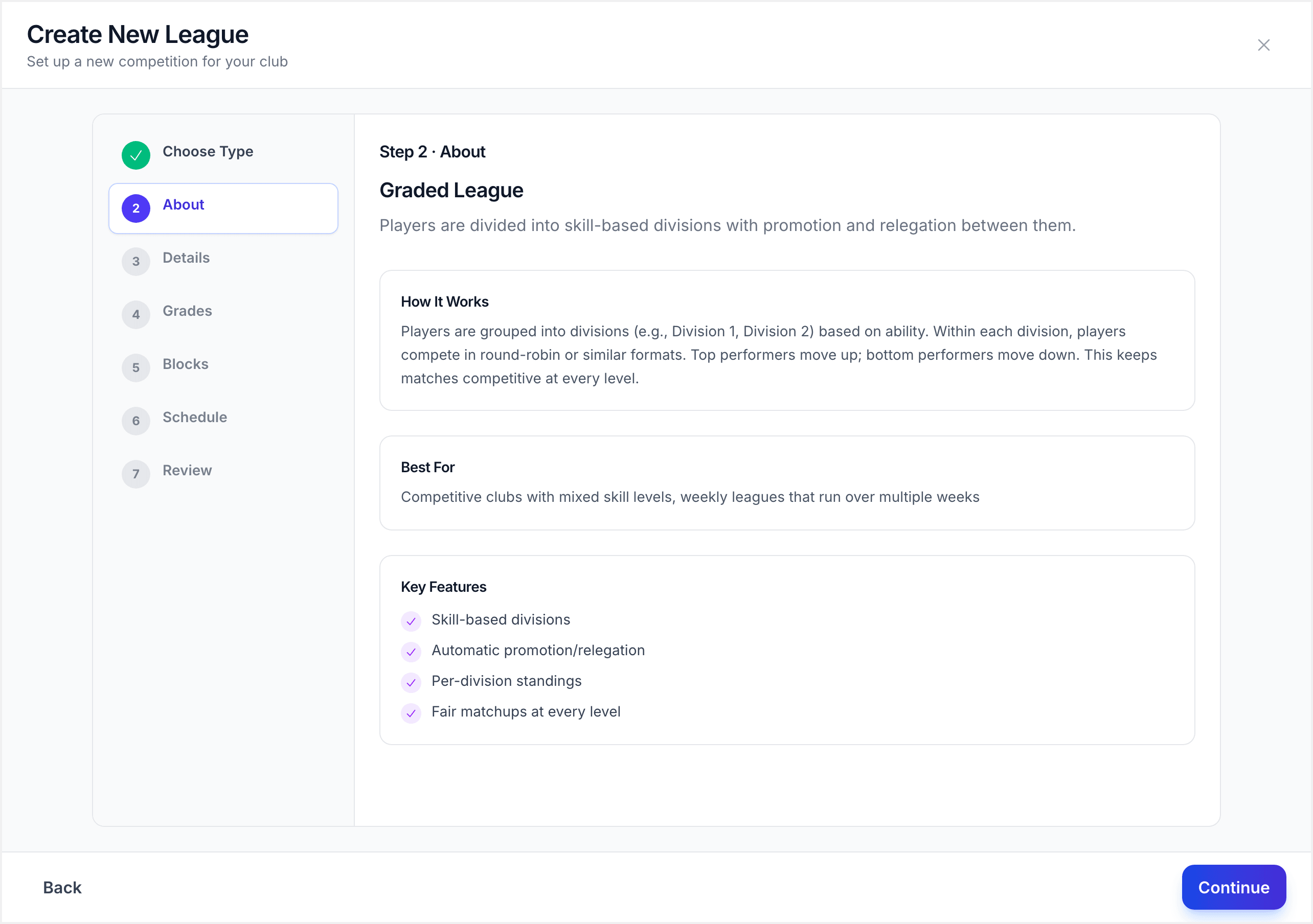
Read through this to make sure the format matches what you have in mind. If it does not, click "Back" to choose a different type.
Click "Next" to continue to the details form.
Step 4: Enter League Details
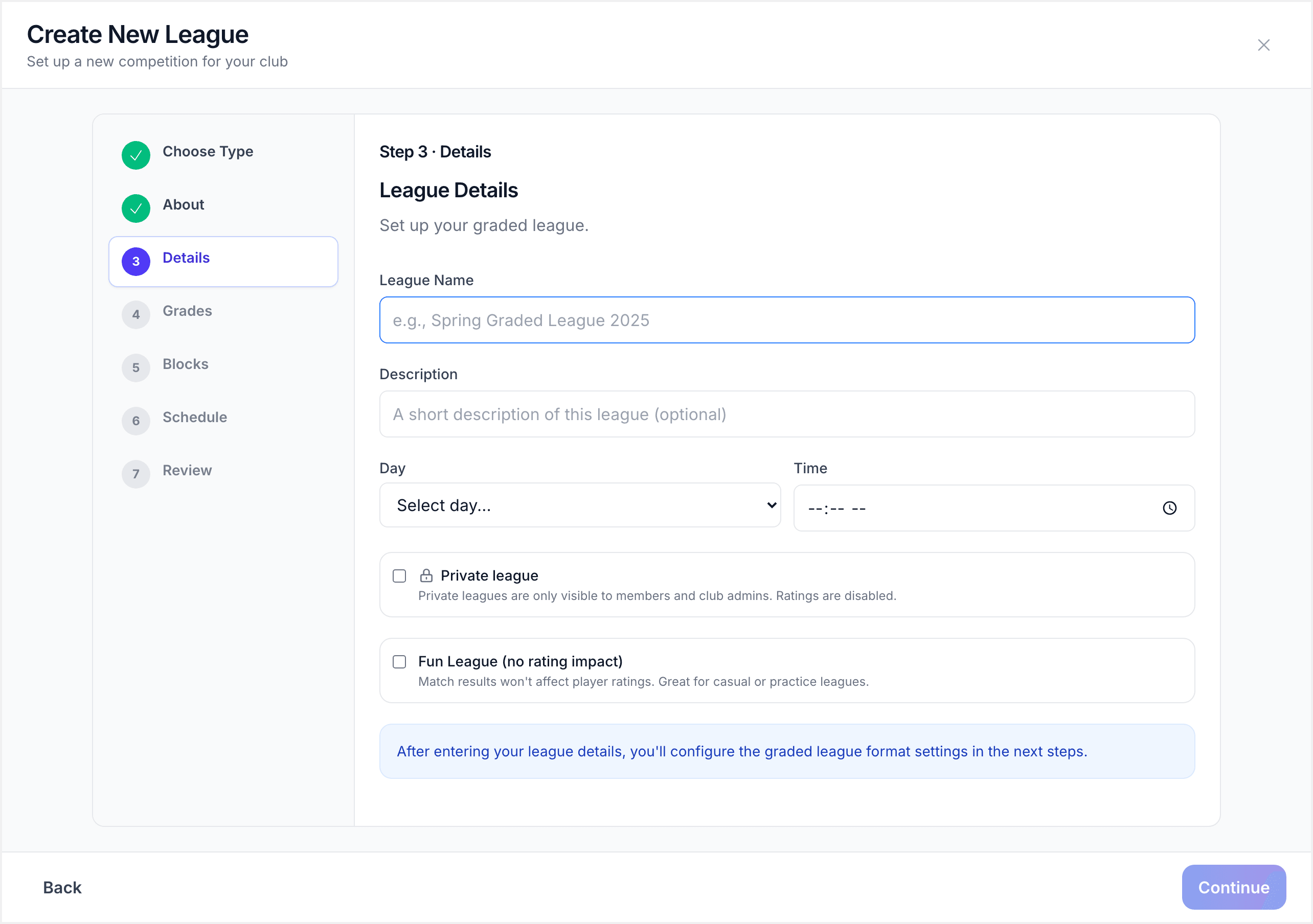
Now fill in the core information about your league:
- League Name: give your league a descriptive name that players will recognise. For example, "Monday Night League" or "Spring 2026 Season." This name appears on your club page and in player notifications. ServeLeague generates a web address for the league automatically based on this name.
- Description (optional): a short note about the league, such as "Casual round-robin play every Monday, all levels welcome." This appears on the league's public page and helps potential players understand what to expect.
- Affects Ratings: this switch controls whether match results in this league update player ratings. Leave it on for competitive leagues. Turn it off for fun leagues, practice sessions, or social evenings where you want to track results but not change anyone's rating.
- Schedule Day: the day of the week your league plays (for example, Monday, Wednesday). This helps players know when to expect sessions and appears on the league card.
- Schedule Time: the start time for sessions (for example, 7:00 PM). This is displayed alongside the schedule day.
- Private League switch: turn this on if you want the league visible only to members you grant access to. Leave it off for a public league that anyone in your club can see and join.
[!NOTE] If you set the league to private, an additional Access Control step will appear in the wizard where you choose who can see and join the league. There are three access modes:
- All Members: every club member can see and join the league. This is useful when you want the league to be private from the public but open to all your members.
- By Tags: only members with specific member tags (e.g., "Advanced", "Tuesday Group", "Senior") can access the league. This is great for skill-based or group-based access without manually selecting individuals.
- Selected Members: manually pick individual members who get access. Use this for invitation-only leagues where you want precise control over the roster.
See League Settings and Access Control for full details.
Click "Next" to continue.
Step 5: Configure Format Settings
After the core details, the wizard shows configuration steps specific to your chosen league type.
For a Casual Open Play (Standard) league, you will see scoring and match format options. These control how matches are played and scored in this league:
- Scoring rules: the point system and deuce rules for your sport (these default to your sport's standard rules. For example, table tennis defaults to games to 11 with deuce at 10-10).
- Match format: how many games per match (for example, best of 3 or best of 5).
Other league types have their own configuration steps that appear here in the wizard. For example:
- A Drop-In league asks for table count, games per player, and a session schedule.
- A Teams league walks through team setup, player counts, play order templates, fixture scheduling, division configuration, and scoring rules. It is the most detailed wizard.
- A Graded league asks for division count, promotion/relegation rules, and group sizes.
- A Tournament asks for bracket format, division setup, table allocation, and registration settings.
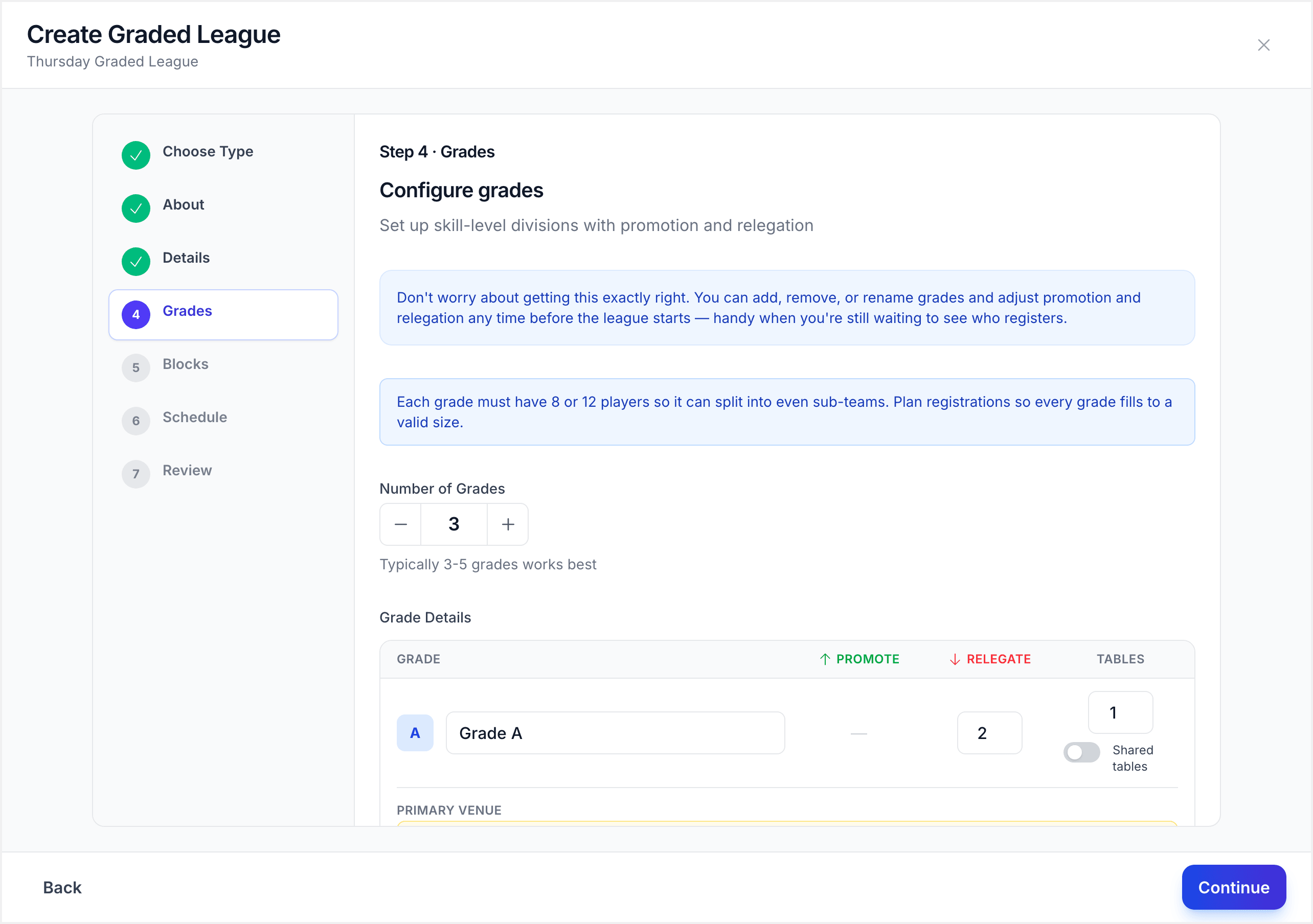
[!TIP] The default scoring rules match the official rules for your sport. Unless you have a specific reason to change them, the defaults will work well for most clubs. You can always change these settings later from the league's settings page.
Step 6: Review and Create
The final wizard step is a Review page that summarises everything you have chosen: league type, name, schedule, scoring rules, and any format-specific settings.
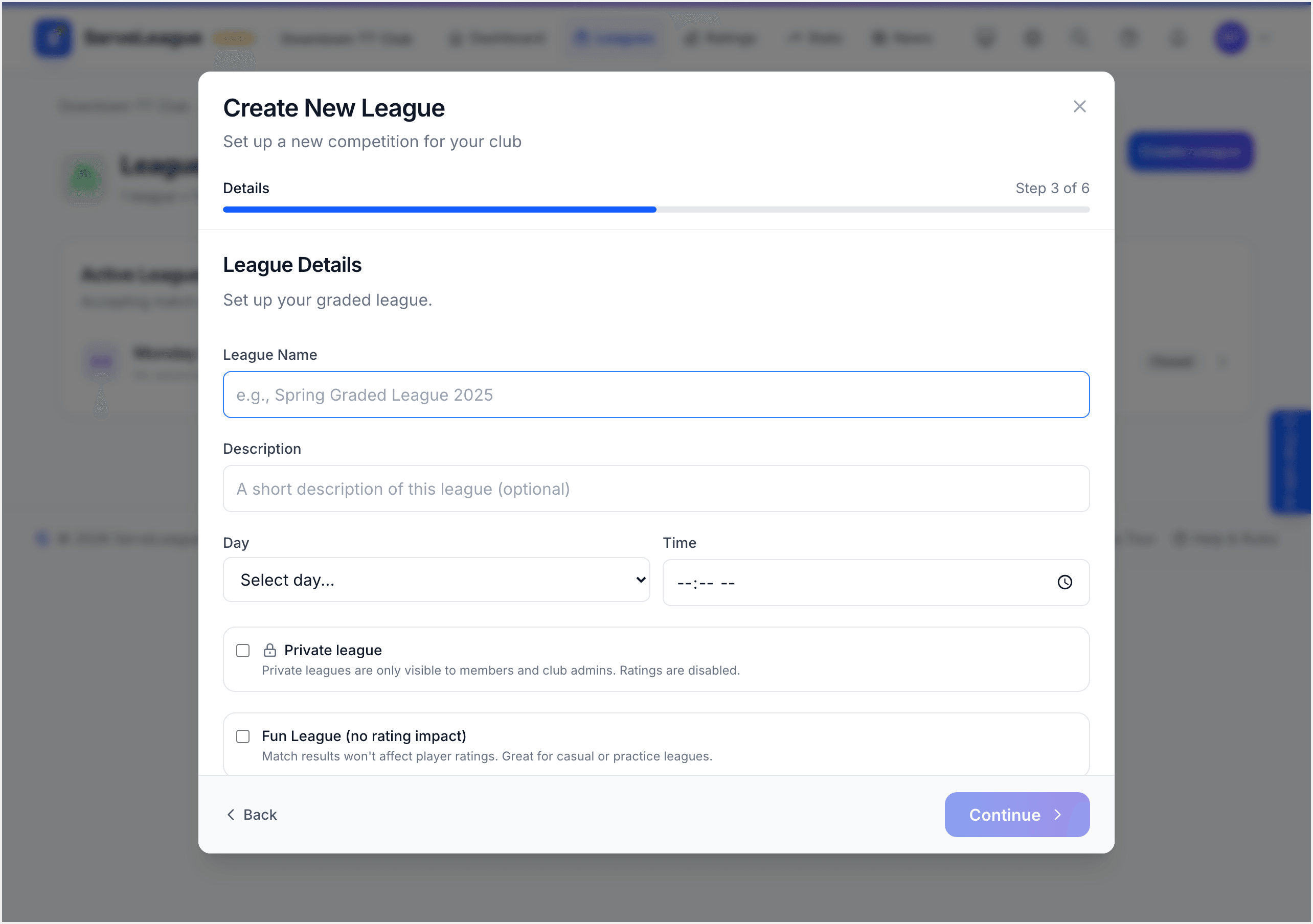
Read through the summary carefully. If anything needs changing, click "Back" to go to that step and update it.
When everything looks right, click "Create League".
Step 7: Your League Is Live
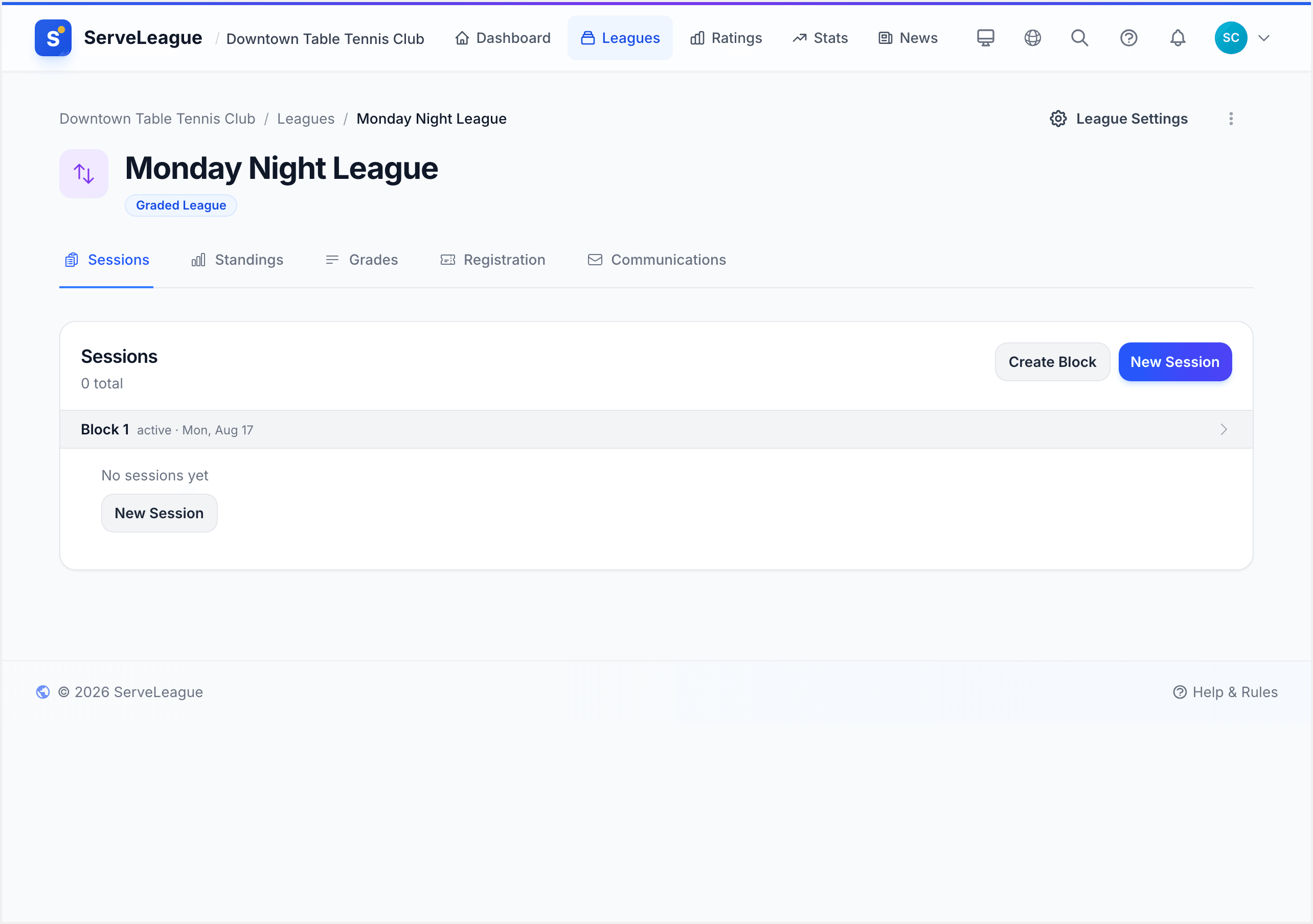
Your league is now created and visible on your club page. You will be taken to the league detail page, which shows:
- The league header with the name, format, and schedule
- A Sessions area where upcoming and past sessions appear
- Standings that will fill in as matches are played
- Options to manage the league roster
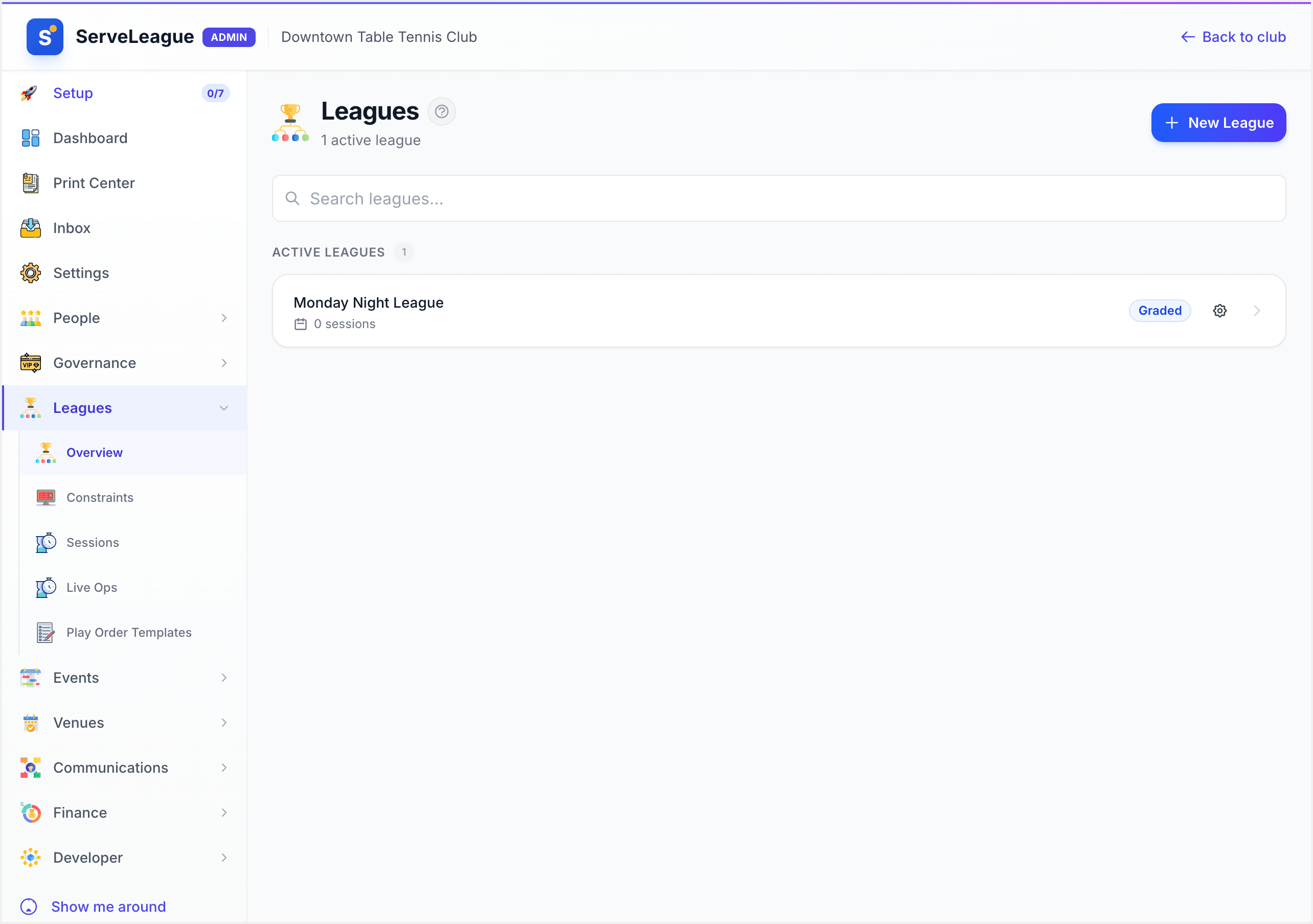
Your league also appears in the Leagues section of your admin sidebar and on your club's public page (if the league is not private).
[!NOTE] Players need to be in the league roster before they can be included in a session. If you have not added players to the league yet, you can do so from the league page. If you have a large roster, Importing Players in Bulk can save you time.
Step 8: Manage Your League Roster
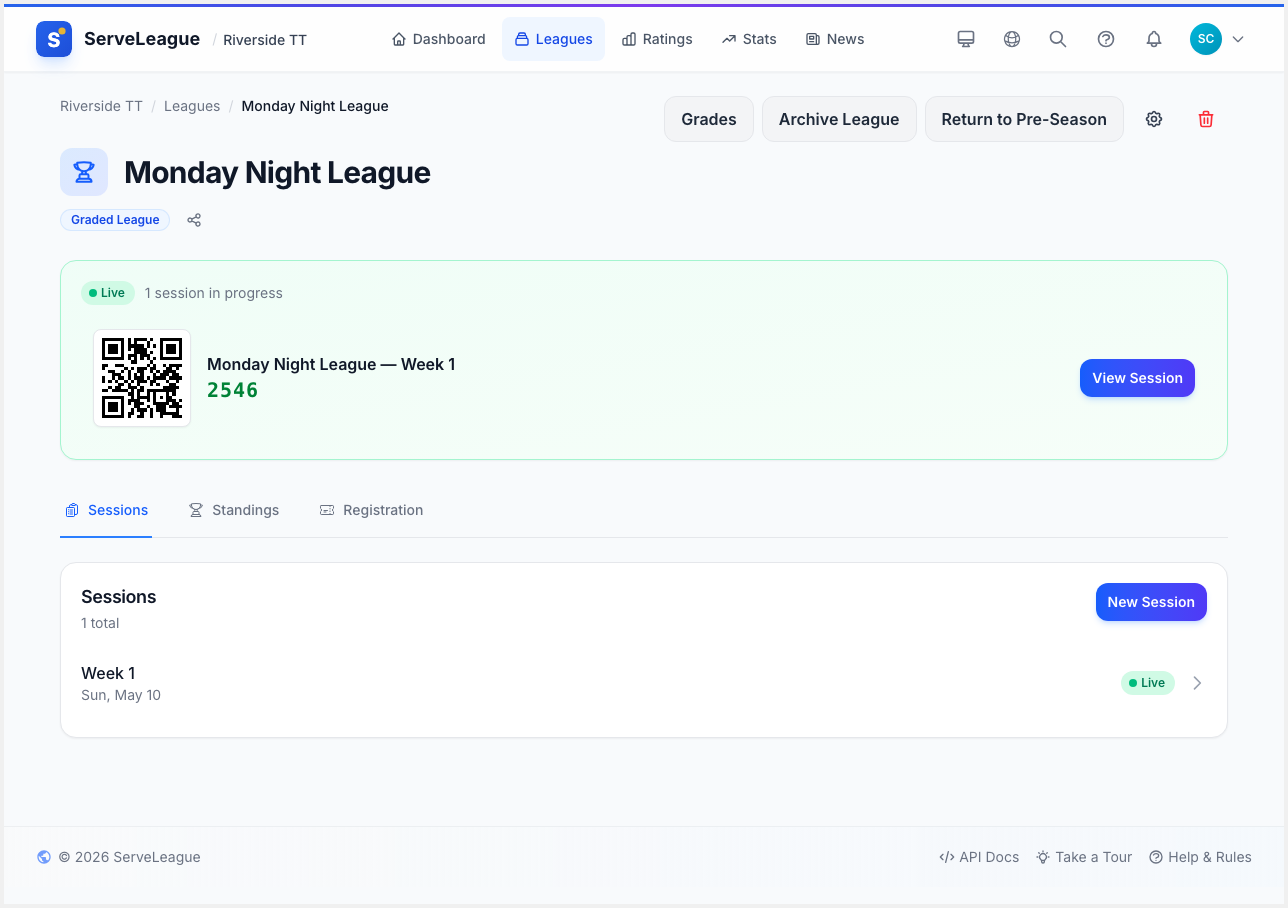
From the league detail page, you can manage which players are part of this league.
Only players who are in both your club roster and the league roster can participate in sessions. Adding a player to the club does not automatically add them to every league. You choose which players belong to which leagues.
Adding players to the league:
- Click the option to add players from the league page
- You will see a list of all players in your club roster
- Select the players you want to include in this league and confirm
Removing players from the league:
- On the league roster, click the remove button next to any player's name
- Removing a player from the league does not delete them from your club. They remain in your club roster and can be added back to the league at any time
[!TIP] If you are running multiple leagues, each league can have a different roster. For example, your Monday league might have 20 players while your Wednesday league has 12. Players can belong to as many leagues as they like.
Step 9: Configure League Settings After Creation
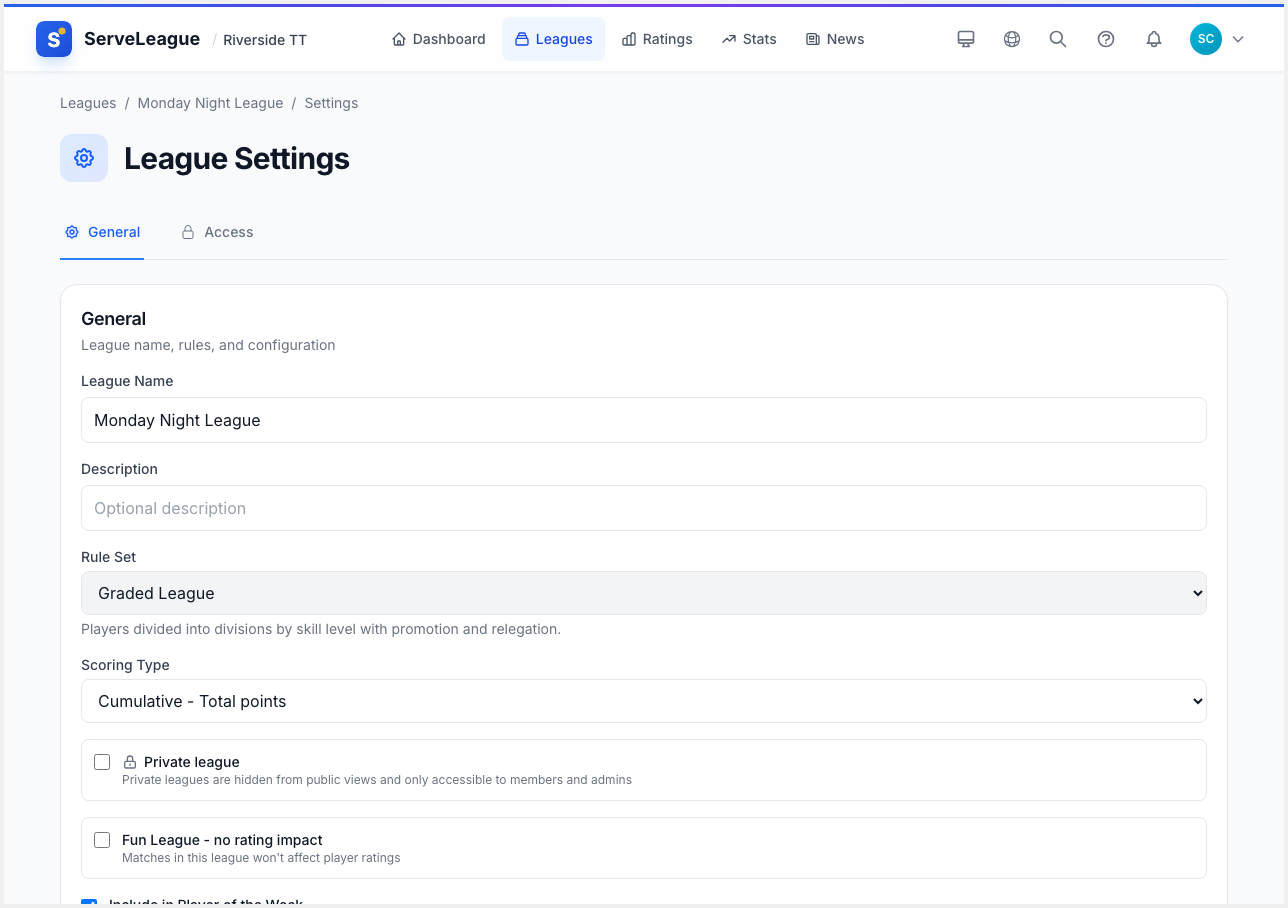
Once your league is created, you can adjust its settings at any time. From the league page, click "Settings" to open the league settings panel. The settings are organized into two tabs: General and Access.
General Tab
The General tab lets you modify the core configuration of your league:
- League Name: update the display name (the web address does not change)
- Description: edit the league description shown on the public page
- Schedule Day and Time: change when the league plays
- Affects Ratings: controls whether match results update player ratings. When turned off, results are still tracked and recorded but ratings remain unchanged. This is sometimes called a "Fun League". See below for more details.
- Include in Player of the Week: controls whether this league's session results count toward the weekly Player of the Week award. Turn this off for casual or practice leagues that should not influence the weekly award.
- Visibility: switch between public (visible to anyone) and private (visible only to authorized members)
- Requires Active Membership: when enabled, only players with a current active membership in your club can participate in this league's sessions. Players without an active membership will be blocked from being checked in.
- Scoring Configuration: adjust the match format, best-of settings, and sport-specific scoring rules. For example, change from best-of-3 to best-of-5, or adjust deuce rules.
- Format-specific settings: depending on your league type, additional settings appear here. Graded leagues show division and promotion/relegation configuration. Team leagues show team structure and fixture settings.
Access Tab
The Access tab is available when the league is set to private. It controls who can see and join the league:
- All Members: every member of your club can see and join the league
- By Tags: only members with specific member tags can access the league. Select one or more tags, and any member with at least one of those tags will have access.
- Selected Members: manually pick individual members who can see and join the league
[!NOTE] Changes to access control take effect immediately. If you remove a tag or a member from the access list, they will lose visibility of the league right away.
Step 10: Understanding the "Affects Ratings" Switch
The Affects Ratings switch (sometimes referred to as the "Fun League" setting) deserves special attention because it fundamentally changes how your league operates.
When Affects Ratings is ON (default):
- Every finalized match result updates the players' ratings according to your club's rating algorithm
- Match outcomes contribute to league standings and overall club statistics
- Results count toward Player of the Week and other awards (unless separately excluded)
When Affects Ratings is OFF:
- Match results are recorded and visible in match history
- Standings and statistics are still tracked within the league
- Player ratings are not changed: no rating points are gained or lost
- The league is marked with a visual indicator so players know it is non-competitive
Common use cases for turning ratings off:
- Social evenings: relaxed play nights where the focus is on fun rather than competition
- Practice sessions: structured practice where players experiment with new techniques
- Exhibition matches: showcase events or demonstrations
- Beginner leagues: leagues for new players who are still learning and should not stress about their rating while they develop their skills
[!TIP] You can change the Affects Ratings switch at any time from the league settings. Changing it only affects future sessions. Matches already finalized keep their original rating impact (or lack thereof).
Step 11: Open vs Draft Leagues
When you create a league, it starts in an open state. This means:
- The league is fully created and ready for sessions
- It appears in your admin sidebar under Leagues
- If the league is set to public, it is visible on your club's public page where anyone can see it
- If the league is set to private, only authorized members (based on your access control settings) can see it
- You can immediately start adding players to the roster and creating sessions
There is no separate "draft" or "unpublished" state to worry about. Once you click "Create League" in the wizard, your league is live and operational.
[!TIP] If you want to set up a league in advance before players can see it, create it as a private league first. Configure everything at your own pace, then switch it to public when you are ready to announce it.
What to Do Next
Your league is set up and ready for action. The next step is to run your first session: create a session, check players in, enter match scores, and finalize results to see ratings update.
[!TIP] When you run your first session, ServeLeague generates a 4-digit PIN that players use to join from their phones at serveleague.com/join. Display the PIN on a whiteboard, project it on a screen, or share it in your club's group chat. Players can enter their own scores, no app download or account required. See Player Self-Service for the full player experience.
Here is what you accomplished:
- Chose a league format that fits your club
- Set a name, schedule, and scoring rules
- Created the league and confirmed it is live
- Learned how to manage the league roster
- Configured post-creation settings including ratings, visibility, and access control
- Understood when to use the Affects Ratings switch for different league styles
Next steps:
- Running Your First Session: create a session, enter scores, and finalize results
- League Settings and Access Control: fine-tune visibility, registration, and permissions
- Setting Up a Graded League: create skill-based divisions with promotion and relegation
- Creating a Team League: set up team-vs-team competition with fixtures
- Season Management: plan multi-season schedules