
Designing Your Member Register
Most clubs run into the same wall when they set up their member register. They start creating a membership type for every kind of person in the club: a type for seniors, a type for juniors, a type for parents, a type for board members, a type for life members. Within a season they have fifteen types, half their members are in the wrong one, and nobody can produce a clean list of who can vote at the AGM.
The fix is to separate two ideas that look similar but are not. This guide walks you through a framework you can apply to any club, then shows how ServeLeague's membership types and tag groups support it.
The two questions every register answers
Your register answers two different questions at the same time:
- Who takes part? Every player, junior, parent and social member. This is the big list, and it is what national bodies usually want for reporting.
- Who are your formal members and office-holders? Voting members, life members, affiliated clubs, and the board and committee. This is the small list, and it drives governance: who votes, who can be emailed as "the board", who appears on official rolls.
A single person is often on both lists. A life member who coaches juniors and whose own child plays is a participant, an office-holder, and a voting member all at once. No single field can capture that, which is exactly why fifteen membership types never works.
The rule: type for the spine, tags for the labels
ServeLeague gives you two tools. They are not two ways of doing the same job.
A membership type is the spine of a member's record. It is singular: a member has exactly one. It is what someone joins as, it is where billing and renewal settings live, it is where you attach custom fields like ethnicity, and it is the unit that exports to systems like HelloClub. Because it is singular, it is the wrong place to record anything a person can be several of at once.
A tag is a label, and a member can hold many. Tags are now organised into tag groups, where each group is one axis of classification with its own rules.
Here is the rule to remember:
Use a membership type only when a distinction changes how someone pays, how they renew, which fields they fill in, or how they export. Use a tag for everything else, and put related tags in a group.
By that rule, "Junior" is a type only if juniors pay a different fee. Otherwise "Junior" is a tag. "Board member" is never a type, because board members do not pay or renew differently. They are a tag.
A worked example: eleven "types" that are really two
Here is a real list a club admin sent us when asking for more membership types:
Player (or Standard), Coach, Player/Coach, Club Captain, Umpire, Referee, Tournament Manager, Parent, Non-playing supporter, Team Manager, Other
It is a completely reasonable list of the people in a club. It is also a list of roles, not a list of ways to join, and two entries give that away.
The first is Player/Coach. A combined entry appears the moment two things that can be true at once are forced into a field that only holds one value. Once you add Player/Coach, you will eventually be asked for Coach/Umpire, Player/Umpire, and Parent/Team Manager. Every new role roughly doubles the list, and a member who takes on a second role has to be moved to a different type rather than simply gaining a label.
The second is Other. A catch-all is what a taxonomy produces when the axis is wrong. Nobody joins a club as "Other".
Apply the four questions and the list separates cleanly:
| From the list | Becomes | Why |
|---|---|---|
| Player (or Standard) | Membership type | Pays the playing subscription and renews on it |
| Non-playing supporter | Membership type | Pays a different (often lower or zero) fee and fills in fewer fields |
| Coach, Club Captain, Team Manager, Tournament Manager | Tags in a Roles group (multiple, admin-only) | Conferred by a decision, and several can be true at once |
| Umpire, Referee | Tags in an Officiating group (multiple, admin-only) | Qualifications rather than a way of joining, and a person can hold both |
| Parent | Tag in the Participation group (self-service) | Something a member knows about themselves, so let them declare it at the welcome link |
| Player/Coach | The Player type plus the Coach tag | No new type is needed, which is the whole point |
| Other | Nothing | If someone genuinely fits nowhere, the missing tag is the fix, not a catch-all |
Eleven types become two types and nine tags. The two types are the only distinctions that change money and paperwork. The nine tags carry the meaning, and because a member can hold several, the register can now express combinations the original list could not: a coach who is also an umpire and the parent of a junior is one person, one type, three tags.
This also fixes the reporting problem quietly. "How many coaches do we have?" is one tag filter, and it stays correct when a coach starts playing again. Under eleven types you would have to remember to count both Coach and Player/Coach, and the answer would drift the first time somebody forgot.
Step 1: Choose your membership types (keep the list tiny)
Start with a single type, often just called Member. Attach your demographic
custom fields to it (for example ethnicity
and consent), since custom fields live on the type.
Add a second type only when a group genuinely pays or renews differently. A junior fee tier is a good reason. A different role is not. If your club does not charge fees yet, one type is usually all you need to unlock the register, the demographic fields, and your HelloClub export.
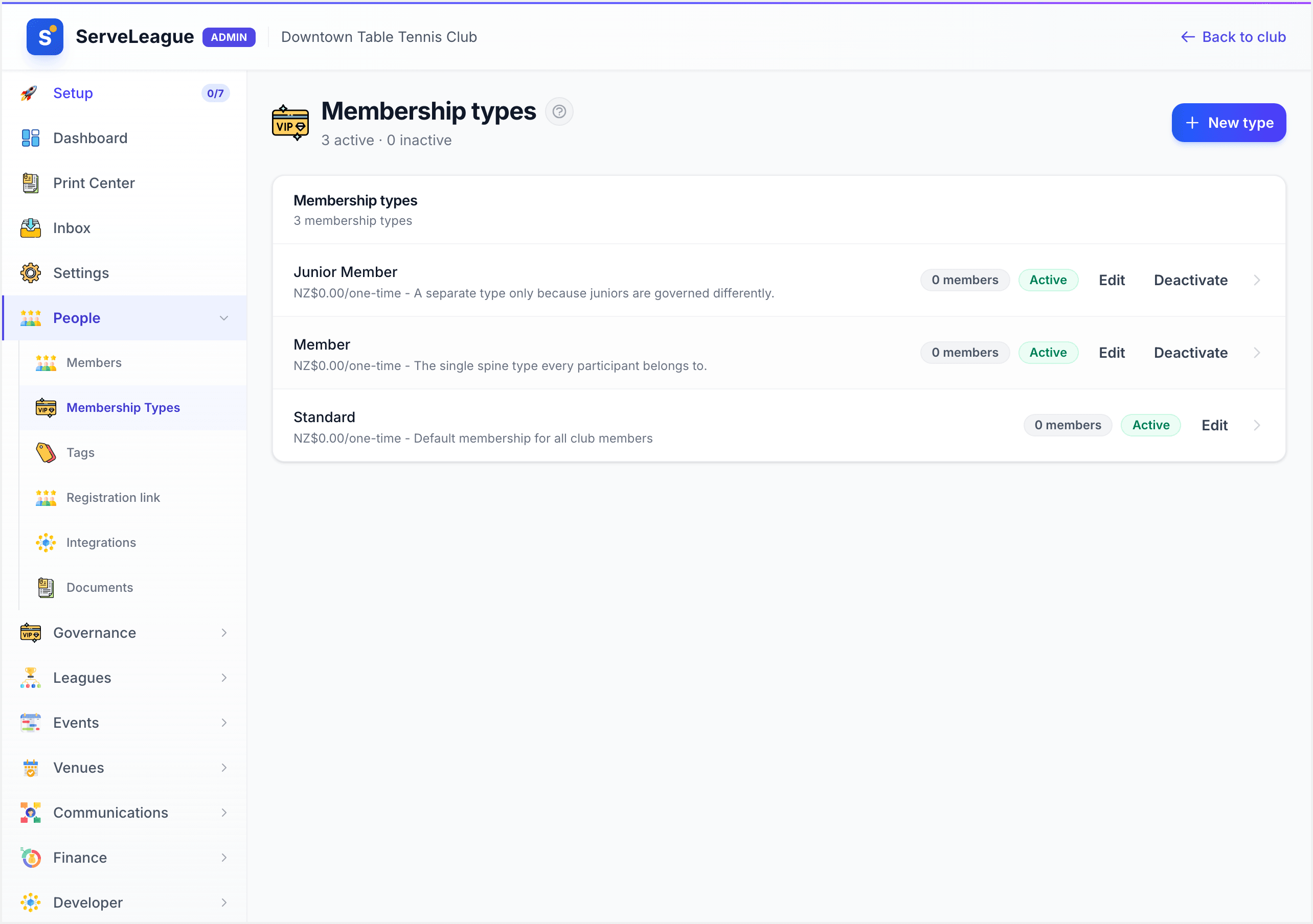
That whole list is two rows, and that is the point. If yours has grown to eight, the extra six are almost certainly tags wearing the wrong hat.
Step 2: Design your tag groups
Open People → Tags. Create a tag group for each axis your club cares about, and choose its rules. Each group has three decisions:
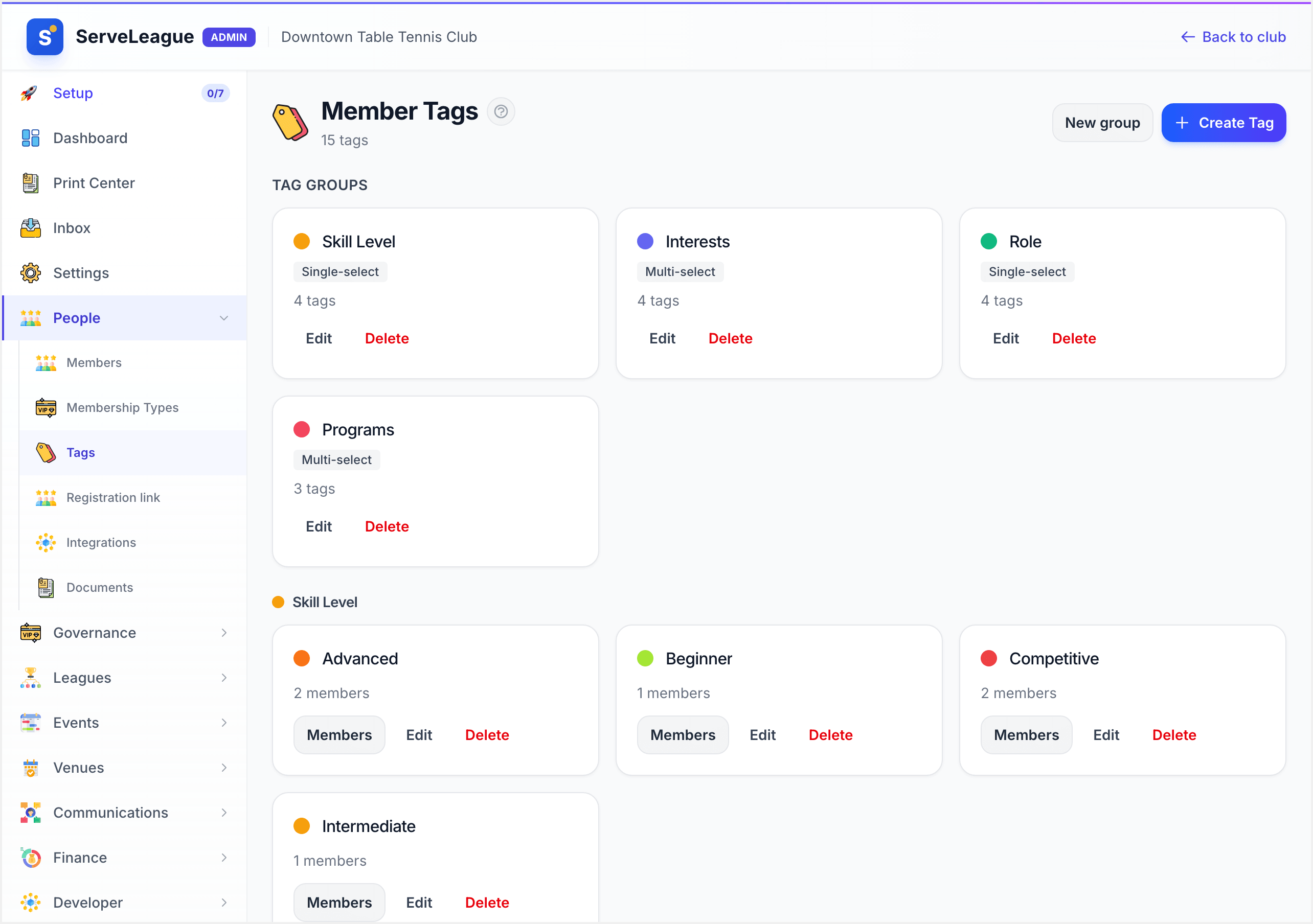
Each group carries its own selection mode — note the Single-select and
Multi-select badges, which are the second decision below.
- Selection mode. Choose single when a member should hold at most one tag from the group (the system enforces this, so assigning a new one replaces the old). Choose multiple when they can hold several.
- Self-service. Turn this on when members may pick from the group themselves at the welcome link. Leave it off for anything a member must never set for themselves.
- Required. For a single-select group, mark it required when every member should have exactly one tag from it.
A typical club ends up with three groups:
| Group | Selection | Self-service | Example tags |
|---|---|---|---|
| Membership class | Single, required | Off | Life Member, Voting Member, Ordinary Member, Affiliated Club |
| Roles | Multiple | Off | Board, Committee, Coach, Team Captain, Volunteer |
| Participation | Multiple | On | Player, Parent/Guardian, Social |
The single-select rule on Membership class means your voting roll is never ambiguous. The admin-only setting on Roles means nobody can put themselves on the board. The self-service setting on Participation means a parent can declare themselves at the welcome link, so you are not abusing a membership type to record it and you are not chasing the information by hand.
Clubs that run their own competitions usually add a fourth group, Officiating (multiple, admin-only), for Umpire and Referee. Keeping it apart from Roles is worth it because officiating tags are qualifications: they answer a different question ("who can we roster on Saturday?") and they are often granted and withdrawn by a different person than club roles are.
Step 3: Decide what members may set themselves
This is the line that keeps your register trustworthy. Anything conferred by a decision (a class, a board seat) stays admin-only, and you set it from your minutes. Anything a member simply knows about themselves (that they are a parent, that they play socially) can be a self-service group they maintain at the welcome link.
The result is a register where the sensitive parts are controlled and the routine parts maintain themselves.
Step 4: Put the groups to work
Once your groups exist, every audience becomes a saved filter rather than a hand-kept list:
- Your AGM voting roll is the members with the right Membership class tags.
- Your board email is the Board tag.
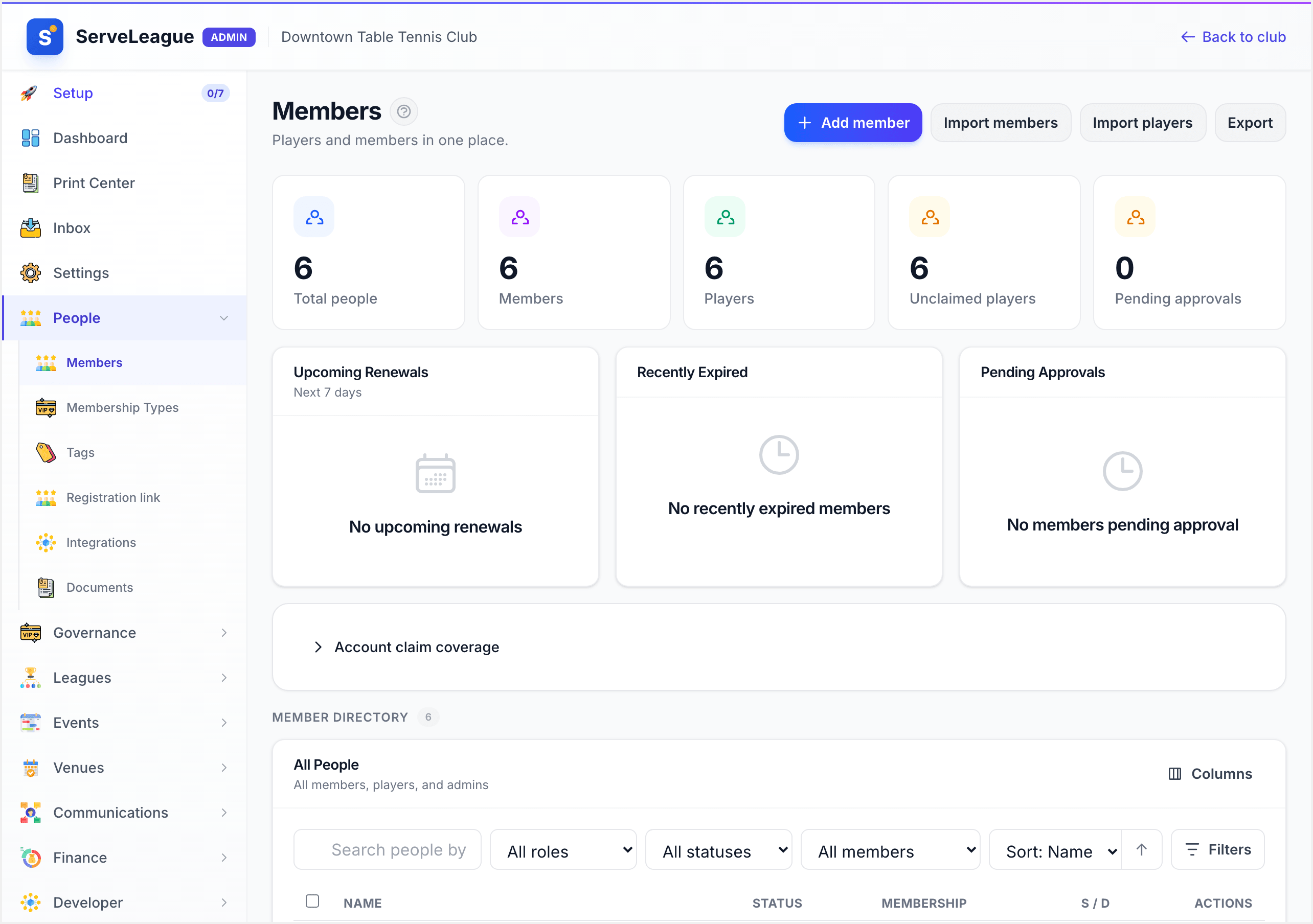
- Your parent newsletter is the Parent/Guardian tag.
Both the member directory and email communications can filter by type and by tag, so these lists stay current on their own.
A framework you can reuse
When you are tempted to create a new membership type, ask the four questions: does it change how they pay, renew, which fields, or how they export? If yes, it is a type. If no, it is a tag, and it belongs in one of your groups. Keep the types few, let the groups carry the meaning, and your register will stay clean as your club grows.
One distinction this framework deliberately does not handle is who is a Member in the constitutional sense: who may vote, who may hold office, and who counts toward a quorum. That is a legal record with its own rules, not a type or a tag, and ServeLeague keeps it separately. See Running Your Governance Register.
What's Next
- Running Your Governance Register: the legal membership register, voting eligibility, and quorum
- Member Tags and Segmentation: create tags and tag groups, and assign them in bulk
- Managing Memberships and Payments: put pricing, billing, and privileges on your membership types