Email Communications
ServeLeague's communications hub lets you send professional email campaigns to your members without leaving the platform. You can target specific audiences using tags, membership types, or league participation, personalize messages with template variables, and track delivery and open rates, all from a single dashboard. This tutorial walks through every step, from composing your first email to reviewing delivery health after it lands.
Plan requirement: Email communications is available on the Club plan and above. If you don't see the Communications menu item, check your plan in Settings → Billing.
The Communications Dashboard
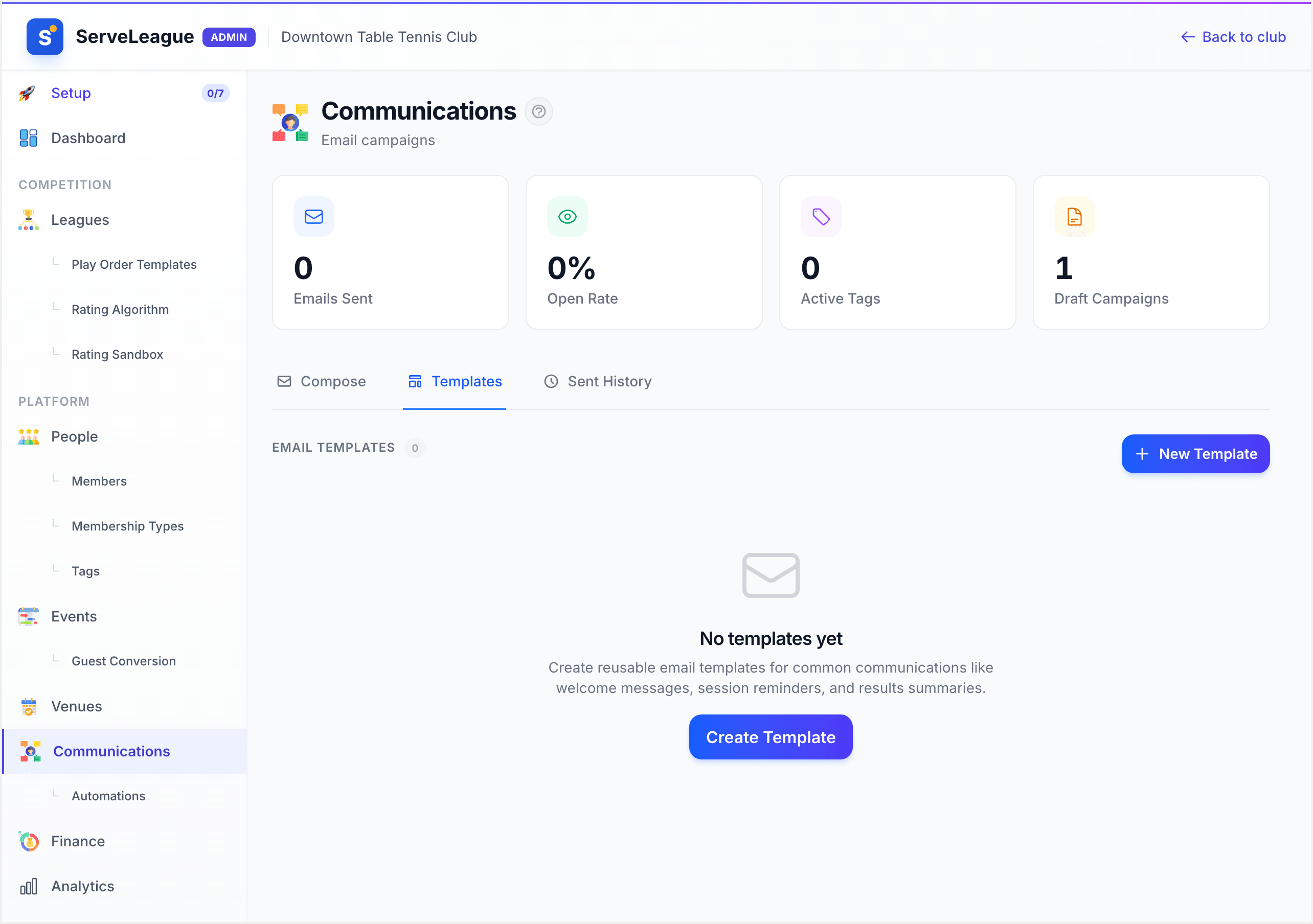
Go to Communications in your club's sidebar to open the admin hub. The dashboard is organized into three tabs (Compose, Templates, and Sent History) with summary stat cards across the top.
The stat cards give you a quick health check:
- Emails Sent: Total emails dispatched across all campaigns.
- Open Rate: Percentage of delivered emails that were opened.
- Active Tags: Number of member tags you've created for segmentation.
- Draft Campaigns: Unsent drafts waiting for your attention.
Composing an Email Campaign
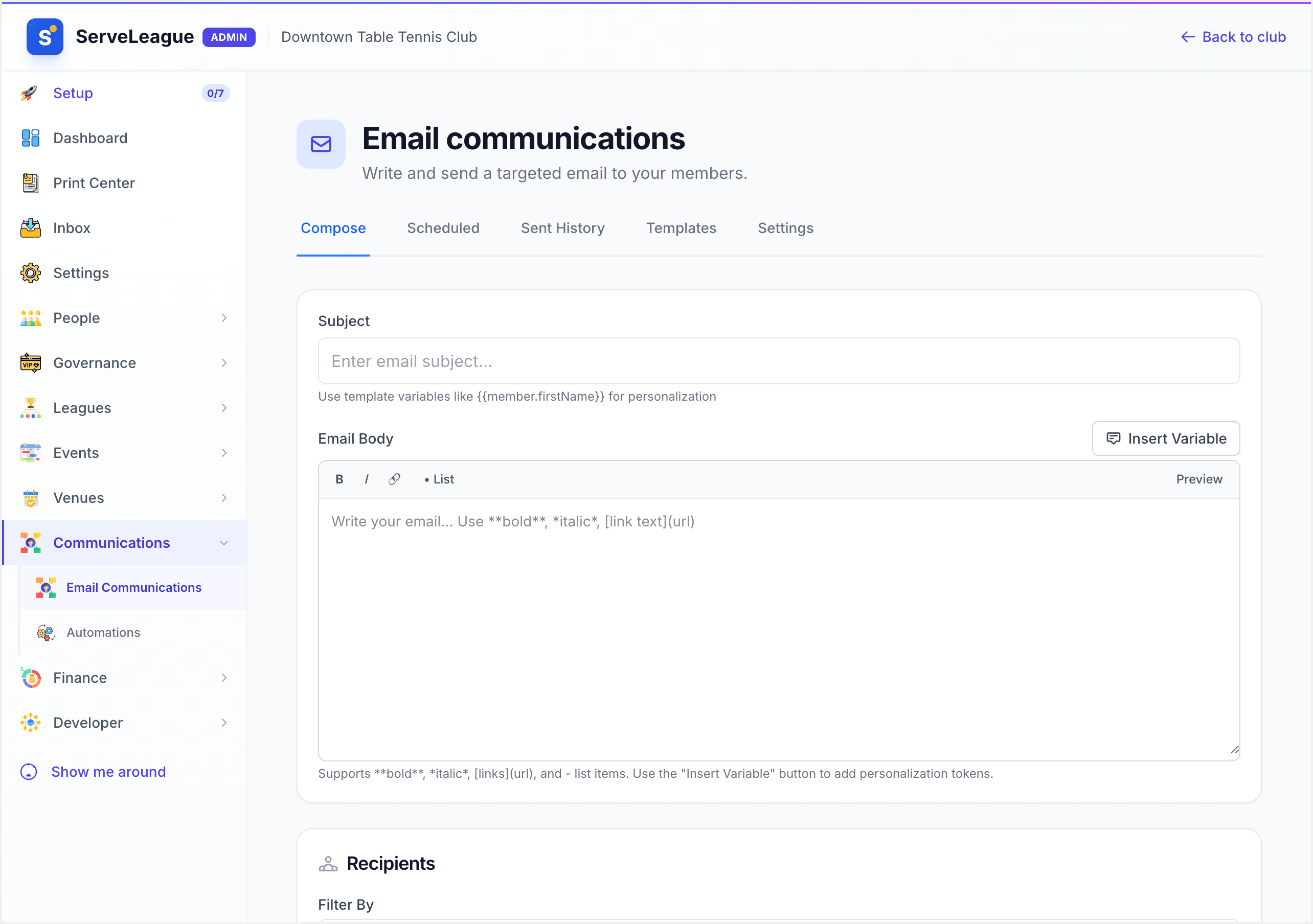
Switch to the Compose tab (or go directly to Communications → Compose) to start a new campaign.
Subject and Body
Every campaign needs two things:
- Subject: The subject line your members will see in their inbox. Keep it clear and concise.
- Body: A rich-text editor for the email content. You can format text, add links, and insert images. ServeLeague wraps your content in your club's branded email template automatically, using the colors and logo from your Branding settings.
Personalizing with Template Variables
Click the Insert Variable button above the editor to open the variable picker. Variables are grouped into categories:
| Category | Variable | Example Output |
|---|---|---|
| Member | member.firstName |
Sarah |
| Member | member.lastName |
Chen |
| Member | member.name |
Sarah Chen |
| Member | member.email |
sarah@example.com |
| Club | club.name |
Downtown TT Club |
| Club | club.slug |
downtown-tt |
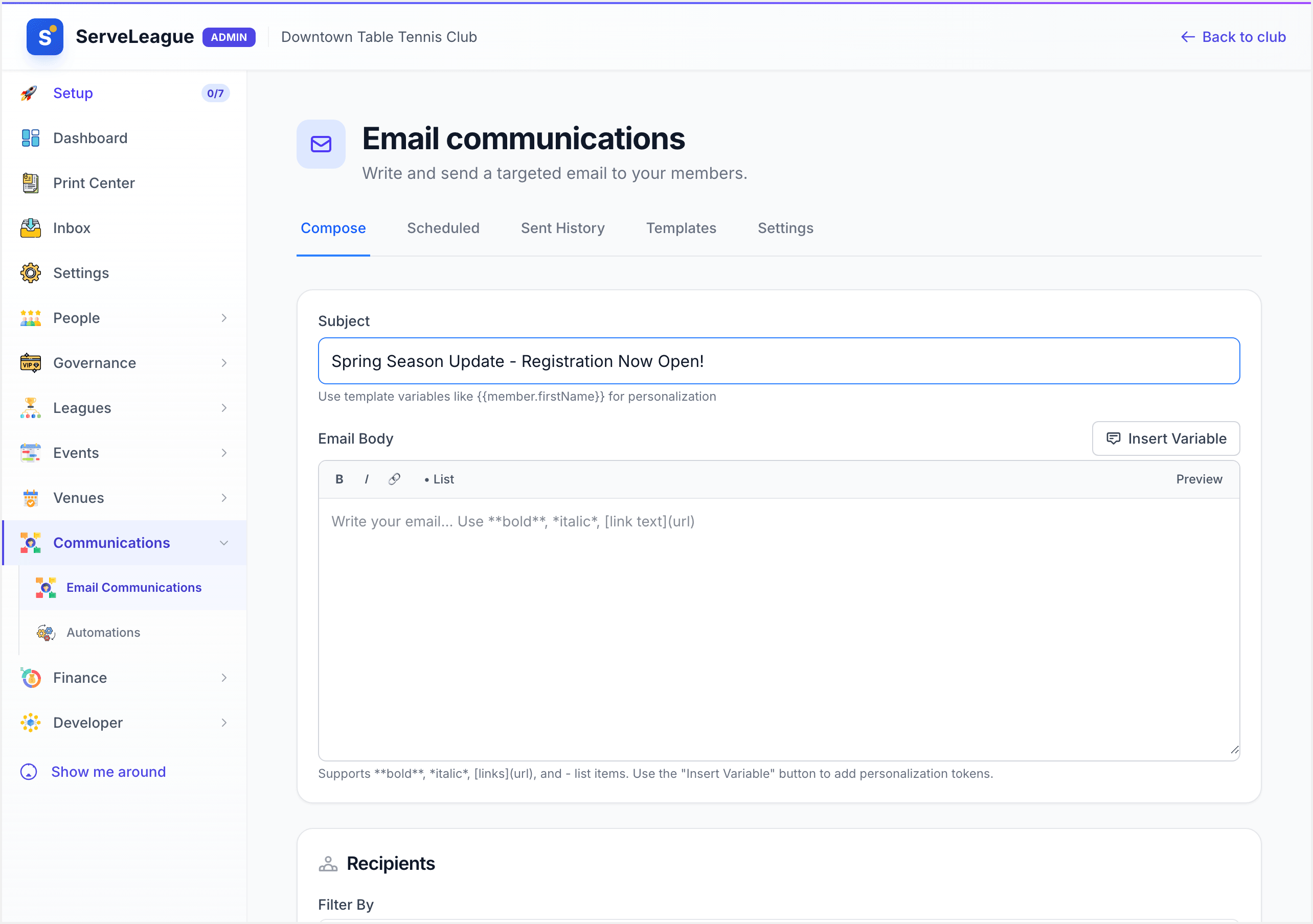
Variables are replaced with each recipient's actual data when the email is sent, so a single campaign can feel personal to every member.
[!TIP] Always include
member.firstNamein your greeting. "Hi Sarah" performs dramatically better than "Hi member" or no greeting at all.
Targeting Your Audience
The real power of ServeLeague communications is audience targeting. Below the email body, the Recipients panel lets you choose exactly who receives the message. Select a filter type from the list:
| Filter | What It Targets |
|---|---|
| All Members | Every active member in your club |
| By Membership Type | Members on a specific membership tier (e.g., "Gold", "Junior") |
| By Member Status | Filter by active, expired, or pending members |
| By Tag | Members assigned to a specific tag you've created |
| By League | Members registered in a particular league |
| By Event | Members registered for an upcoming club event |
| By Event Status | Filter event registrants by their registration status |
After selecting your filter, click Preview Recipients to see exactly who will receive the email. The preview shows the count and a scrollable list of names, so you can confirm the audience before sending.
[!TIP] Combine tags with membership types for laser-focused targeting. For example, tag your competitive players with "Tournament Squad" and then filter by that tag when announcing an upcoming competition.
Managing Email Templates
The Templates tab lets you create reusable email layouts so you don't start from scratch every time. ServeLeague includes several built-in template categories:
- Custom: Your own templates for any purpose.
- Welcome: Onboarding emails for new members.
- Session Reminder: Automated reminders before a playing session.
- Results Summary: Post-session results and ratings updates.
- Renewal: Membership renewal notices.
To create a template, click New Template, give it a name, select a category, and compose the body using the same rich-text editor and variable picker available in the compose view. Click Save. Your template is now available whenever you start a new campaign.
[!NOTE] Editing a template does not retroactively change emails that have already been sent or scheduled using that template. Only future campaigns will pick up the changes.
Scheduling and Sending
When your email is ready, you have three options:
- Send Now: Immediately queues the email for delivery to all recipients. ServeLeague processes emails in batches to ensure reliable delivery.
- Schedule: Pick a future date and time. The campaign will be sent automatically at the scheduled moment. You can cancel a scheduled send at any time before it fires.
- Save as Draft: Park the email for later. Drafts appear in your Sent History with a "Draft" badge so you can return and finish them.
Scheduled campaigns appear in the Sent History tab with a "Scheduled" status badge and the planned send time. To cancel, open the campaign and click Cancel Schedule. The campaign reverts to draft status.
[!TIP] Schedule weekly recap emails for Monday mornings so members start the week with their latest results and standings.
Tracking Delivery and Engagement
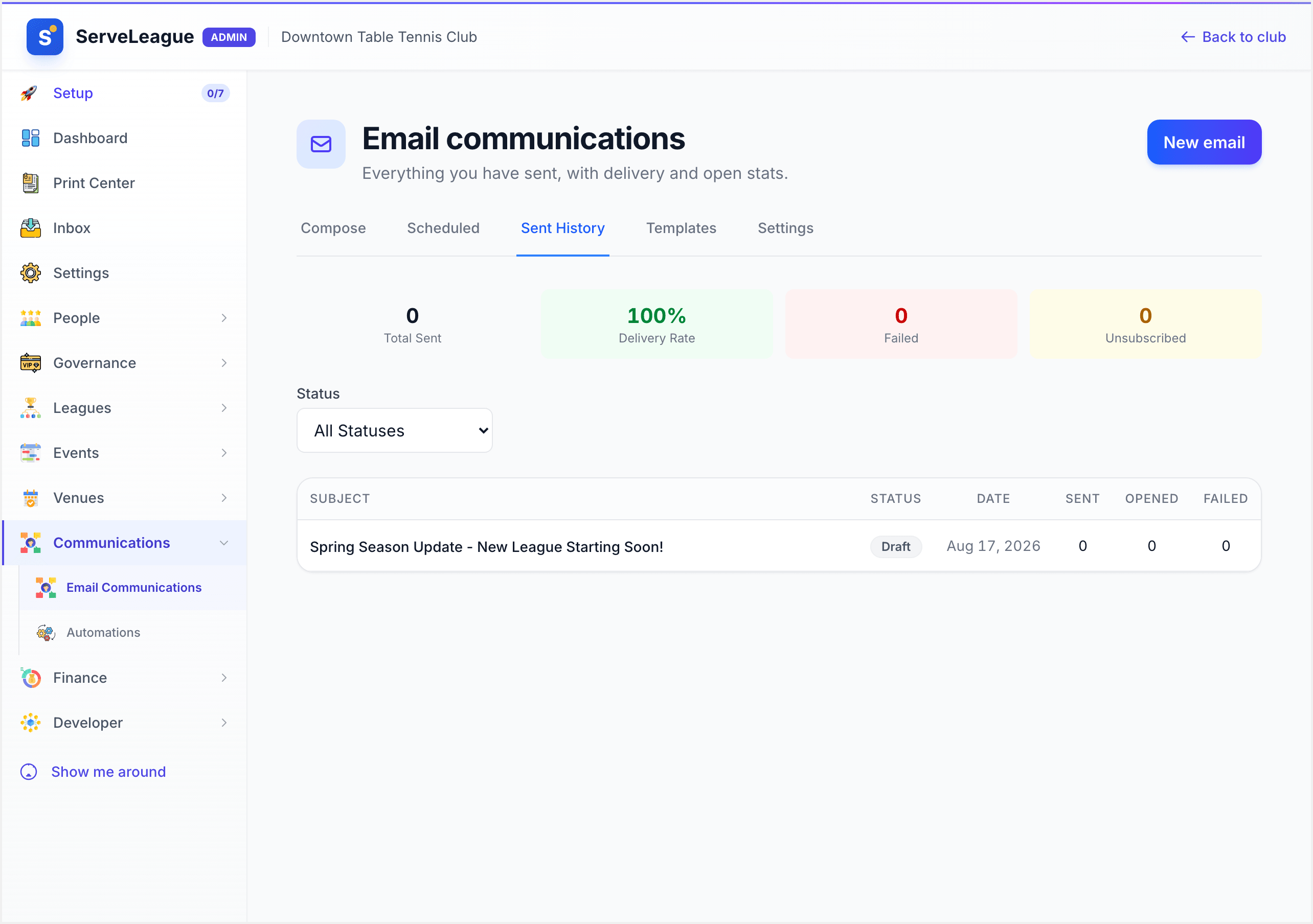
After sending, switch to the Sent History tab to monitor your campaign's progress. Each campaign displays:
- Status: Draft, Scheduled, Sending, Sent, or Failed.
- Sent Count: Number of emails dispatched.
- Opened: How many recipients opened the email.
- Failed: Emails that bounced or couldn't be delivered.
Use the status filter at the top to narrow the list (e.g., show only "Sent" or only "Failed" campaigns).
The Delivery Health summary at the top of the page aggregates your club-wide email performance:
- Total Sent: Lifetime emails dispatched.
- Delivery Rate: Percentage of emails successfully delivered.
- Total Failed: Emails that bounced or were rejected.
- Unsubscribed: Members who opted out of bulk communications.
[!WARNING] Watch your delivery rate. If it drops below 95%, review your failed emails. You may have stale email addresses in your member list. Cleaning up invalid addresses improves deliverability for everyone.
Transactional vs. Marketing Emails
ServeLeague sends two types of email, and it's important to understand the difference:
Transactional emails are system-generated messages triggered by an action, such as password resets, booking confirmations, session result notifications, and membership receipts. These are sent automatically and cannot be suppressed by unsubscribe preferences because they contain information the member explicitly requested.
Marketing emails are the bulk campaigns you create in the communications hub. These include newsletters, announcements, event promotions, and any other message you compose and send to a group. Marketing emails always include an unsubscribe link in the footer and respect the List-Unsubscribe header so members can opt out with one click from their email client.
When a member unsubscribes, they are suppressed from future marketing campaigns but continue to receive transactional emails. You can see how many members have unsubscribed in the Delivery Health stats. Suppressed members are automatically excluded from recipient previews, so you'll never accidentally email someone who has opted out.
Duplicating and Managing Campaigns
From the Sent History tab, you can perform several actions on existing campaigns:
- Duplicate: Clone a sent or draft campaign to use as a starting point for a new one. The subject, body, and recipient filter are all copied.
- Edit: Reopen a draft to make changes before sending.
- Delete: Permanently remove a draft or failed campaign.
This makes it straightforward to establish a rhythm. Duplicate last week's update, swap in fresh content, and send.
Summary
You now know how to create and send targeted email campaigns in ServeLeague. Here's a quick recap:
- Compose your email with a clear subject and personalized body using template variables.
- Target the right audience using membership, tag, league, or event filters.
- Save templates for recurring campaign types to save time.
- Schedule or send when the timing is right.
- Track delivery and engagement in Sent History, and keep your delivery rate healthy.
What's Next
- Automations and Triggers: Set up automatic emails triggered by member actions like joining, renewing, or completing a session.
- Member Tags and Segmentation: Dive deeper into creating and managing tags for precise audience targeting.
- Club News and Announcements: Publish news on your public club page alongside your email campaigns.