Embedding Widgets on Your Website
ServeLeague's embeddable widgets let you display live league standings and player ratings directly on your club's own website. Instead of sending visitors to a separate platform, you can keep them on your site while showing always-up-to-date competition data. Widgets load in a lightweight iframe with no app chrome, showing clean, compact tables that blend into any page.
This tutorial walks you through generating embed codes, customizing widget appearance, and placing them on popular website platforms.
What You Can Embed
ServeLeague currently offers two embeddable widget types:
- League Standings: A compact standings table for a specific league showing rank, player name, matches played, wins, losses, and points. Team leagues display team colors alongside player names. The data updates automatically whenever a session is finalized.
- Player Ratings: A leaderboard of your club's top-rated players with current rating and recent change indicators (arrows showing whether the rating went up or down since the last session), complete with medal highlights for the top three positions. Learn more about how ratings work in Understanding Your Rating.
Both widgets include a small "Powered by ServeLeague" footer that links back to your club's page. This is great for SEO and for visitors who want to explore more.
Step 1: Open the Embed Configuration Page
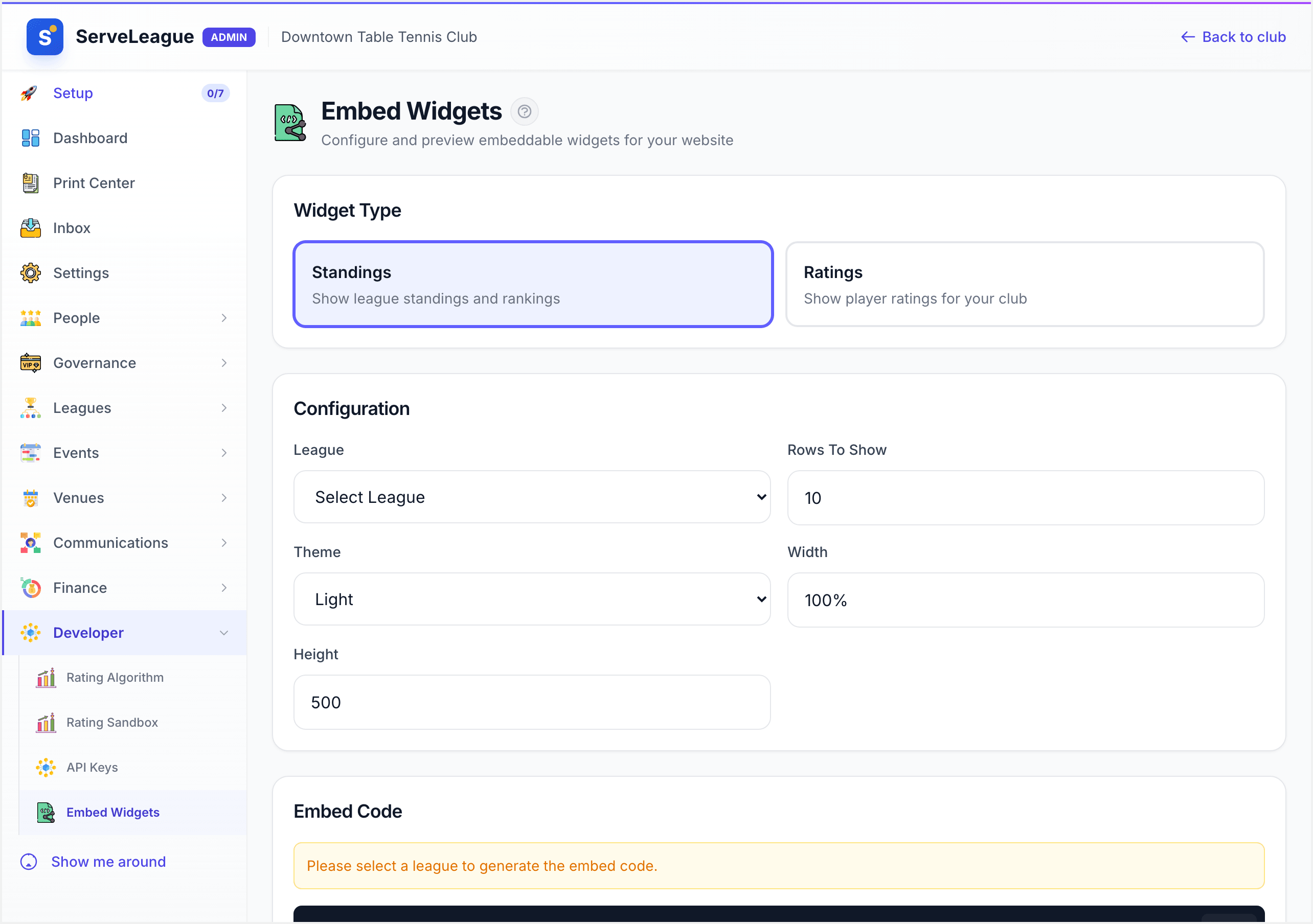
Go to your club's admin area, then select Embed Widgets from the admin menu. This opens the embed configuration page where you can preview and generate iframe code for each widget type.
Go to Settings → Embed Widgets in your club admin panel to access the configuration page.
[!TIP] Embeddable widgets are a feature-flagged capability. If you don't see the Embed Widgets option in your admin menu, contact support to have it enabled for your club.
Step 2: Choose a Widget Type
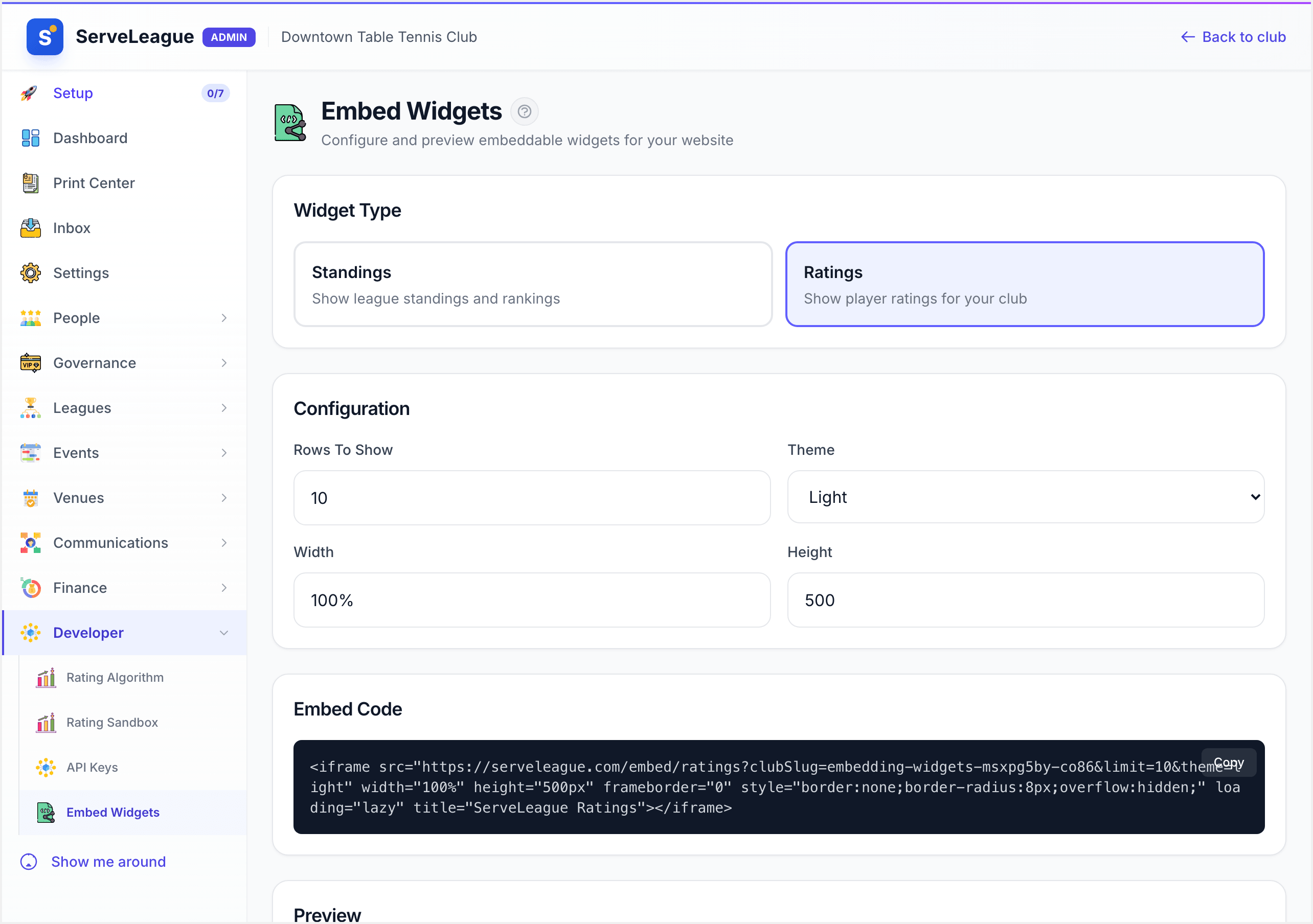
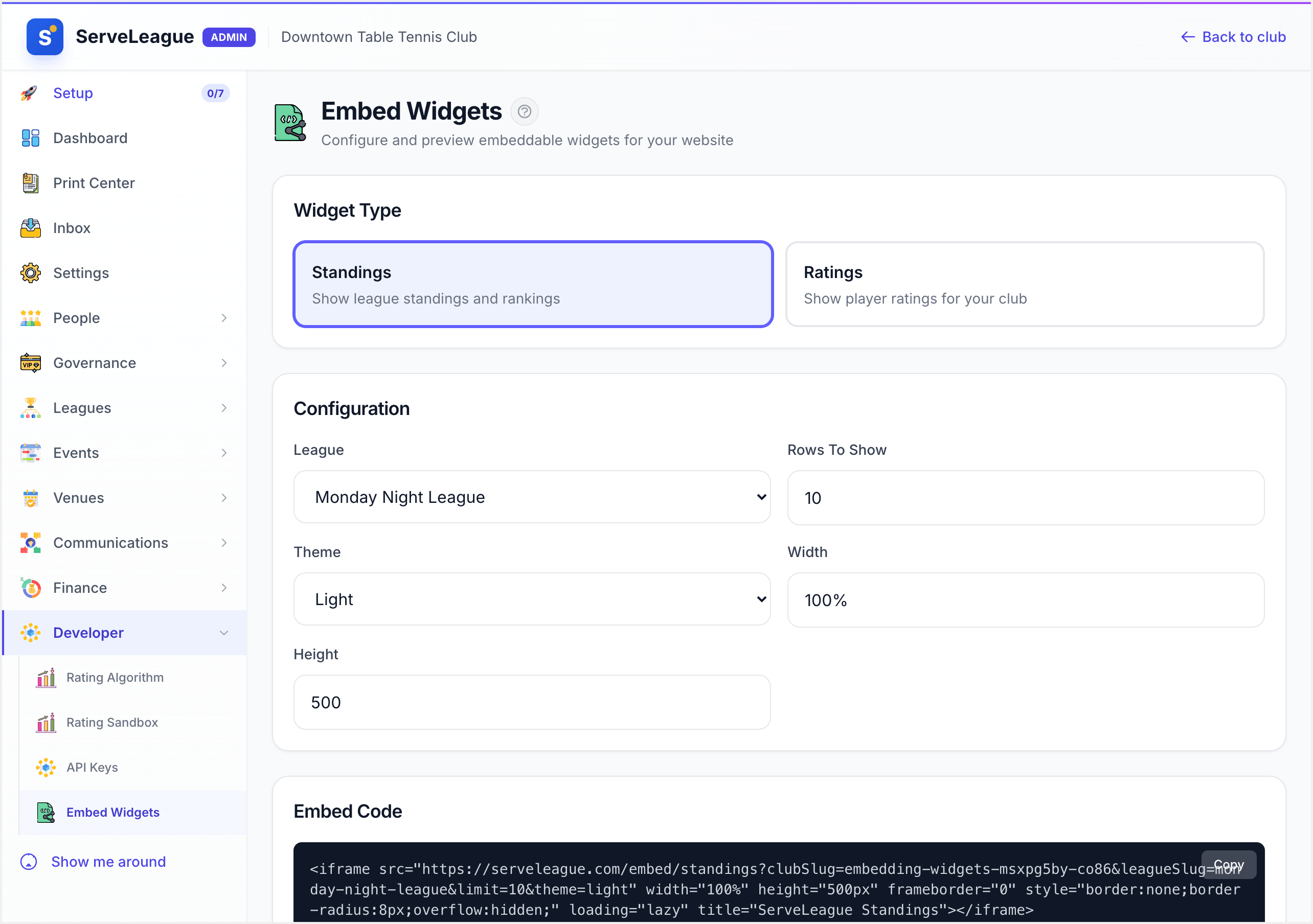
At the top of the configuration page, select the widget you want to embed:
- Standings: Requires you to also select a specific league from the list.
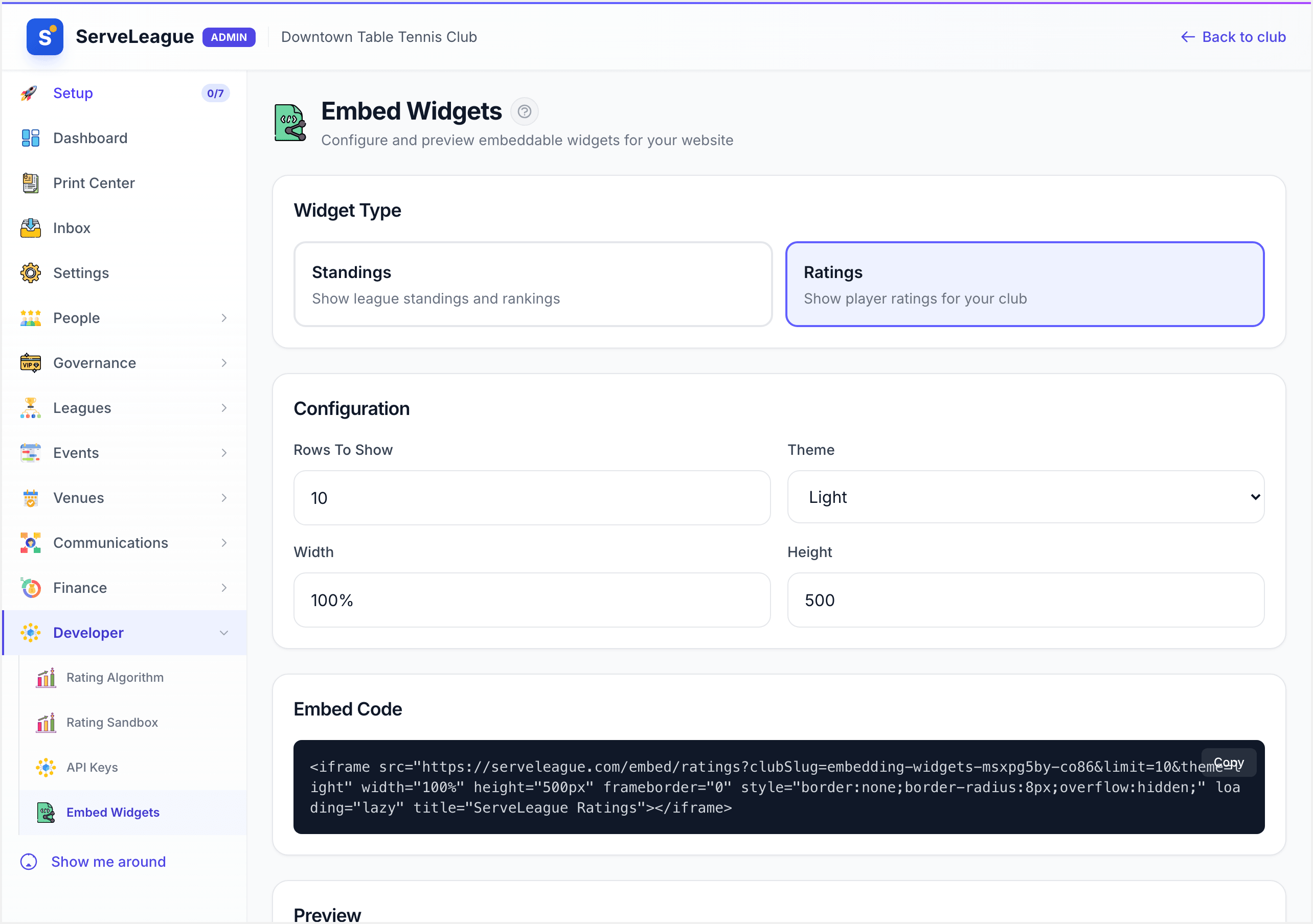
- Ratings: Shows club-wide player ratings and needs no league selection.
Click the card for your chosen widget type. A blue border and highlight confirm your selection.
For the standings widget, a second list appears asking you to select a specific league. You must choose a league before the embed code is generated. A warning banner reminds you if no league has been selected yet.
Step 3: Configure Widget Options
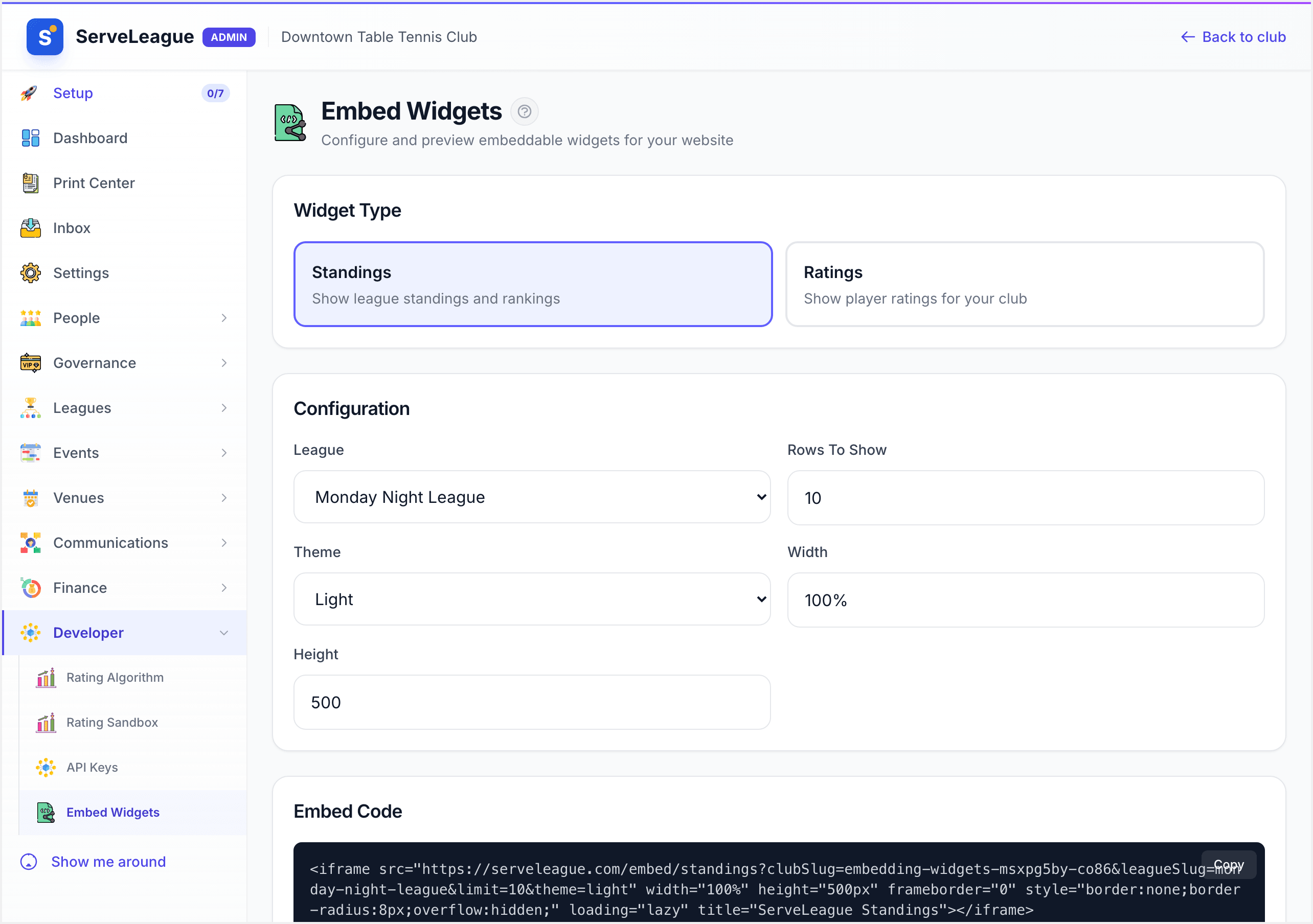
The configuration section lets you fine-tune how the widget appears:
| Option | Description | Default | Range |
|---|---|---|---|
| League | Which league's standings to display (standings widget only) | – | Your club's leagues |
| Rows to show | Maximum number of players/rows visible | 10 | 1–50 |
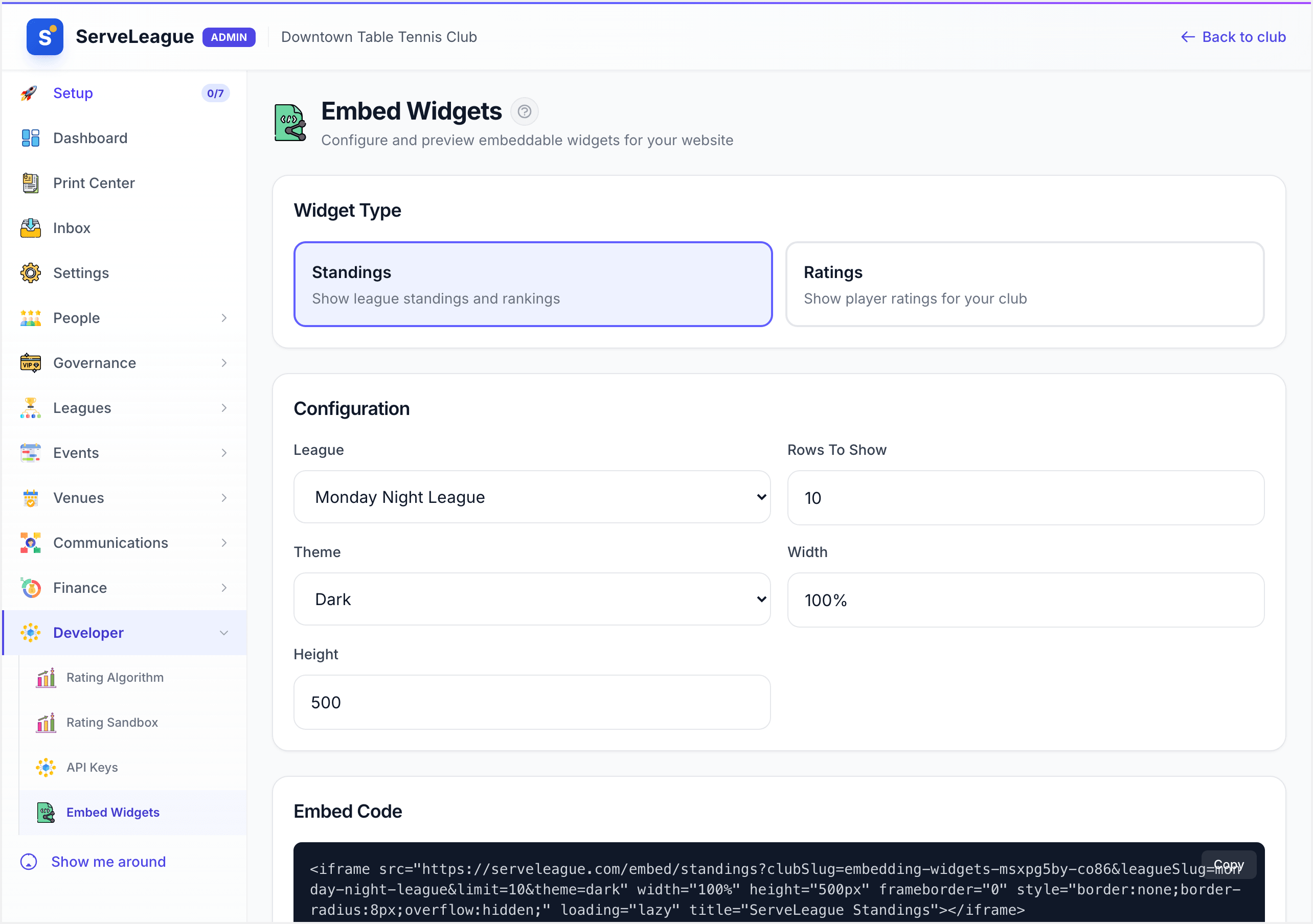
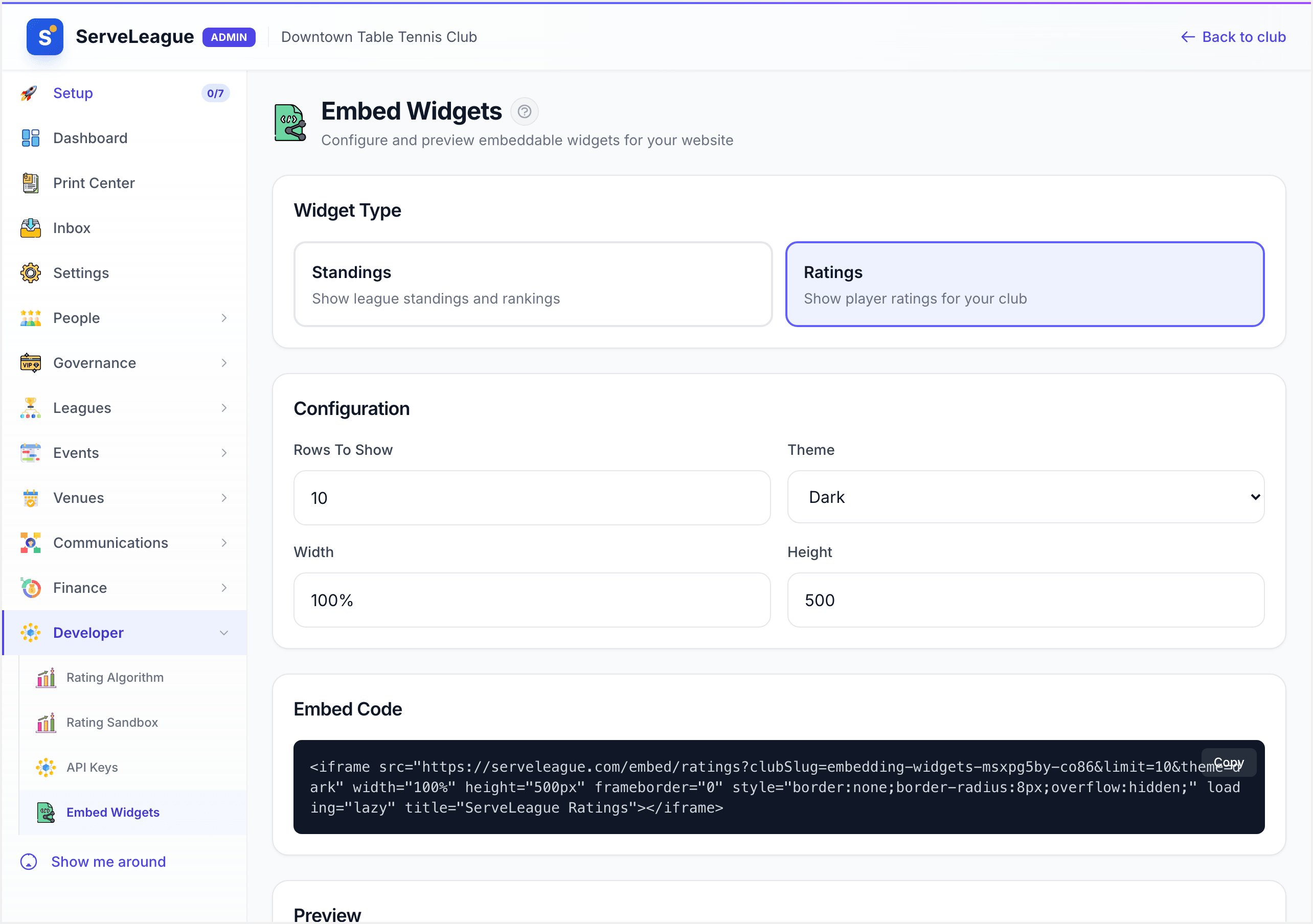
| Theme | Light or dark color scheme | Light | Light / Dark |
| Width | Widget width. Accepts pixels or percentages | 100% | Any CSS value |
| Height | Widget height in pixels | 500px | 200–2000px |
For the standings widget, you must select a league before the embed code becomes available. A warning banner reminds you if no league is selected.
[!TIP] Use
100%width for responsive layouts that adapt to their container. If you need a fixed-width widget, for example in a sidebar, try350or400pixels. For the theme, choosedarkif your website has a dark background, orlightfor standard white or light-grey backgrounds.
Step 4: Copy the Embed Code
Once configured, your iframe code appears in the Embed Code section. It looks like this:
<iframe
  src="https://serveleague.com/embed/standings?clubSlug=my-club&leagueSlug=monday-night&limit=10&theme=light"
  width="100%"
  height="500px"
  frameborder="0"
  style="border:none;border-radius:8px;overflow:hidden;"
  loading="lazy"
  title="ServeLeague Standings"
></iframe>
Click the Copy button in the top-right corner of the code block. A brief "Copied!" confirmation appears. The code is now on your clipboard, ready to paste into your website.
Step 5: Preview Your Widget
Before embedding on your live site, use the built-in preview at the bottom of the configuration page. This shows a live version of your widget with the current settings, so you can verify it looks correct.
Try switching between light and dark themes, adjusting the row count, and resizing the width to see how the widget responds.
Embedding on Your Website
WordPress
- Open the page or post where you want the widget in the WordPress editor.
- Add a Custom HTML block (click + → search for "Custom HTML").
- Paste the iframe code into the block.
- Click Preview to verify, then Publish or Update.
If your WordPress theme restricts iframes, you may need to install a plugin like iframe or Advanced iFrames to allow embedding.
Squarespace
- Open the page editor and click Add Block → Code.
- Paste the iframe code into the code block.
- Ensure the display mode is set to show HTML (not display as code).
- Save and preview the page.
[!NOTE] Squarespace's Business plan or higher is required to use custom code blocks.
Custom HTML Sites
Paste the iframe code directly into your HTML where you want the widget to appear. For best results, place it inside a container element:
<div style="max-width: 800px; margin: 0 auto;">
  <iframe
    src="https://serveleague.com/embed/standings?clubSlug=my-club&leagueSlug=monday-night&limit=10&theme=light"
    width="100%"
    height="500px"
    frameborder="0"
    style="border:none;border-radius:8px;overflow:hidden;"
    loading="lazy"
    title="ServeLeague Standings"
  ></iframe>
</div>
Responsive Behavior
Widgets are designed to work well at any size:
- Text scales between mobile and desktop breakpoints using responsive font sizes.
- Tables scroll horizontally if the container is too narrow, preventing layout overflow.
100%width makes the widget fill its parent container, adapting to any screen size.- The
loading="lazy"attribute ensures widgets below the fold don't slow down your page's initial load.
For the best mobile experience, avoid setting a fixed pixel width smaller than 300px. If the widget is placed in a narrow sidebar, consider reducing the row count to keep it compact.
Security Considerations
ServeLeague embed widgets are designed with security in mind:
- Read-only data: Widgets only display public league and rating data. No authentication tokens or session cookies are passed through the iframe.
- No cross-origin scripting: The iframe sandbox isolates the widget from your page's DOM. The widget cannot access your site's cookies, storage, or scripts.
- HTTPS only: All embed URLs use HTTPS, ensuring data is encrypted in transit and preventing mixed-content warnings on your site.
- Attribution link: The "Powered by ServeLeague" footer links back to your club's public page, not to any admin or authenticated area.
- Lazy loading: The
loading="lazy"attribute means the iframe content loads only when it scrolls into view, reducing unnecessary network requests.
[!WARNING] Do not modify the
srcURL parameters manually beyond the documented options (clubSlug,leagueSlug,limit,theme). Unsupported parameters are ignored, but malformed URLs will result in an error message inside the widget.
Troubleshooting
| Problem | Solution |
|---|---|
| Widget shows "Missing parameters" error | Ensure clubSlug is set correctly. For standings, leagueSlug is also required. |
| Widget shows "Unable to load" error | Check that the club and league slugs match your ServeLeague setup. The league must have at least one finalized session. |
| Widget doesn't appear on WordPress | Your theme may block iframes. Try a Custom HTML block or install an iframe plugin. |
| Widget appears but is cut off | Increase the height parameter. Standings with many rows may need 600px or more. |
| Dark theme doesn't match my site | The dark theme uses a fixed gray-900 palette. For deeper customization, see Club Branding and Customization. |
Summary
You've learned how to embed live ServeLeague data on your website:
- Opened the embed configuration page in your club admin
- Selected a widget type and configured its appearance
- Copied the generated iframe code
- Pasted it into WordPress, Squarespace, or custom HTML
- Understood responsive behavior and security considerations
Embedded widgets update automatically as new sessions are finalized. No manual updates needed. Your website visitors always see the latest standings and ratings.
What's Next
- Kiosk Mode and Public Display: Set up live displays for your venue
- Club Branding and Customization: Customize colors and branding across your club
- Club News and Announcements: Keep members informed with news updates