Importing Players in Bulk
If your club already has a roster of players in a spreadsheet, you don't need to add them one by one. ServeLeague's bulk import lets you upload a CSV file and create all your player profiles in seconds, including their current ratings and optional historical rating data. For more advanced scenarios like merging duplicate players, see Player Import & Merge Management.
This tutorial walks you through preparing your CSV, uploading it, reviewing the preview, and completing the import.
Before You Begin
You'll need:
- Club admin access: only club administrators can import players (see Navigating the Admin Dashboard for an overview of admin features)
- A CSV file with your player data (we'll cover the format below)
[!NOTE] The import feature accepts CSV files only. If your data is in Excel (.xlsx), export it as CSV first using File → Save As → CSV (Comma delimited).
Step 1: Prepare Your CSV File
Open your spreadsheet application and set up your columns. ServeLeague recognizes the following column headers:
| Column | Required? | Description |
|---|---|---|
firstName |
✅ Required* | Player's first name (1–50 characters) |
lastName |
Optional | Player's last name |
name |
✅ Required* | Full name as a single field (alternative to firstName/lastName) |
email |
Optional | Player's email address |
singlesRating |
Optional | Current singles rating (0–5000) |
doublesRating |
Optional | Current doubles rating (0–5000) |
meritScore |
Optional | Current order-of-merit score (0 or above) |
*You must include either firstName or name. You don't need both.
[!TIP] Column headers are flexible. ServeLeague also recognizes variations like
first_name,First Name,singles_rating,singles,fullname, andfull_name, so most existing spreadsheets will work without renaming columns.
Minimal Example
The simplest import needs only names:
firstName,lastName
John,Smith
Jane,Doe
Bob,Wilson
Full Example with Ratings
Include current ratings to save yourself from entering them manually later:
firstName,lastName,email,singlesRating
John,Smith,john@example.com,1520
Jane,Doe,jane@example.com,1610
Bob,Wilson,,1430
[!NOTE] If you leave a rating column empty for a player, they'll be created with a rating of 0. You can always update ratings later from the player's profile page.
Step 2: Add Historical Ratings (Optional)
One of ServeLeague's most powerful import features is the ability to bring in historical rating data. This populates a player's rating history chart from day one, rather than starting with a flat line.
Add year or date columns after your standard columns:
firstName,lastName,singlesRating,2025,2024,2023
John,Smith,1520,1500,1450,1400
Jane,Doe,1610,1600,1550,1500
Bob,Wilson,1430,1400,1380,1350
ServeLeague detects historical columns automatically based on the header format:
| Header format | What it creates | Example |
|---|---|---|
2024 |
Year-end snapshot (singles) | Rating as of 1 Jan 2024 |
2024-S |
Year-end snapshot (singles) | Explicit singles rating |
2024-D |
Year-end snapshot (doubles) | Doubles rating |
2024-M |
Year-end snapshot (merit) | Merit score |
2024-01-15 |
Weekly snapshot (singles) | Rating at a specific date |
2024-01-15-D |
Weekly snapshot (doubles) | Doubles rating at a specific date |
[!TIP] If you don't specify a rating type suffix (like
-S,-D, or-M), historical columns default to singles ratings. Use the suffix if you need to import doubles or merit history.
Step 3: Open the Import Panel
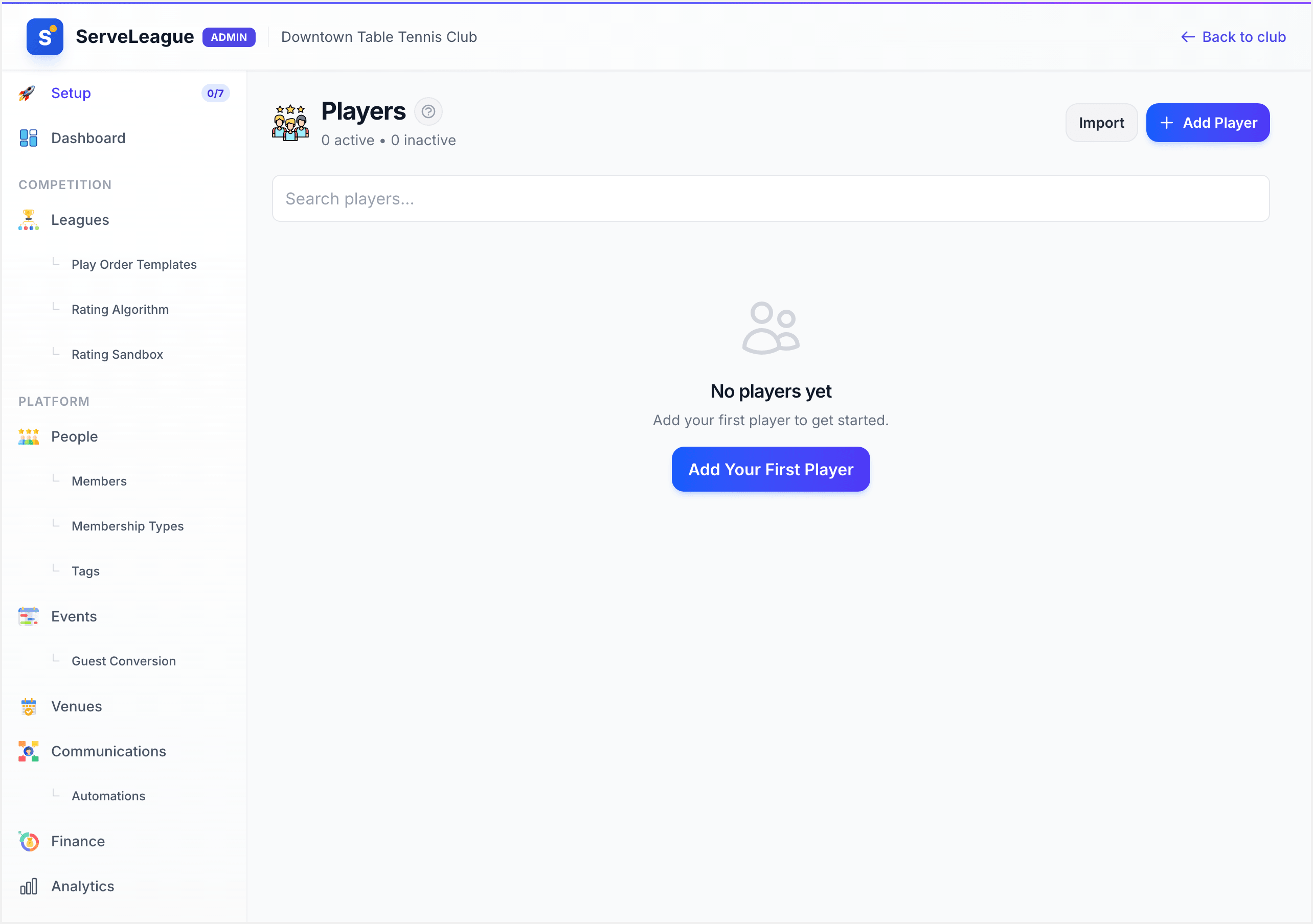
- Go to your club's admin area.
- Click People in the sidebar (under the Competition section).
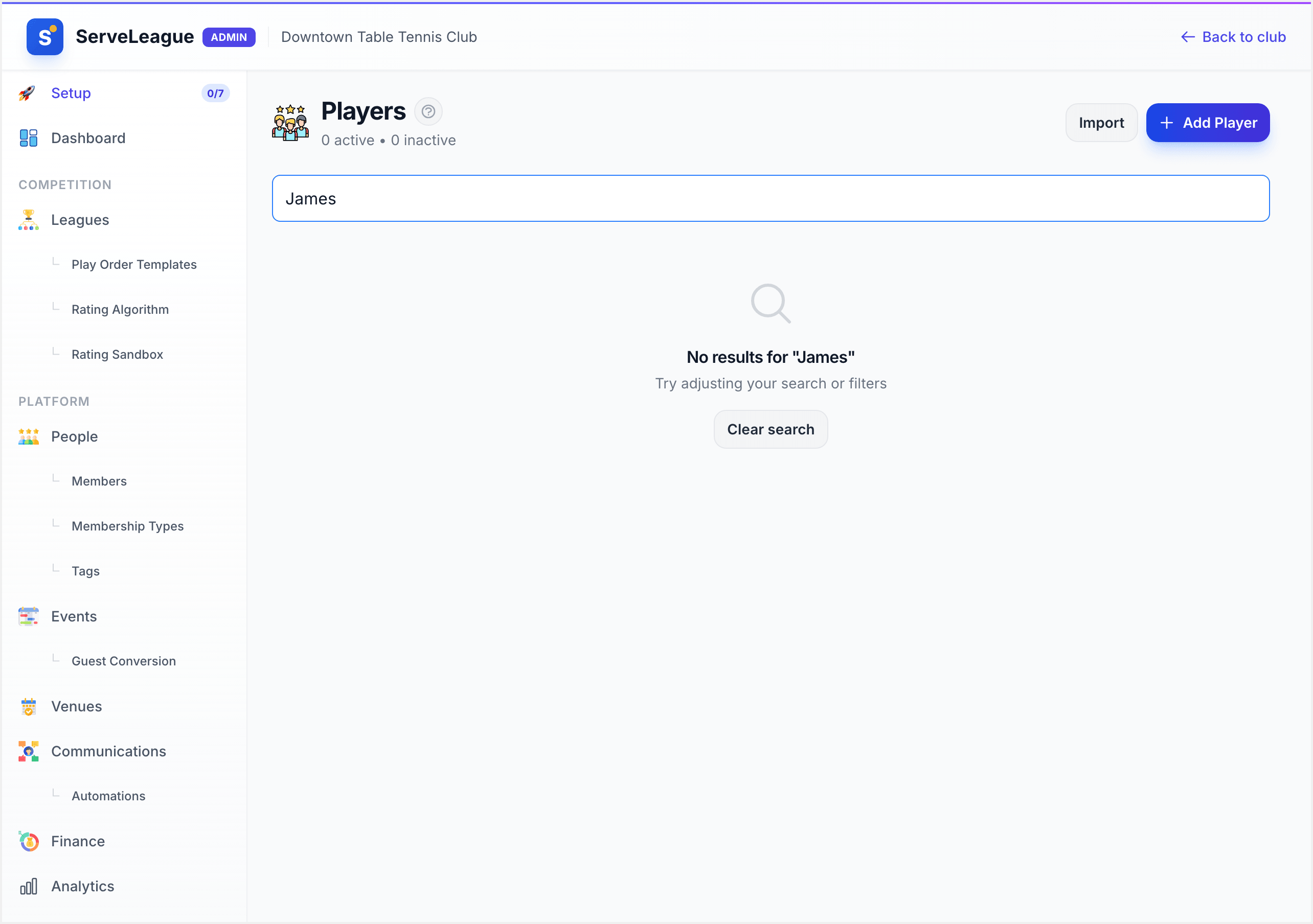
- Click the Import button in the top-right corner of the players page.
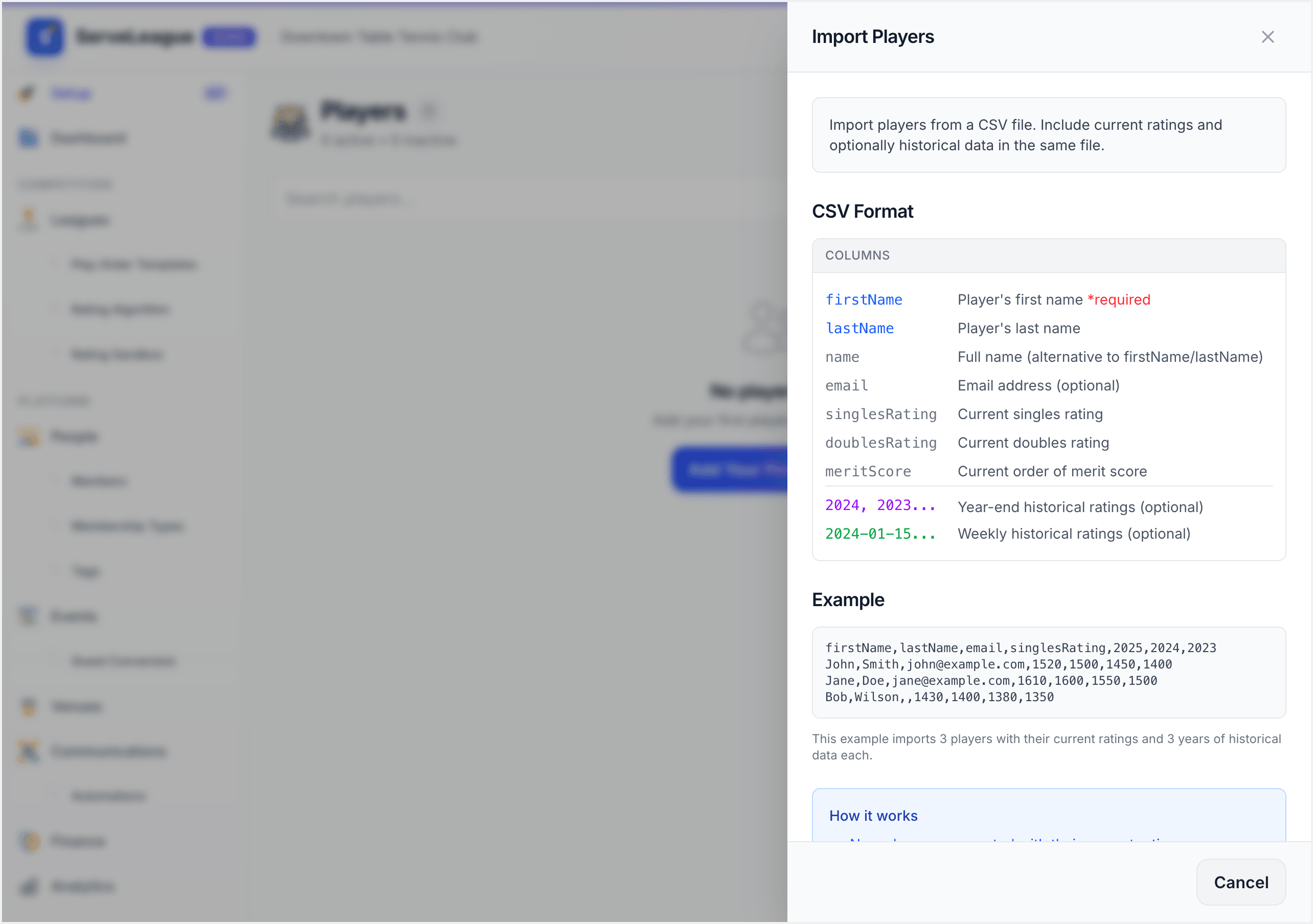
The import panel slides open from the right side of the screen. Before you select a file, the panel displays:
- Format instructions: a reference showing the expected column headers and their descriptions.
- Example CSV: a sample snippet you can use as a template.
- A Select CSV File button at the bottom.
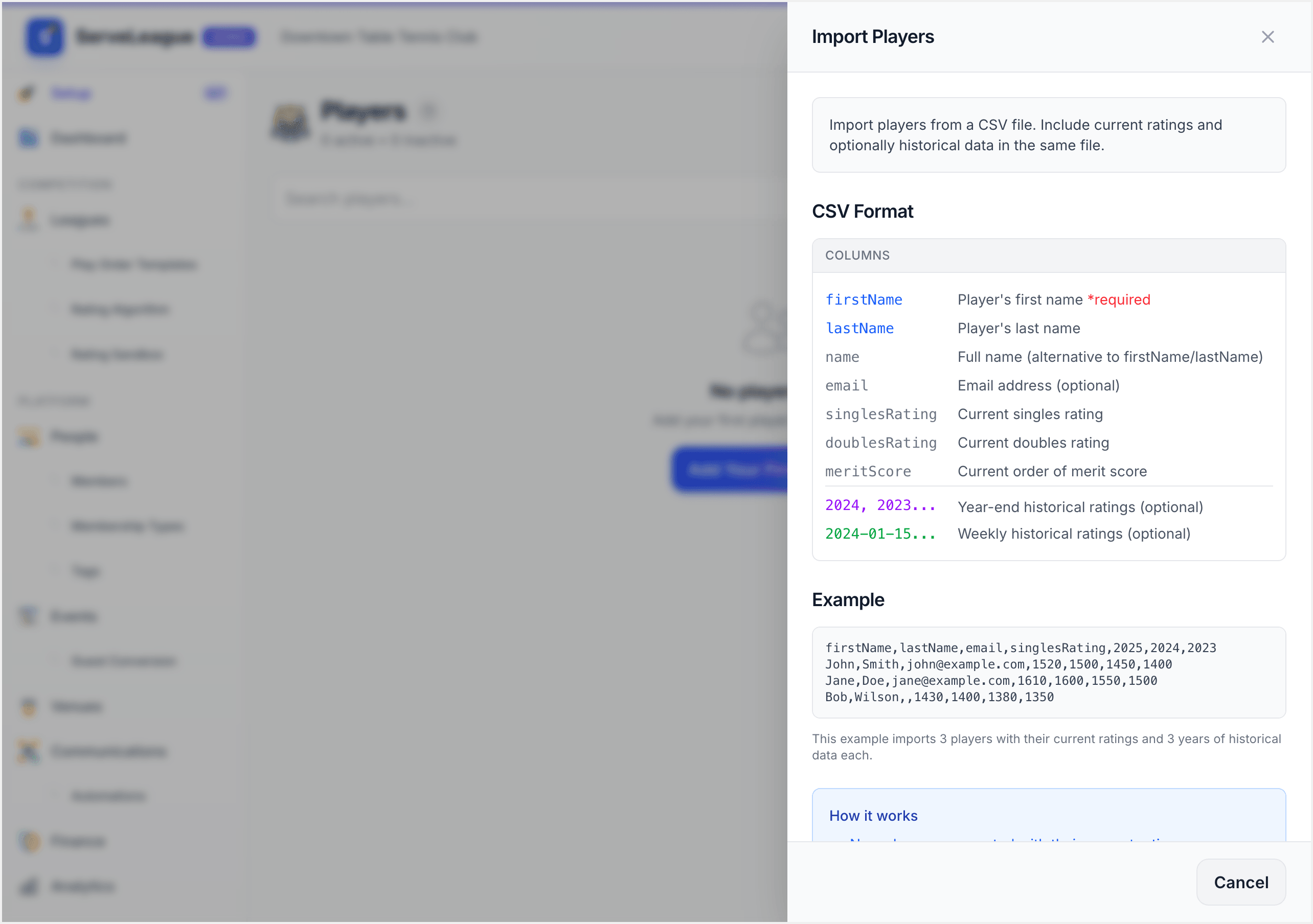
[!TIP] If you are not sure about the column names, copy the example CSV shown in the panel directly into a spreadsheet. It contains every supported header ready to fill in.
Step 4: Upload Your CSV File
Click Select CSV File at the bottom of the import panel and choose your file from your device. ServeLeague parses the file immediately and replaces the format instructions with a preview of your data.
The preview includes:
- Summary cards at the top: the total number of players found, plus a second card showing historical records if your file includes year or date columns.
- Detected historical columns: if your file includes columns like
2024,2023-D, or2024-01-15, they are listed here so you can confirm ServeLeague recognised them correctly. - Player preview table: shows up to the first 50 players with three columns:
- Name: the player's full name as it will appear in the roster.
- Current: their current singles, doubles, and merit ratings (or blank if not provided).
- Historical: the number of historical records detected for that player.
If your file contains more than 50 players, a note below the table tells you how many additional players are included.
[!TIP] Review the preview carefully before importing. If names appear in the wrong column, ratings look incorrect, or the historical column count is unexpected, click Choose a Different File to upload a corrected CSV. You can also click Try Another File from the error screen if parsing fails entirely.
Step 5: Confirm and Import
Once you are satisfied with the preview, click the Import N Players button at the bottom of the panel (where N is the number of players detected in your file).
ServeLeague processes the import and shows a summary toast notification with the results:
- Players created: new player profiles added to your club
- Players updated: existing players whose ratings were updated
- Historical records added: rating snapshots created from historical columns
How Duplicates Are Handled
ServeLeague uses case-insensitive name matching to detect existing players. Here's what happens in each scenario:
| Scenario | What happens |
|---|---|
| New player name | A new player profile is created |
| Existing player, same ratings | Player is skipped (no changes) |
| Existing player, different ratings | Player's ratings are updated to the imported values |
| Existing player with historical columns | Historical snapshots are added to the existing player |
This means you can safely re-import an updated CSV without creating duplicates. If you've added new players to your spreadsheet or updated ratings, only the changes are applied. For more complex duplicate resolution, see Player Import & Merge Management.
[!NOTE] Name matching compares the full name (first + last) case-insensitively. "John Smith" and "john smith" are treated as the same player. Make sure names in your CSV match your existing player names exactly to avoid accidental duplicates.
Import Limits and Validation
Keep these limits in mind when preparing your file:
- Maximum 500 players per import: if you have more, split your CSV into multiple files
- First name must be 1–50 characters
- Full name must be 1–100 characters (when using the
namecolumn) - Ratings must be between 0 and 5000 for singles and doubles
- Merit scores must be non-negative
If any rows fail validation, the import still processes the valid rows. You'll see a count of errors in the summary notification, and the specific errors are listed in the import results.
Troubleshooting
"CSV requires a header row and at least one data row" Your file is empty or has only a header row. Make sure there's at least one player row below the headers.
"Missing name columns"
ServeLeague can't find a firstName or name column. Check that your header row includes one of the recognized column names.
"Import exceeds the 500-row limit" Split your CSV into smaller files of 500 rows or fewer and import them one at a time.
Players showing with rating 0 after import
Make sure your rating column headers match one of the recognized names: singlesRating, singles_rating, singles, doublesRating, doubles_rating, doubles, meritScore, merit_score, or merit.
Parsing error on upload Ensure your file is saved with UTF-8 encoding and uses commas as delimiters (not semicolons or tabs). Most spreadsheet applications default to UTF-8, but if you see garbled characters in the preview, re-save the file with UTF-8 encoding selected.
What's Next?
Now that your player roster is imported, you're ready to put those players into action:
- Creating Your First League: set up a league format, add your imported players, and run your first session
- Club Branding and Customization: customize your club's appearance with logos, colors, and branding to make it feel like home