Kiosk Mode and Public Display
Running a busy club means you can't always have someone at the front desk. ServeLeague's kiosk mode turns any tablet, spare laptop, or wall-mounted screen into a self-service check-in station. Members enter their 6-digit PIN, see their bookings for the day, and check in or out, all without needing staff assistance or a personal login.
This tutorial covers setting up kiosk mode, walking through the member experience, and tips for getting the most out of it at your venue.
What Is Kiosk Mode?
Kiosk mode is a dedicated full-screen interface designed for shared devices at your club. Unlike the regular ServeLeague app, the kiosk screen:
- Requires no login: authentication happens through each member's 6-digit PIN
- Shows no navigation: there's no header, sidebar, or back button to confuse walk-up users
- Auto-resets after inactivity: the screen returns to the PIN prompt after 30 seconds of no interaction, protecting the previous member's information
- Is touch-optimised: large buttons, a full on-screen numeric keypad, and minimum 44px touch targets work great on tablets
Think of it as a digital sign-in sheet that replaces the clipboard at your front desk.
Step 1: Assign PINs to Your Members
Before members can use the kiosk, each one needs a 6-digit PIN. You can assign PINs in bulk or individually:
- Go to Members in your club admin sidebar
- Open a member's profile and look for the PIN field
- Enter a unique 6-digit number, or let ServeLeague generate one automatically
- Share the PIN with the member. They'll use it every time they visit
[!TIP] If you imported members in bulk, you can assign PINs during the import process by including a
pincolumn in your CSV file. See Importing Players in Bulk for details.
Only members with active membership status can use the kiosk. If a membership lapses, the PIN stops working until the membership is renewed.
Step 2: Open Kiosk Mode on Your Device
The easiest way to find your kiosk link is from the Kiosk Mode section in your club's admin settings. Click "Copy Kiosk Link" and paste it into the browser on your display device.
Alternatively, if your club page is at serveleague.com/clubs/downtown-tt, your kiosk page is at serveleague.com/clubs/downtown-tt/kiosk.
Open this link in any modern browser. You'll see the dark-themed PIN entry screen with the ServeLeague branding and your club name. The look and feel reflects your club branding settings.
Step 3: Enter Fullscreen Mode
For the best venue experience, put the browser into fullscreen mode so members see only the kiosk interface, no address bar, no tabs, no distractions.
| Platform | Shortcut |
|---|---|
| Windows / Linux | Press F11 |
| macOS (Chrome) | Press ⌃⌘F or use View → Enter Full Screen |
| macOS (Safari) | Press ⌃⌘F or use the green window button |
| iPad | Add to Home Screen via the Share menu. It opens as a standalone app |
| Android tablet | In Chrome, tap ⋮ → Add to Home Screen for an app-like experience |
[!TIP] On iPads and Android tablets, adding the kiosk page to the home screen creates a standalone web app with no browser chrome. This is the cleanest experience for a wall-mounted display.
Step 4: The Member Check-In Experience
Here's what happens when a member walks up to the kiosk:
Entering the PIN
The member taps their 6-digit PIN on the on-screen keypad. Each digit fills one of the six dots at the top of the screen. They can also type on a physical keyboard if one is connected. If the PIN is wrong, the dots shake with a red animation and the member can try again.
The Member Dashboard
After a successful PIN entry, the member sees a personalised dashboard with:
- A welcome greeting with their first name
- Their membership type (e.g., "Gold Member"), configured in Managing Memberships and Payments
- Today's bookings: each booking shows the facility name, time slot, and a one-tap Check In button
- Quick check-in: if they have no booking, they can select any available facility and check in as a walk-in
- Current check-in status: if they're already checked in, they see where and when, with a Check Out button
Checking In
Members can check in two ways:
- Against a booking: tap the check-in button next to a specific booking
- Walk-in: select a facility from the list (courts show a 🏸, tables show a 🏓, rooms show a 🏠) and tap Check In Now
After a successful check-in, a green confirmation screen appears with an animated checkmark and the member's name. The screen automatically returns to the PIN prompt after 3 seconds.
Checking Out
If a member is already checked in, the dashboard shows a banner with the facility name and check-in time. They tap Check Out to close their session. This is especially useful for tracking facility usage and court time.
Step 5: Auto-Reset and Security
Kiosk mode includes built-in security features to protect member information on a shared device:
- 30-second inactivity timer: if a member walks away without logging out, the dashboard screen automatically resets to the PIN prompt. A countdown appears in the footer, turning amber when 10 seconds remain.
- No stored sessions: unlike the regular app, the kiosk doesn't use cookies or JWT tokens. Each interaction starts fresh with a PIN verification.
- Active-only members: only members with an
activestatus can authenticate. Expired, suspended, or cancelled memberships are rejected at the PIN step.
[!IMPORTANT] The kiosk URL is public and requires no admin login. Anyone with the URL can reach the PIN screen. The security relies on the 6-digit PIN being kept private by each member. Remind members not to share their PINs.
Recommended Hardware and Setup
Kiosk mode works in any modern browser, but here are our recommendations for the best venue experience:
| Setup | Best For | Notes |
|---|---|---|
| iPad (10th gen+) | Wall-mounted entrance kiosk | Add to Home Screen for app-like experience. Use a locking wall mount. |
| Android tablet (10"+) | Budget-friendly option | Samsung Galaxy Tab A series works well. Use Chrome. |
| Laptop / all-in-one PC | Front desk station | Keep the browser in fullscreen. Disable sleep/screen timeout. |
Setup Tips
- Disable sleep: ensure the device stays on during club hours. On iPads: Settings → Display & Brightness → Auto-Lock → Never.
- Enable Guided Access (iPad): locks the device to the kiosk browser, preventing members from going away (Settings → Accessibility → Guided Access).
- Use a locking mount: if wall-mounting, use a tamper-proof enclosure.
- Keep the device plugged in: kiosk mode runs continuously.
Tracking Check-In Data
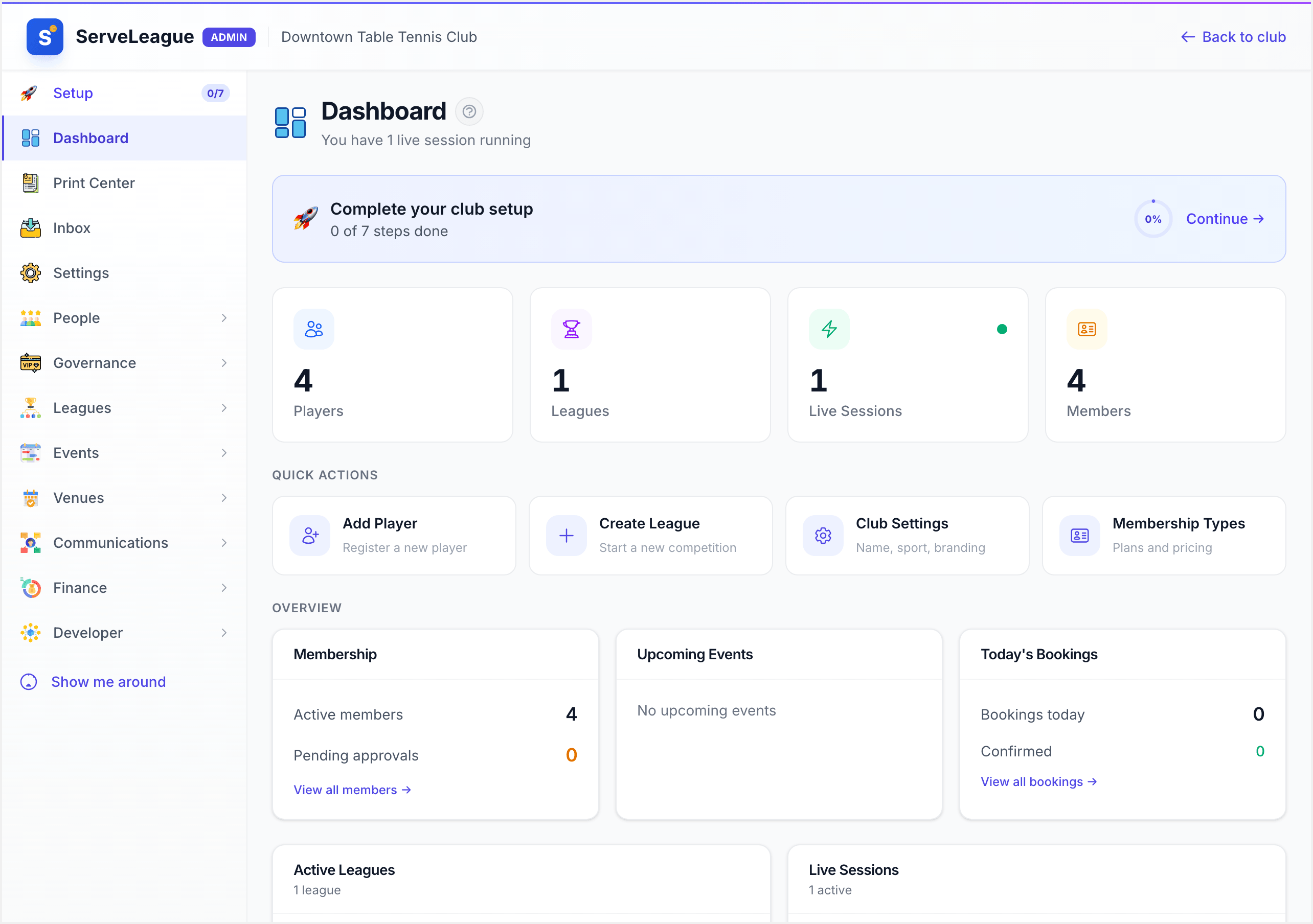
Every kiosk check-in and check-out is recorded in ServeLeague's check-in system. As a club admin, you can view this data under Booking → Check-Ins to see who checked in, which facility they used, how long they stayed, and whether it was a walk-in or booking-linked visit.
Summary
Kiosk mode transforms any tablet or screen at your venue into a hands-free check-in station. Members get a fast, self-service experience with their 6-digit PIN, and you get accurate attendance data without needing someone at the front desk. Set it up once and it runs itself.
What's Next
- Player Self-Service: let players join sessions, submit scores, and view standings from their phones
- Club Branding and Customization: customise the look and feel of your club's ServeLeague pages