League Settings & Access Control
League Settings & Access Control
Once you've created a league, ServeLeague gives you fine-grained control over how it behaves, from scoring rules and registration limits to who can see and join it. This guide walks through every setting available on the League Settings page and explains when to use each one.
Opening League Settings
Go to your club, select the league, then click the Settings tab. Settings are organised into two tabs:
- General: name, schedule, scoring, visibility, and facility booking
- Access: who can view and register for private leagues
Only club owners and admins can modify league settings. There is no separate "league moderator" role; access to settings follows your club-level role.
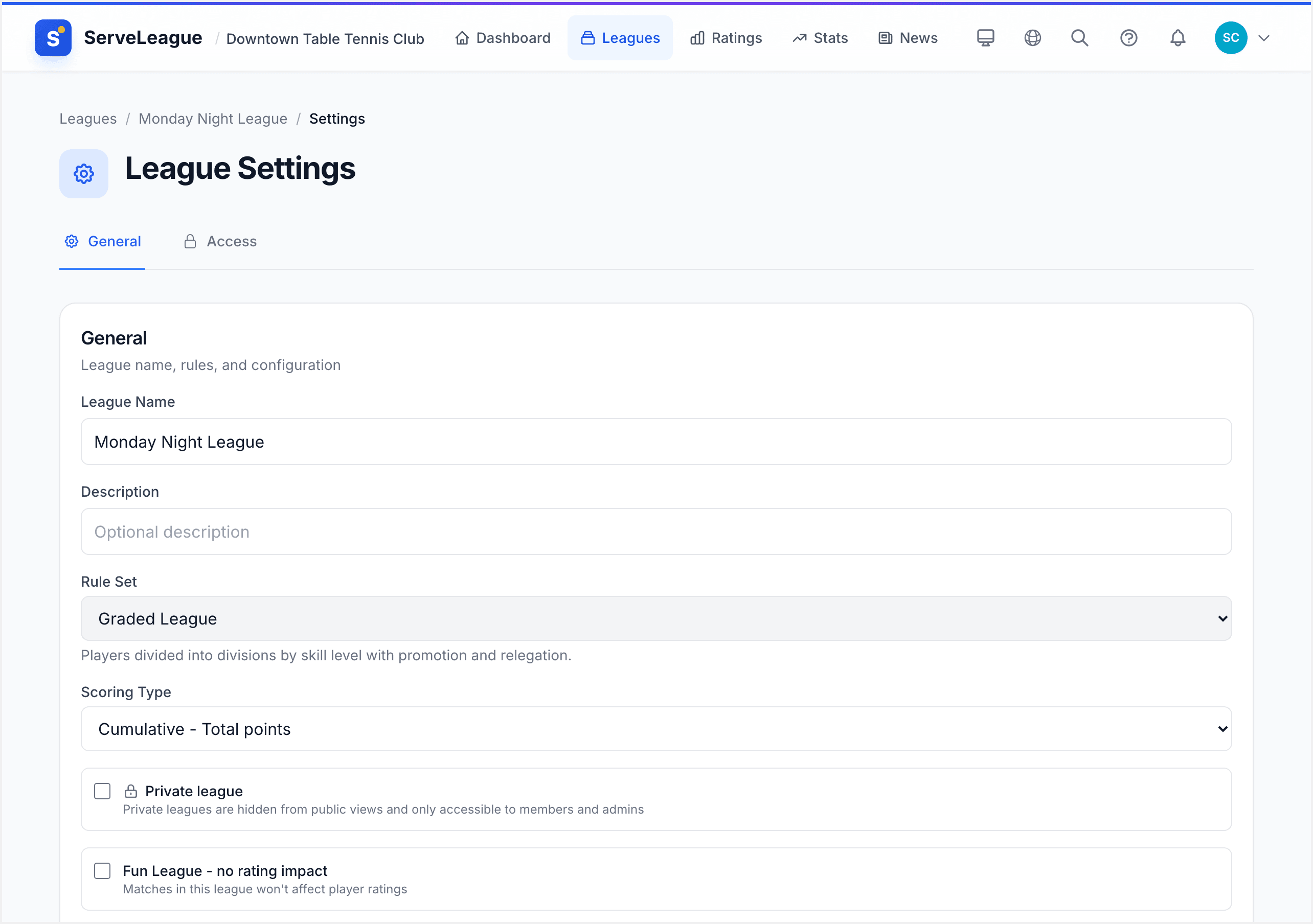
General Settings
Name, Description & Schedule
- Name: display name shown in listings and URLs. Renaming automatically generates a new slug and creates a redirect from the old URL.
- Description: optional rich-text summary for house rules, schedules, or welcome messages.
- Schedule: set a recurring day of the week and start time. These appear on the league card and feed into facility-booking defaults.
Rule Set
The rule set determines session structure, graded formats, round-robin, Super 16 brackets, or team fixtures. It's chosen at creation but can be reviewed here. Changing it after sessions are recorded may affect historical standings.
Affects Ratings
When enabled, match results feed into the global rating system. Turn this off for social, practice, or fun leagues that shouldn't influence player ratings. Private leagues automatically disable this switch.
[!TIP] A "Fun League" badge appears on any league where ratings are disabled, so players know results are informal.
Include in Player of the Week
Controls whether match performances in this league are eligible for the club's Player of the Week award (see Statistics & Reports for more). Like ratings, this is automatically disabled for private leagues.
Requires Active Membership
When toggled on, only players with a current, active membership in your club can register for or participate in the league. This is useful for paid clubs that want to restrict league access to dues-paying members.
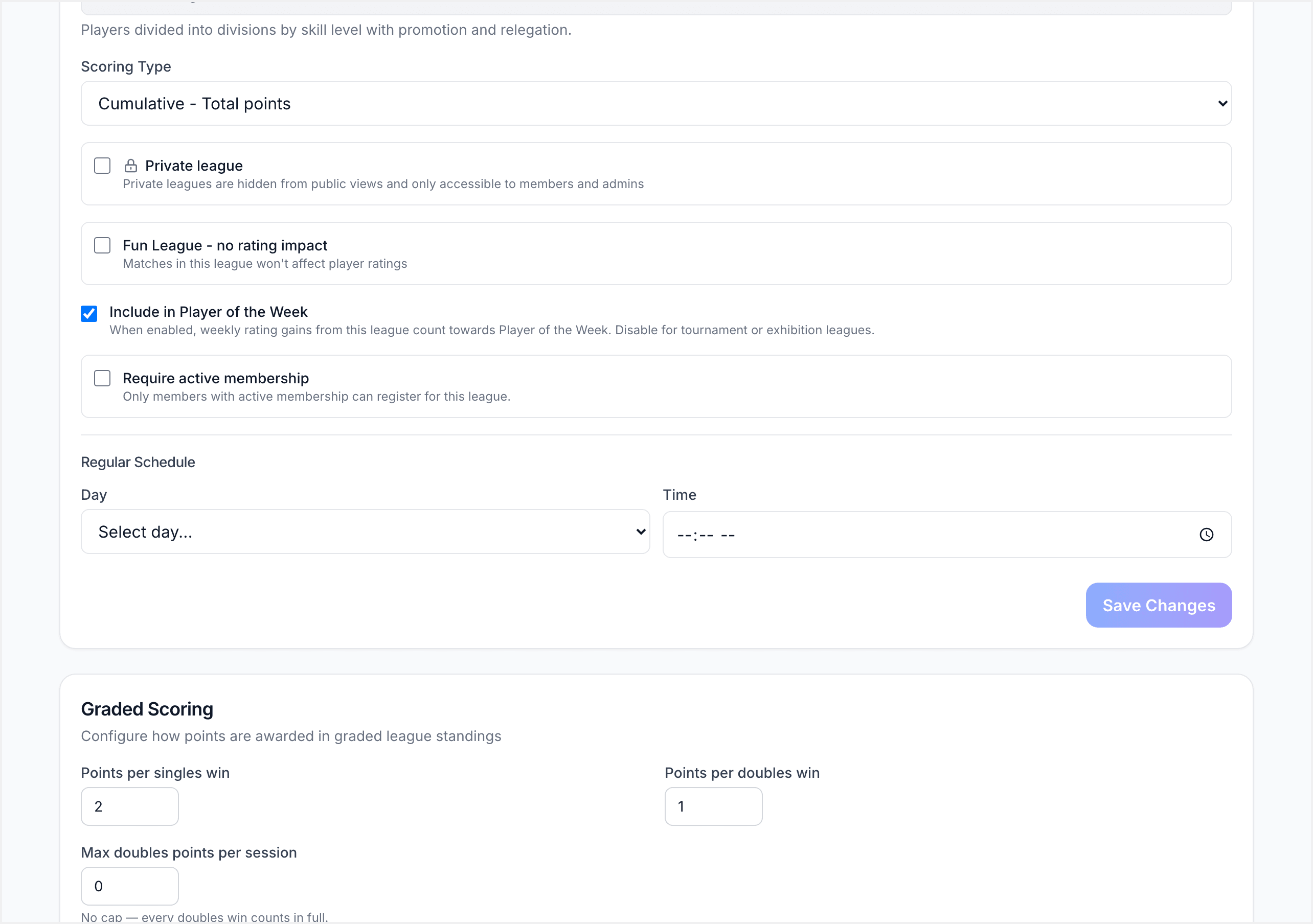
Scoring Configuration
ServeLeague supports several scoring modes that determine how player standings are calculated across sessions.
| Scoring Type | How It Works |
|---|---|
| Cumulative | Every session's points are summed across the season. Rewards consistent attendance. |
| Top N | Only the player's best N sessions count toward the final standings. Set the value of N in the scoring config. Forgives the occasional bad night. |
| Average | Standings are ranked by average points per session. Levels the field between players who attend different numbers of sessions. |
Graded League Scoring
For graded leagues, you can separately configure singles points and doubles points: for example, awarding 3 points for a singles win and 2 for a doubles win.
Team League Bonus Points
Team leagues have a richer scoring model:
- Classic: fixed points for wins/draws, with optional bonus points for dominant wins and close-match consolation.
- Threshold: points scale based on configurable win/loss thresholds for more granular rewards.
Key fields include draw points, win bonus, dominant win threshold/bonus, and close match threshold/bonus, configured per division.
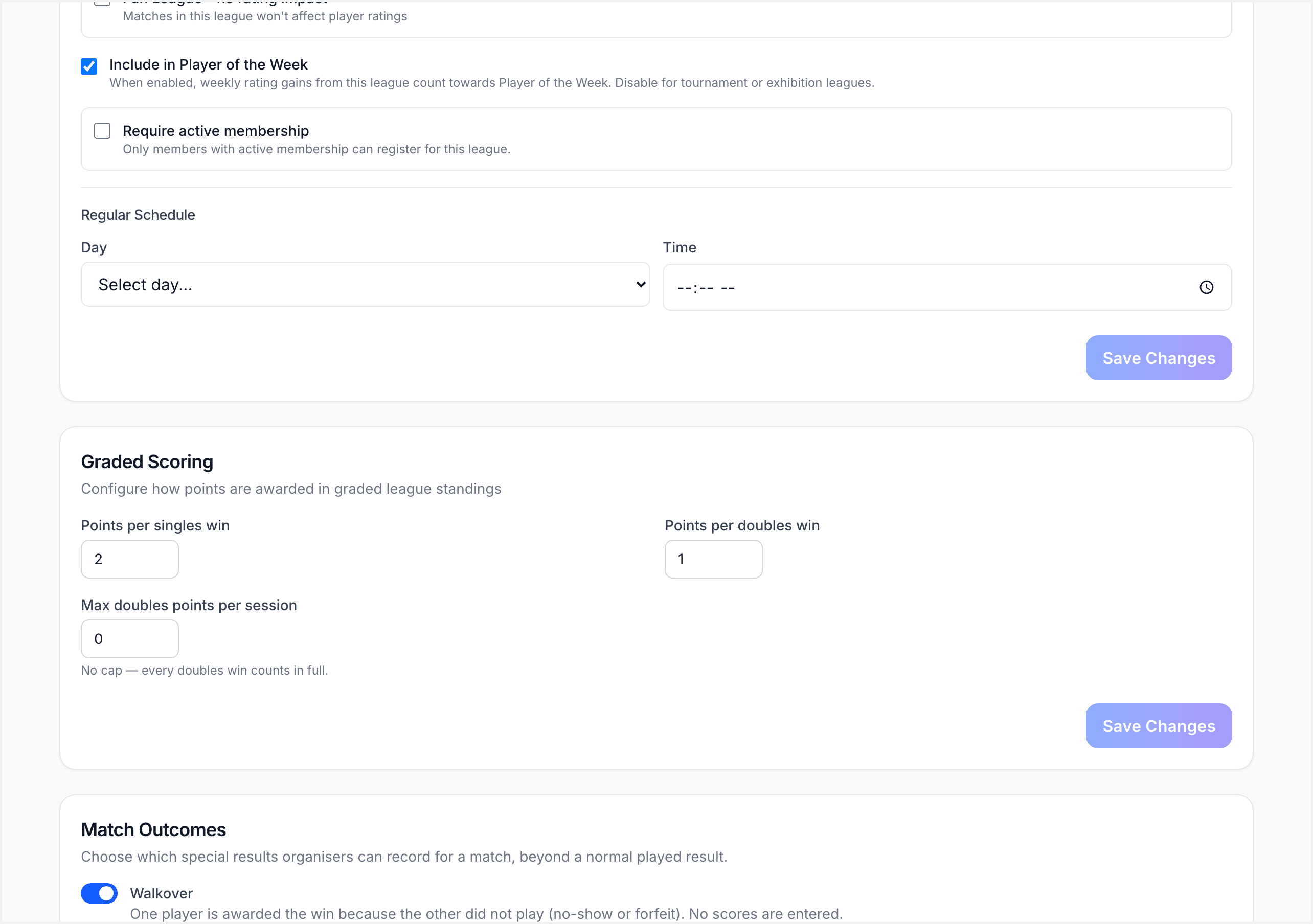
Visibility: Public vs Private
Every league has a visibility setting with two options:
| Visibility | Behaviour |
|---|---|
| Public | Appears in club listings, search results, and is viewable by anyone – including non-members. |
| Private | Hidden from public listings. Only club admins and players who have been explicitly granted access can see it. |
What Changes When You Go Private
Switching a league to private has knock-on effects:
- Ratings are disabled: private league results won't affect player ratings.
- Player of the Week is disabled: performances won't count toward the award.
- Access grants become available: you'll need to specify who can view and register (see Access Control below).
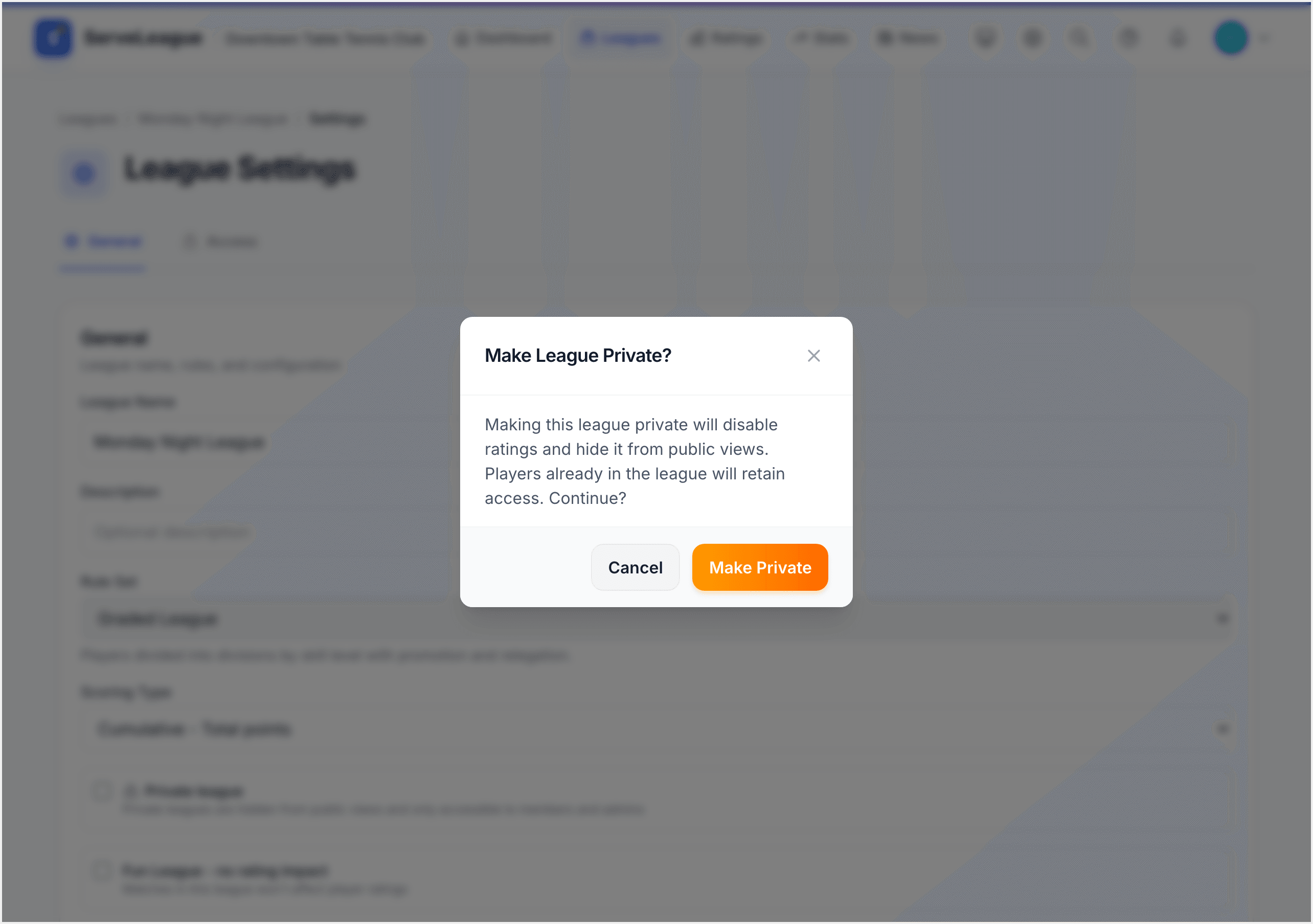
A confirmation dialog explains these changes before they take effect. Switching back to public reverses them.
Access Control
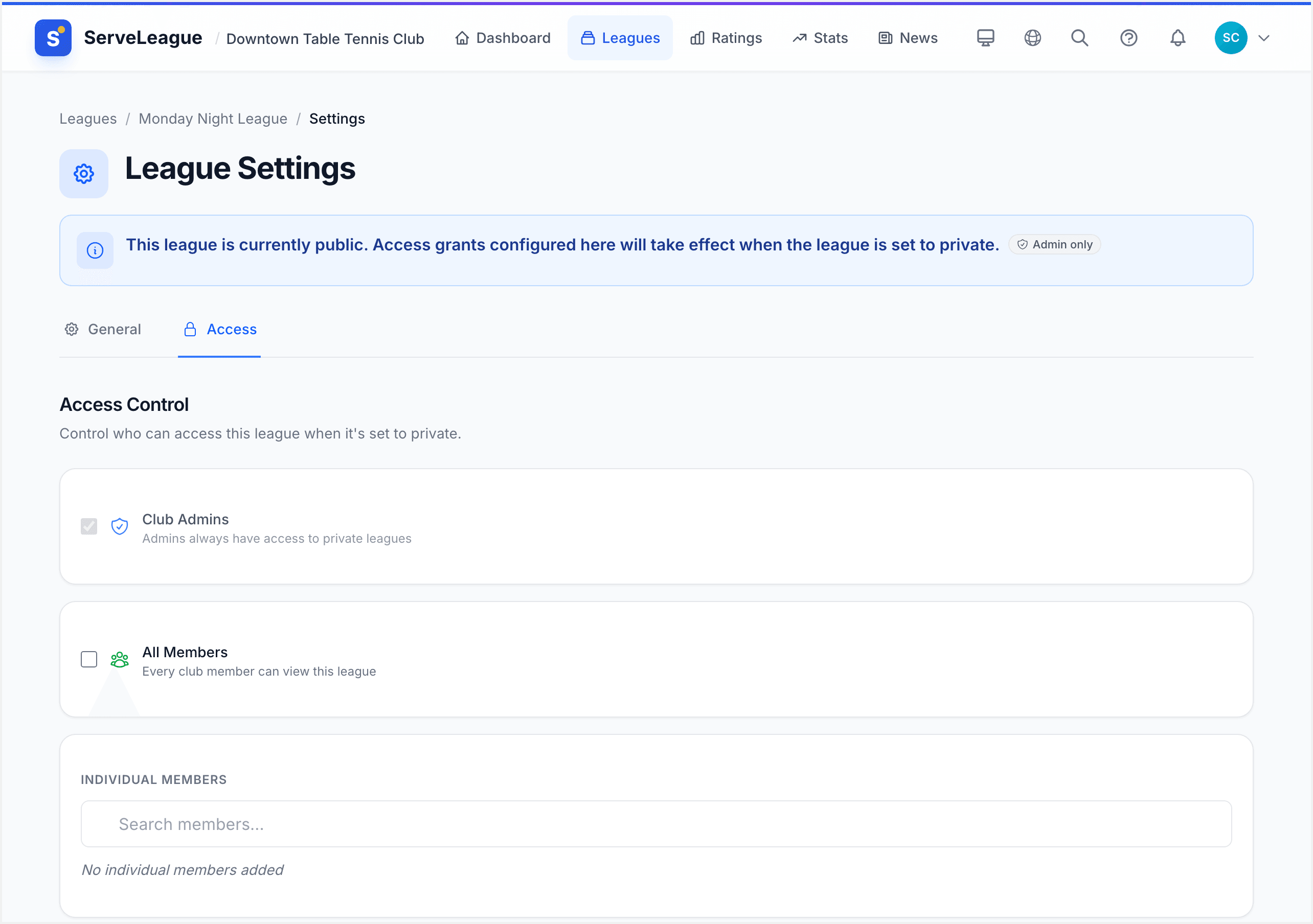
The Access tab (visible only for private leagues) lets you define exactly who can see and register for the league. There are three grant types:
| Grant Type | Effect |
|---|---|
| All Club Members | Every member of your club automatically has access. This is the simplest option for members-only leagues. |
| By Tag | Access is granted to members who carry a specific member tag (e.g., "Senior", "Junior", "Competition Squad"). You can combine multiple tags. |
| Individual Members | Hand-pick specific members. Best for invitation-only leagues or small groups. |
Grants are additive, anyone matching any criterion gets access. Saving replaces the entire grant list, so the access page always reflects the complete current permissions.
Registration Settings
Registration controls whether players can sign up for a league and how many can join.
| Setting | Description |
|---|---|
| Registration Enabled | Master switch. When off, no one can register – useful during preseason setup. |
| Registration Fee | Optional fee amount and currency. Displayed on the league card so players know the cost before registering. |
| Max Capacity | Sets an upper limit on registrations. Once reached, the league shows an "At Capacity" badge. |
| Waitlist Enabled | When capacity is reached, additional players can join a waitlist instead of being turned away. |
Registration status is reflected in badges on the league listing.
Facility Booking
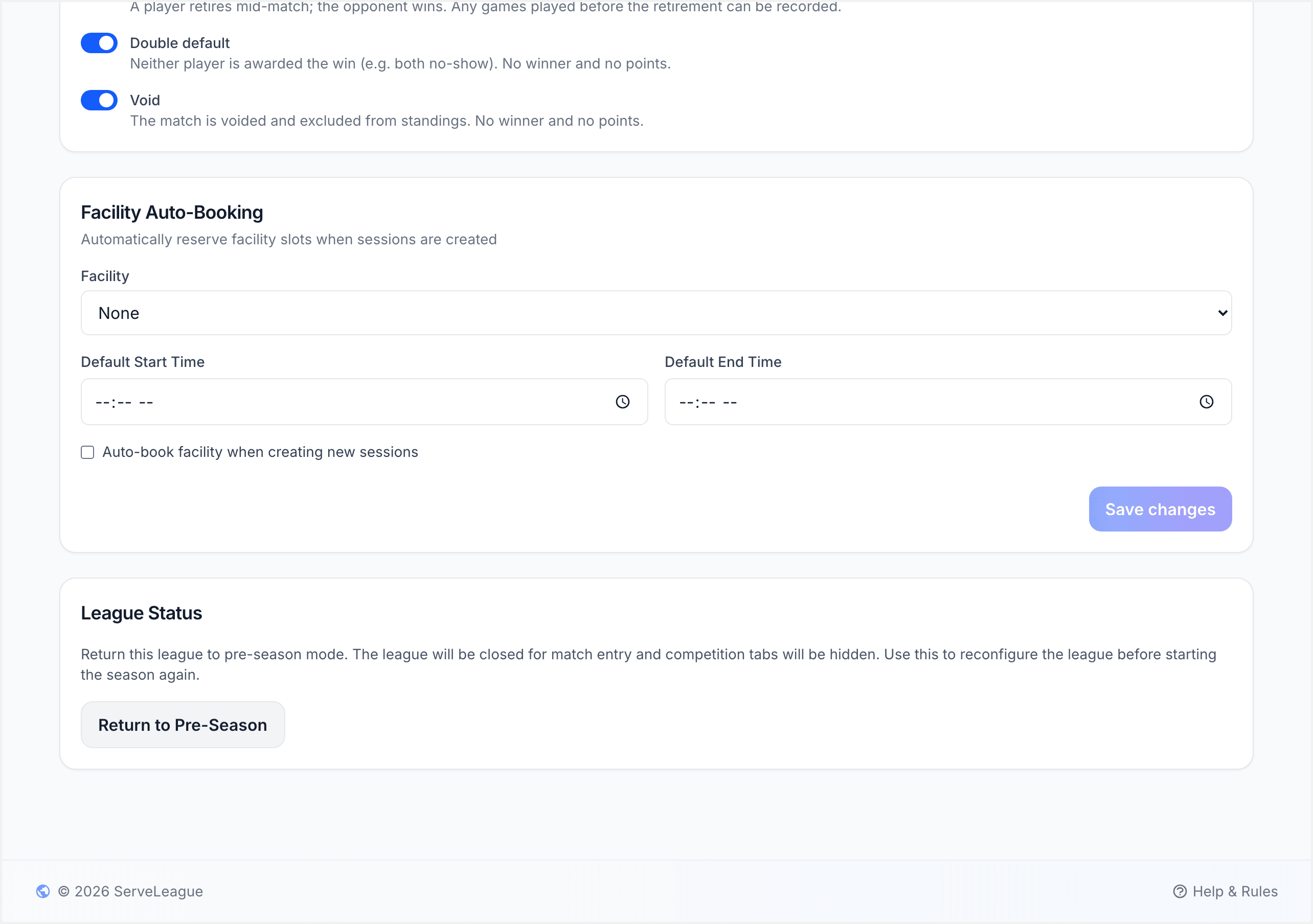
If your club has locations and facilities configured, you can link a league to a specific facility for automatic booking.
| Setting | Description |
|---|---|
| Facility | The venue or court to book for sessions. |
| Default Start/End Time | Pre-filled booking times based on the league schedule. |
| Auto-Book Facility | When enabled, creating a new session automatically reserves the linked facility for the configured time window. |
This eliminates manual booking each time you schedule a session.
League Status & Archiving
Leagues move through four statuses during their lifecycle:
| Status | Meaning |
|---|---|
| Preseason | League is set up but hasn't started. Use this to configure settings and open registration before play begins. |
| Active | Sessions are being played and recorded. |
| Completed | The season has ended. Results are preserved but no new sessions can be added. |
| Archived | Fully retired. Archived leagues are hidden from the main league list and moved to a separate "Archived" section. Registration is closed and is_open is set to false. |
To archive a league, change its status to Archived from the settings page. Archived leagues remain visible in historical standings and player profiles, they're never deleted. Admins can find them under the "Archived" filter in the admin console.
PIN Mode
ServeLeague uses a session PIN that players enter to confirm attendance or submit scores. See Player Self-Service for how players use PINs during sessions.
Every league uses session PIN mode: a fresh PIN is generated for each session, so last week's code stops working. There is nothing to configure here, and no PIN setting on this page. The PIN for the current session is shown when you open it.
[!NOTE] Because the PIN rotates every session, you do not need to worry about an old code circulating. If you need to share it, read it off the open session rather than from League Settings.
Rules Documentation
You can attach league-specific rules in settings, displayed on the league detail page. A switch lets you show club-wide rules alongside them.
Quick-Reference Checklist
Before your league goes live, confirm:
- Name and description are accurate
- Scoring type matches your format (cumulative / top-n / average)
- Visibility is set correctly (public or private with access grants)
- Registration is enabled with appropriate capacity limits
- "Affects Ratings" is on for competitive leagues, off for fun leagues
- Schedule day and time are set
- Facility booking is linked (if applicable)
What's Next?
- Season Management: learn how to run a full season, manage sessions week by week, and finalize standings.
- Creating a Team League: set up divisions, fixtures, and team-specific scoring rules.
- Setting Up a Graded League: configure graded formats with promotion, relegation, and group play.