Navigating the Admin Dashboard
Once your club is created, the admin dashboard becomes your command center. From here you can see your club's vital stats at a glance, jump to common tasks with one click, and go to every management page through the sidebar. This tutorial walks you through each part of the dashboard so you can manage your club confidently from day one.
The Sidebar: Your Navigation Hub
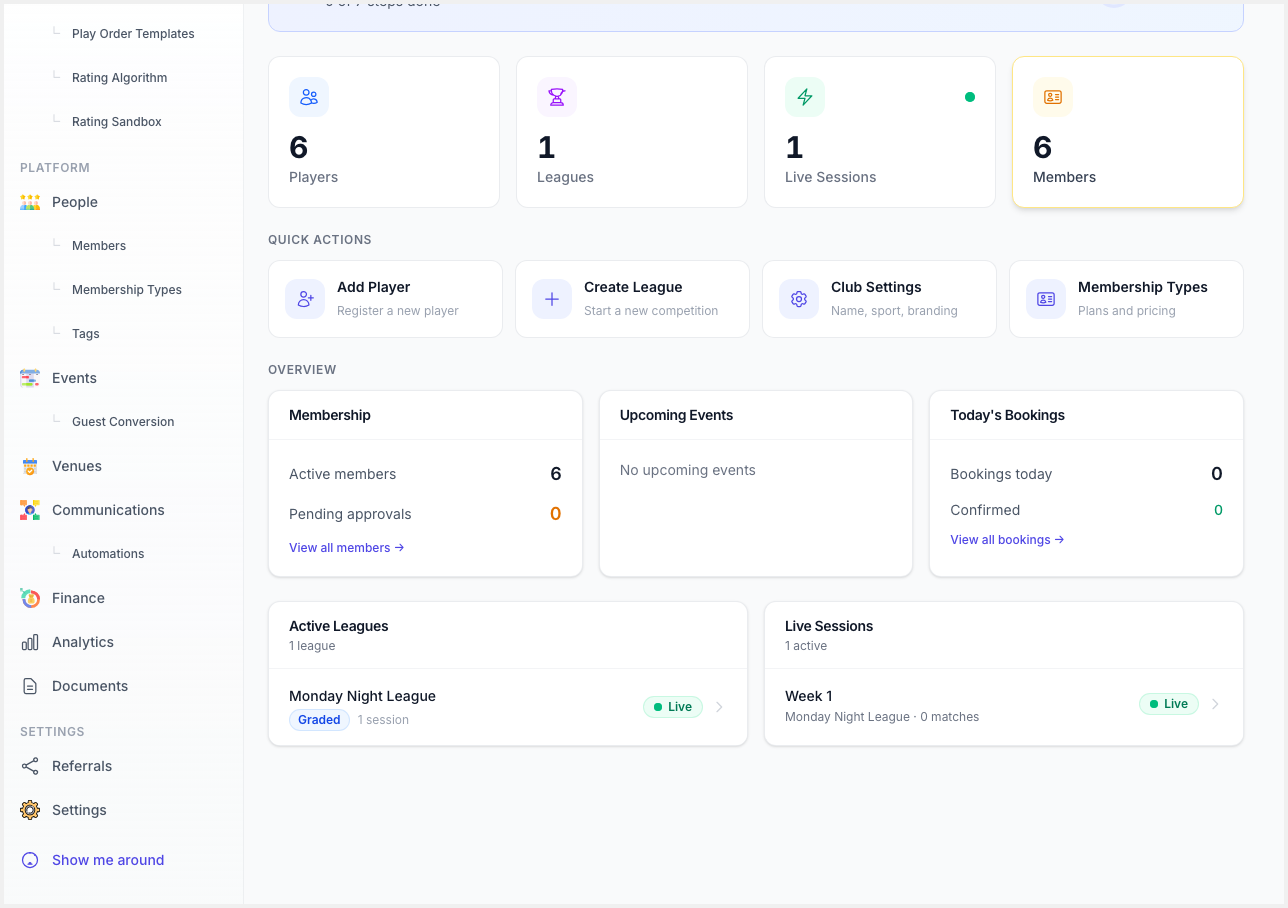
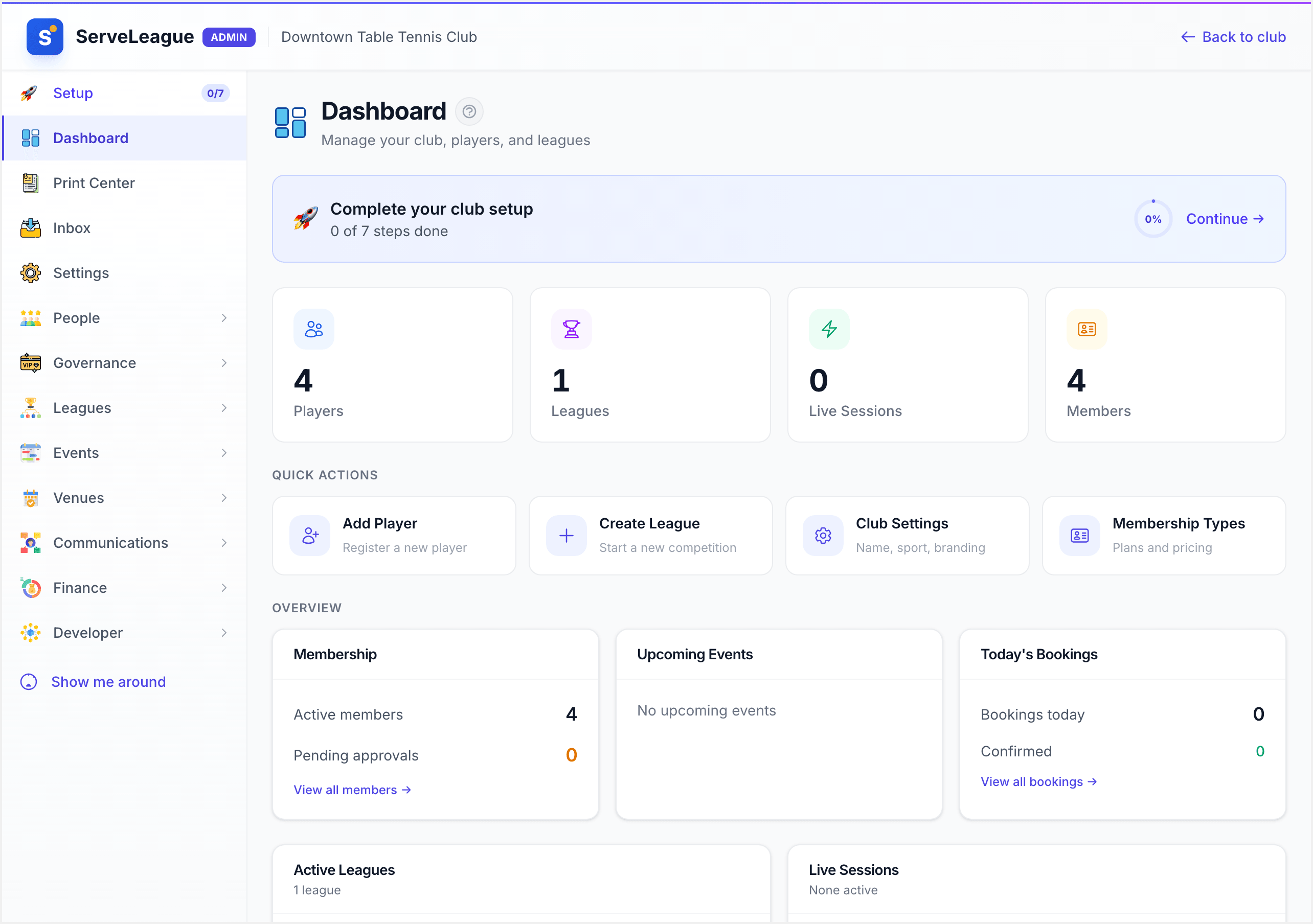
The admin sidebar sits on the left side of every admin page. It is organized into expandable sections that group related pages together.
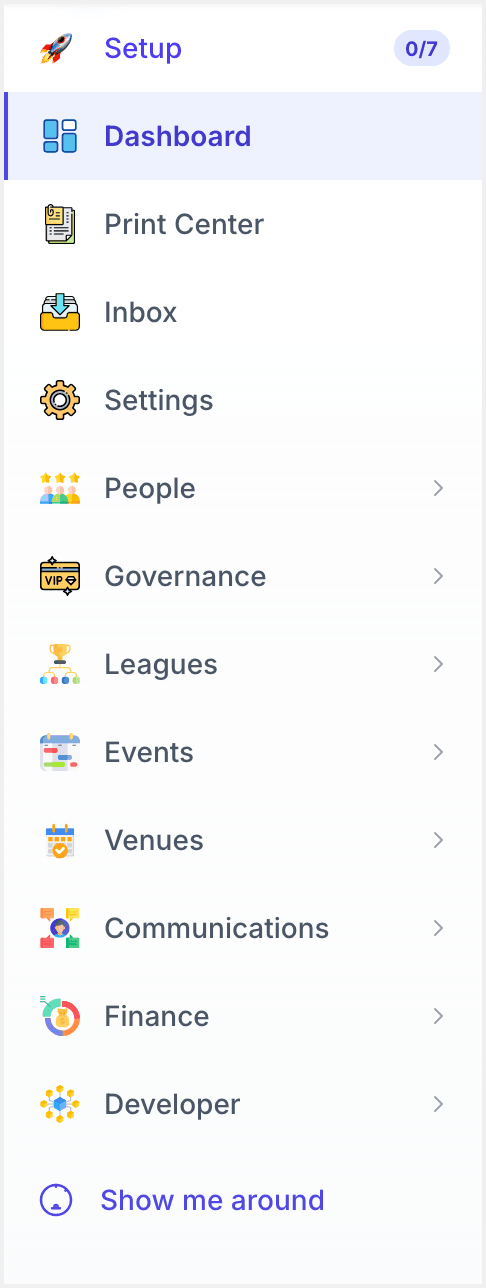
At the top of the sidebar you'll find two standalone items:
- Dashboard: the main overview page (covered in detail below).
- Settings: configure your club's name, branding, timezone, integrations, team members, and more.
Below those, expandable sections let you drill into specific areas. Click a section header to expand or collapse it:
Leagues
Everything related to running leagues and tracking players:
- Overview: view, create, and manage all your club's leagues and competitions.
- Players: your full player roster, profiles, and ratings.
- Constraints: manage match preferences — player requests to avoid being paired with specific opponents.
- Sessions: view and manage league sessions across all leagues.
- Play Order Templates: create reusable play order templates for team leagues.
- Rating Algorithm: choose and configure the rating calculation system for your club.
- Rating Sandbox: test rating scenarios without changing real data.
People
Manage your club's members, tags, and documents:
- Overview: manage club memberships, approve applications, and track renewals.
- Membership Types: define membership tiers with pricing and benefits.
- Tags: organize members with custom tags for filtering and communication.
- Documents: manage and review member-submitted documents.
Events
Create and manage club events:
- Overview: create and manage club events such as socials, tournaments, or open days.
- Guest Conversion: track and convert guest visitors into full club members.
- Event Templates: reusable templates for recurring events.
Venues
Manage your club's physical spaces:
- Overview: manage your club's locations and facilities for booking.
- Bookings: view and manage facility bookings.
- Access Control, CCTV, Automation: advanced facility management features.
Communications
- Overview: send emails and announcements to your members.
- Automations: set up automated email triggers for membership renewals, event reminders, and more.
- Automation Logs: review the history of triggered automations.
Finance
- Overview: track revenue from memberships, events, and bookings.
- Analytics: view reports on club activity, growth, and engagement.
- Accounting: detailed financial records and reporting.
[!TIP] Some sidebar items show a lock icon. These are features available on higher subscription plans. Click Explore More Features at the bottom of the sidebar to learn what's included in each plan.
At the top of the sidebar, you'll see a club switcher if you manage multiple clubs, letting you move between them without leaving the admin console.
Mobile Navigation
On smaller screens, the sidebar is hidden behind a menu button (☰) in the top-left corner. Tapping it slides the sidebar in from the left as an overlay. Tapping outside the sidebar or going to a new page closes it automatically.
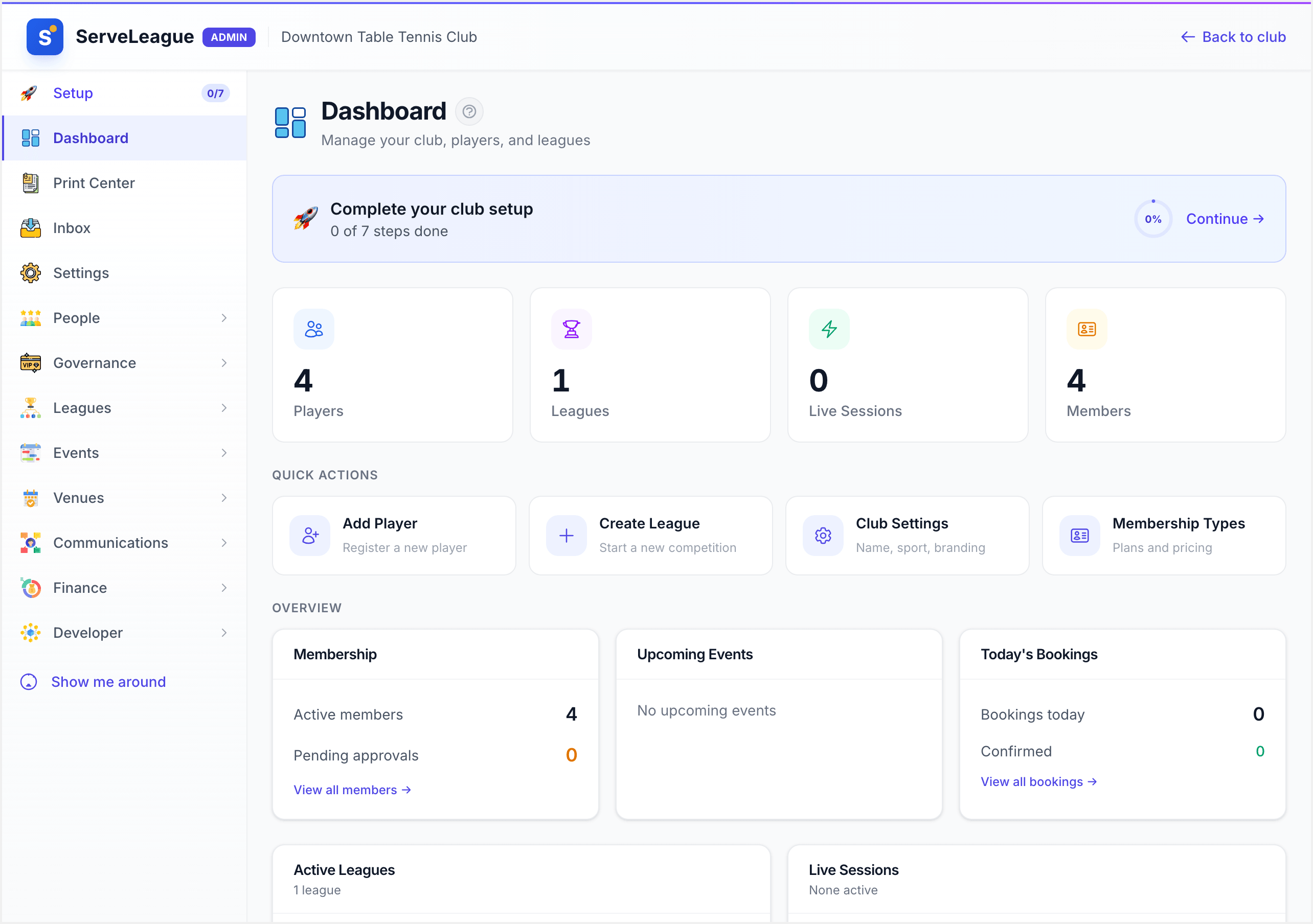
The Dashboard Page
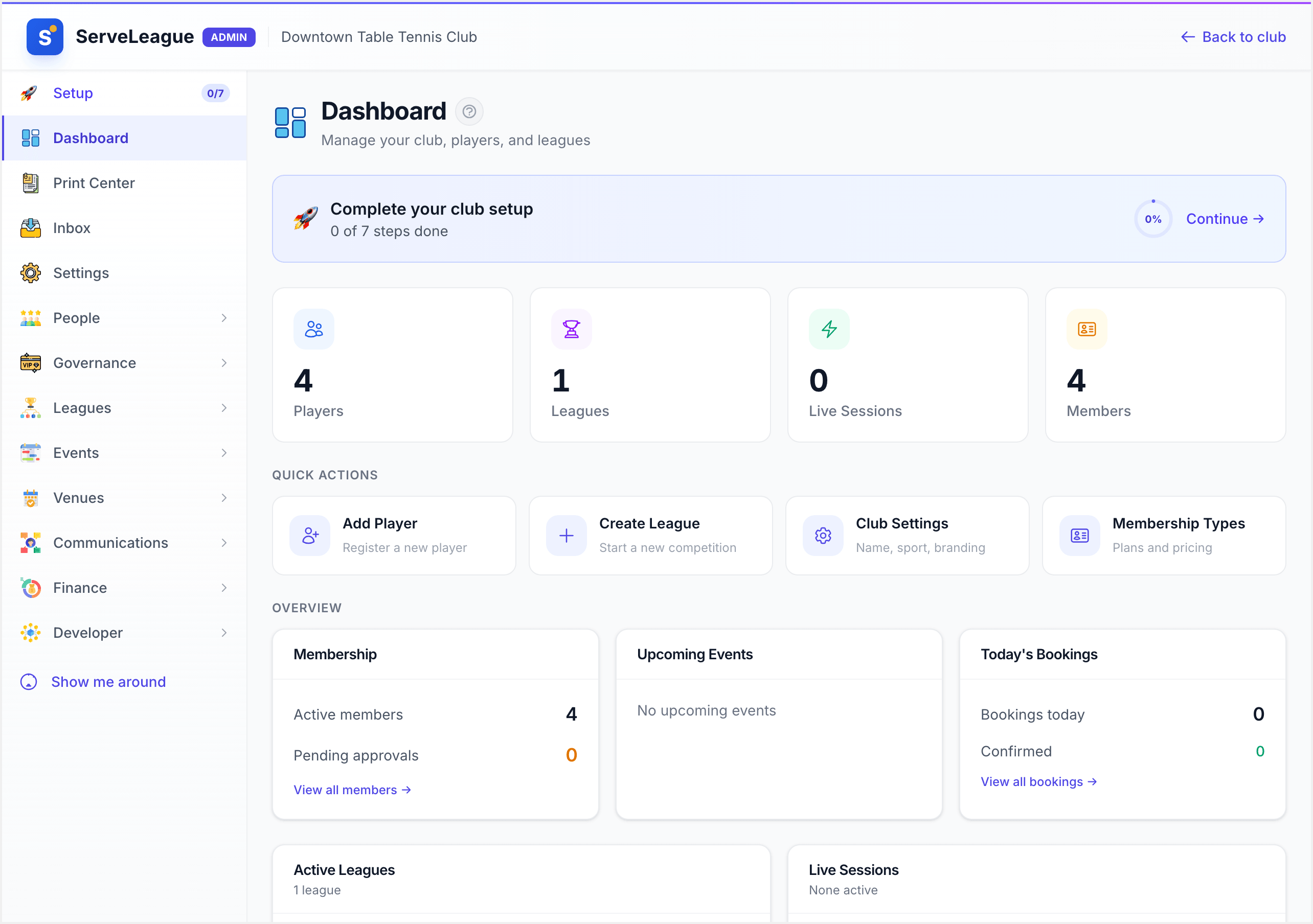
When you open the admin console, you land on the Dashboard. It's designed to give you a snapshot of your club's current state and fast access to common tasks.
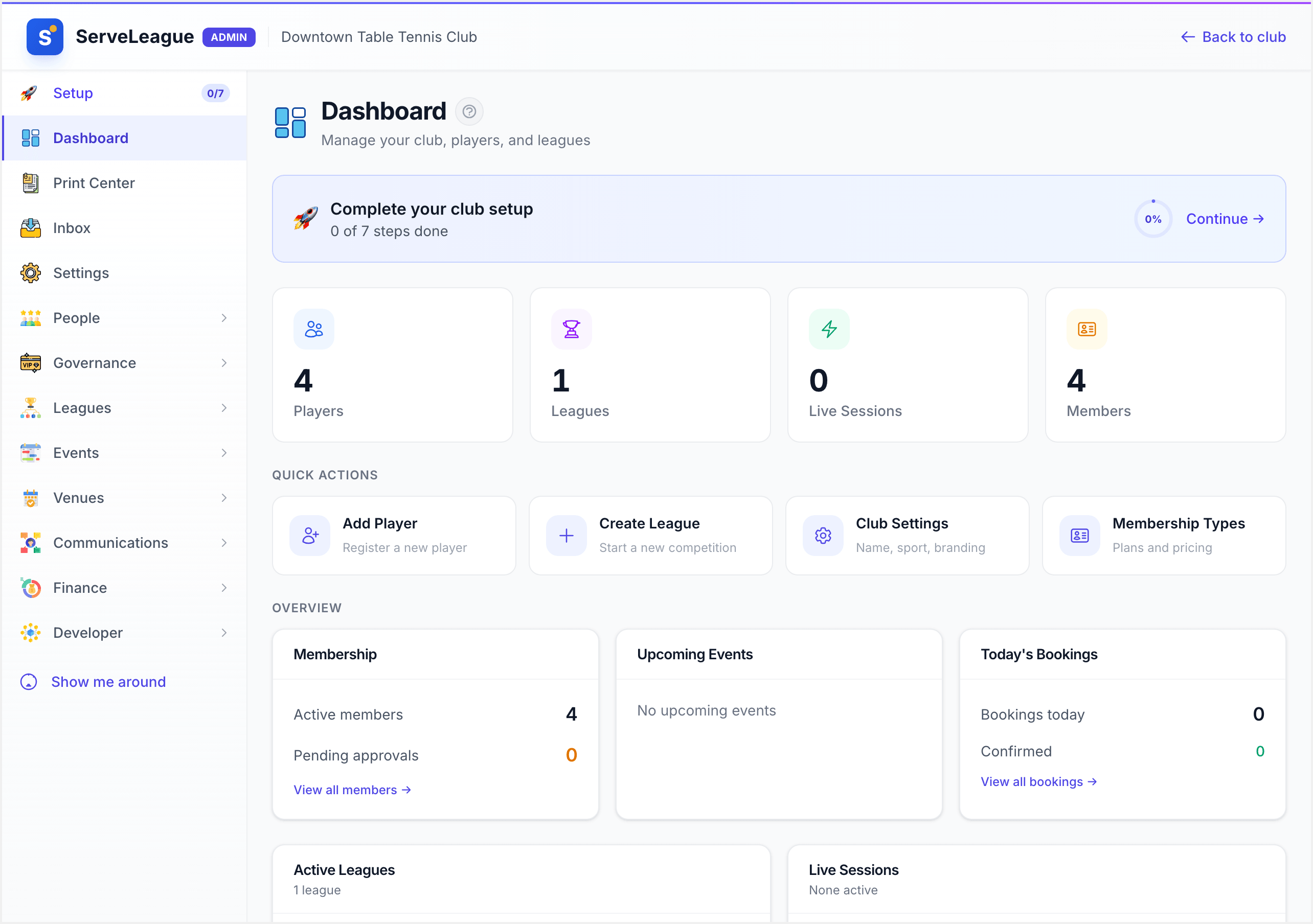
Setup Banner
If you haven't completed the setup wizard yet, a banner appears at the top of the dashboard showing your progress, for example, "3 of 7 steps done." Click Continue → to pick up where you left off. The banner disappears once all steps are complete.
Stats Cards
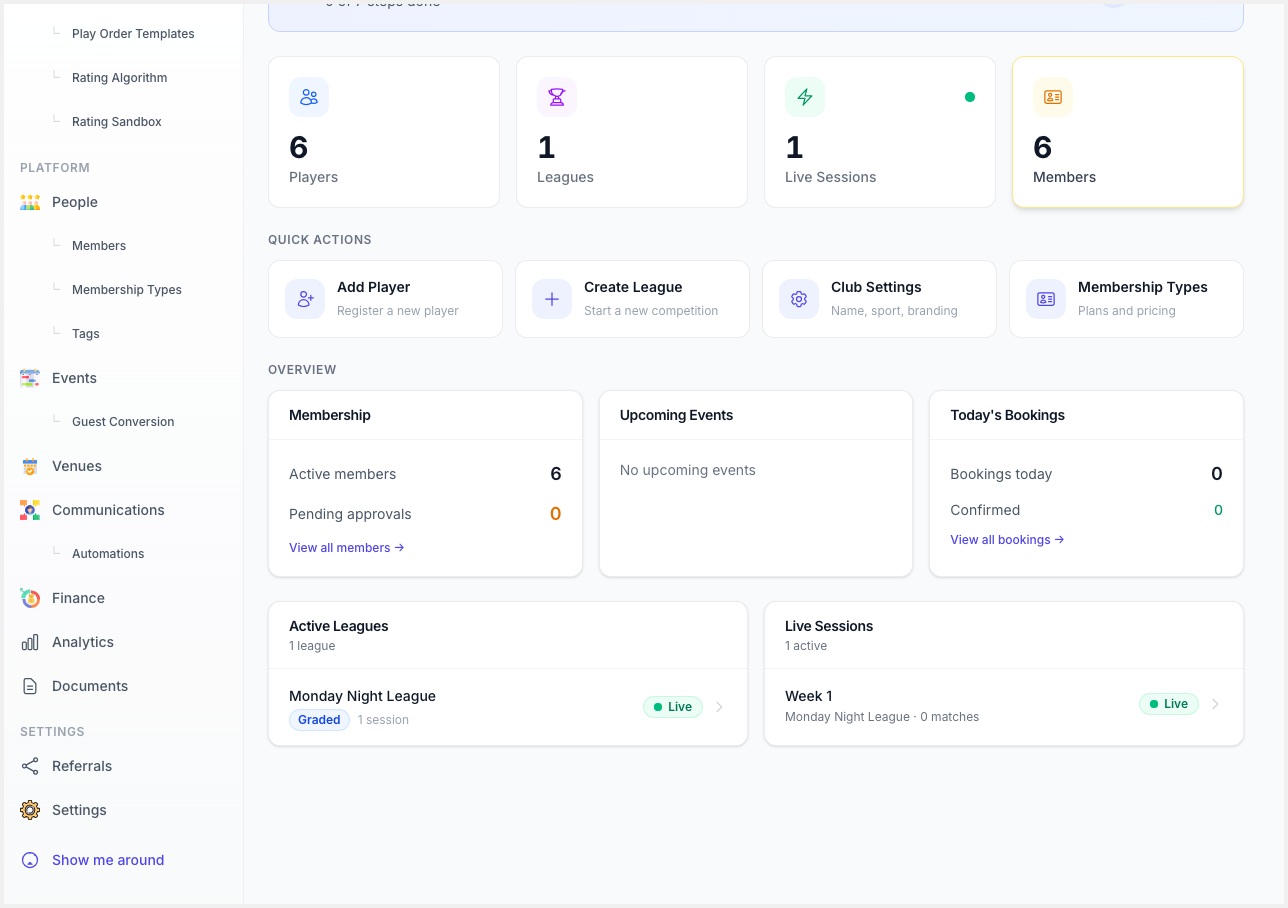
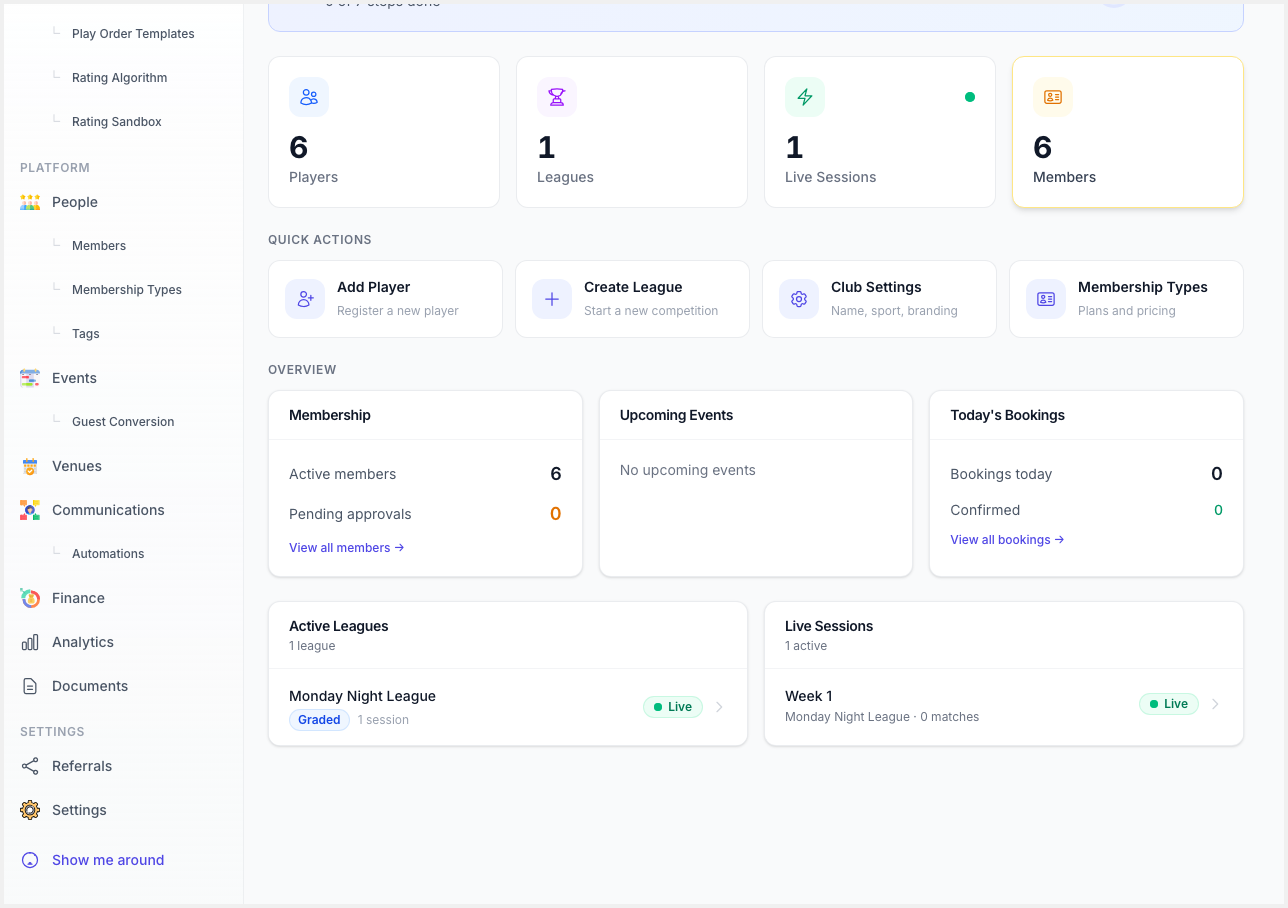
Below the banner, a row of stat cards shows your club's key numbers at a glance:
- Players: total number of players in your club roster.
- Leagues: number of leagues you've created.
- Live Sessions: how many sessions are currently open and recording matches.
- Members: total active members (or Total Sessions if membership features are not enabled).
These cards update in real time, so you always know where things stand.
Quick Actions
Directly below the stats, a set of quick-action cards let you jump to common tasks without navigating through the sidebar:
- Add Player: register a new player in your roster.
- Create League: start a new competition.
- Club Settings: jump straight to your club's configuration (name, sport, branding).
- Membership Types: define or edit plans and pricing.
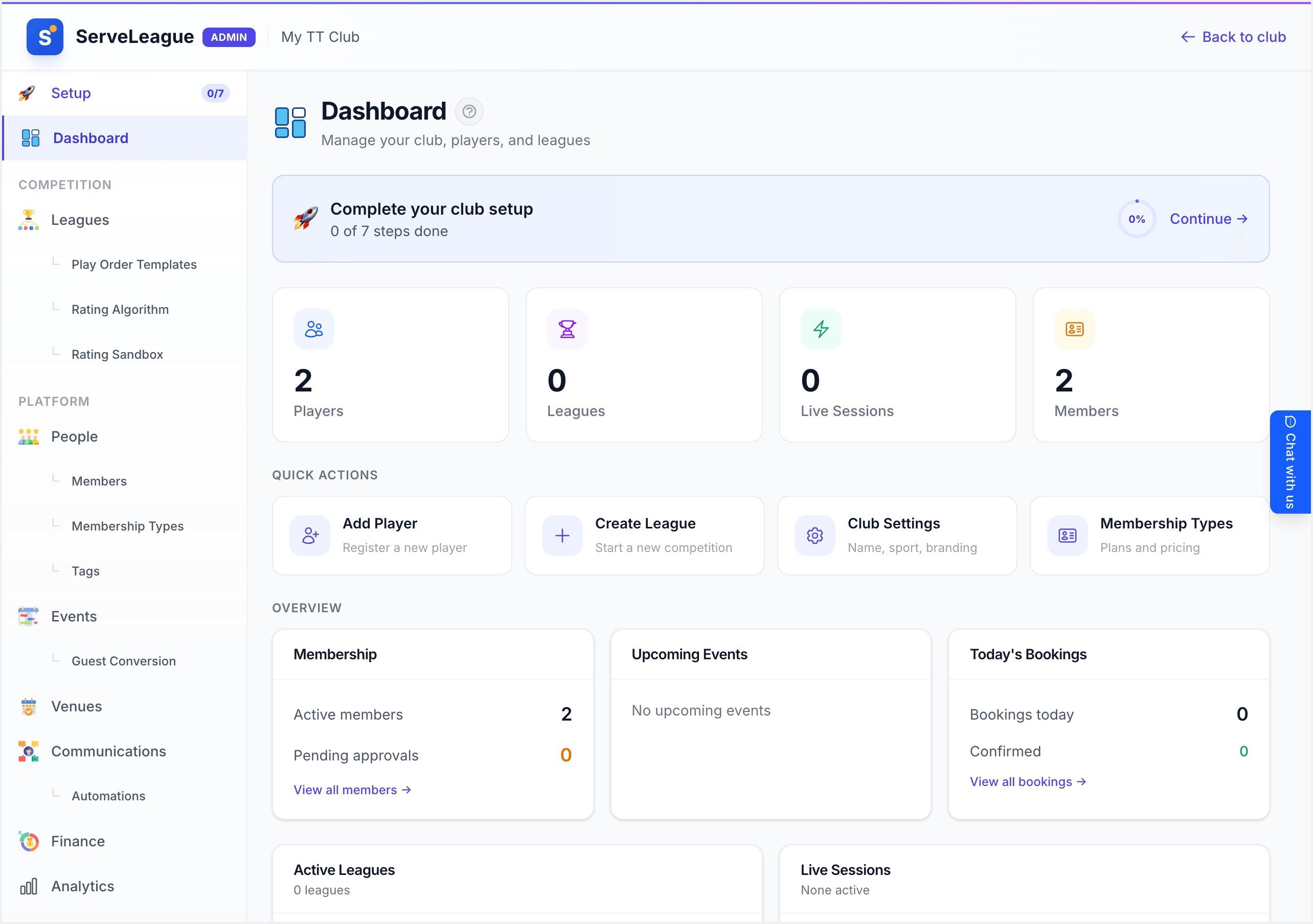
[!TIP] Quick actions are the fastest way to get things done when you know exactly what you need. As your club grows, you'll use these shortcuts daily.
Overview Widgets
The Overview section provides cross-feature widgets that pull together information from across your club:
- Membership: shows active members, pending approvals, and upcoming renewals. If any membership requests are waiting, you will see a count here.
- Pending Actions: shows pending match preference requests and membership requests that need your review. Click the counts to jump directly to the relevant review page.
- Upcoming Events: lists your next scheduled events so nothing catches you off guard. Each event shows its date, time, and registration count.
- Today's Bookings: shows confirmed facility bookings for the day, including the facility name and time slot.
These widgets only appear when the corresponding features are enabled on your plan. If a feature isn't included in your plan, you may see an upgrade prompt instead.
Player of the Week
The Player of the Week widget highlights the player who achieved the highest combined rating gain during the previous week. It displays:
- Winner name: the player who earned the most rating points
- Week date range: the Monday-to-Sunday window the award covers
- Total rating gain: the combined rating points gained across all sessions that week
Clicking the player's name takes you to their profile page. This widget only appears after at least one session has been finalized in your club. Until then, the dashboard skips this section.
[!TIP] Player of the Week is a great motivator. Mention the winner in your club communications or display it on a screen at your venue to encourage friendly competition.
Front Runner
The Front Runner widget shows who is currently leading the Player of the Week race for the current week, before the award is finalized. It displays:
- Player name: the current leader
- Total gain so far: rating points accumulated this week
- Matches played: how many matches contributed to their gain
The widget is labelled "Current front runner" and updates in real time as sessions are finalized throughout the week. Once the week ends and the Player of the Week is determined, this widget resets for the new week.
Top Performers
The Top Performers card has two tabs that let you switch between different time windows:
- This Week: a ranked list of players with the highest rating gains during the current week. Each row shows a rank badge, the player's name (which links to their profile), and the rating gain amount.
- This Year: a ranked list of players with the highest cumulative rating gains for the current competition year. The layout matches the weekly view but covers the full year-to-date period.
Use this card to spot your most active and improving players at a glance.
Most Improved Player of the Year
The Most Improved Player of the Year section shows the top five players with the largest total rating gains across the entire competition year. Each row displays:
- Rank: their position (1st through 5th)
- Player name: links to the player's profile
- Total gain: the cumulative rating improvement for the year
This is a great way to recognize consistent improvement over a longer period, not only a single strong week.
League Snapshot Cards
Below the performance widgets, the dashboard shows League Snapshot Cards, one card for each of your active leagues. These give you a quick view of current standings without leaving the dashboard.
Each card includes:
- Header: the league name with a type icon or trophy badge indicating the format
- Body: the content varies depending on the league type:
- Standard / Drop-in leagues: a condensed player standings table showing top-ranked players
- Teams leagues: team standings with win/loss records
- Graded leagues: grade-level standings with the top players in each grade
- Playoffs: the current round name with matchup results, including team names, team colors, and scores
These cards let you monitor all your leagues from a single page.
Pre-season League Cards
If you have leagues that have been created but haven't started play yet, they appear as Pre-season League Cards. Each card shows:
- League name: the name you gave the league
- "Preseason" badge: indicates the league has not yet started
- Schedule: the day and time the league is set to play
- Start date: when the first session is scheduled
- CTA button: either "Register now" (if an associated registration event exists) or "View league" to see the league detail page
These cards help you promote upcoming leagues directly from the dashboard.
Latest News
The Latest News section displays the most recent club news article on the dashboard. This keeps your latest announcement visible to admins as soon as they log in. Clicking the article title takes you to the full news page.
Active Leagues
A card titled Active Leagues lists every league currently in progress, along with its session count. If you haven't created any leagues yet, you'll see an empty state with a prompt to Create League. Clicking it opens the league creation wizard.
Live Sessions
The Live Sessions card shows any sessions that are currently open and recording matches, with a green Live badge. You can see the match count for each active session. When no sessions are running, the card shows "None active" with a note to open a session from a league page.
Key Admin Pages
Beyond the dashboard, here's a quick overview of the pages you'll use most often.
People
The People page is your club's roster. You can search and filter players, add new ones, import players from a CSV, and view individual player profiles with their match history, ratings, and statistics.
Leagues
The Leagues page lists all your competitions. From here you can create new leagues (graded, team, drop-in, Super League, or tournament format), open sessions, and manage league settings. Each league has its own detail page where you manage sessions and standings.
Settings
The Settings page is organized into tabs:
- General: club name, description, timezone, currency, privacy, and scheduling.
- Branding: upload your club logo and customize your public appearance.
- Tax: configure tax settings for membership fees.
- Integrations: connect third-party services.
- Access Control: manage who can access what.
- Subscription: view and manage your current plan.
- Team: add or remove admin users and manage player profile claim requests.
The Setup Wizard
If you are getting started, the setup wizard is the fastest way to configure your club. You can access it from the Setup link in the sidebar or from the setup banner on the dashboard.
The wizard walks you through seven steps:
- Welcome: an overview of ServeLeague features: player management, leagues and competitions, membership management, and facility booking.
- Club Details: set your timezone, currency, and club address so schedules, pricing, and club discovery all work correctly.
- Players: add players manually or import them in bulk from a spreadsheet.
- League: create your first league to start organizing sessions and tracking ratings.
- Membership: set up membership tiers with pricing (available on supported plans).
- Facilities: configure your venue's facilities for booking and check-in (available on supported plans).
- Go Live: review your setup and share your club's join link with players.
You can skip any step and come back later. The wizard tracks your progress and shows which steps are complete. Once all steps are done, the wizard and setup banner disappear from the dashboard.
[!NOTE] You can always return to the setup wizard from the sidebar. It stays available until every step is marked complete, so there's no pressure to finish everything in one sitting.
Summary
The admin dashboard is your starting point for managing everything in your club. The sidebar gives you structured access to every admin page, the dashboard cards keep you informed at a glance, and quick actions let you jump straight into common tasks. Spend a few minutes exploring each section. The layout is consistent, so once you're familiar with the dashboard you'll feel at home everywhere in the admin console.
Next steps:
- Search and Command Palette: skip the sidebar entirely and jump to any player, league, or page with Ctrl+K
- Adding Members to Your Club: build your roster with manual entry, bulk import, and self-service join links
- Creating Your First League: set up a league format, add players, and open your first session
- Club Branding and Customization: upload your logo, configure colors, and make your club page stand out