Notifications and Push Setup
Staying on top of what is happening at your club should not require constantly checking the website. ServeLeague's notification system keeps you informed about match results, upcoming sessions, event reminders, and more, delivered as in-app alerts, emails, or push notifications directly to your phone.
This tutorial shows you how to find your notifications, customize what you receive, and set up push notifications on your mobile device.
The Notification Bell
The notification bell icon sits in the top-right corner of every page on ServeLeague. When you have unread notifications, a badge appears showing the count.
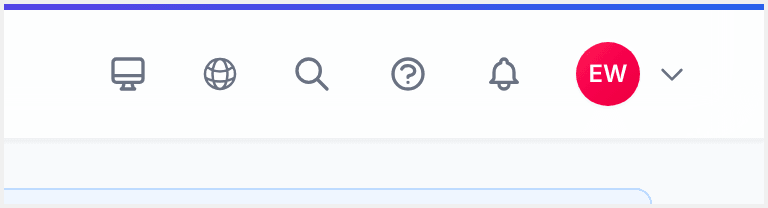
Click the bell to open the Notification Center panel. This shows your most recent notifications in reverse chronological order. Each notification includes:
- An icon indicating the type (match, event, membership, etc.)
- A title and brief description
- A timestamp showing when it was sent
- A read/unread indicator (unread notifications are highlighted)
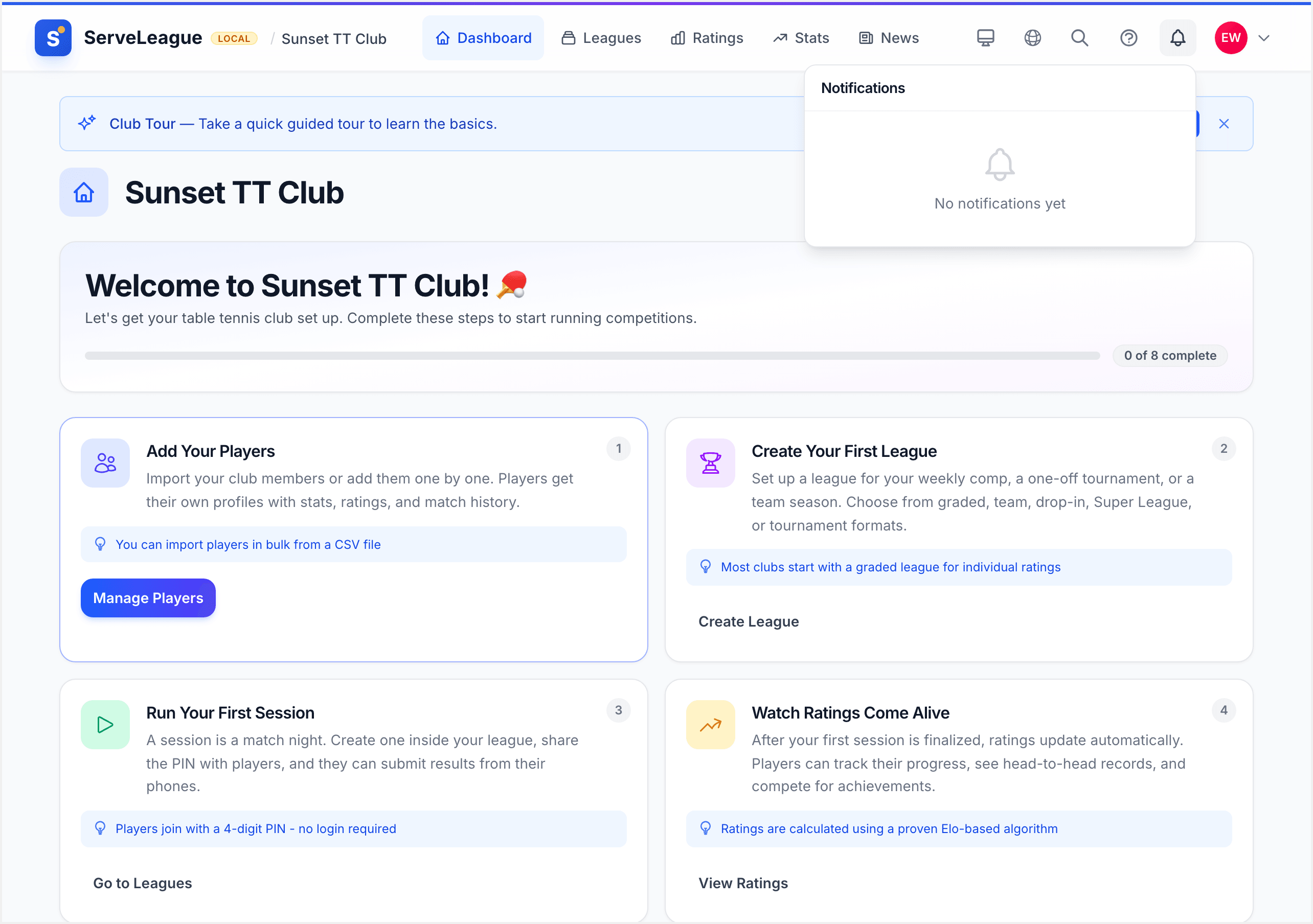
Click any notification to go directly to the related page. For example, clicking a match result notification takes you to the session results page.
At the bottom of the panel, click "View All" to see your full notification history. You can also mark all notifications as read from this view.
[!TIP] The notification bell updates in real time. You do not need to refresh the page to see new notifications.
Notification Types
ServeLeague sends notifications for a variety of events. Here are the main categories:
| Category | Examples |
|---|---|
| Matches | Match results posted, rating changes, session finalized |
| Sessions | New session scheduled, session reminder, session cancelled |
| Leagues | Registration opened, league started, standings updated |
| Events | Event created, event reminder, registration confirmed |
| Membership | Membership approved, payment received, renewal reminder |
| Admin | New registration received, player joined, report published |
Each category can be independently configured in your notification preferences (see the next section).
Notification Preferences
To customize which notifications you receive and how they are delivered, click on your profile avatar in the top-right corner and select "Notification Preferences" from the menu.
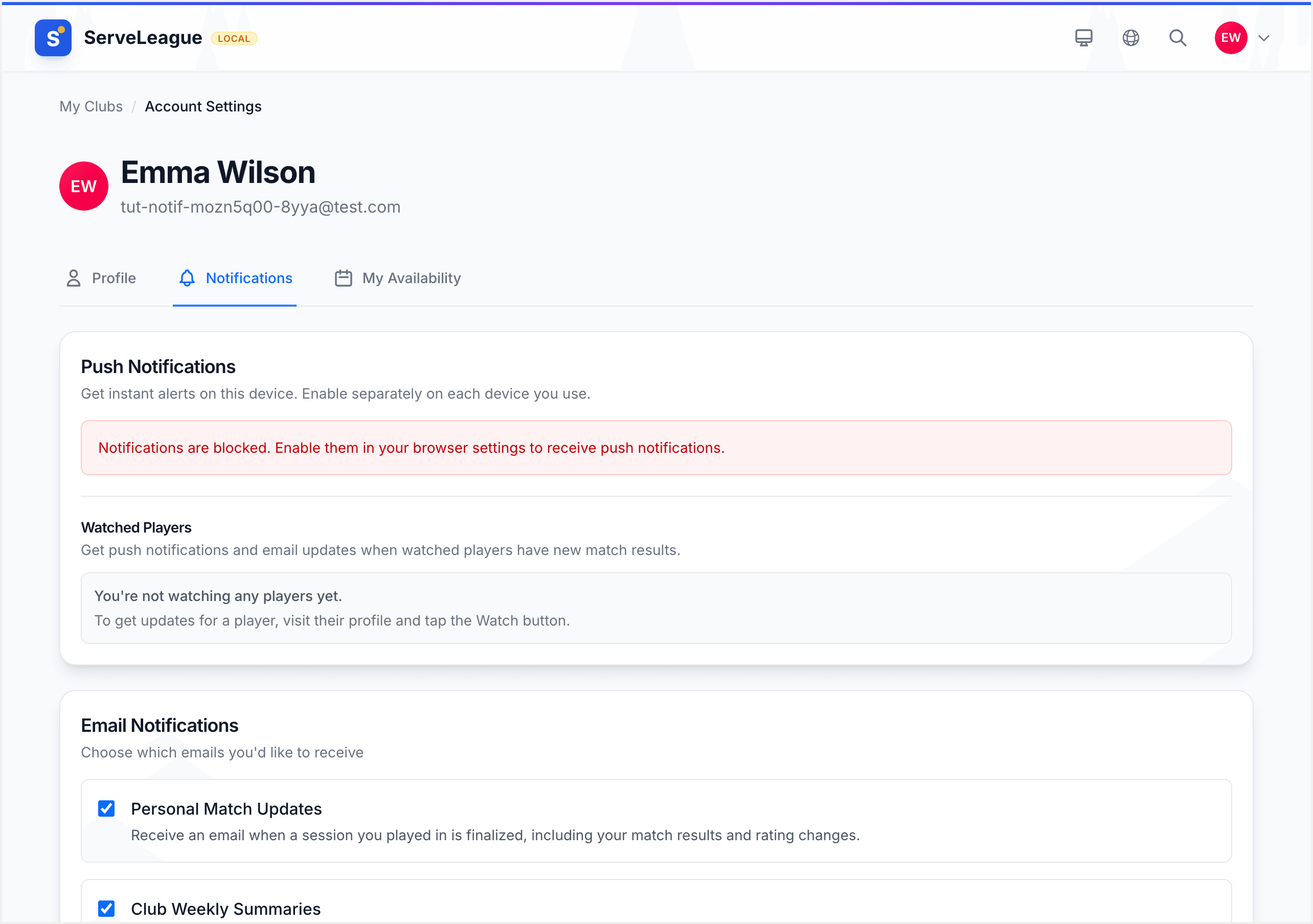
The preferences page organizes notifications into the categories listed above. For each category, you can turn on or off three delivery channels independently:
- In-app: notifications appear in the notification bell on the website
- Email: notifications are sent to your registered email address
- Push: notifications are sent as push notifications to your mobile device
For example, you might want match results delivered via push and in-app, but only receive membership notifications by email.
[!NOTE] In-app notifications are always enabled for critical system messages such as security alerts and account changes. These cannot be turned off.
Recommended Settings
Here are some suggested configurations depending on your role:
For players:
- Push on for match results and session reminders
- Email on for league registration updates
- In-app on for everything else
For club admins:
- Push on for new registrations and payment notifications
- Email on for weekly report drafts and membership renewals
- In-app on for all categories
Enabling Push Notifications
Push notifications let you receive alerts on your mobile device even when you are not actively using ServeLeague. To enable them, go to your Notification Preferences page and turn on "Push Notifications" at the top.
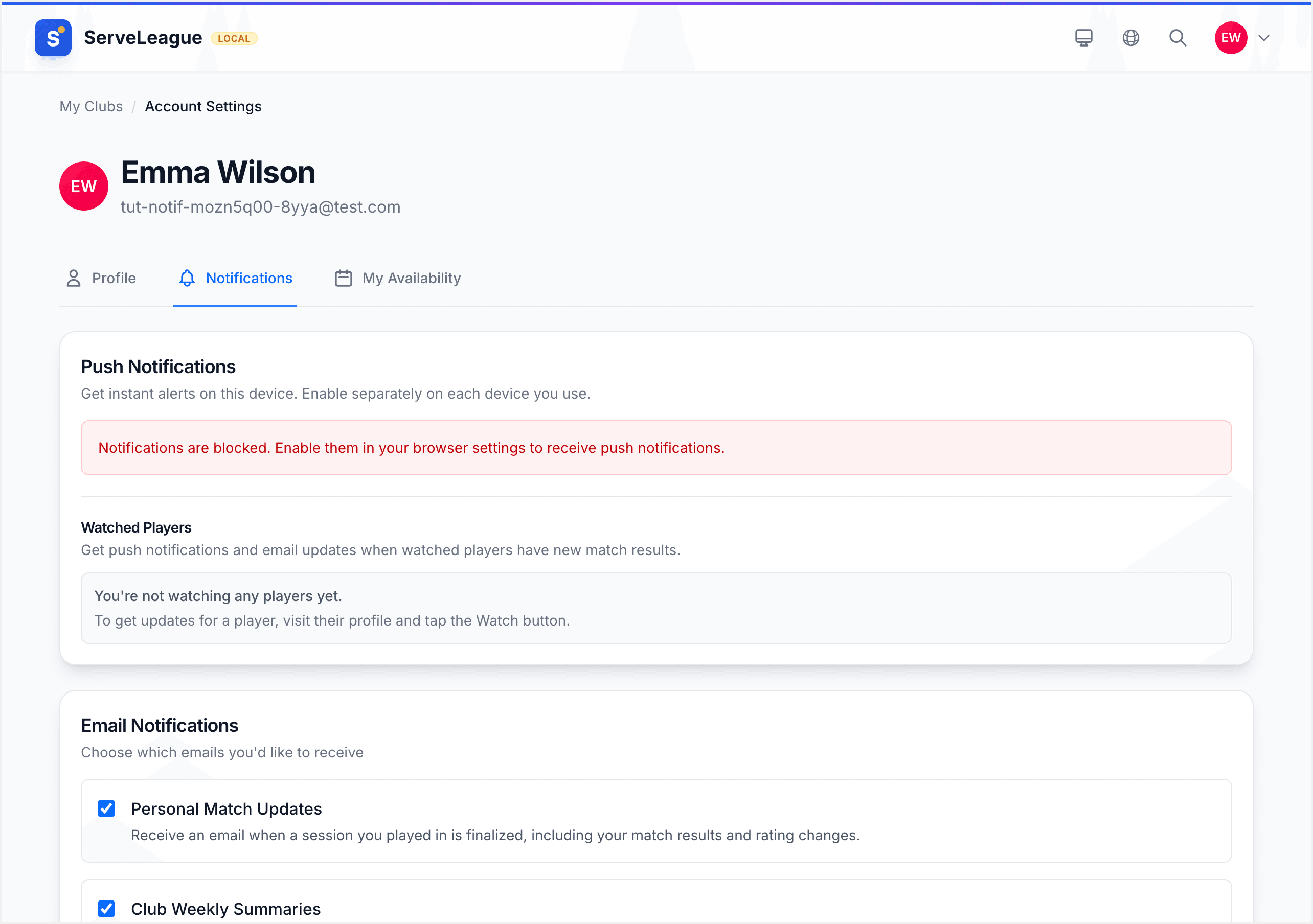
When you enable push for the first time, your browser will ask for permission to send notifications. Click "Allow" to grant permission.
[!WARNING] If you accidentally click "Block" when your browser asks for notification permission, you will need to manually reset the permission in your browser settings. ServeLeague cannot override a blocked permission.
Setting Up Push on iOS
Push notifications on iOS require installing ServeLeague as a Progressive Web App (PWA). Here is how:
- Open Safari on your iPhone or iPad
- Go to your club's ServeLeague page
- Tap the Share button (the square with an arrow pointing up)
- Scroll down and tap "Add to Home Screen"
- Give the app a name (or keep the default) and tap "Add"
- Open ServeLeague from your home screen
- Go to Notification Preferences and enable push notifications
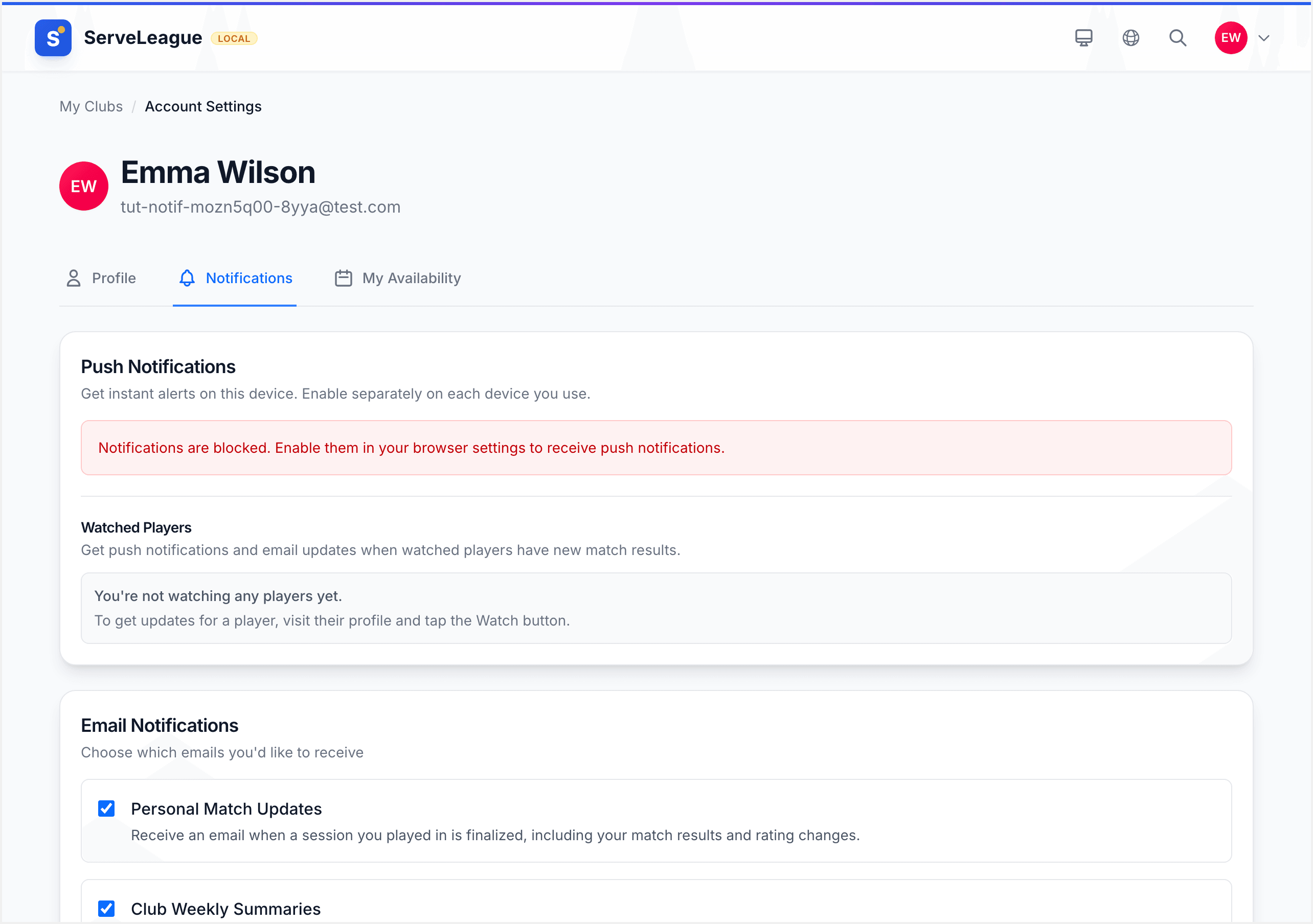
[!NOTE] Push notifications on iOS only work when ServeLeague is installed as a PWA and opened from the home screen. Notifications will not work if you use Safari directly.
Setting Up Push on Android
Android makes push notifications simple. When you visit ServeLeague in Chrome, you may see a prompt to "Add to Home Screen". Accept this to install the PWA. Alternatively, follow the same process as iOS: tap the browser menu and select "Add to Home Screen".
Once installed, enable push notifications in your Notification Preferences. Android does not require any additional steps.
Managing Push Devices
If you use ServeLeague on multiple devices, each device registers separately for push notifications. To see and manage your registered devices, scroll down on the Notification Preferences page to the "Push Devices" section.
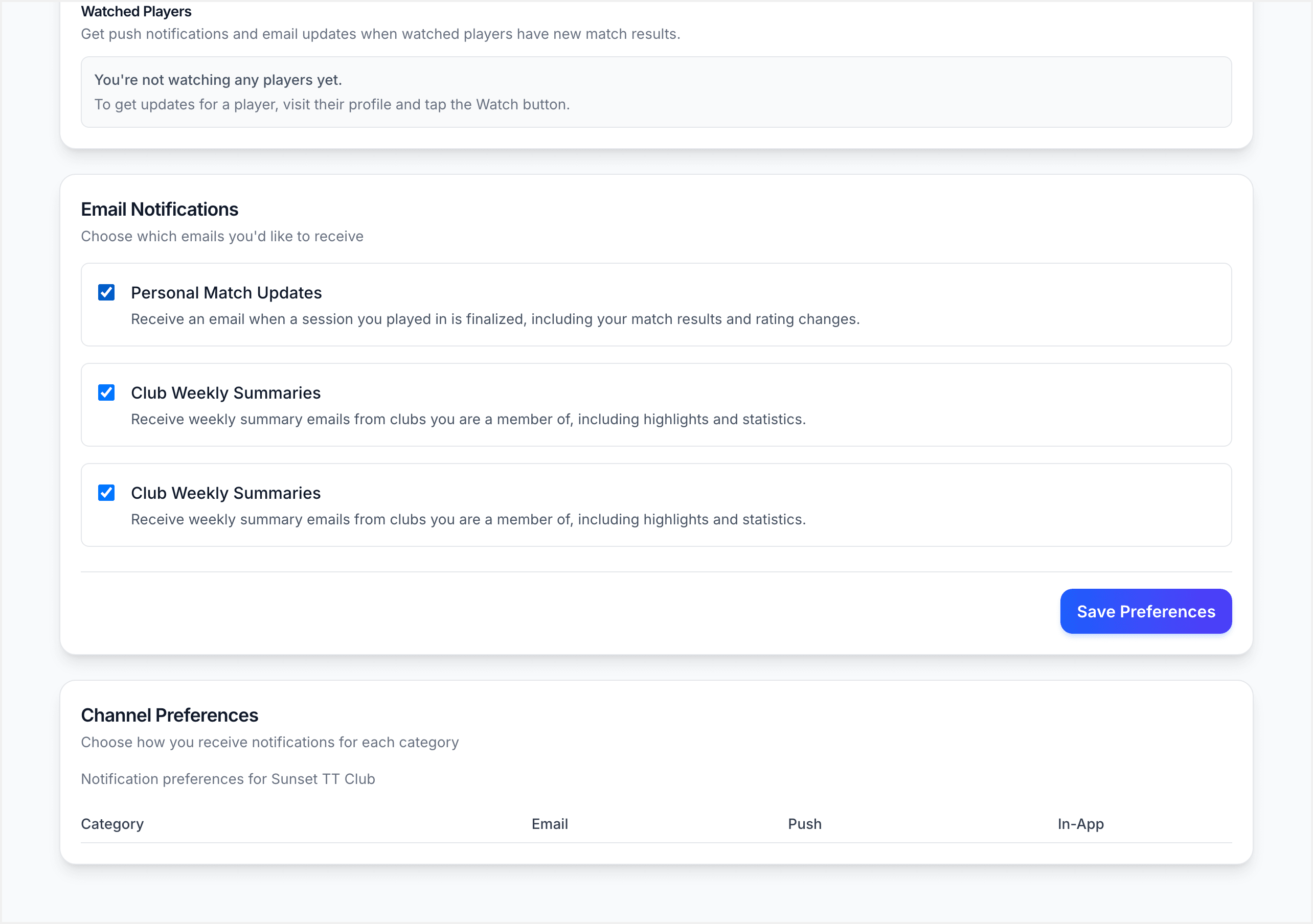
This section lists all devices that have push notifications enabled, including:
- Device name (e.g., "iPhone 15", "Chrome on MacBook")
- Last active date
- A "Remove" button to stop sending notifications to that device
Remove old devices that you no longer use to keep your device list clean.
[!TIP] If you get a new phone, open ServeLeague from the home screen and re-enable push notifications. Your notification preferences carry over automatically. Only the device registration needs to be refreshed.
How to Unsubscribe from Specific Types
If you find certain notification types distracting, you can turn them off without disabling all notifications:
- Go to Notification Preferences
- Find the category you want to adjust
- Turn off the specific delivery channel (in-app, email, or push)
- Click "Save Preferences"
Changes take effect immediately. You can always re-enable them later.
Each email notification also includes an "Unsubscribe" link at the bottom, which takes you directly to the preferences page with that category highlighted.
Admin Perspective: What Triggers Notifications
If you are a club admin, it is helpful to understand what actions trigger notifications for your members:
| Admin Action | Notification Sent To |
|---|---|
| Finalize a session | All players in the session |
| Open league registration | All club members |
| Approve a registration | The registering player |
| Publish a weekly report | All club members with notifications enabled |
| Create an event | All club members |
| Approve a membership | The applying member |
| Cancel a session | All players registered for the session |
Understanding these triggers helps you time your admin actions. For example, finalizing a session at 11 PM might send push notifications that wake people up. Consider scheduling actions during reasonable hours.
[!TIP] Use the "Schedule" feature for weekly reports to publish them at a time when your members are most likely to read them, rather than at the moment you finish writing.
Summary
ServeLeague's notification system keeps everyone informed without being overwhelming. Customize your preferences to receive only the notifications that matter to you, enable push notifications on your mobile device for instant alerts, and manage your devices to stay in control. As a club admin, understanding what triggers notifications helps you communicate effectively with your members.
What's Next?
- Setting Up Your Club: complete your club setup if you have not already
- Navigating the Admin Dashboard: learn your way around the admin interface
- League Registration and Waitlists: see how registration notifications work in practice