PDF Exports and Match Sheets
ServeLeague generates print-ready PDFs for every key document your club needs on match night: match sheets, league standings, ratings grids, and season schedules. Every PDF is optimized for A4 paper with club branding, QR codes linking back to your club's dashboard, and automatic page numbering. This tutorial covers what you can export, how to generate each document, and tips for using them at the venue.
What Can You Export?
ServeLeague offers five types of PDF exports, each tailored to a specific use case:
| Export | Best For | Format |
|---|---|---|
| Team Match Sheets | Scoring individual matches on paper during team sessions | Portrait A4, one matchup per sheet |
| Drop-In Match Cards | Recording scores at casual drop-in sessions | Portrait A4, 9 blank cards per page |
| League Standings | Posting current standings on the club noticeboard | Portrait A4, multi-section report |
| Ratings Grid | Tracking player rating trends over the season | Portrait A4, color-coded spreadsheet |
| Season Schedule | Sharing the full fixture list with team captains | Landscape A4, roster + fixture grid |
Every PDF includes your club logo (if uploaded), a footer QR code for quick access to your club's ServeLeague page, and a "generated on" date so members always know how current the data is.
Generating Team Match Sheets
Team match sheets are the most commonly printed export, essential for team league nights. Each sheet lists both teams' lineups with player positions and ratings, the match order based on your play order template, and columns for recording set scores and match results.
Printing a Single Match Sheet
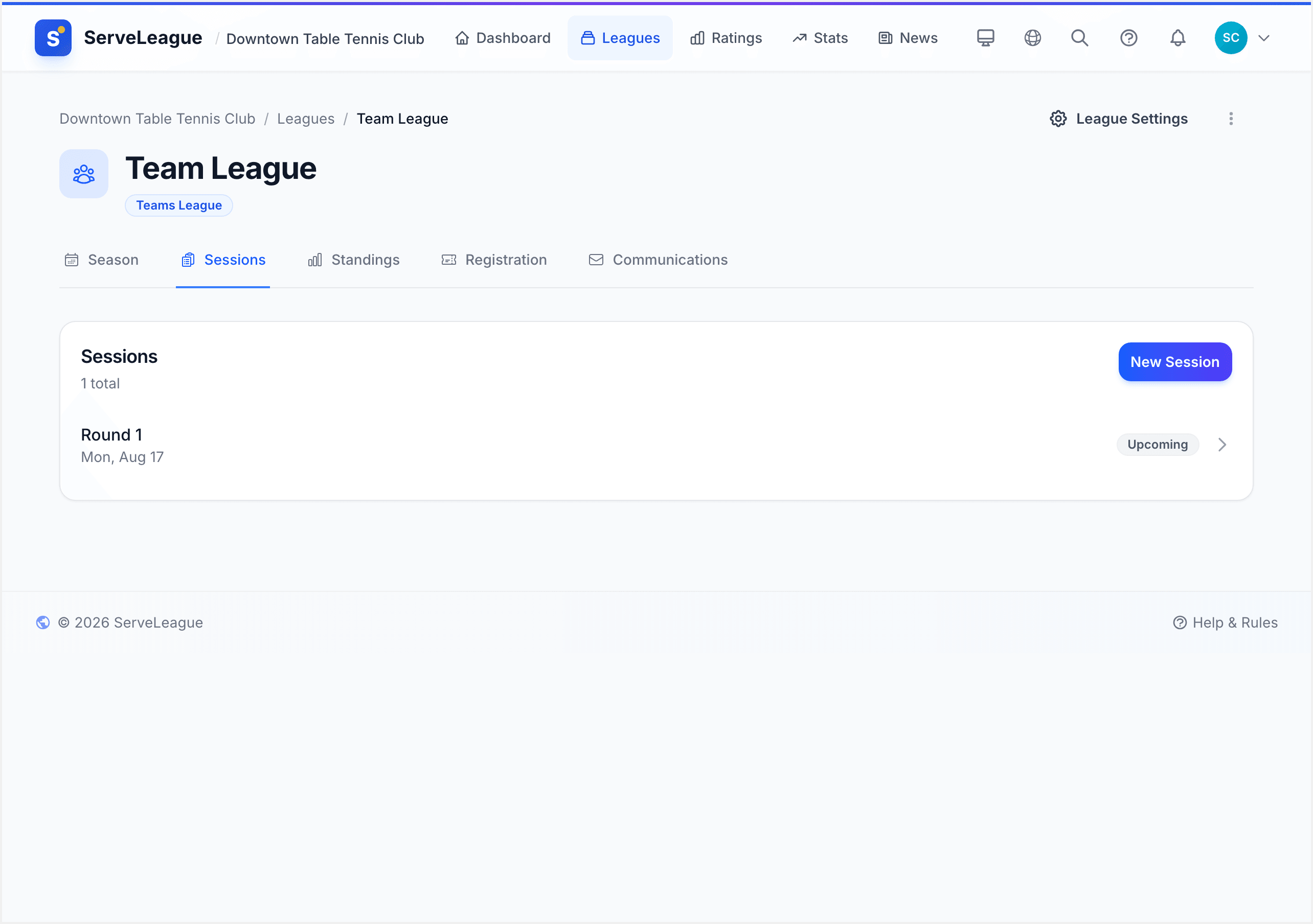
- Go to your team league session and open the Team Matchups tab.
- Expand the matchup you want to print.
- Click the Print Match Sheet button (printer icon) next to the matchup header.
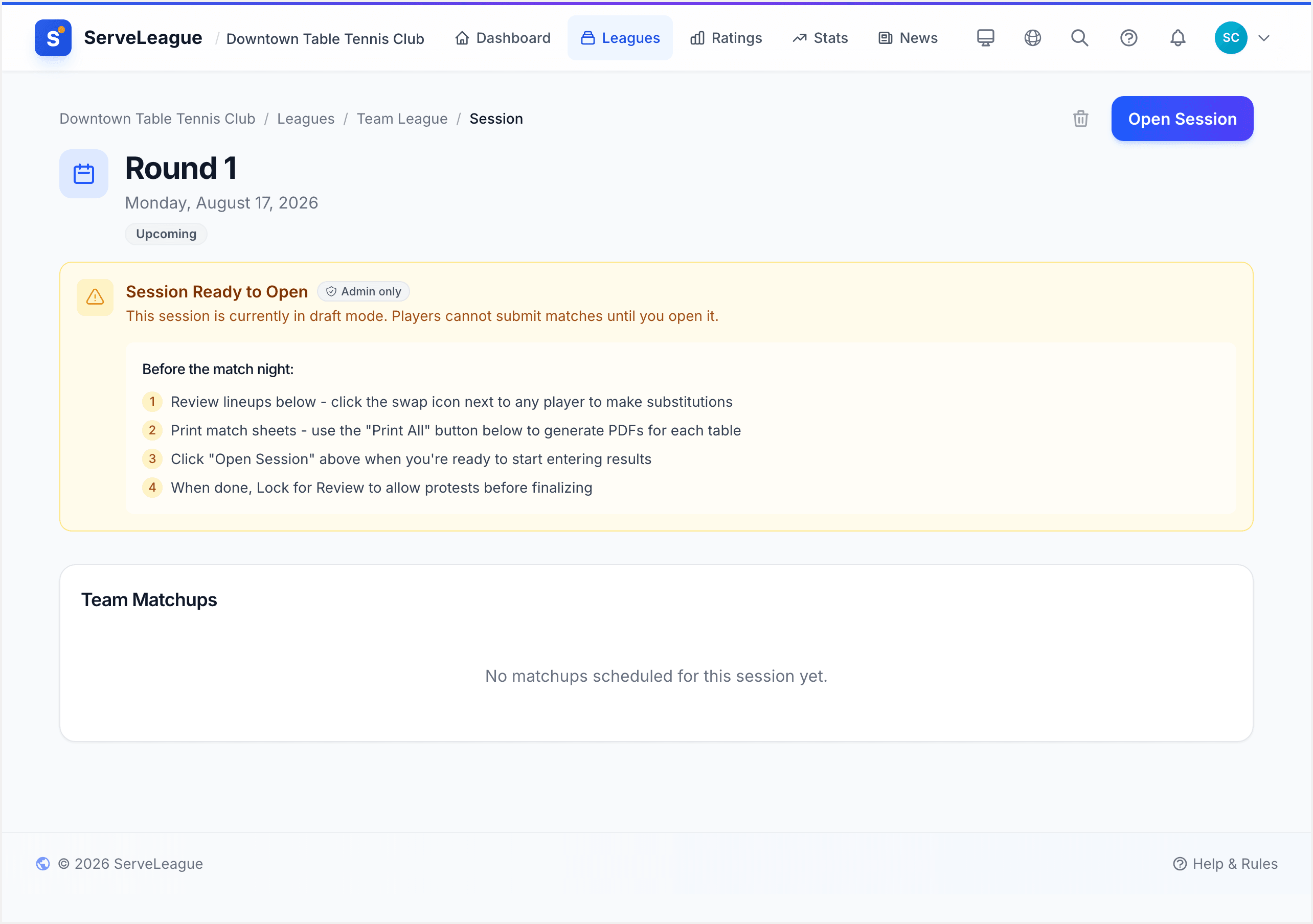
The PDF opens in a new browser tab with the print dialog automatically triggered. If your browser blocks the popup, the file downloads directly instead.
Printing All Match Sheets at Once
For match nights with multiple concurrent matchups, use the Print All Match Sheets button at the top of the session view. This generates a single combined PDF with every matchup on its own page, correct page numbering included. One print job, all your match sheets ready.
[!TIP] Match sheets automatically show substitute players when they've been assigned. The original player's name appears with a note so both the umpire and team captains can see who was replaced.
What's on a Match Sheet?
Each match sheet includes:
- Header: League name, division name (if applicable), session date, and table assignment
- Team Lineups: Both teams listed side by side with position labels (A, B, C… for home; 1, 2, 3… for away) and current ratings
- Match Order: Every match from your play order template, showing which positions play each other, with columns for set scores and match results
- Umpire Designation: Which position umpires each match, taken from the template
- Footer: QR code and session PIN so players can join from their phones
For division leagues with multiple venues, the venue name appears in the header so match sheets don't get mixed up.
Generating Drop-In Match Cards
Drop-in sessions use blank match cards instead of pre-filled sheets. These are designed for umpires to write player names and set scores by hand, then enter results into the system afterward.
- Open an active drop-in session.
- Click Print Match Cards (printer icon, visible on desktop only).
- The PDF opens with 9 blank cards per page, each with columns for player names, set scores, and a winner checkbox.
Each page includes a "Table: ____" field at the top right so you can label which playing surface the cards belong to. If the session has a PIN, the footer shows a QR code and PIN so players can self-register on their phones.
[!TIP] The number of set score columns automatically matches your sport's default format: 5 columns for best-of-5 table tennis, 3 for best-of-3 badminton, and so on.
Exporting League Standings
The standings PDF is a comprehensive report designed for printing and posting on your club's noticeboard.
- Go to your league's Standings page.
- Click the Print button (or use the Print menu on team leagues).
- Choose Print Standings. The PDF downloads immediately.
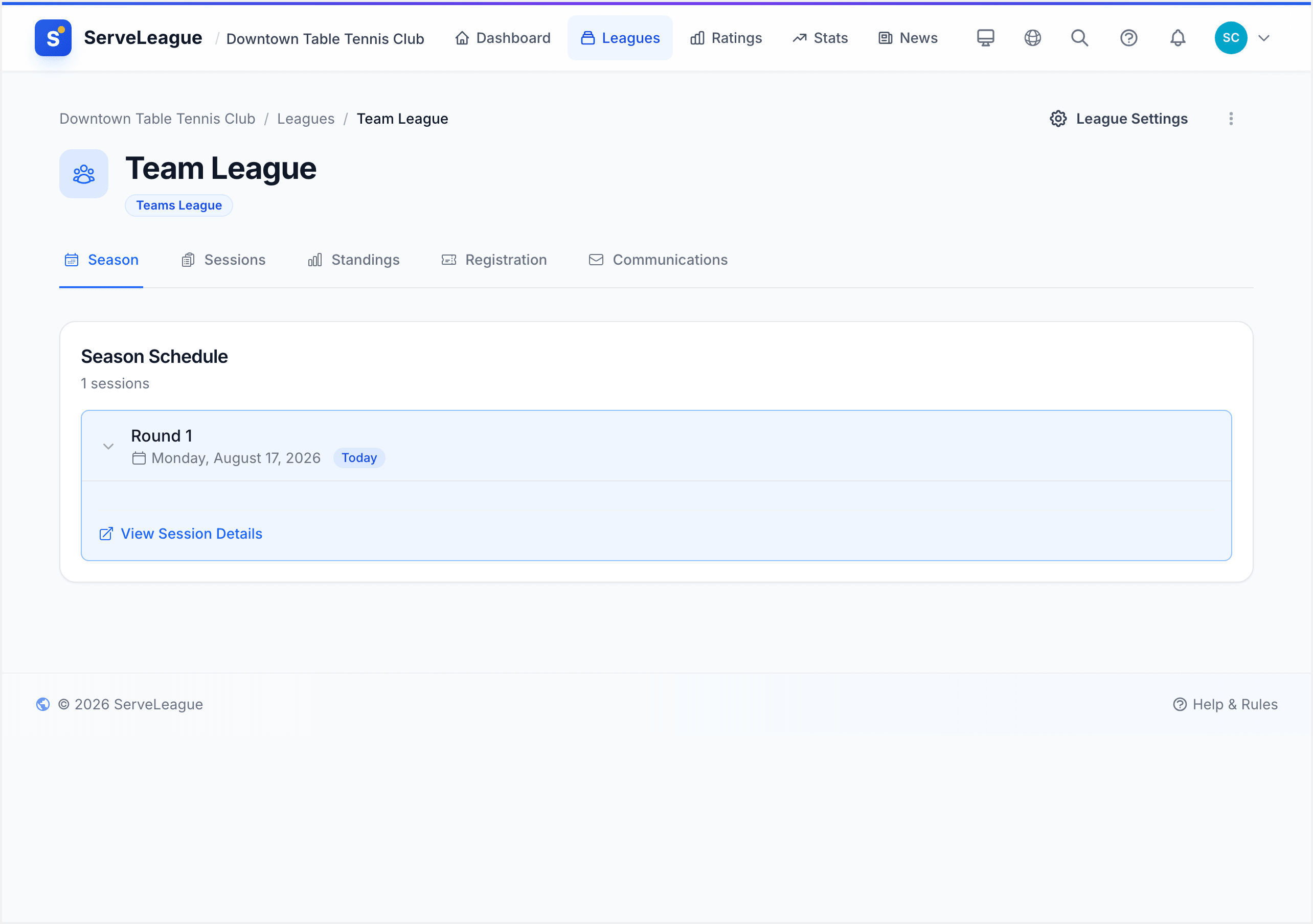
Depending on your league type, the standings PDF can include: team standings table, individual singles standings, grade standings, most improved players, latest weekly results, playoff results, team rosters, and bonus point rules. If your club has uploaded a logo, it appears in the header for a professional, branded look.
Exporting the Ratings Grid
The ratings grid PDF is an Excel-style report showing every player's rating over time. It's perfect for posting on the noticeboard so players can track their progress at a glance.
- Go to Ratings in your club dashboard.
- Click Print to export the currently selected rating type, or use the menu to choose Print All for a combined singles + doubles + order of merit report.
The grid uses color highlighting to make trends immediately visible:
| Color | Meaning |
|---|---|
| 🟢 Bright green | Big gain (+10 or more points) |
| 🔵 Sky blue | Small gain (+1 to +9 points) |
| 🟠 Orange | Any rating loss |
Year-end columns have a gray background to separate seasons visually. The PDF automatically fits as many recent weeks as possible on the page, prioritizing the most recent data.
Exporting the Season Schedule
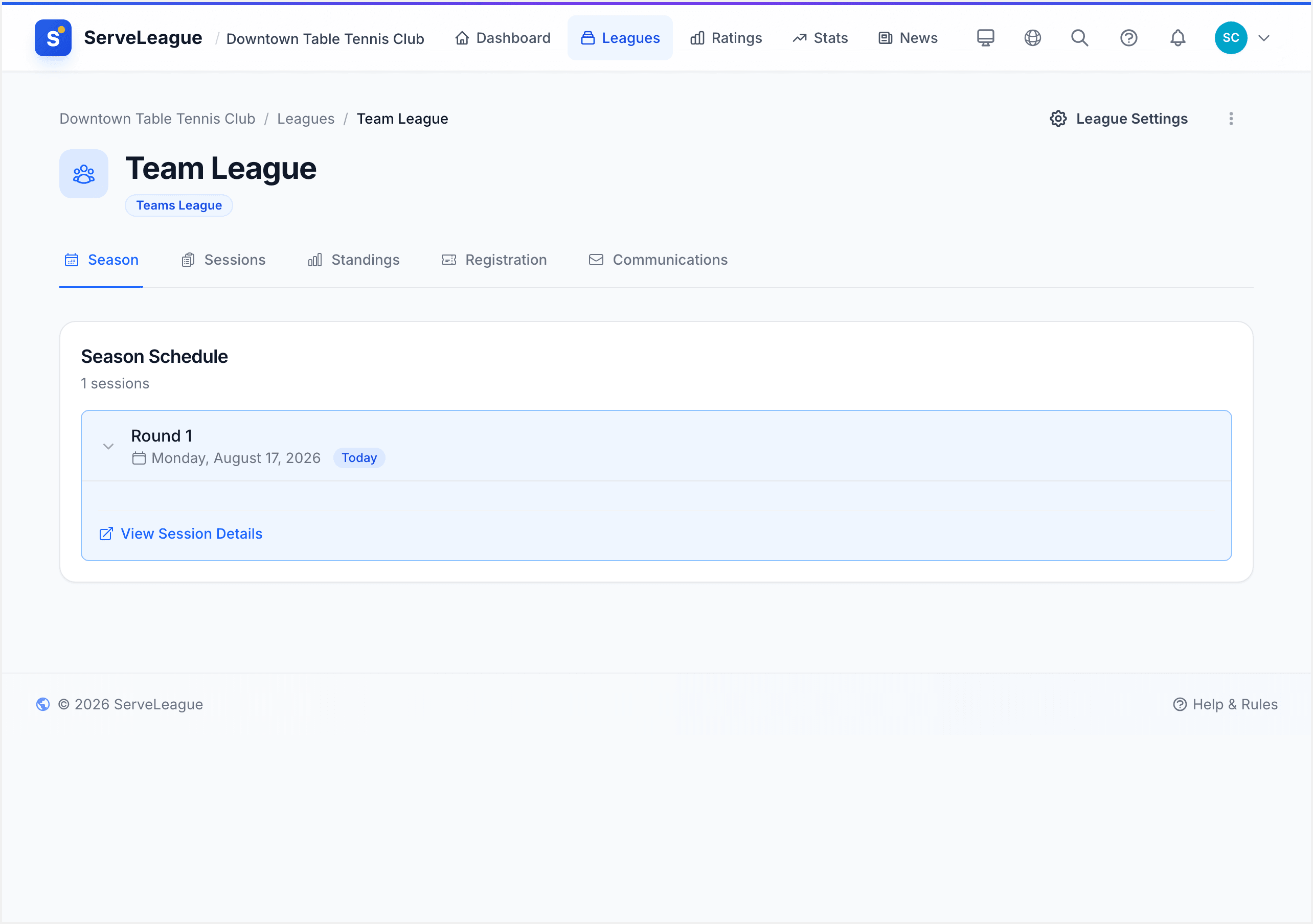
Team leagues can export the full season schedule as a landscape A4 PDF, ideal for distributing to team captains at the start of the season.
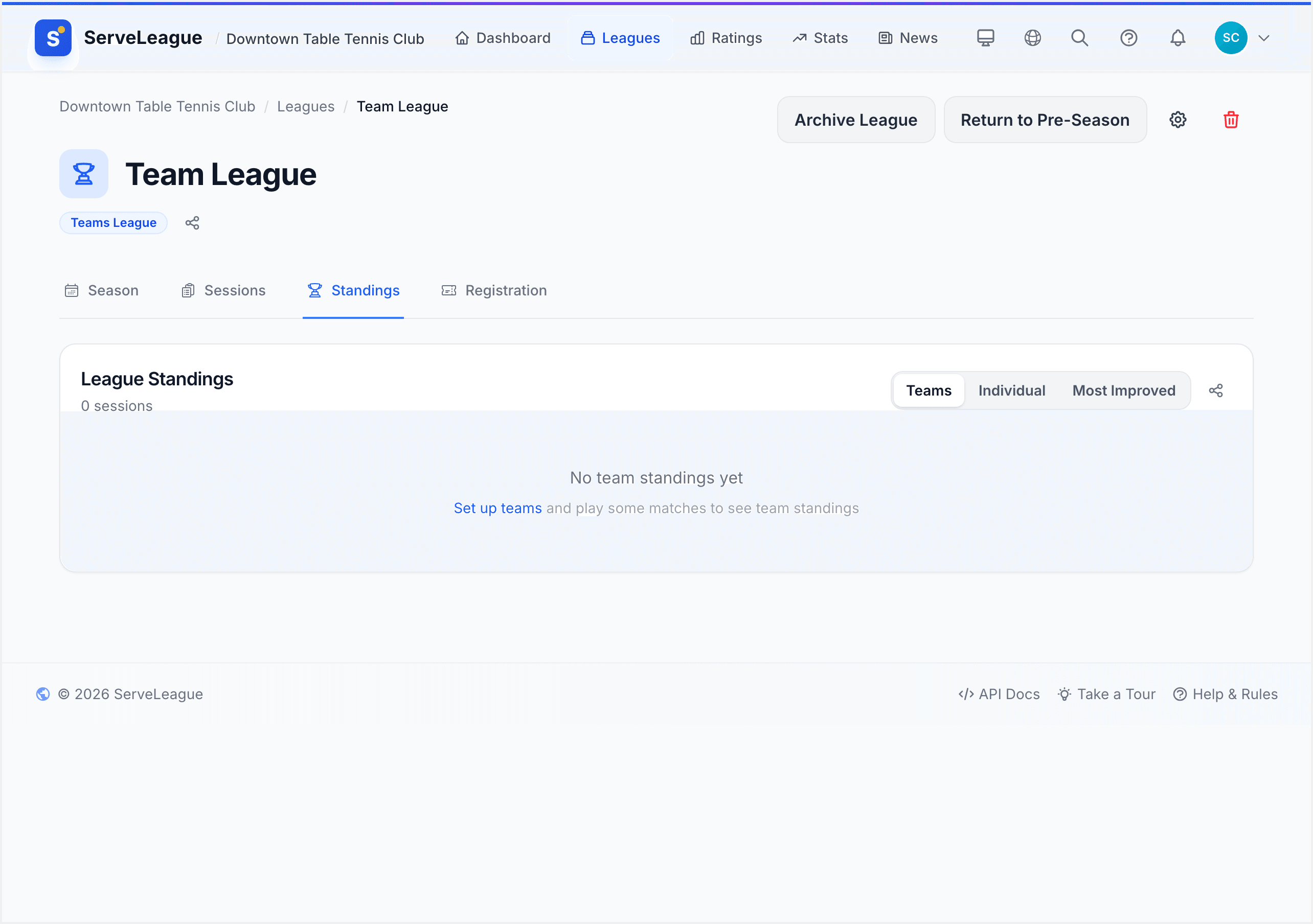
- Go to your team league's Standings page.
- Click the Print menu and choose Print Schedule.
- The PDF downloads with the full fixture grid.
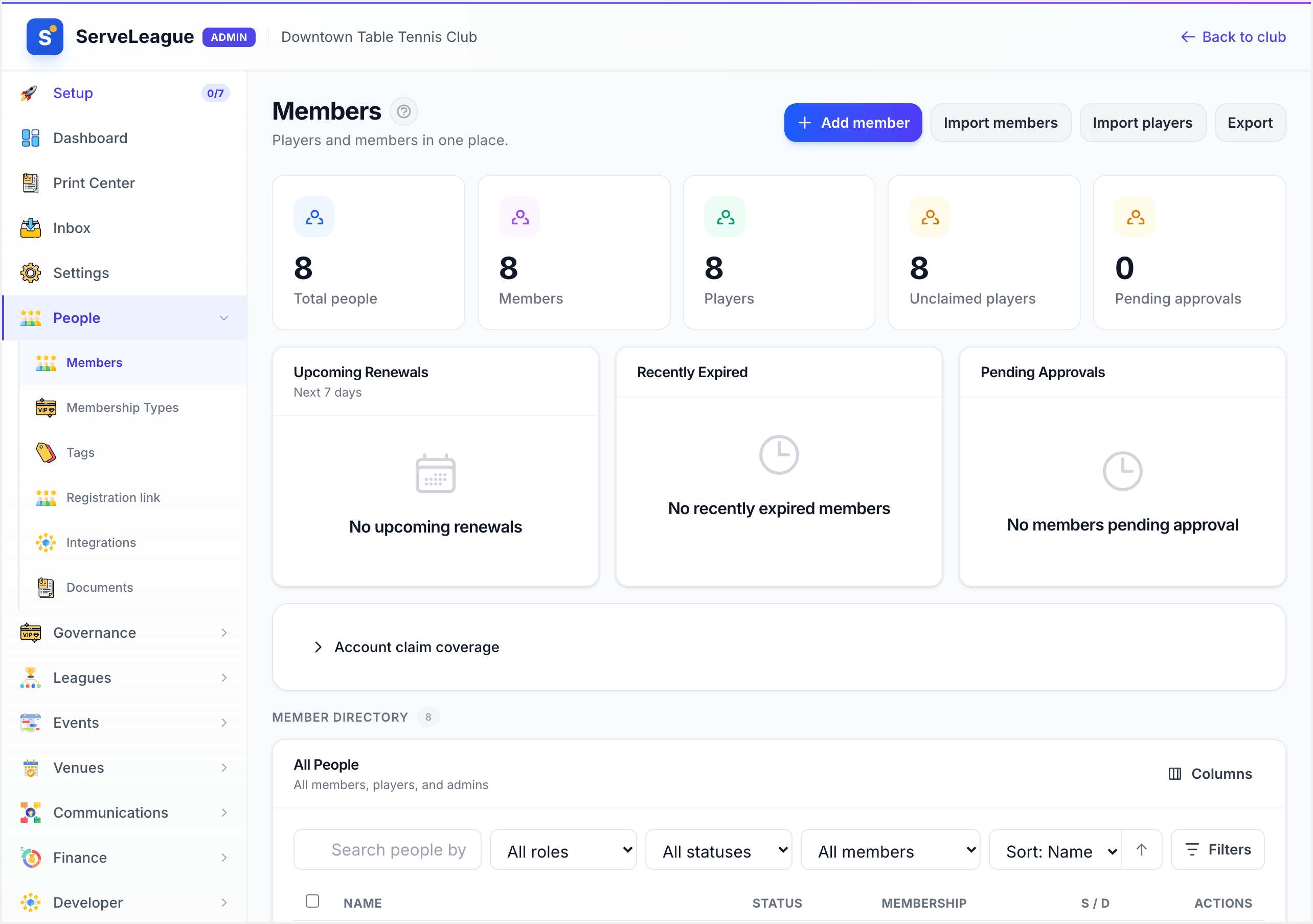
The schedule PDF includes a team roster grid, weekly fixtures organized by table assignment, playoff round matchups (or template descriptions like "1st vs 4th" if playoffs haven't been generated yet), and bye footnotes.
Tips for Using PDFs at the Venue
Print in advance. Generate all match sheets before players arrive. Use "Print All Match Sheets" for team sessions so you have one print job ready to go.
Post standings weekly. Print the standings PDF after finalizing each session and pin it to the club noticeboard. The QR code footer encourages players to check the full details online.
Label the playing surfaces. Drop-in match cards have a "Table: ____" field. Write the table number before distributing cards so results don't get mixed up between surfaces.
Use the session PIN. Both match sheets and drop-in cards can include the session PIN and a QR code. Players scan the code to join the session on their phones, which means less manual data entry for you.
Collect and enter. After the session, gather completed match cards and enter the scores into ServeLeague. The paper cards serve as the authoritative record if there's any dispute about a result.
[!NOTE] Print buttons are hidden on mobile devices since printing from phones is impractical. Use a desktop or laptop browser to generate PDFs.
Summary
ServeLeague's PDF exports cover every document your club needs for match nights and season administration: team match sheets with pre-filled lineups, blank drop-in match cards, multi-section standings reports, color-coded ratings grids, and full season schedules. Every export is print-optimized, branded with your club logo, and includes QR codes to drive players back to the platform.
What's Next
- Kiosk Mode and Public Display: Display live scores and standings on a big screen at the venue
- Statistics and Reports: Dive deeper into player and league analytics
- Creating a Team League: Set up the team league structure that powers match sheets