Running Your First Session
A session represents a single play night: one evening of matches within your league. Every session moves through a clear lifecycle, from setup to finalized results. This tutorial walks you through the entire process so you can confidently run your first match night.
By the end, you will have created a session, checked players in, entered scores, and finalized results so that player ratings update automatically.
Before You Begin
Make sure you have:
- A league created (see Creating Your First League)
- Players added to your league roster
- At least 2 players available for your session (more is better for a realistic test run)
Understanding the Session Lifecycle
Every session flows through four states:
- Draft: the session is created but not yet visible to players. Only admins can see it.
- Live: players can check in and submit scores using a PIN code.
- Under Review: all matches are played and scores are locked. Admins review before finalizing.
- Results Posted: ratings are updated, standings are refreshed, and results are visible to everyone.
Each step in this tutorial corresponds to one of these state transitions.
Step 1: Create a New Session
From your league page, click "Create Session". A form will appear asking for:
- Session Date: pick the date of the play night
- Session Name (optional): a label like "Week 1" or "Round 3." If you leave this blank, ServeLeague will use the date as the name.
[!NOTE] If any league members have marked themselves as unavailable for the chosen date (see Availability Tracking), you will see a warning listing those players. You can still create the session.
Click "Create session" to save. The session is now in Draft state and appears on your league page.
[!TIP] You can create sessions in advance and leave them in draft. This is useful if you want to prepare a schedule for the coming weeks without making them visible to players yet.
Step 2: Open the Session
When you are ready to start the play night, open the session and click "Open session". A confirmation message explains what happens next:
- Players can check in and submit scores using a PIN code
- The session becomes visible to all league members
Click "Open session" to confirm.
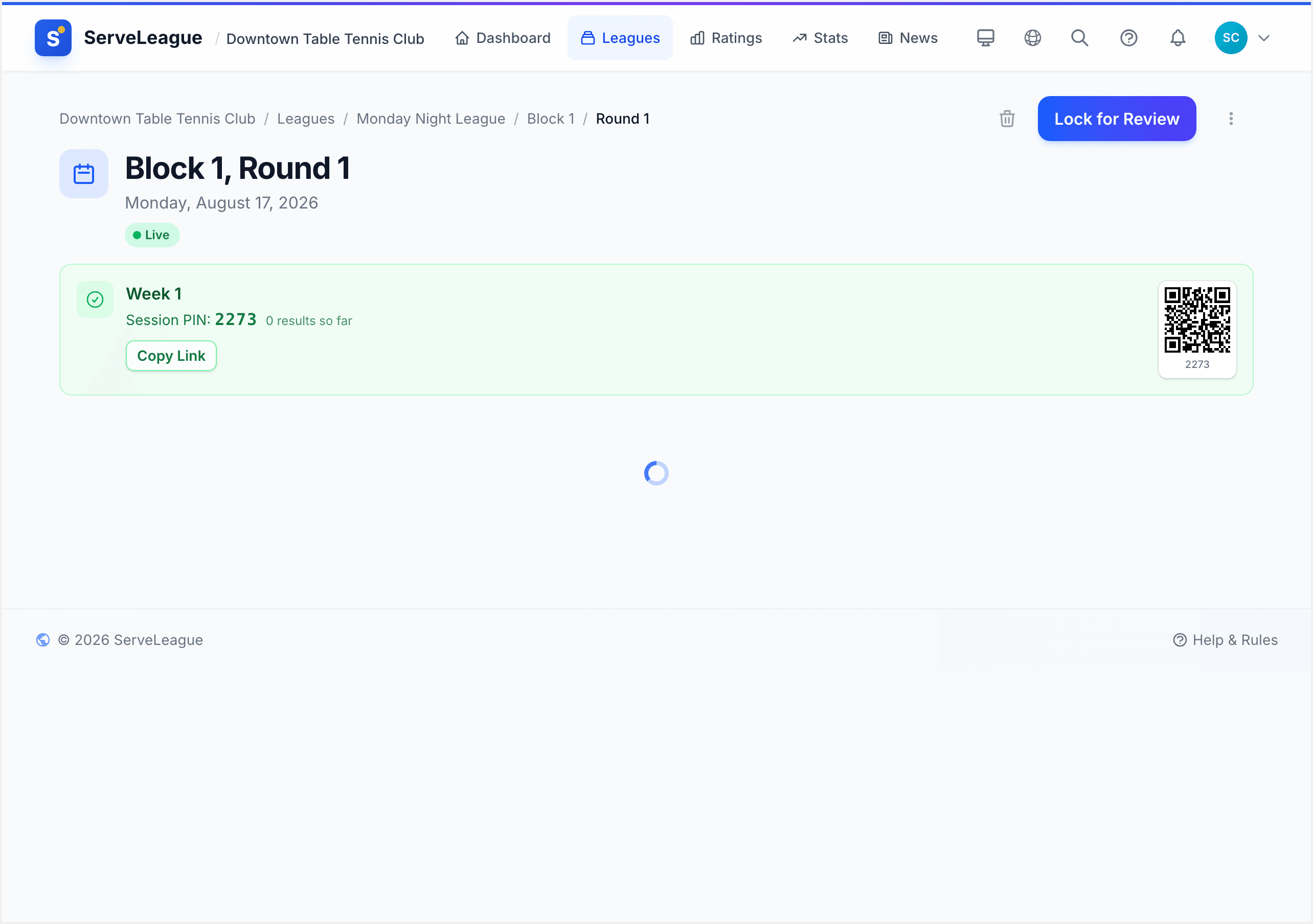
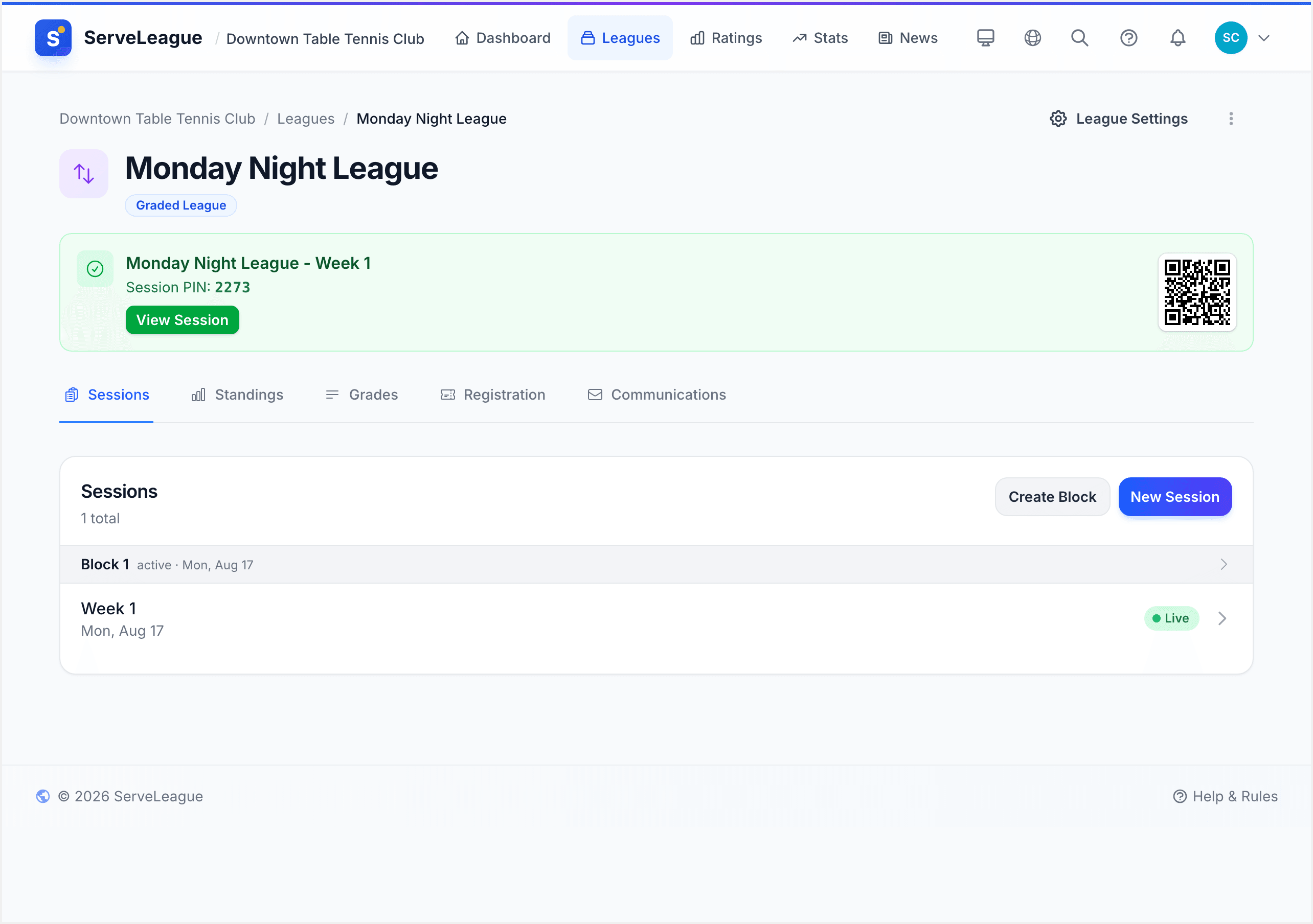
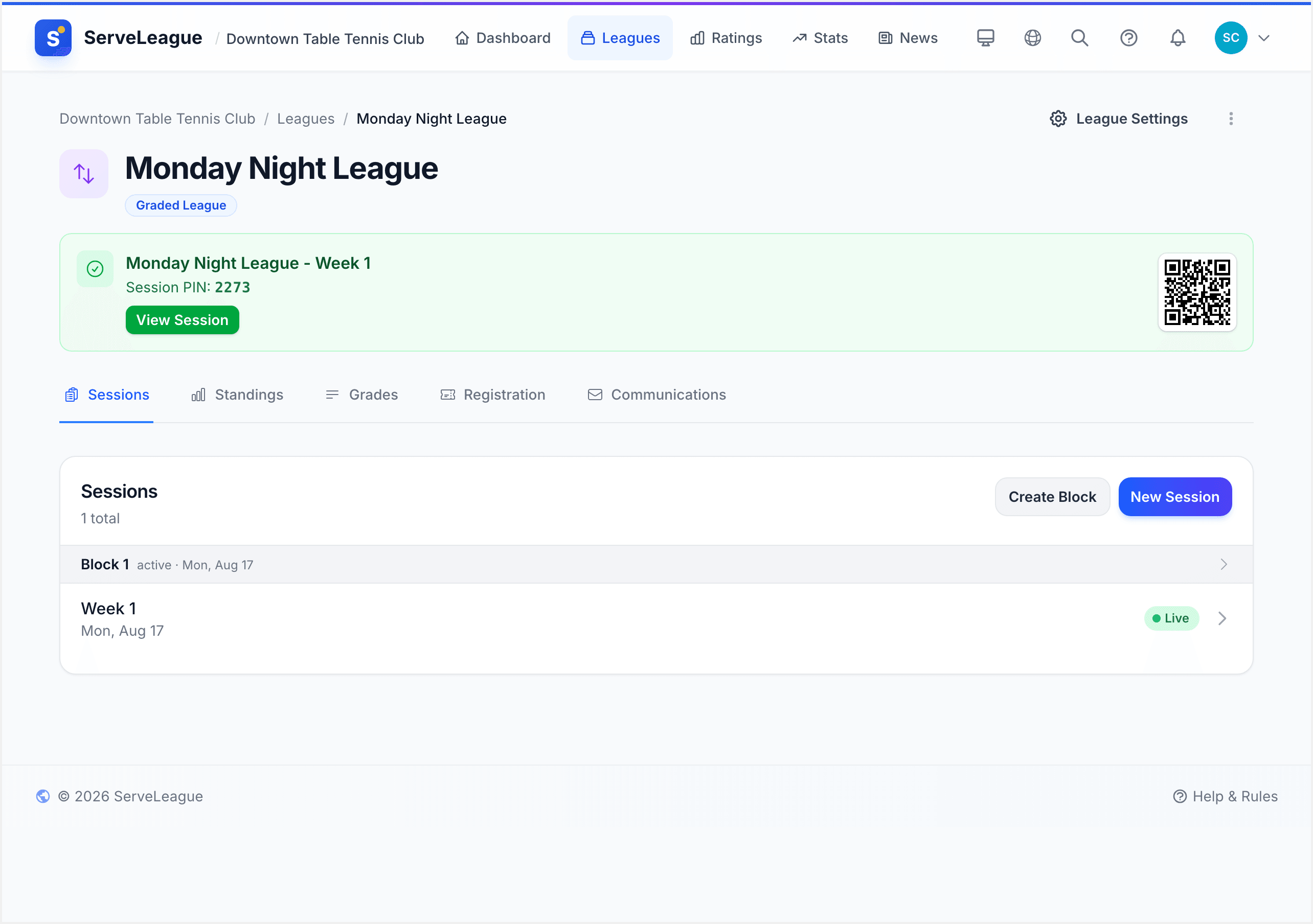
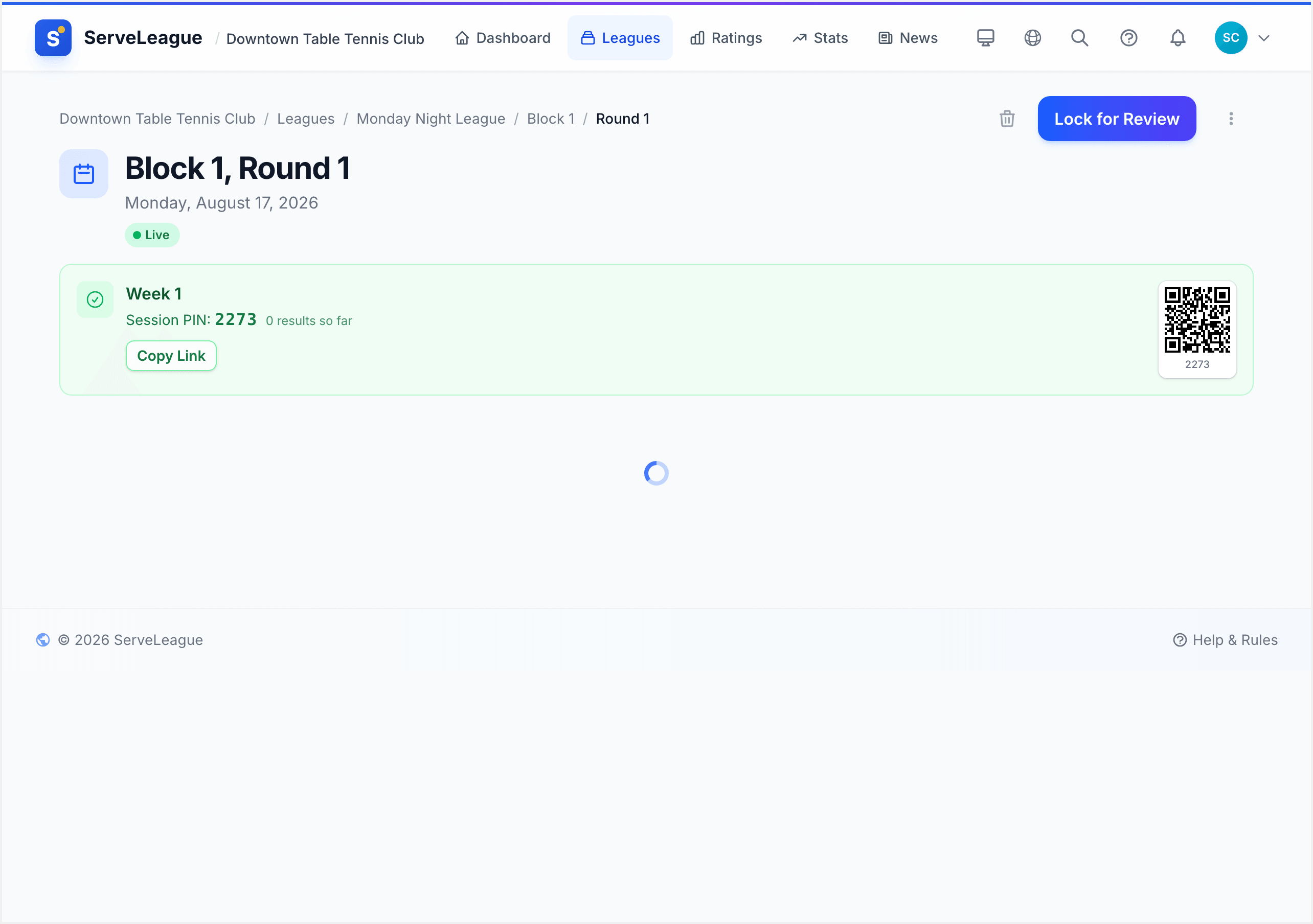
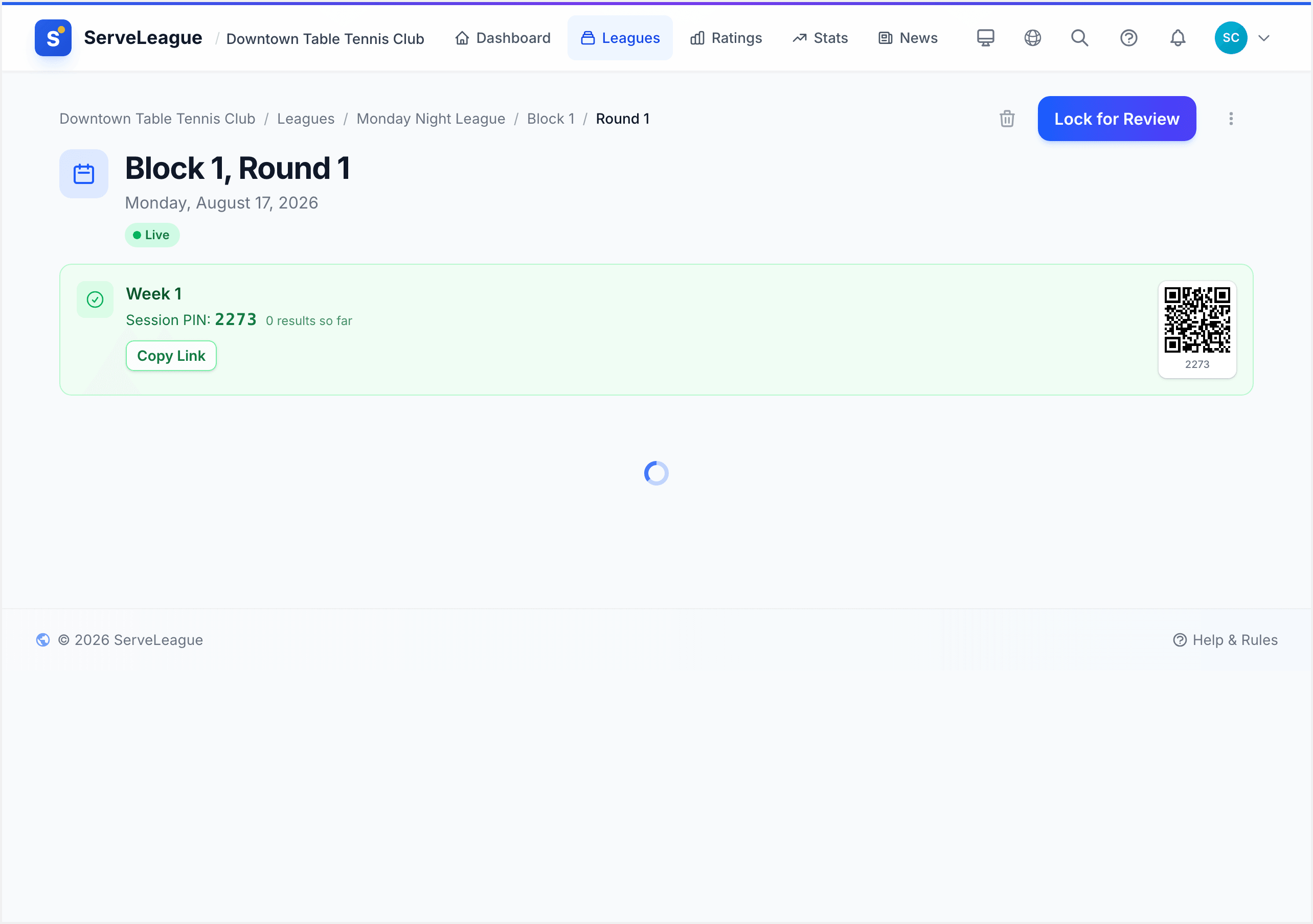
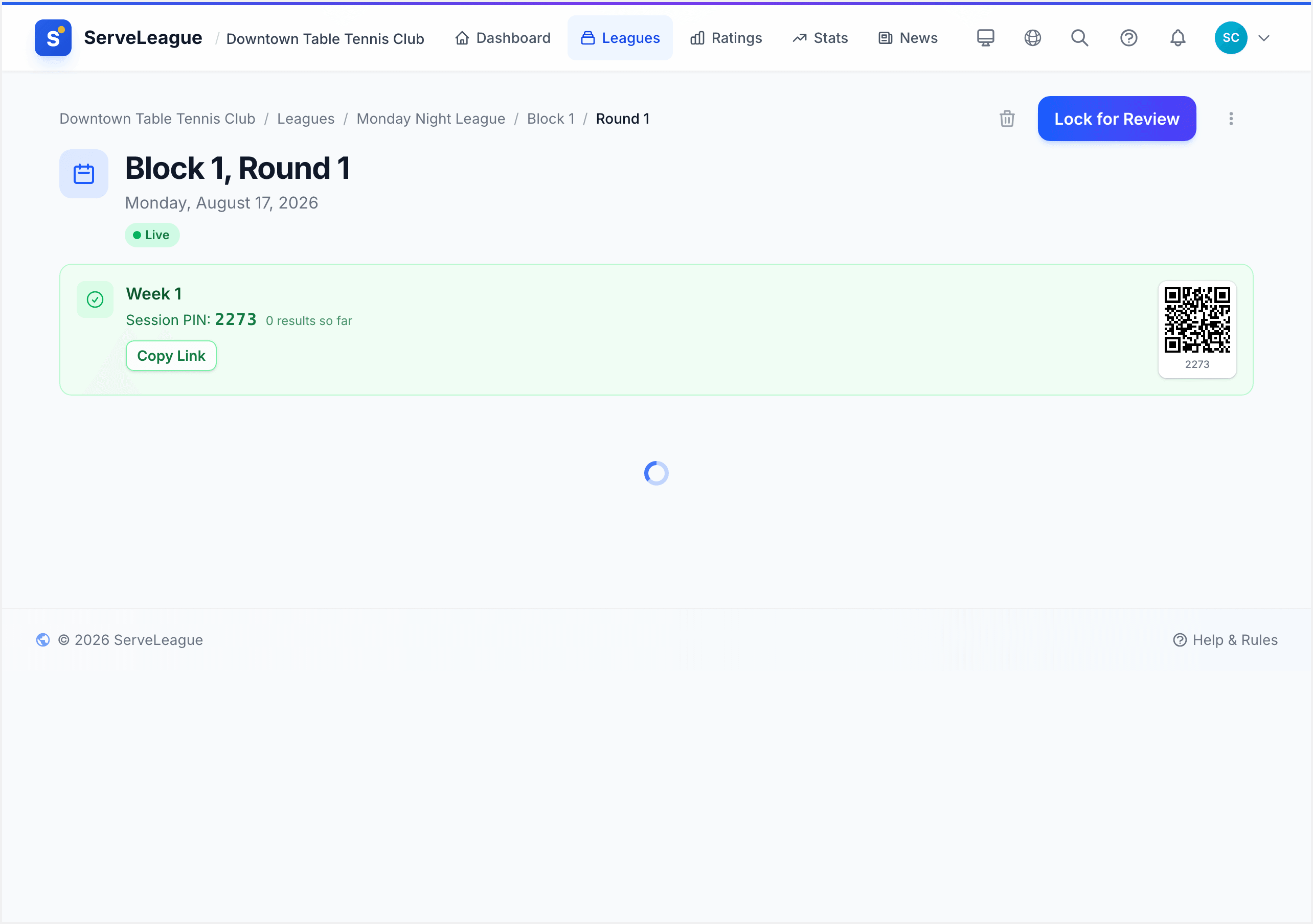
The session is now Live. You will see a 4-digit PIN displayed on the session page.
Opening the session does two important things behind the scenes:
- Makes the session visible to all league members. Before opening, the session exists only in Draft and is hidden from everyone except admins. Once open, it appears on the league page and players can see it on their dashboards.
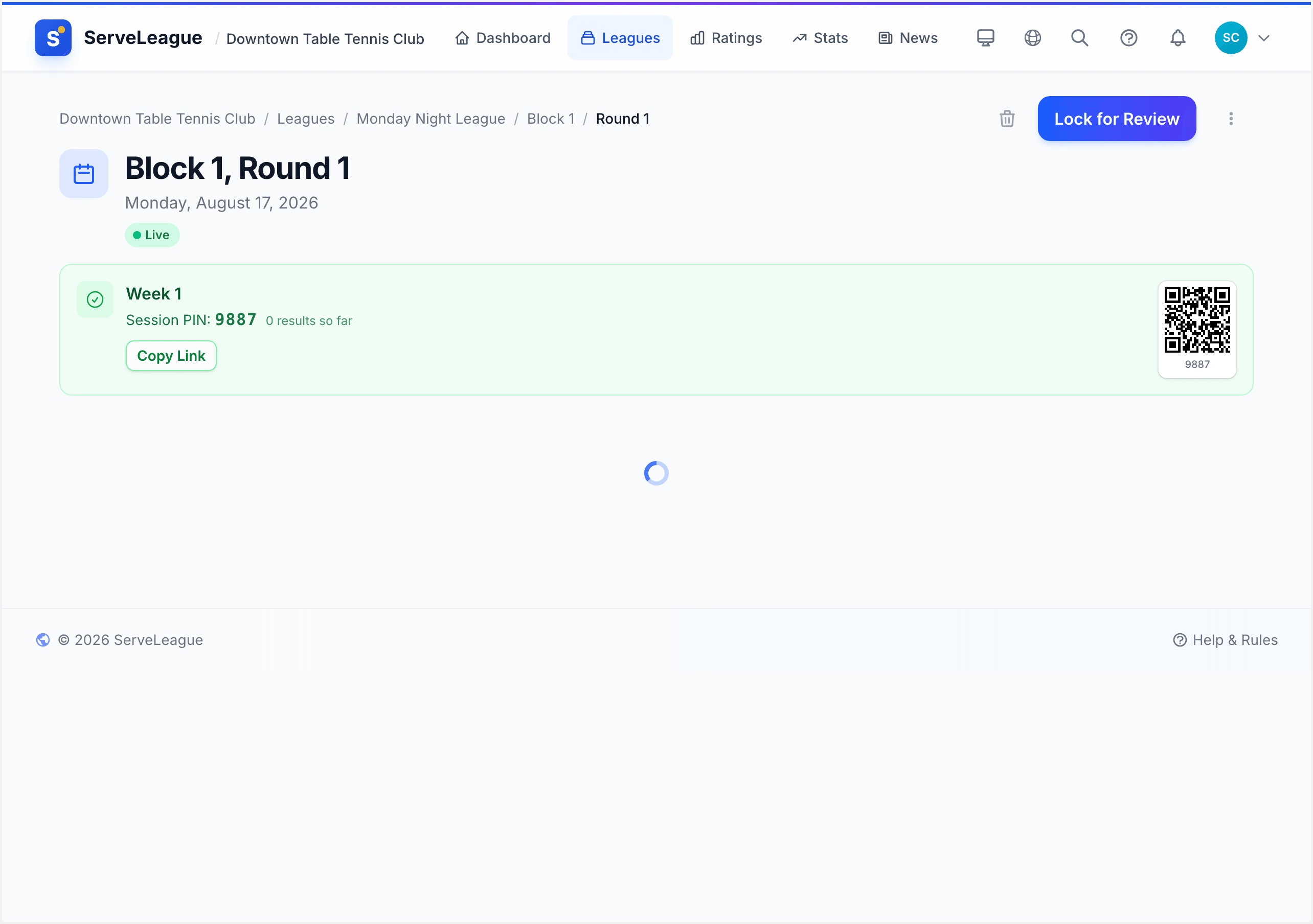
- Generates the session PIN. This is the 4-digit code that players use to check in and submit scores. The PIN is created the moment you open the session and remains active until the session is locked for review.
[!NOTE] If your league uses persistent PIN mode, the PIN stays the same across all sessions in that league. This is convenient for clubs that display the PIN on a poster or whiteboard at the venue. You set it up once and it works every week. If persistent PIN mode is not enabled, a new PIN is generated each time you open a session.
Step 3: Share the PIN with Your Players
The PIN is displayed prominently at the top of the session page. This is the most important thing you do at the start of play night: share this PIN with every player present.
Players go to serveleague.com/join on any device (phone, tablet, or computer) and enter the 4-digit PIN to join the session. No login, no app download, no account required. They can immediately start submitting their own match scores, which frees you up to focus on running the night.
Ways to share the PIN:
- 📋 Write it on a whiteboard at the venue, the simplest and most effective method
- 📱 Display the QR code: click the QR icon on the session page to show a scannable code. Players scan it and join instantly with no typing
- 💬 Share in your group chat: paste the join link in WhatsApp, Telegram, or your club's messaging group
- 🖥️ Project it on a screen: use Kiosk Mode to display the session on a dedicated TV or monitor
- 📤 Use the share button: the session page has a native share button that generates a shareable link with the PIN embedded
[!TIP] Encourage players to enter their own scores. When players submit results themselves via the PIN, you don't have to sit at a laptop entering every match. Most clubs find that player self-service makes their play nights run much more smoothly. See Player Self-Service for what the player experience looks like.
Manual Check-In
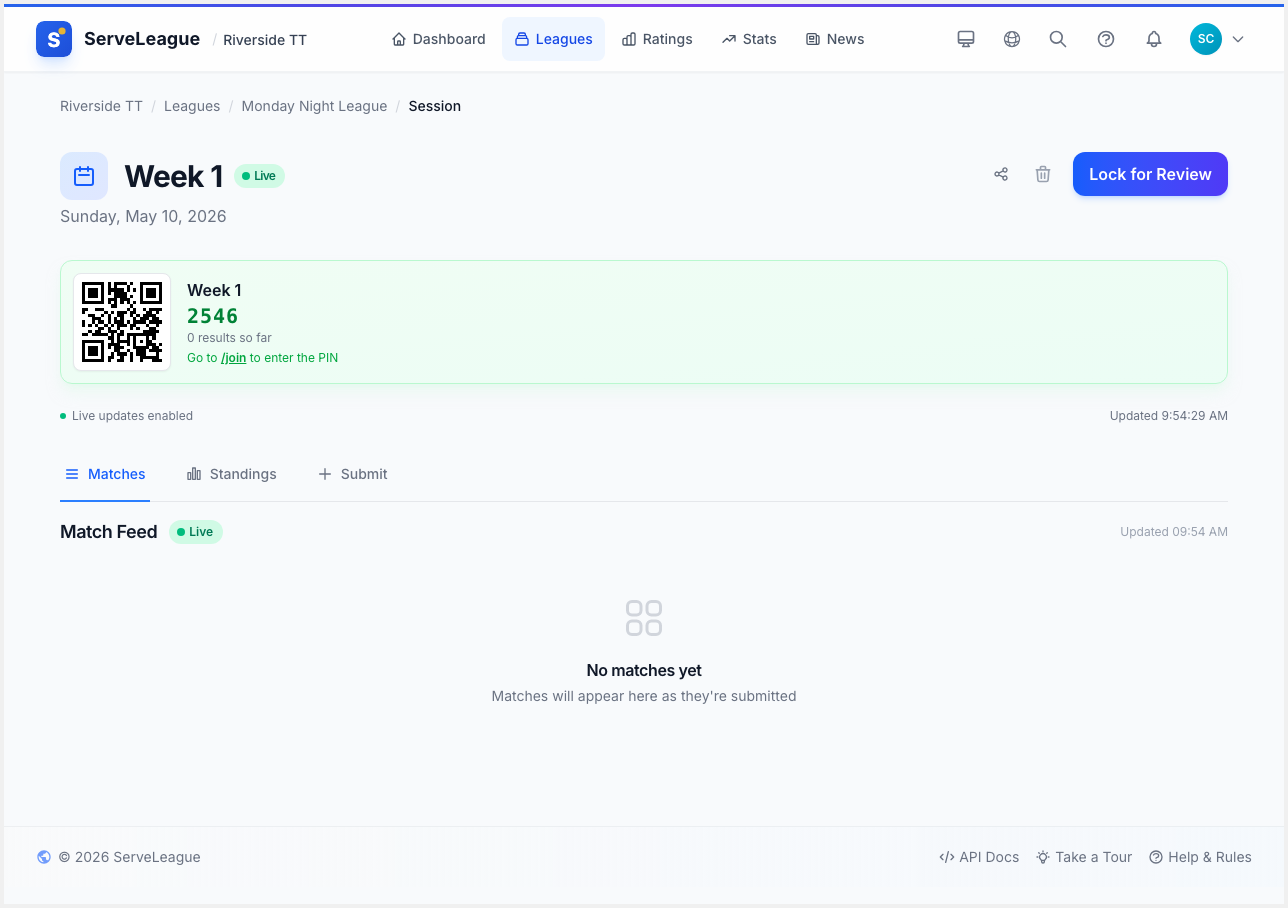
You can also check players in manually from the admin view. This is useful when players arrive without their phones or when you want to handle attendance yourself. Here is how it works:
- The attendance list shows all league members. When you open the check-in panel, you see every player in the league roster.
- Recently active players appear at the top. Players who attended recent sessions are sorted to the top of the list for quick selection. This means your regulars are always a tap away.
- Check or uncheck with a single tap. Tap a player's name to mark them as attending. Tap again to remove them. The check-in count updates in real time.
- Walk-in registration. If a new player arrives who is not in the league roster, you can add them on the spot. Use the "Add player" option at the bottom of the attendance list to create a new player and check them in simultaneously. They will be added to the league roster for future sessions as well.
[!NOTE] The same PIN is used for both check-in and score submission. Players use it throughout the session, so display it somewhere visible at your venue (on a screen, whiteboard, or printed sheet).
[!TIP] For a hands-free check-in experience, consider using Kiosk Mode to display the session on a dedicated screen at your venue. Players can check themselves in by tapping their name.
Step 4: Play Matches and Submit Scores
With your attending players confirmed, it is time to play. How matches are organized depends on your league type:
Standard and Casual Leagues
For standard and casual leagues, there is no automated match generation. Players self-organize their matches as they play. A player finishes a game, walks over to their phone, and submits the score using the session PIN. The next match happens naturally: players challenge each other, rotate tables, or follow whatever informal system your club prefers.
As an admin, you can watch matches appear on the session page in real time as players submit them. The match list grows throughout the evening, giving you a live view of the night's activity without needing to manage pairings yourself.
[!TIP] This self-service approach works well for most clubs. Players enjoy the freedom to choose their opponents, and you avoid the overhead of managing a rigid schedule.
Drop-In Leagues
For drop-in leagues, ServeLeague provides a match generation feature. Once check-in is complete, click "Generate Matches" to let ServeLeague create a balanced round-robin schedule automatically based on the checked-in players.
The generated schedule balances the number of matches per player and avoids back-to-back games, giving everyone rest time between matches.
You can also create matches manually if you prefer more control over the pairings.
Team Leagues
For team leagues, matches follow the play order template defined in the league configuration. The template determines which players from each team face off and in what order. Once teams are checked in, the matches are laid out according to this template automatically.
Tournaments
For bracket-style leagues (such as a Super League or Tournament), the button reads "Generate Bracket" instead. This creates the draw based on seedings and the tournament format.
[!TIP] Regardless of league type, you can always add or remove individual matches manually from the session page. The schedule is flexible.
Match Types and Multiple Formats
Sessions can include multiple match types, allowing you to run different formats in a single evening:
- Singles: one player versus one player
- Doubles: two players versus two players
- Mixed Doubles: mixed-gender pairs versus mixed-gender pairs
Each match type is tracked separately for rating purposes. A player's Singles rating and Doubles rating are independent. A strong singles player who is new to doubles will have different ratings for each format.
When submitting a match, the player or admin selects the match type from a list before entering scores. The league configuration determines which match types are available. For example, a league might allow both Singles and Doubles, or it might be restricted to Singles only.
[!NOTE] If your league only has one match type enabled, the list will not appear. It is selected automatically. You only see the match type selector when multiple formats are available.
Step 5: Enter Scores
As matches finish, scores can be entered in two ways:
- Players submit their own results using the session PIN on their phone
- You enter scores from the admin view on the session page
To enter a score as admin, click on a match in the match list. The score entry form will appear, showing both player names with a row for each game.
Enter the score for each game (e.g., 11-7, 9-11, 11-5, 11-8). The match result calculates automatically based on who won more games.
After entering the scores, click "Confirm & Save" to record the result. The match list updates to show the completed match with the final score.
ServeLeague validates scores against your league's rules. It flags impossible scores (like 11-10 without deuce) or games that have not reached the required points. If a score is invalid, you will see an error message explaining what needs to be corrected.
[!TIP] Score entry works great on phones and tablets. Encourage players to enter their own scores using the PIN. This frees you up to focus on running the night rather than typing in results.
Step 6: Lock for Review
When all matches are played, click "Lock for review". This moves the session to the Under Review state:
- No new scores can be submitted
- All results are visible to players
- Players can flag any errors they spot
Review the match results for accuracy. If any player has flagged an issue, you will see it in the session page. You can correct scores during this review period by clicking on the match.
[!WARNING] Double-check scores before moving to finalization. While you can un-finalize a session if needed, it is simpler to get it right the first time.
[!TIP] If you need to reopen the session (for example, if you realize a match was missed), click "Reopen session" to go back to the Live state.
Reopening and Deleting Sessions
Sometimes things do not go as planned. ServeLeague gives you the tools to handle unexpected situations.
Reopening a Session
If a session is in the Under Review state (locked), you can reopen it to return to the Live state. This is useful when:
- A match was missed and still needs to be played
- Players need to correct scores that were entered incorrectly
- Additional players arrive late and want to play
Click "Reopen session" from the session page. The session returns to Live, and players can once again submit scores using the PIN.
[!NOTE] You can reopen a session as many times as needed. There is no limit. The session moves back and forth between Live and Under Review until you are satisfied with the results.
Deleting a Session
Sessions can be deleted before finalization. This permanently removes the session and all its matches. There is no undo.
To delete a session:
- Open the session page
- Click the delete button (trash icon) in the session header
- A confirmation dialog appears requiring your explicit approval
- Confirm to permanently delete the session
Use deletion when a session was created by mistake, when a play night is cancelled, or when you want to start over from scratch.
[!WARNING] Once a session is finalized (Results Posted), it cannot be deleted through the admin interface. If you need to reverse a finalized session, contact a super-admin who can un-finalize it first.
Step 7: Finalize the Session
When you are satisfied that all scores are correct, click "Finalize session". A confirmation dialog appears with:
- A warning that any pending disputes will be dismissed
- A Rating changes preview table showing the projected rating changes for each player, broken down by Singles, Doubles, and Merit
This preview is your last chance to spot errors. If a player's rating change looks unusually large, it might indicate a score entry mistake. Click "Cancel" to go back and check.
When everything looks correct, click "Finalize session" to confirm.
[!IMPORTANT] Finalization triggers rating calculations and updates standings. Take a moment to review the preview table before confirming.
Step 8: View the Results
After finalization, the session status changes to Results Posted. Here is what happens:
- Player ratings update based on match results (see Understanding Your Rating for how this works)
- League standings refresh to include the new session
- Results are visible to all players on the league page and in their personal match history
Players who have opted in to notifications will receive their results through their chosen channels (email, push, or in-app).
You can also generate an AI-powered session summary report to share with your club. See Session Review and Finalization for details on reports and advanced review options.
Session Scheduling Tips
As you get comfortable running sessions, here are some tips for staying organized:
- Create sessions in advance. You can create several weeks' worth of sessions at once, setting future dates and leaving them all in Draft. This gives your players visibility into the upcoming schedule without requiring any action from you until the night arrives.
- Use descriptive session names. Names like "Week 1", "Round 3, Quarter Finals", or "End of Season Finals" help players and admins find the right session quickly. A good name makes the league page easier to scan, especially as sessions accumulate over a season.
- Leave the name blank to use the date. If you do not need custom names, skip the name field. ServeLeague will display the session date instead (e.g., "12 May 2026"). This works well for leagues with a simple weekly cadence.
- Sessions appear in chronological order. On the league page, sessions are sorted by date. This means you can create them in any order and they will always display correctly. Future sessions appear at the top, making it quick for players to see what is coming up.
[!TIP] For leagues that run on a fixed weekly schedule, consider creating all sessions for the season at once during league setup. This saves you from having to remember to create a session each week.
Summary
You have run a complete session through the full lifecycle:
Draft → Live → Under Review → Results Posted
Here is what you accomplished:
- Created a session and set the date
- Opened the session and shared the PIN for player check-in
- Checked players in via PIN or manual selection
- Played matches (self-organized, generated, or template-based depending on league type)
- Entered scores game by game (or let players do it themselves)
- Reviewed results and previewed rating changes
- Finalized the session so ratings and standings update
Your players' ratings are updated, standings are refreshed, and results are visible on the league page. You are ready to run sessions every week.
Next steps:
- Understanding Your Rating: help your players understand their rating numbers
- Score Entry and Match Management: detailed guide to walkovers, disputes, and advanced scoring
- Session Review and Finalization: preview rating changes, generate reports, and manage the review process
- Player Self-Service: learn about the player experience for check-in and score submission