Score Entry and Match Management
Matches are the core of every session. Once your session is open and matches are generated, someone needs to record the scores. ServeLeague supports two ways to do this: admins can enter results from the session dashboard, or players can submit their own scores using the session PIN. This tutorial covers both workflows, the different scoring formats across sports, and how to handle edits and disputes.
Step 1: Open the Match List
Go to your session page and select the Matches tab. You'll see all scheduled matches listed under the Match Results heading, with a counter showing progress (for example, "3 of 12 played").
Each match card shows the two player names (or team names for doubles), side by side. Unplayed matches have an Enter Result button. Played matches show the set-by-set scores, the winner highlighted in green, and the time the result was submitted.
[!TIP] The match list updates in real time. If players are submitting their own scores via PIN (see Step 3), you'll see new results appear without refreshing.
Step 2: Enter Scores as an Admin
Click the Enter Result button on any unplayed match. A score entry screen opens showing both player names and a row for each game.
Filling in the scores
Each row represents one game in the match (labelled "Set 1", "Set 2", etc.). You'll see two score boxes side by side, one for each player:
- Tap the left score box and type the first player's score for that game (for example,
11). - Tap the right score box and type the second player's score (for example,
7). - Repeat for each game played.
ServeLeague validates scores as you type. If you enter an impossible result (for example, 11-10 in table tennis, where you must win by 2 in deuce), a red error message appears below the row explaining the problem.
[!TIP] You don't need to fill every game row. If a match is best-of-5 but finishes in 3 games (3-0), fill the first three rows and leave the rest blank. An empty row below your last filled set appears automatically in case you need it.
Reviewing and confirming
After entering all game scores, click Review at the bottom of the screen. A confirmation view appears showing:
- Both player names
- All the scores you entered
- The match winner (determined by who won the most games)
If everything looks correct, click Confirm & Save. The match card now shows the scores and moves to the "played" section. If something is wrong, click Edit Scores to go back and make corrections.
[!NOTE] The winner is determined automatically based on the game scores. You cannot manually override who won. If the wrong player appears as the winner, check that the scores are entered under the correct columns.
Step 3: Let Players Submit Their Own Scores
Player self-service is the recommended way to handle scoring. When players enter their own results, you don't need to be tied to a laptop all evening. All they need is the 4-digit session PIN: no account, no app download.
Players go to serveleague.com/join, enter the PIN, and see a Submit Match tab alongside Matches and Standings. The experience adapts to the league type, see Player Self-Service for the full breakdown of how score entry works in standard, graded, drop-in, team, and tournament leagues.
Here is what the player does, step by step:
- Choose the match type: at the top of the form, buttons let the player select Singles, Doubles, or Mixed Doubles (if your sport supports it).
- Select the players: lists labelled Player 1 and Player 2 let the player pick themselves and their opponent. For doubles, additional Partner 1 and Partner 2 fields appear. Each list shows "Select player" as the placeholder.
- Enter the scores: the same set-by-set score entry as the admin view (see Step 2).
- Tap Submit Match: the result appears instantly in the Matches tab for everyone in the session.

The form remembers the last players selected, so submitting consecutive matches is fast. After submitting, the form resets and a new match can be entered immediately.
[!IMPORTANT] Players can only submit scores while the session is Live (open). Once the admin locks or finalizes the session, the Submit Match tab disappears and is replaced by Review and Protest. If a player notices an error after locking, they can file a protest (see Step 7).
Step 4: Understand Scoring Formats
ServeLeague supports two scoring formats, determined by your club's sport configuration. The score entry screen adapts automatically.
Simple Scoring (Table Tennis, Badminton, Squash, Pickleball)
Each game is a single score pair, for example, 11-7 in table tennis or 21-18 in badminton. The system validates scores against sport-specific rules:
- Points to win: 11 (table tennis, squash), 21 (badminton, pickleball)
- Win by margin: Most sports require winning by 2 points in deuce situations (for example,
12-10or13-11) - Score cap: Badminton caps at 30 points: if the score reaches 29-29, the next point wins regardless of margin
Nested Scoring (Tennis, Padel)
Tennis and padel use set-based scoring where each set contains multiple games. You enter the games won per set (for example, 6-4, 7-5). When a set reaches a tiebreak score like 7-6, a tiebreak detail row expands below so you can record the tiebreak points (for example, 7-4).
The tiebreak row validates that the winning player's tiebreak score matches the set winner, and that the minimum point threshold is met.
[!TIP] If your tennis or padel club plays casual matches without full set scoring, you can configure a simplified best-of format at the league level to skip the nested entry.
Sport-Specific Scoring Examples
Each sport has its own validation rules. Understanding them helps you avoid score entry errors.
Table Tennis (games to 11)
Table tennis games are played to 11 points, and the winner must lead by at least 2 points.
- Standard game: first to 11 wins: for example,
11-5,11-9. - At 10-10 (deuce), play continues until a 2-point lead is established: for example,
12-10,13-11,14-12. There is no cap. - Match format: best of 3, 5, or 7 games, configured at the league level.
Valid scores: 11-5, 11-9, 12-10, 15-13, 11-0
Invalid scores: 11-10 (must win by 2), 10-8 (didn't reach 11), 13-10 (losing score must be ≥11 when winner exceeds 11)
[!TIP] The most common validation error in table tennis is entering
11-10. If the score went to deuce, the winning score must be 12 or higher.
Badminton (games to 21)
Badminton games are played to 21 points with a win-by-2 rule and a score cap at 30.
- Standard game: first to 21 wins: for example,
21-15,21-19. - At 20-20 (deuce): play continues until a 2-point lead: for example,
22-20,23-21. - At 29-29, the cap applies: the next point wins, making
30-29valid regardless of the 2-point margin. - Match format: best of 3 games.
Valid scores: 21-15, 22-20, 25-23, 30-29
Invalid scores: 21-20 (must win by 2), 31-29 (exceeds cap), 20-18 (didn't reach 21)
[!NOTE] The 30-point cap is a common source of confusion. The win-by-2 rule only applies up to 29-29. At 29-all, the next point wins outright.
Tennis (nested scoring: sets → games → tiebreaks)
Tennis uses a nested scoring format: matches contain sets, and sets contain games.
- Sets: Win by reaching 6 games with at least a 2-game lead: for example,
6-3,6-4,7-5. - Tiebreak at 6-6: First to 7 points, win by 2: for example,
7-4,7-5,10-8. The tiebreak detail row expands automatically when you enter7-6or6-7. - Match format: Best of 3 sets (most common) or 5 sets.
Valid set scores: 6-0, 6-4, 7-5, 7-6 (with tiebreak)
Invalid set scores: 6-5 (must win by 2 or play tiebreak at 6-6), 8-6 (sets cap at 7 games)
Squash (games to 11, PAR scoring)
Squash uses PAR (Point-A-Rally) scoring, where every rally results in a point regardless of who served. The rules are identical to table tennis scoring:
- Games to 11 points, win by 2.
- Deuce at 10-10: play continues until a 2-point lead.
- Match format: best of 3 or 5 games.
Valid scores: 11-7, 11-9, 12-10, 14-12
Invalid scores: 11-10 (must win by 2), 9-7 (didn't reach 11)
Step 5: Configure Best-Of Settings
The best-of setting determines how many games a player needs to win the match. This is configured at the league level when you create the league, but it is worth understanding how it affects score entry.
| Sport | Default Best-Of | Allowed Options |
|---|---|---|
| Table Tennis | Best of 5 | 1, 3, 5, 7 |
| Badminton | Best of 3 | 1, 3 |
| Squash | Best of 5 | 1, 3, 5 |
| Pickleball | Best of 3 | 1, 3 |
| Tennis | Best of 3 | 1, 3, 5 |
| Padel | Best of 3 | 1, 3 |
The score entry screen shows exactly the right number of game rows for your league's best-of setting. A best-of-5 match shows five rows, but the match ends as soon as one player wins three games. You only need to fill in the games that were actually played.
Where to change the best-of setting
The best-of value is set in your league settings. Go to your league page, open Settings, find Match Format, and select your preferred value. The available options come from the sport configuration (the allowedBestOf values) and cannot be customized.
[!WARNING] Changing best-of affects all future matches in the league. Existing matches keep their original format. For different formats across a season, create separate leagues.
Step 6: Edit or Delete a Submitted Score
Mistakes happen. As an admin, you can fix any match result while the session is in the Live or Under Review state.
Editing a result
- Find the match in the Matches tab.
- Click the match card to expand its details.
- Click the Edit button that appears on the right side of the match card.
- The score entry screen reopens with the existing scores pre-filled.
- Correct any scores that are wrong.
- Click Review, then Confirm & Save.
The updated result replaces the previous one immediately. All standings recalculate to reflect the correction.
Deleting a result
If a match was entered against the wrong players or should not have been recorded, you can delete it entirely. This removes the result from the session record and from standings.
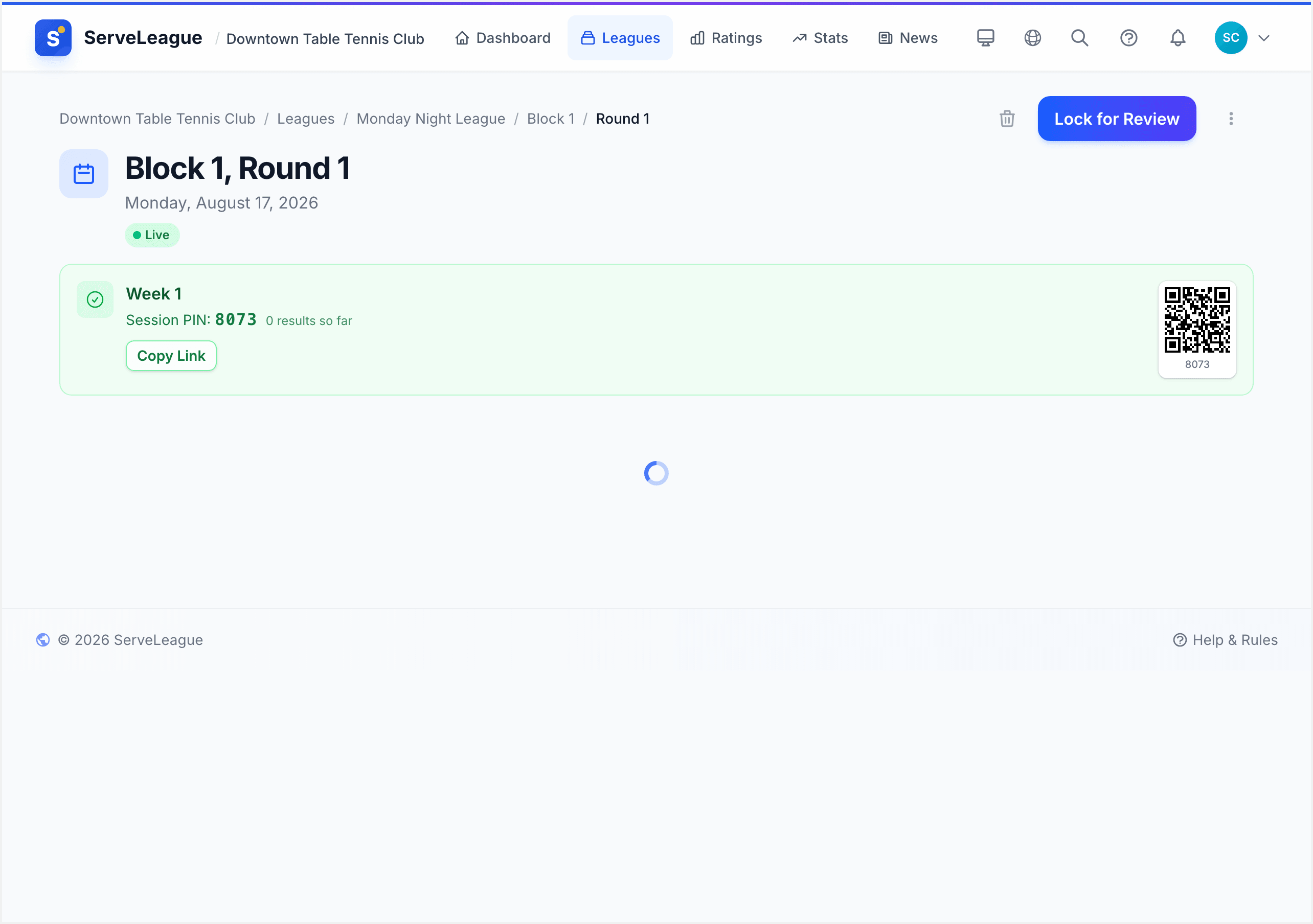
[!WARNING] Once a session is finalized, match scores are permanently locked and cannot be edited or deleted. Always review results carefully before finalizing. See Session Review and Finalization for the full review workflow.
Correcting Scores After Finalization
In rare cases, you may discover a score error after finalization. While finalization locks match data, there is a recovery path:
- Contact your super-admin (or use the super-admin panel yourself) with the session, match, and correct scores.
- Un-finalize the session: this returns it to Under Review, unlocking match data.
- Correct the scores using the normal editing workflow (Step 6).
- Re-finalize: ratings recalculate from scratch with the corrected data.
[!WARNING] Un-finalizing temporarily reverses rating changes. Players may see ratings fluctuate. Re-finalize as quickly as possible.
[!NOTE] This is a last resort. Always review scores carefully and resolve protests before finalizing.
Step 7: Handle Match Disputes (Protests)
If a player disagrees with a recorded score, they can file a protest. Protests are available while the session is in the Live or Under Review state.
How a player files a protest
When the session is locked for review, the player's view changes from "Submit Match" to Review and Protest. On each match card, a Protest button appears. Tapping it opens a form with two fields:
- Who are you?: a list where the player selects their name.
- What's incorrect?: a text area where they describe the issue (for example, "The score in game 3 was 11-9, not 11-7").
A note below the form reassures the player: "Your report is confidential." They click Submit Report to file it.
How an admin resolves a protest
When a protest is filed, it appears as a banner directly below the match card in the admin's Matches tab. The banner shows the player's name and their description of the issue. Two resolution options appear:
- Accept: Fix the result: You acknowledge the score is wrong. After accepting, edit the match to correct it.
- Dismiss: No action needed: You confirm the original score is correct.
Both options include an optional response text area (labelled "visible to players") where you can explain your decision.
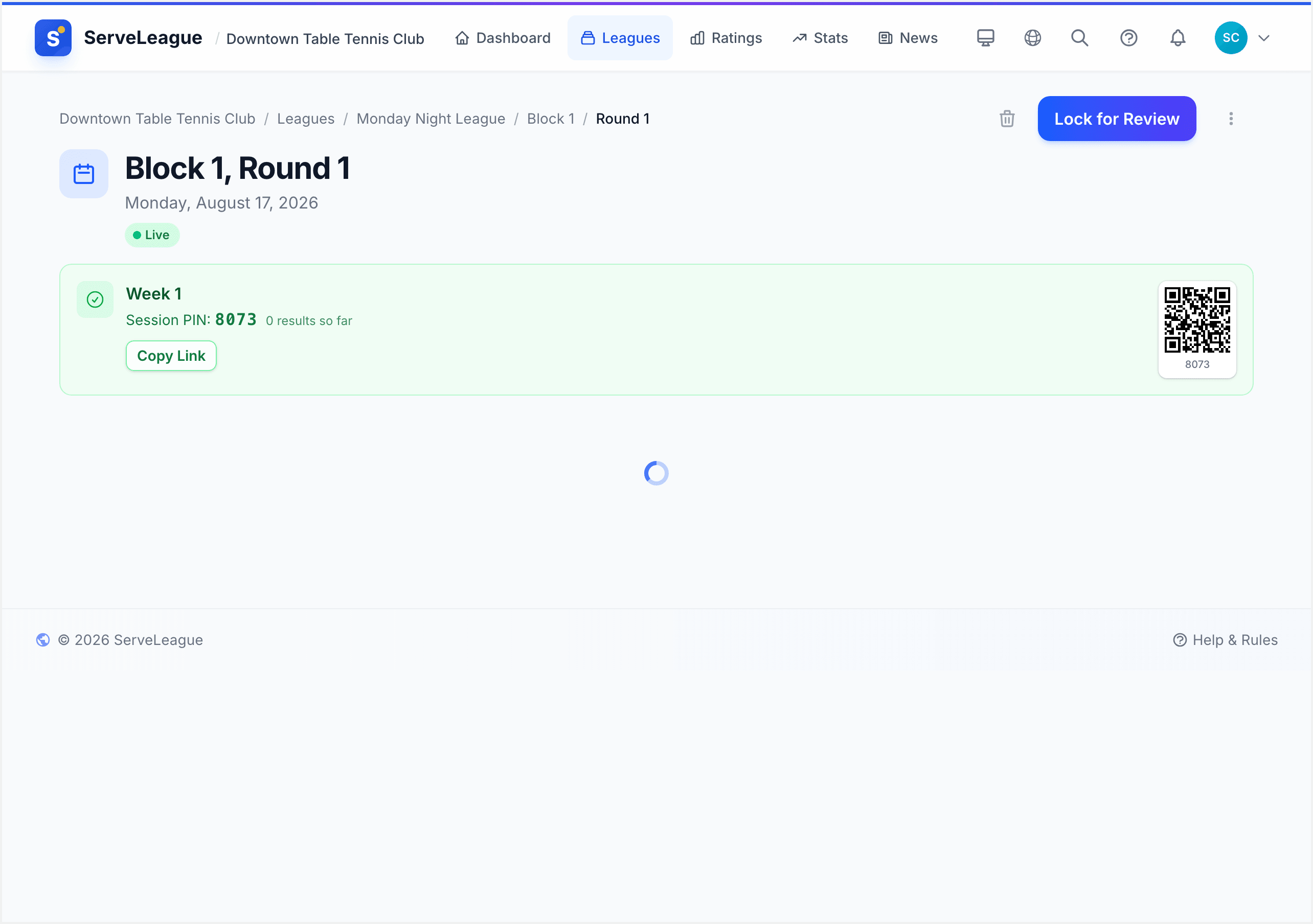
[!WARNING] Any pending (unresolved) protests are automatically dismissed when you finalize the session. Resolve them before finalizing to make sure every dispute gets proper attention.
[!NOTE] In team leagues, protests can also flag matches that were not played or not recorded: useful when a scheduled match was accidentally skipped.
The Protest Window and Workflow
Protests follow a specific lifecycle tied to the session state:
- Window opens when scores are submitted and the session is Live or Under Review. Most protests happen during the locked review period.
- Window closes permanently at finalization. No new protests can be filed after that point.
- Unresolved protests at finalization are automatically dismissed without admin review. Always resolve protests before finalizing.
- Notifications: a red badge appears on the affected match card, a count shows in the session header (e.g., "1 protest pending"), and email/push alerts are sent if notifications are enabled.
[!TIP] Check for pending protests before clicking finalize. If the protest count is anything other than zero, investigate first.
Submitting a Protest
Here is what players need to know about submitting protests effectively:
- Finding the protest button: on the player's session view, each match card displays a Protest button (flag icon) in the bottom-right corner. It is only visible for matches you played in.
- Writing a clear reason: be specific. Instead of "the score is wrong", write "Game 3 was 11-9 to me, not 11-7. My opponent and I both agreed at the table." The more detail you provide, the easier it is for the admin to resolve quickly.
- After submission: the admin receives a notification and the match card shows a protest badge.
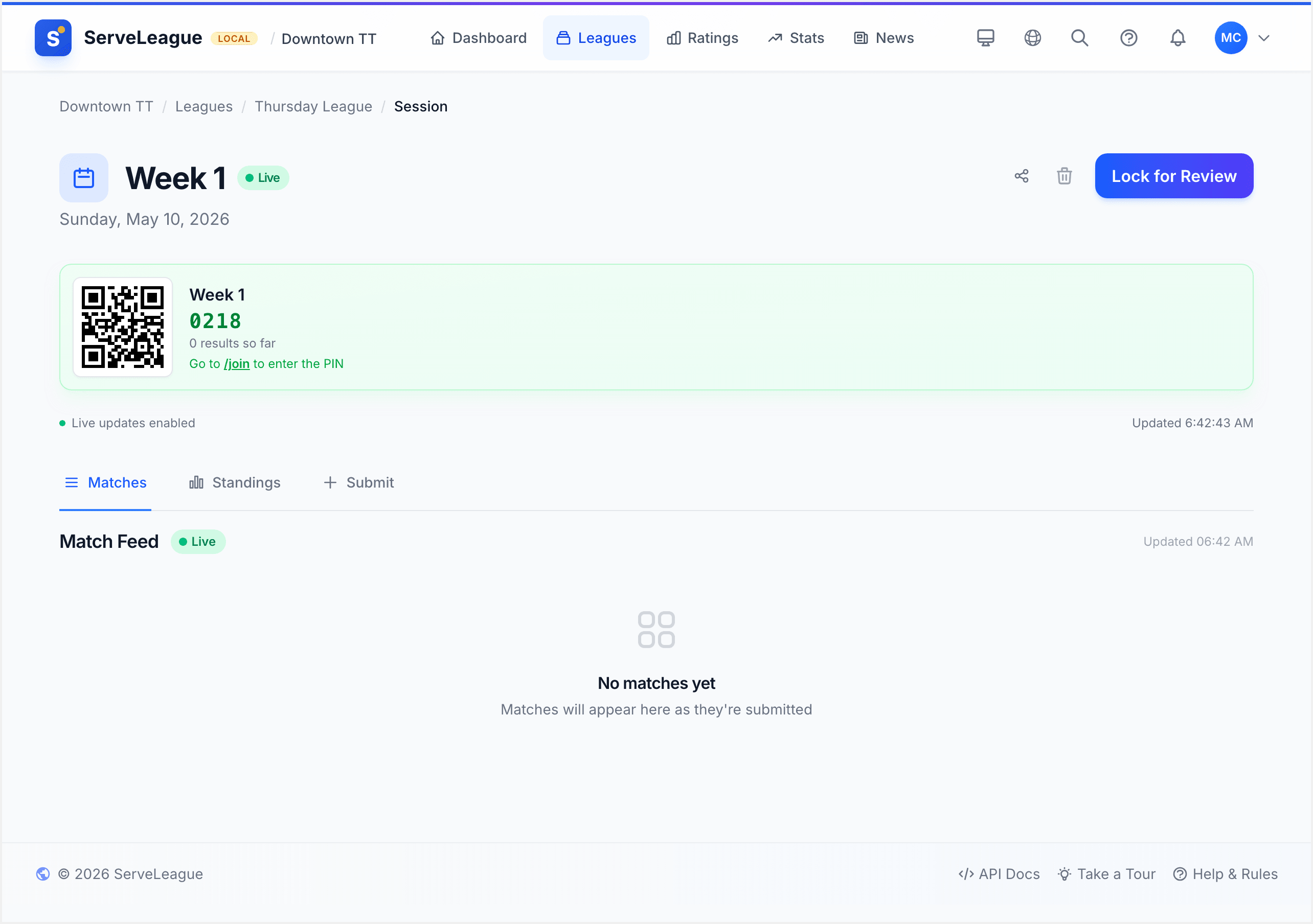
[!TIP] If you realise a score is wrong immediately after submission, ask the admin to edit it directly (Step 6) rather than filing a formal protest. Protests are best for disputed results where the admin was not present.
Resolving Protests as Admin
When a protest is filed, it demands your attention before you finalize the session. Here is the full resolution workflow:
- Where protest indicators appear: a red badge appears on the affected match card in your Matches tab. You will also see a protest count in the session header (e.g., "1 protest pending") and, if you have notifications enabled, an email or push notification alerting you.
- Opening the resolve window: click on the protest banner below the match card. A window opens showing the player's name, the time of submission, and their full description of the issue.
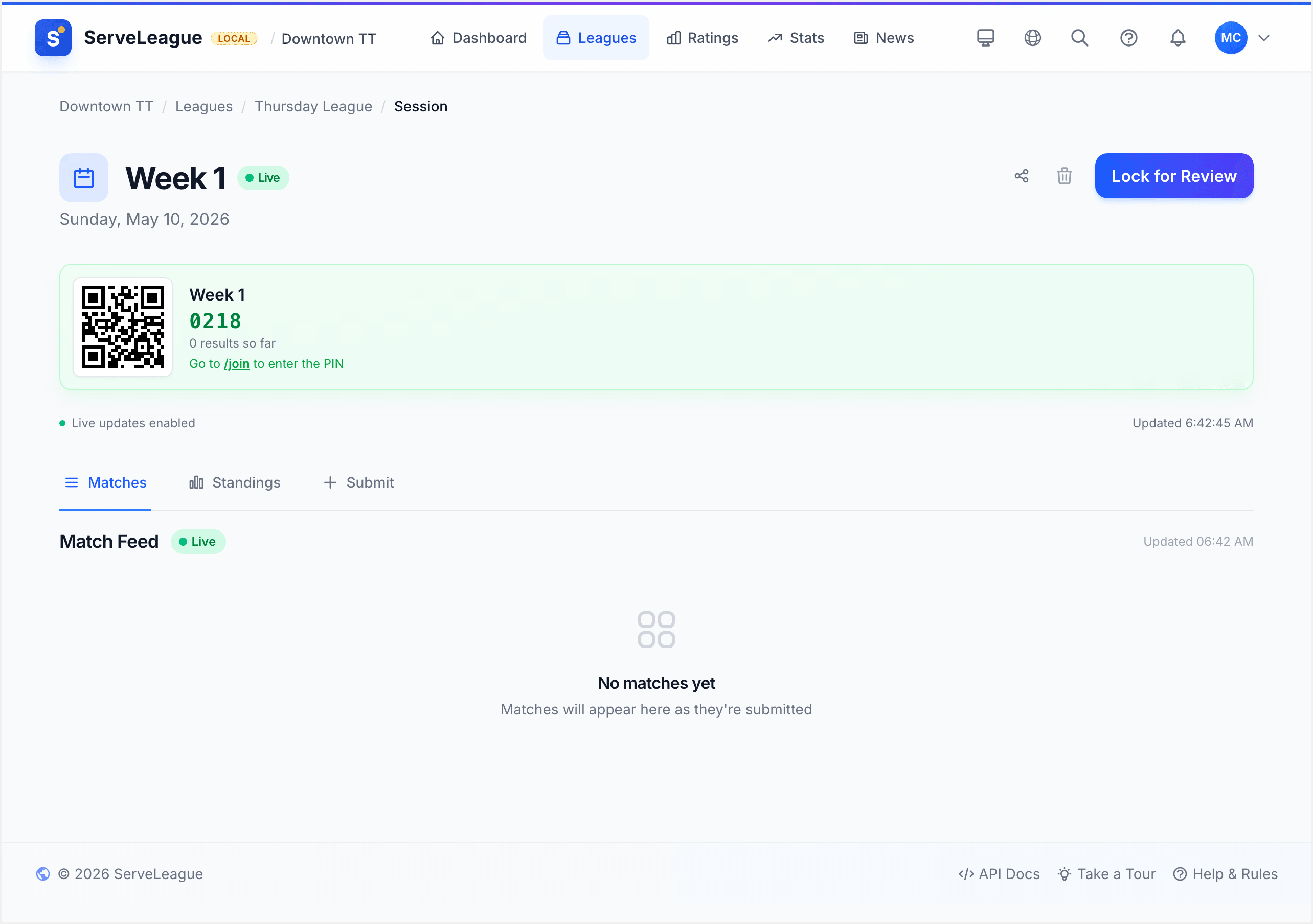
- Choosing to accept: click "Accept: Fix the result". This acknowledges that the reported score is incorrect. After accepting, the match card reopens for editing so you can enter the corrected scores. Once saved, the standings recalculate automatically.
- Choosing to dismiss: click "Dismiss: No action needed". This confirms that the original score stands. Use this when you have verified the score is correct (e.g., by checking with both players or reviewing a scoring sheet).
- Writing an admin response: both options include a text area labelled "visible to players" where you can explain your decision. For example: "Checked with both players: confirmed the original score was correct" or "Score updated to 11-9 as reported. Thanks for flagging."
- What happens when accepted: the match scores are corrected, standings and rating previews update to reflect the change, and the protest status changes to Resolved (Accepted).
- What happens when dismissed: the original scores remain unchanged, the protest status changes to Resolved (Dismissed), and the protesting player can see your response.
For a comprehensive guide to the protest system, including team league protests and escalation procedures, see the dedicated Protests and Dispute Resolution tutorial.
Step 8: Record a Walkover
If a player forfeits or does not show up for a scheduled match, you can record a walkover instead of entering game scores.
- Open the score entry screen for the match.
- Scroll to the bottom, past the game score rows, to the No-show / Walkover section.
- You'll see two buttons, one for each player: "[Player Name] wins (W/O)".
- Click the button for the player who should receive the win.
- A confirmation prompt appears: "Award walkover to [Player Name]?" Click Confirm Walkover.
The match is recorded with the winning player credited, but no game scores are shown. The walkover result appears in the match list with a "W/O" label.
[!TIP] Walkovers are commonly used in bracket-style tournaments when a player withdraws between rounds. In round-robin formats, recording a walkover ensures the remaining player still gets credit for the scheduled match.
At a Glance: What You Can Do
Here is a quick reference of who can do what and when:
| Action | Admin | Player (via PIN) | When available |
|---|---|---|---|
| Enter new match scores | ✅ | ✅ Submit Match tab | Session is Live |
| Edit existing scores | ✅ | ❌ | Live or Under Review |
| Delete a match | ✅ | ❌ | Live or Under Review |
| File a protest | ✅ | ✅ | Live or Under Review |
| Resolve a protest | ✅ | ❌ | Live or Under Review |
| Record a walkover | ✅ | ❌ | Live or Under Review |
Summary
Accurate score entry is the foundation of fair ratings and meaningful standings. You now know how to enter scores game by game, let players submit their own results, work with different scoring formats, edit mistakes, handle disputes through the protest system, and record walkovers for no-shows.
Once all scores are in and any disputes are resolved, you're ready to review and finalize the session.
What's Next?
- Session Review and Finalization: preview rating changes and lock in results
- Player Self-Service: the full player experience from joining via PIN to viewing standings
- Understanding Your Rating: how match results translate into player ratings