Setting Up Drop-In Leagues
Not every club night has the same players. Drop-in leagues are designed for casual play where attendance varies from week to week. There is no fixed roster and no commitment: players check in when they arrive and matches are generated automatically.
If your club runs open practice nights, social play sessions, or "come and play" evenings, a drop-in league is the right choice. This tutorial shows you how to create one and run your first session.
Drop-In vs Standard Leagues
Before creating your league, here is how drop-in differs from a standard league:
| Feature | Standard League | Drop-In League |
|---|---|---|
| Roster | Fixed: players added upfront | Flexible: anyone can join any session |
| Attendance | Expected for every session | No attendance expectation |
| Ratings | Tracked per league | Tracked at club level |
| Pairing | Round-robin within fixed groups | Swiss-style pairing after Round 1 |
| Best for | Structured competition, seasons | Casual nights, open play, social sessions |
Drop-in leagues still track results and update ratings. The difference is about roster flexibility and how matches are generated. Players do not need to be pre-registered; they need to be club members.
[!TIP] Many clubs run both: a structured graded league on one night and a drop-in league on another. This caters to both competitive and casual players.
Step 1: Start the Drop-In League Wizard
From your club admin dashboard, click "Leagues" in the sidebar, then click "Create League". Select "Drop-In" from the format grid.
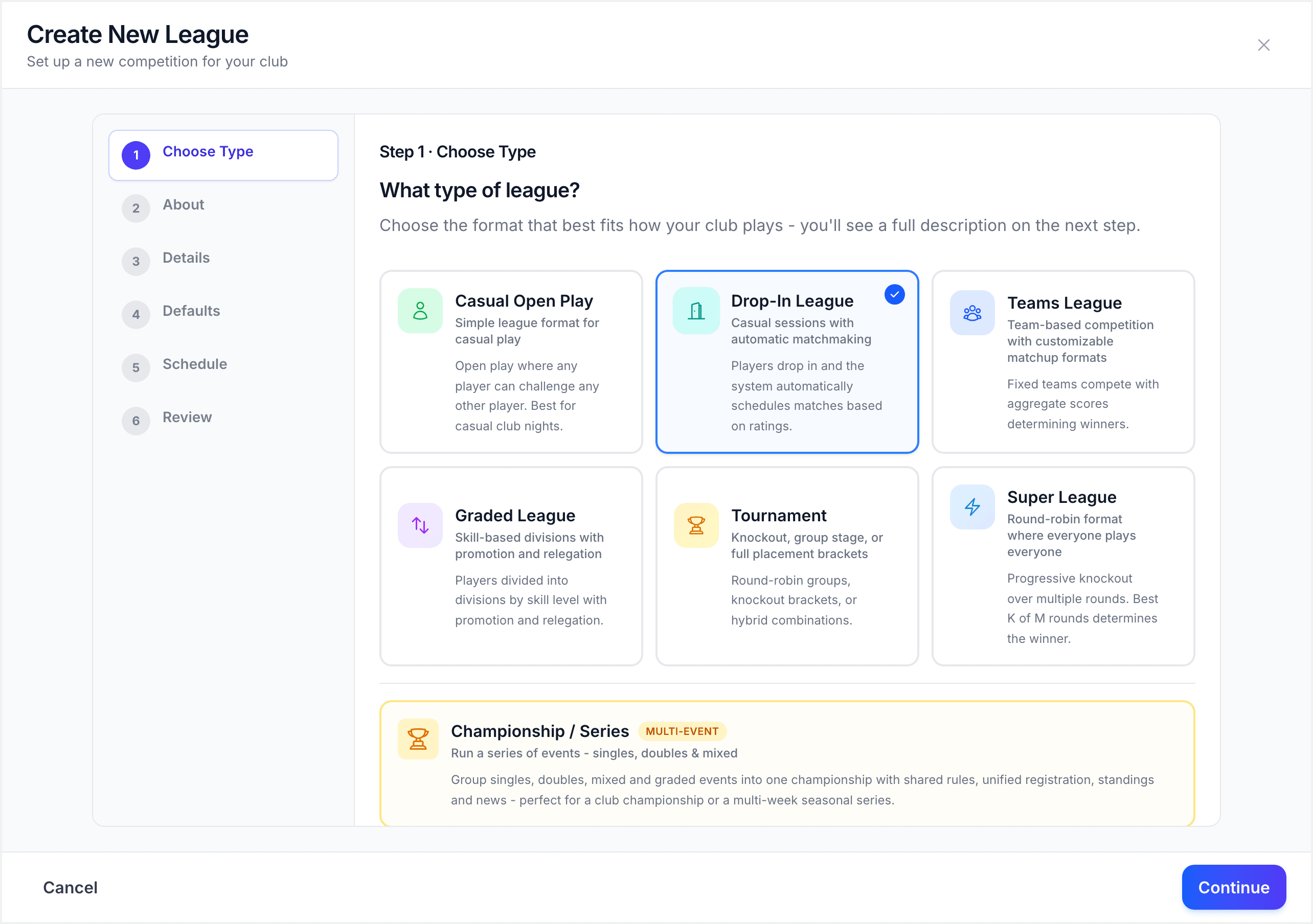
Read the format explanation page, then click "Next" to continue.
The drop-in wizard has three configuration steps after the league details: Defaults, Schedule, and Review.
Step 2: Enter League Details
Fill in the core league information:
- League Name: choose a name that signals the casual nature. For example, "Friday Social Night" or "Open Practice."
- Description (optional): a short note about the league, like "Casual drop-in play every Friday, all levels welcome."
- Schedule Day: the day of the week your drop-in night runs
- Schedule Time: the start time
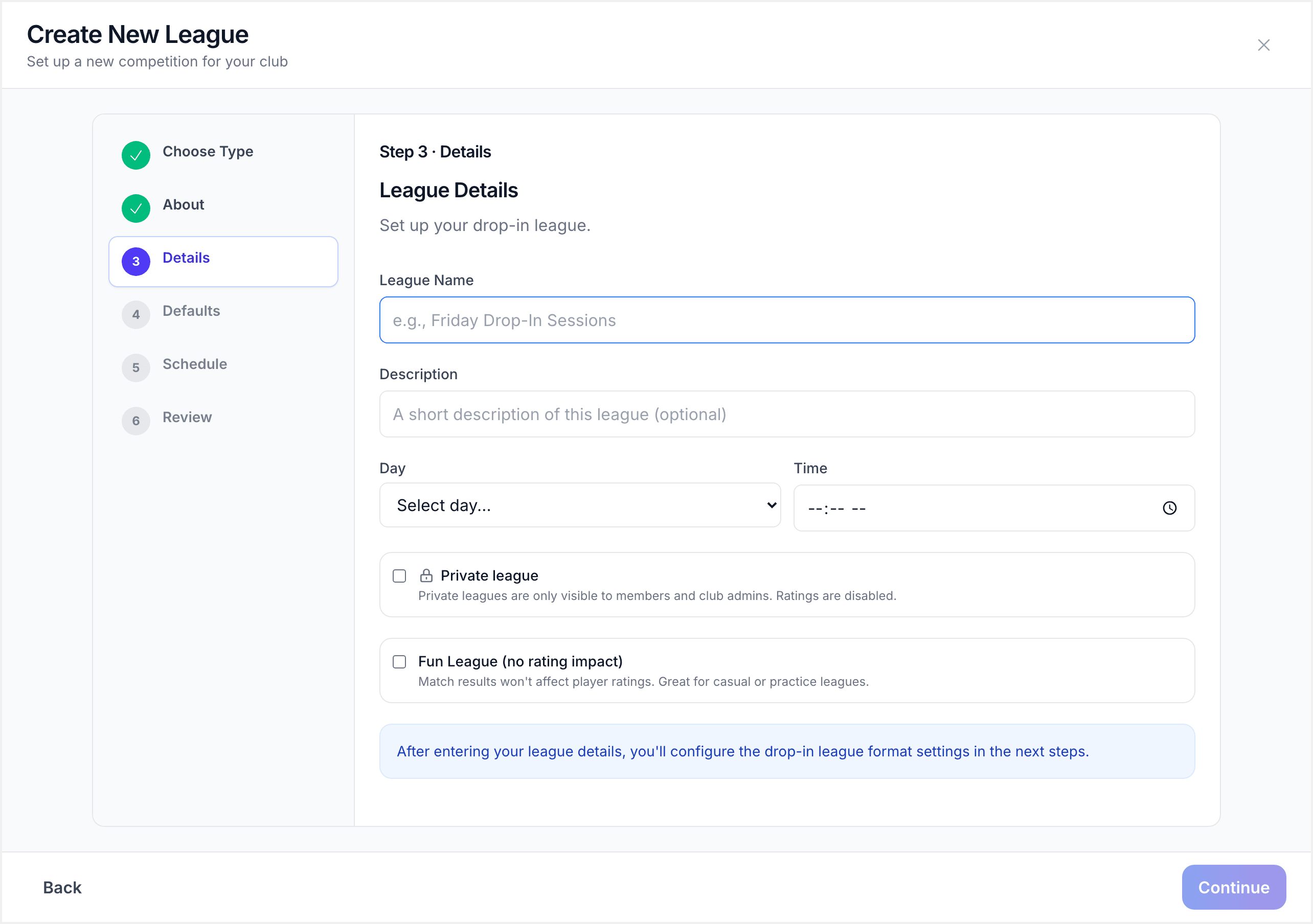
Click "Next" to continue.
Step 3: Configure Session Defaults
The Defaults step sets the session-level settings that apply each week. These can be adjusted per session, but the defaults save you from configuring them every time.
- Table Count: how many tables are available for play at your venue. ServeLeague uses this to schedule matches across tables efficiently.
- Games Per Player: the target number of matches each player will play during the session. ServeLeague generates enough rounds to meet this target.
- Divisions: whether to split players into skill-based divisions. When enabled, players are grouped by rating so matches are more competitive.
- Flex Matches: allow extra matches to keep tables busy when rounds finish unevenly. This prevents tables sitting empty while waiting for slower matches to finish.
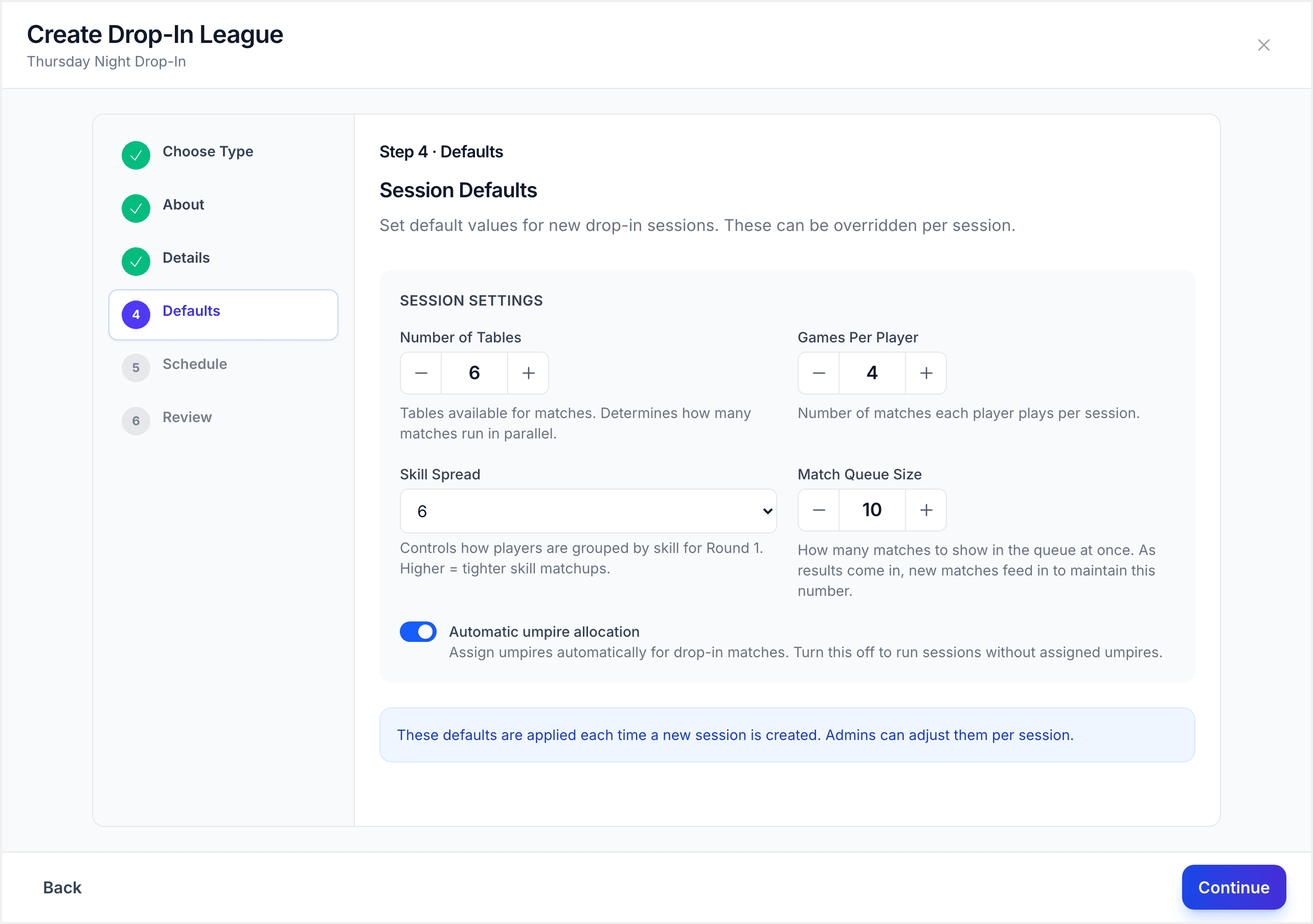
[!TIP] Start with Games Per Player set to 4-6 for a two-hour session. You can adjust this based on how many players typically attend and how long matches take at your club.
Click "Next" to continue.
Step 4: Set Up the Schedule
The Schedule step creates sessions in advance. You have two options:
Recurring sessions: set a day of the week, a starting date, and the number of weeks. ServeLeague generates a session for each date automatically.
- Day of week: which day the sessions fall on (this should match the schedule day from the league details)
- Starting from: the date of the first session
- Weeks: how many weeks of sessions to create
You can also add individual sessions manually using the "Add session" button.
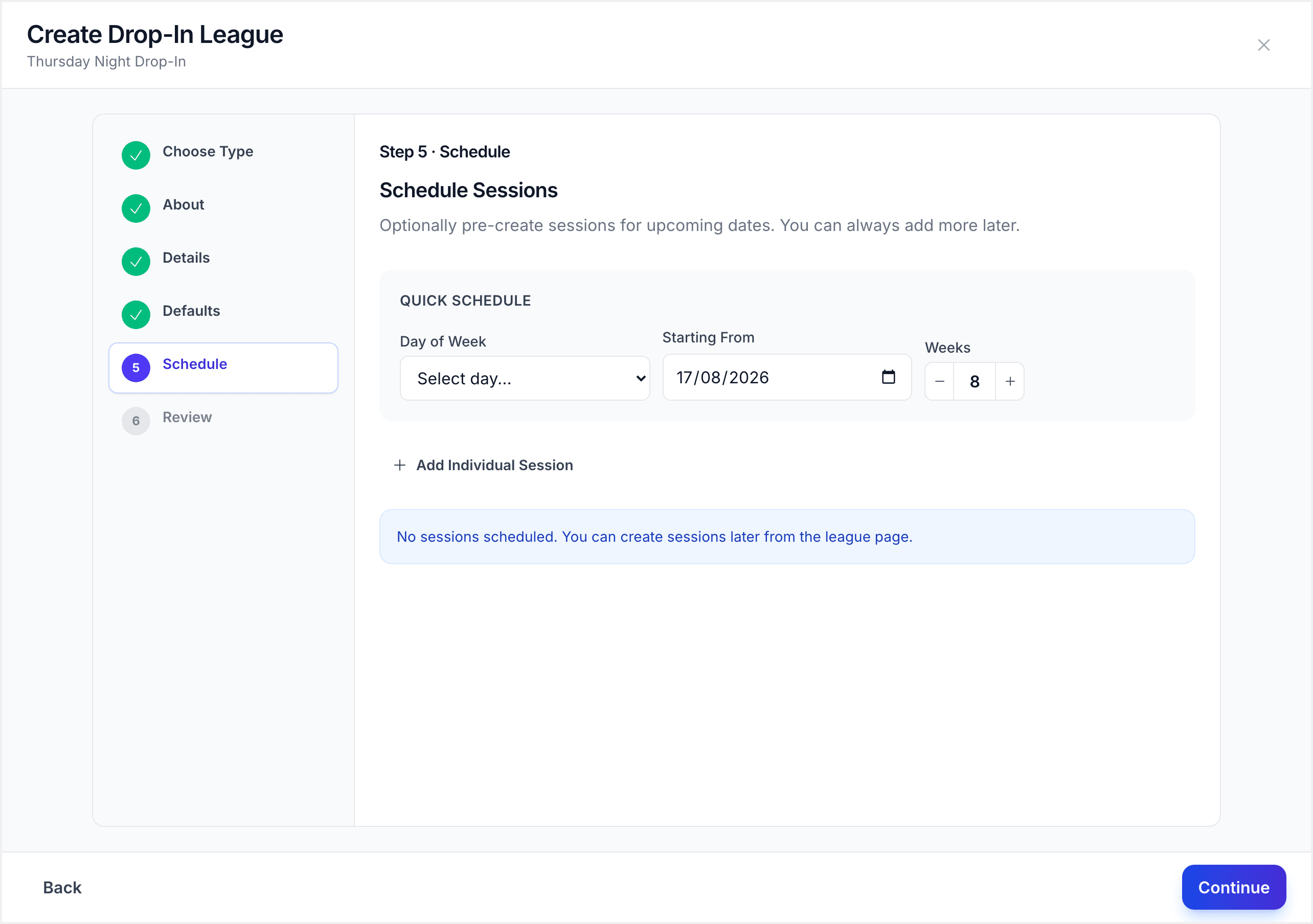
Each generated session appears as a row with the date and an optional name. You can edit individual session names or remove sessions you do not need.
[!NOTE] Sessions are created in Draft state. You still need to open each session on the night to allow player check-in (see Step 6 below).
Click "Next" to continue.
Step 5: Review and Create
The final step shows a summary of your settings:
- League details: name, format, schedule
- Session defaults: table count, games per player, divisions, flex matches
- Affects ratings: whether results update player ratings (on by default)
- Sessions: the generated session dates
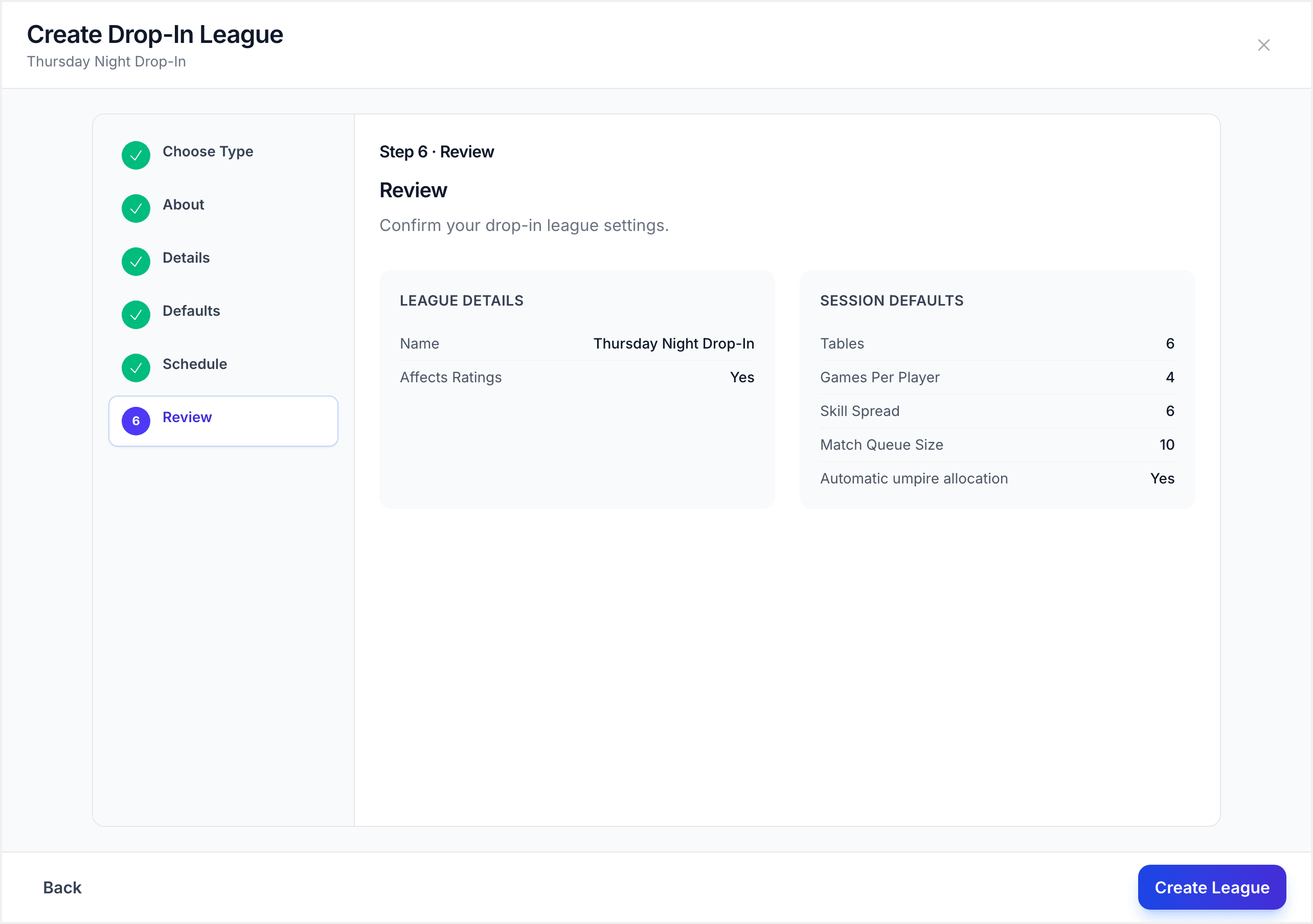
Check that everything looks right. Click "Create League" to finish.
Your drop-in league is now created and appears on your club page.
Step 6: Run a Drop-In Session
When game night arrives, open the session from your league page. Drop-in sessions follow a clear progression:
1. Check-in Phase
Click "Start session" (or "Open session") to begin. A 4-digit PIN is displayed on the session page. Share this with your players.
Players go to serveleague.com/join on any device and enter the PIN to check in. No login or app download is required. The session page shows a live list of who has checked in, with a configuration summary at the top showing the session settings: Tables, Seeding, Match Queue, Groups, and Split mode.
As an admin, you also see:
- An Add walk-in player button for adding players who are not yet in the club roster.
- A pending walk-ins section where you can Approve or Reject new players who registered via the join page.
- Controls to reorder players, lock/unlock specific players, and assign table positions before starting.
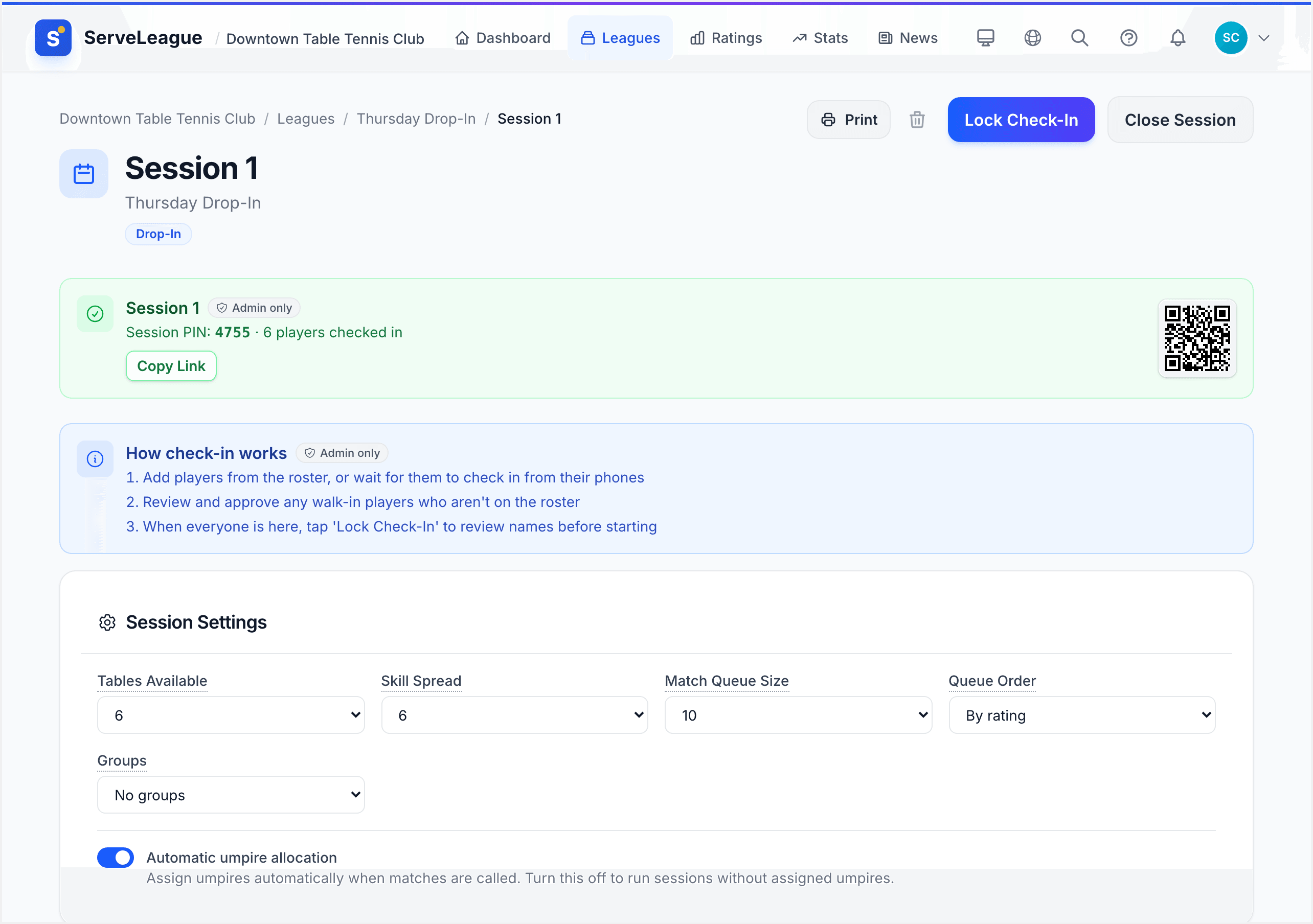
[!TIP] The PIN check-in system lets players sign themselves in as they arrive. No need for an admin to mark attendance manually. For a hands-free setup, use Kiosk Mode on a screen at your venue.
2. Split into Groups and Generate Matches
When everyone has checked in, you can optionally split players into groups by setting a group count (2 or more). This creates balanced groups based on player ratings so that the first round of matches is competitive.
Click "Done checking in" to lock the player list. ServeLeague generates the first round of matches using the session settings (table count, divisions, and flex matches).
3. Play and Enter Scores
Matches are assigned to available tables. As players finish and results are entered, the next round of matches appears automatically. No manual intervention is needed. The matchup engine ensures players face different opponents each round.
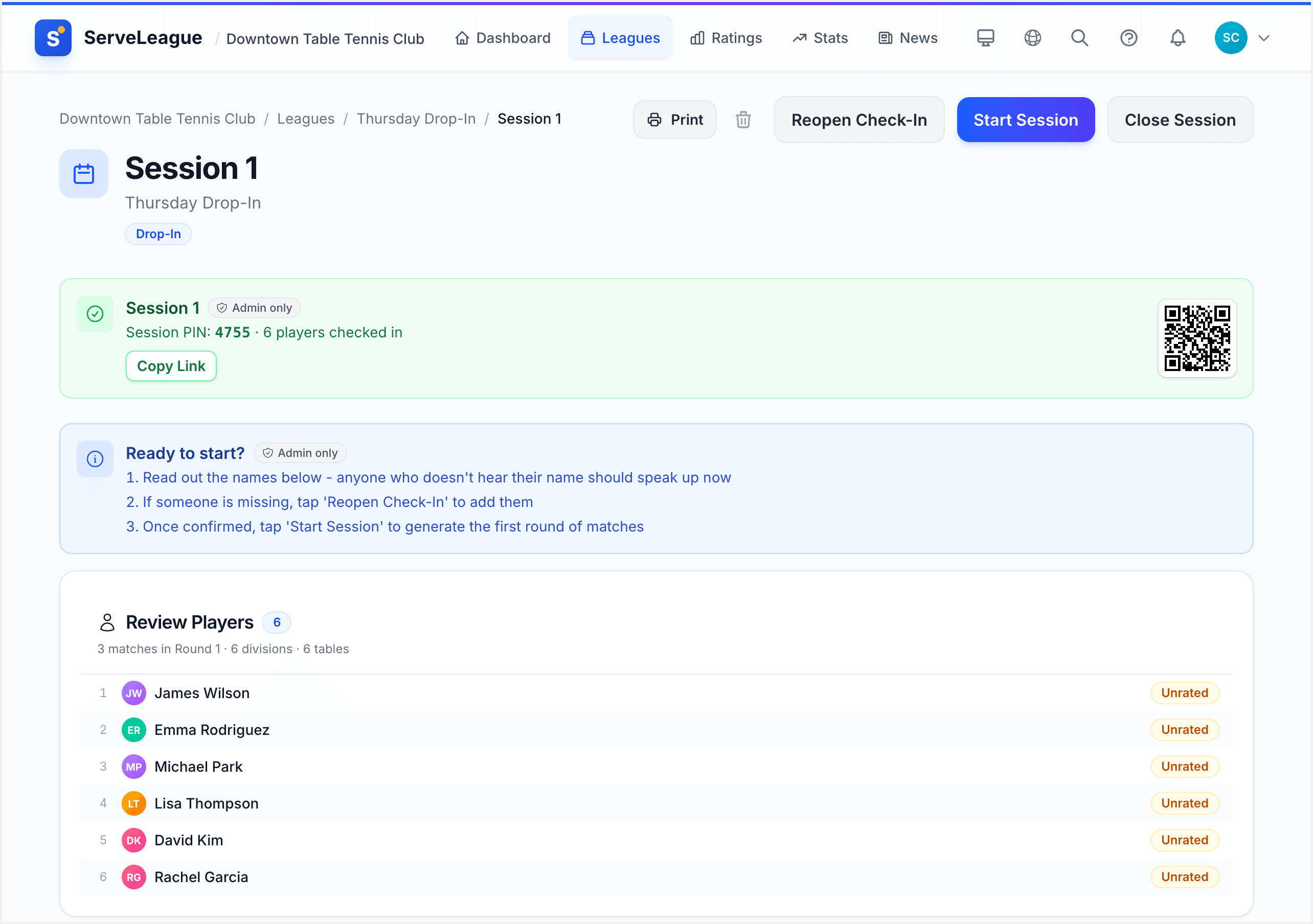
4. Finalize
When all rounds are complete, lock and finalize the session to update ratings and standings.
How Pairing Works
Drop-in sessions do not use fixed round-robin groups for the entire night. Instead:
- Round 1 uses initial groups seeded by player ratings, so the first matches are competitive.
- Subsequent rounds use Swiss-style pairing from a global pool. Players are matched based on their session points so far. This means players who are winning play other winners, keeping matches competitive throughout the night.
Matches are generated automatically and assigned to available tables as they become free.
[!NOTE] Groups are used only for Round 1 seeding. After that, everything runs from a global pool with Swiss-style pairing.
Summary
You have set up a drop-in league with table count, games-per-player targets, and a session schedule. Here is what you accomplished:
- Created a drop-in league using the wizard
- Configured session defaults (tables, games per player, divisions, flex matches)
- Generated a schedule of sessions
- Learned the drop-in session flow: check-in → generate matches → play → finalize
Players check in with their PIN, and ServeLeague handles pairing automatically. Ratings are still tracked, so even casual nights contribute to player development.
Next steps:
- Running Your First Session: how to run and finalize sessions (the fundamentals apply to drop-in too)
- Adding Members to Your Club: members must be in the club to check in
- Kiosk Mode and Public Display: set up a display screen for live standings at drop-in nights
- Player Self-Service: learn about the player experience for check-in and score submission