Club News and Announcements
Your club generates a wealth of data every week: match results, rating changes, milestones, and standout performances. The Club News feature turns that data into polished, shareable articles. Write them yourself or let AI draft them, then publish with a single click, optionally notifying members by email.
Going to Club News
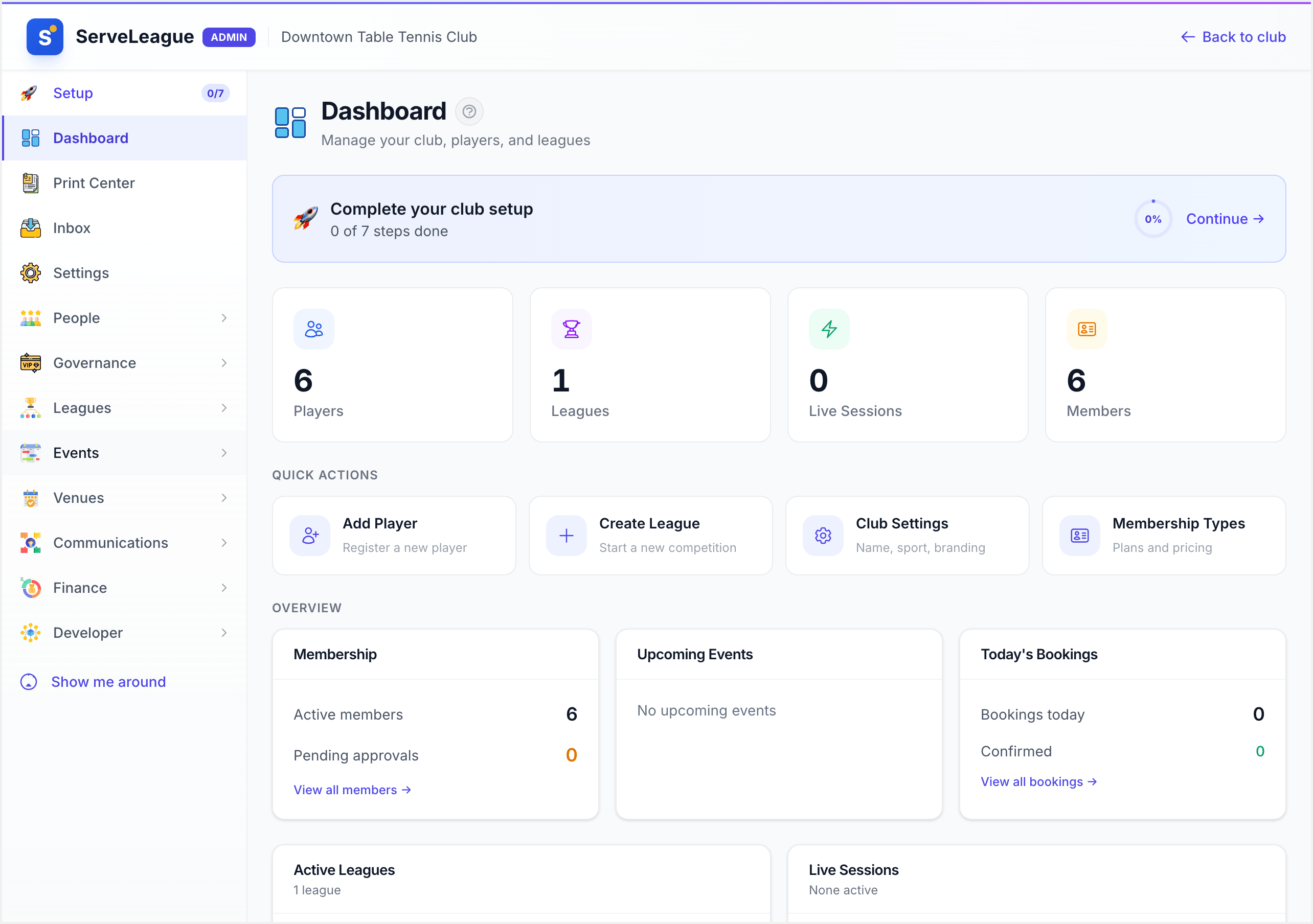
From your club's admin dashboard, click News in the sidebar navigation. This takes you to the news feed at:
/clubs/your-club-slug/news
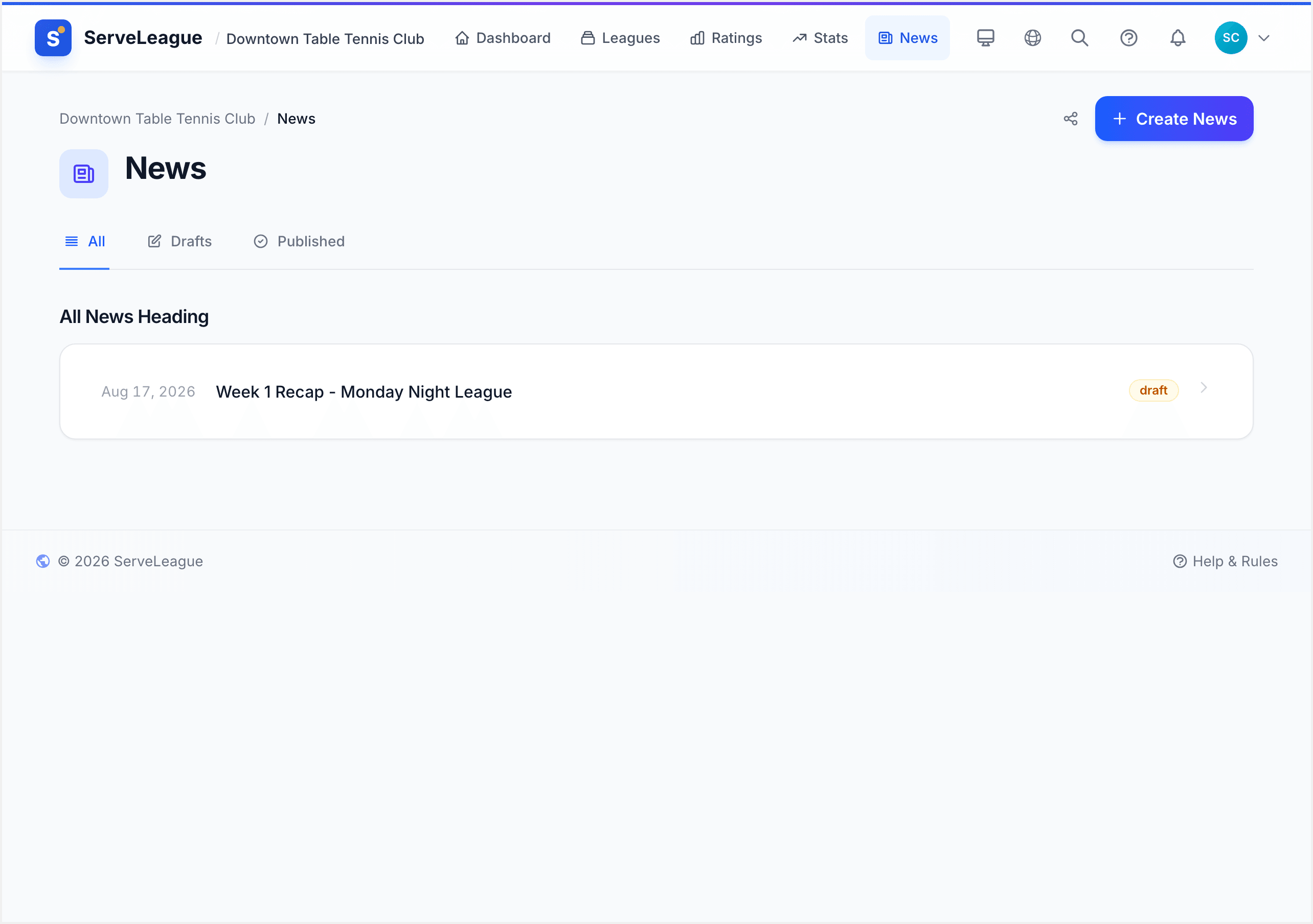
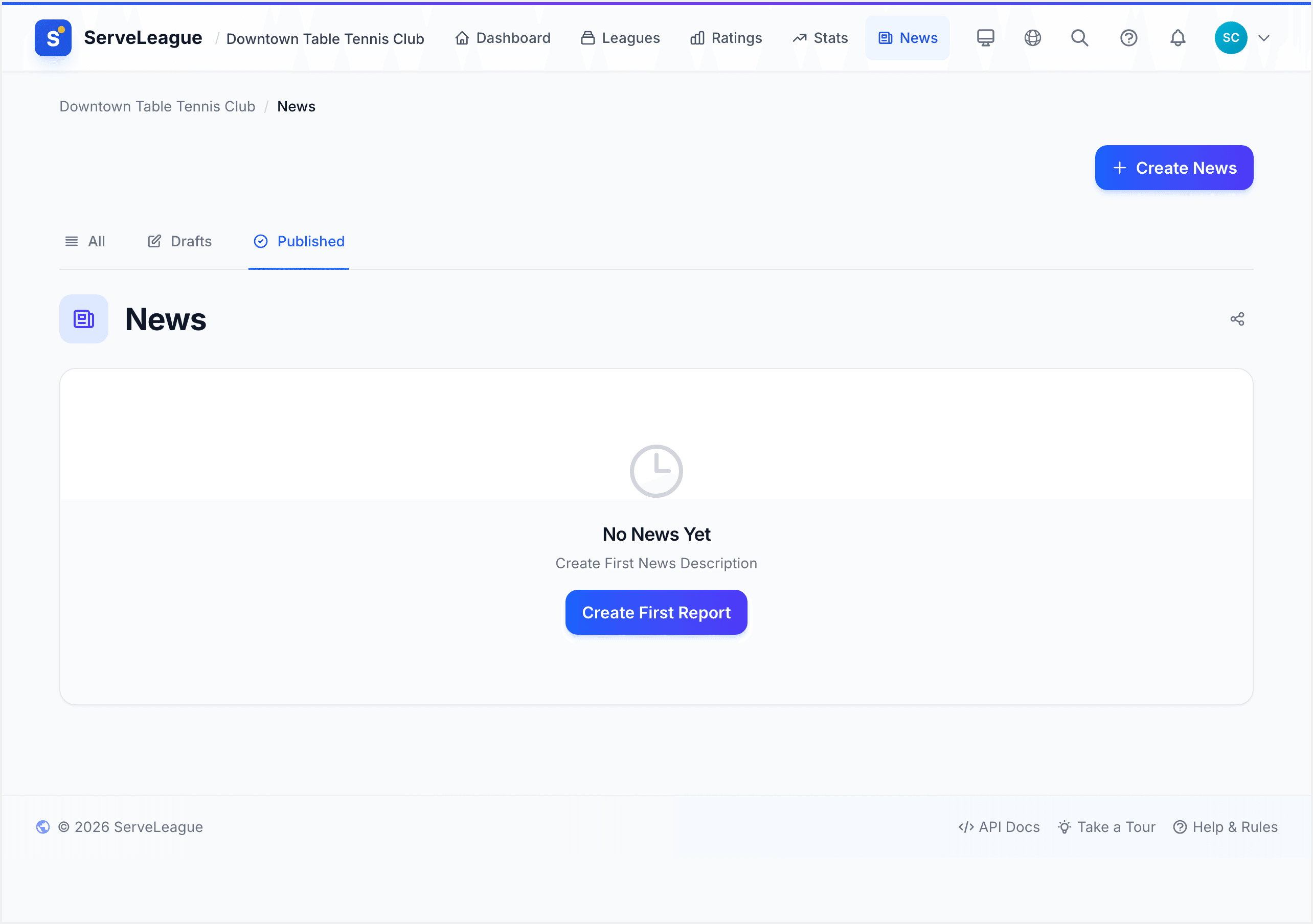
If you haven't published any articles yet, you'll see an empty state prompting you to create your first report. Members who visit this page will only see published articles, while admins see drafts and published content with status badges.
Creating a News Article
Click the Create News button in the top-right corner to open the creation wizard. The wizard walks you through two steps:
Select a week: Choose which week the article covers. The list shows the last 16 weeks based on your club's week start day.
Review sessions: The wizard shows finalized sessions within that week, including league names and match counts.
Once you confirm, ServeLeague creates a draft article and takes you to the editor.
[!TIP] You can create multiple articles for the same time period if you want to cover different topics. Each article gets its own unique web address.
Writing and Formatting Content
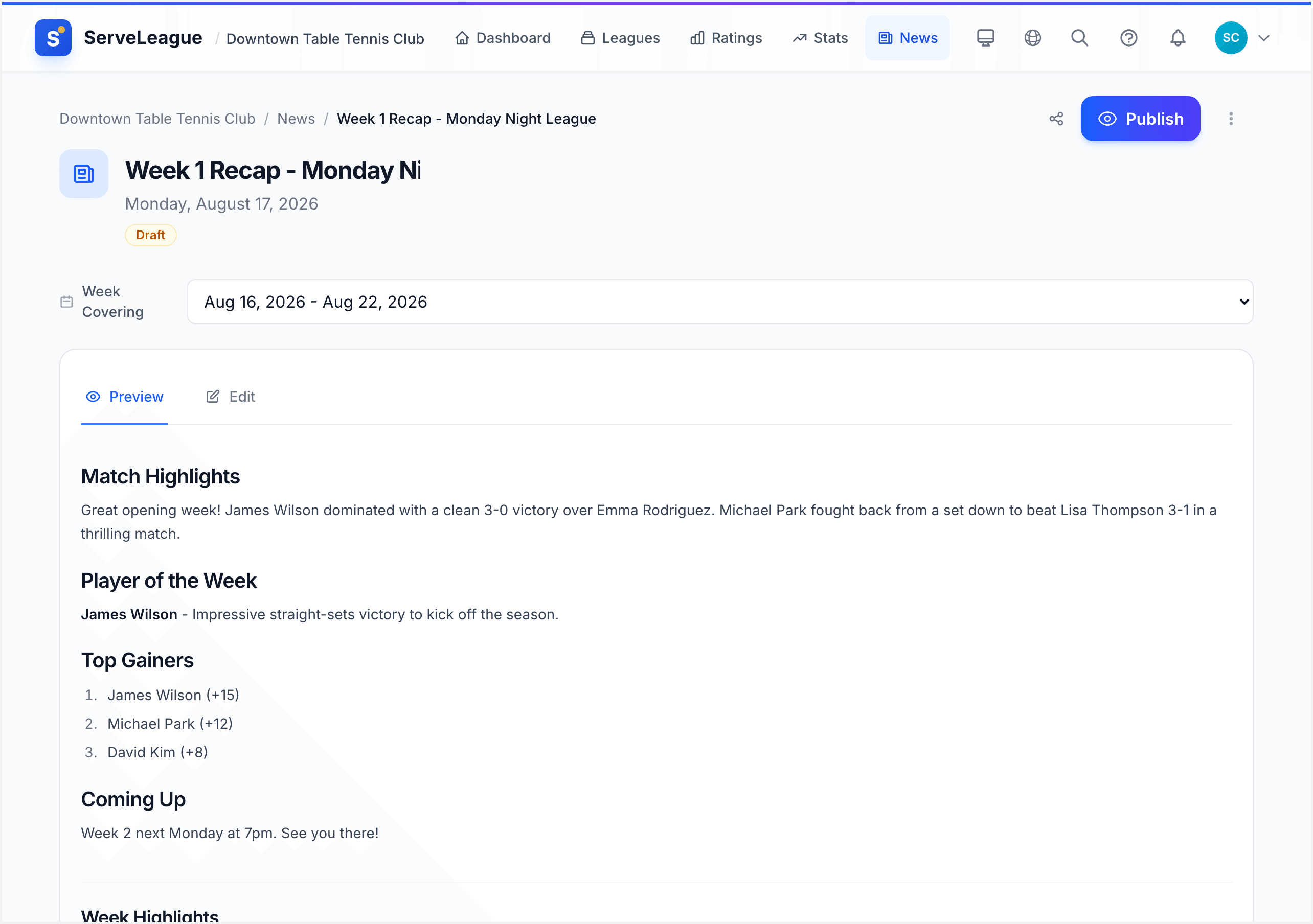
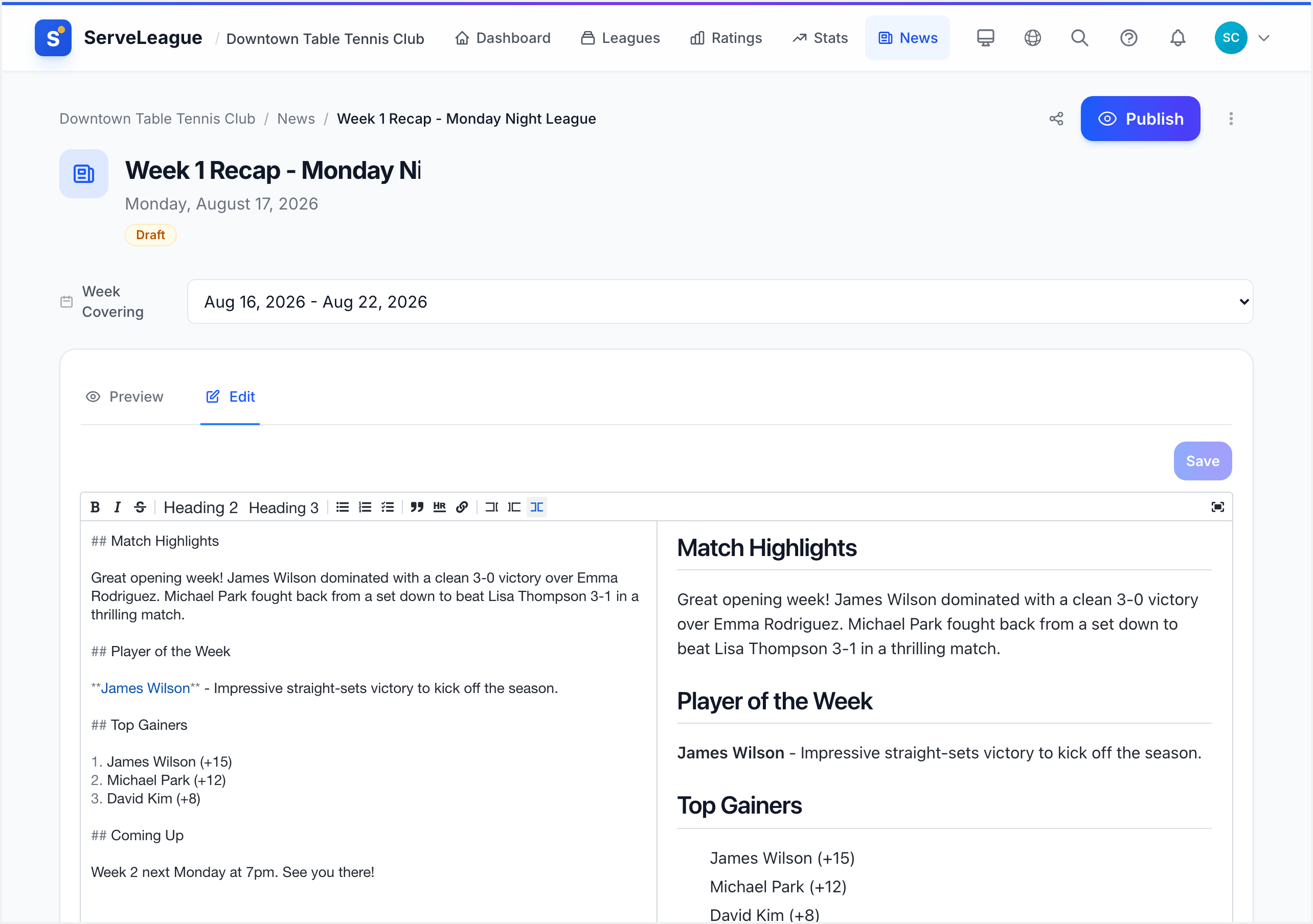
The article editor uses a Preview / Edit tab system. Click the Edit tab to open the full markdown editor, which supports:
- Headings (
## Section Title) to structure your article - Bold and italic text for emphasis
- Bullet and numbered lists for match recaps or announcements
- Links to player profiles, league pages, or external resources
- Block quotes for callouts or quotes from players
The Preview tab shows your markdown exactly as members will see it, so you can check formatting before publishing.
Setting the Article Title
The title field appears at the top of the editor. Type a descriptive headline. This becomes the title in the news feed and determines the article's web address. For example, "Week 12 Recap: Upsets and New Records" generates a page at serveleague.com/.../week-12-recap-upsets-and-new-records.
[!TIP] If you change the title after saving, the slug updates automatically.
Changing the Covered Week
Below the title, admins see a week selector. If the article should cover a different week, select a new date range and the data cards will update automatically.
Generating Content with AI
Instead of writing from scratch, you can let AI draft the article based on your club's actual match data. Click the Generate with AI button to open the generation window.
The AI workflow has two steps:
Step 1: Preview Data and Add Hints
Before generating, the window shows you exactly what data will be sent to the AI:
- Matches played and unique players for the week
- Highlights, milestones, and rating changes detected
- Team standings and league season progress (if applicable)
You can click View full data to inspect the complete prompt that will be sent.
Below the data summary, there's an Admin Hints text field where you can guide the AI's tone or focus:
- "Focus on the upset where Player X beat the league leader"
- "Mention that next week is our club anniversary"
- "Keep it short and fun, our members prefer casual language"
Step 2: Review and Accept
After generation, the window shows a preview of the AI's draft. You can:
- Use this content: Accept it and it populates the editor, extracting the first H1 heading as the article title
- Try again: Regenerate with different hints (each article has a limited number of AI generation attempts shown in the button)
- Cancel: Discard and return to manual editing
[!WARNING] Accepting AI content replaces any existing content in the editor. If you've already written text, you'll see a warning before generating.
Automatic Highlight Cards
Every news article automatically includes data cards below the written content when relevant data exists for the covered week. These cards are visually rich and update automatically.
The available cards include:
| Card | What It Shows |
|---|---|
| Sessions Summary | Number of sessions, active leagues, total matches and players |
| Player of the Week | The player who gained the most rating points |
| Top Gainers | A leaderboard of the biggest rating movers |
| Milestones | Notable achievements like match count milestones |
[!TIP] If you change the article's covered week using the week selector, the highlight cards update to show the new week's data in real time.
Publishing and Visibility
Articles follow a simple lifecycle: Draft → Published → Locked.
Draft
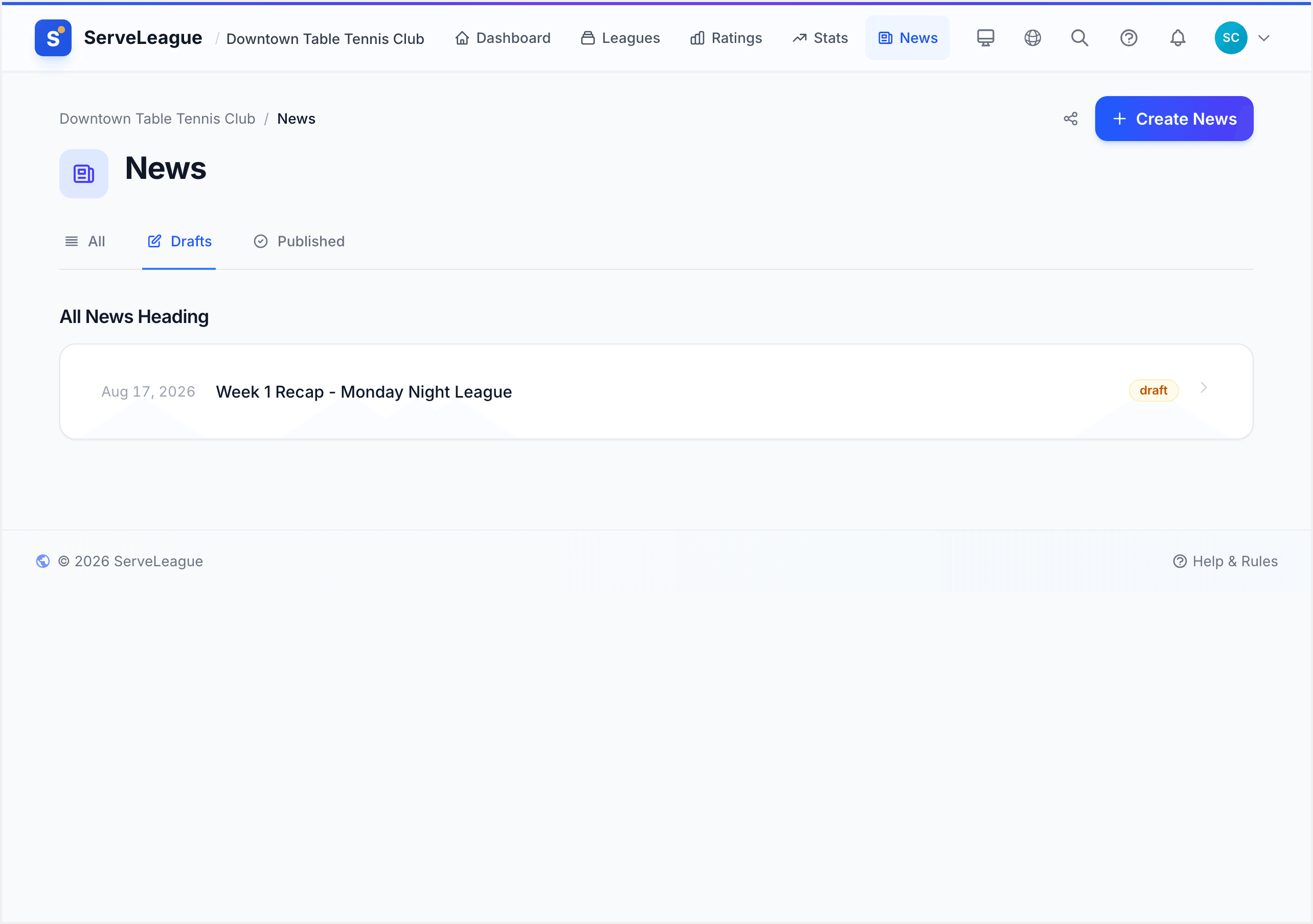
New articles start as drafts. Only club admins can see them. Use this stage to write, edit, and preview your content until it's ready.
Publishing
When you're satisfied with the article, click the Publish button. You'll have the option to notify members, which sends an email to all club members who haven't unsubscribed from club updates.
Published articles are immediately visible to everyone visiting your club's news page. The most recently published article becomes the featured article, displayed prominently at the top with full content and data cards.
Unpublishing
Changed your mind? Click Unpublish to revert an article to draft status. It will disappear from the public feed but remain in your admin view for further editing.
Locking
For important articles you want to preserve exactly as-is, you can lock a published report. Locked articles cannot be edited or deleted. Locking also triggers member email notifications if they haven't already been sent.
The News Feed and Archive
Your club's news page is a blog-style reading experience:
- Featured article: The latest published article appears at the top with full content and highlight cards
- Previous news: Older articles appear in a compact archive list with date, title, and status badges (for admins)
- Pagination: The archive paginates at 10 articles per page
Article URLs
Every article gets a permanent, SEO-friendly URL:
/clubs/your-club-slug/news/2025/week-12-recap
Use the Share button on any article to copy the link or share to social media.
Admin Filtering
Admins see filter tabs: All, Drafts, and Published, to quickly find articles by status.
Best Practices
Publish weekly: Consistent news keeps members engaged. Even a short AI-generated recap is better than silence.
Use admin hints: Tell the AI what to emphasize, such as specific storylines, upcoming events, or members to highlight.
Review AI content: AI drafts are a starting point. Add personal touches and ensure the tone matches your club.
Let data cards do the work: Focus your writing on narratives the cards can't capture.
Notify selectively: Save email notifications for significant recaps to avoid fatigue.
Summary
You now know how to create, write, generate, and publish club news on ServeLeague. Your members get a dedicated news page with a featured article, automatic highlight cards, and a browsable archive, all powered by real match data. Customize your club's branding so articles match your visual identity.
What's Next
- Email Communications: Learn how to manage email notifications, templates, and member communication preferences
- Club Branding and Customization: Customize your club's appearance so news articles match your brand
- Embedding Widgets: Embed your club's news feed or standings on your own website