Season Management
Season Management
A great season takes planning at the start, careful adjustments in the middle, and a clean wrap-up at the end. ServeLeague gives you tools for every phase, from bulk-scheduling sessions to automated year-end processing. This guide walks through the full season lifecycle.
The Season Lifecycle
Every league in ServeLeague follows a clear status progression:
| Status | What it means |
|---|---|
| Preseason | Registration is open, sessions can be planned, but match entry is locked |
| Active | The season is live: sessions run, scores are entered, ratings update |
| Completed | All sessions are finalized and the season's results are locked in |
| Archived | The league is stored for historical reference and hidden from active views |
Understanding this lifecycle is key. Each transition is an intentional action. ServeLeague never changes your league status automatically (except during year-end processing, covered below).
Phase 1: Planning Your Season
Create the League in Preseason Mode
When you create a new league, begin in preseason status. This gives you time to configure settings, add players, and build your schedule before anything goes live.
From the league creation wizard, your league defaults to preseason. If you've already created it in active status, you can return to preseason from the league detail page (as long as no sessions have been finalized).
Bulk-Schedule Your Sessions
Rather than creating sessions individually, use bulk session creation to lay out your entire season at once.
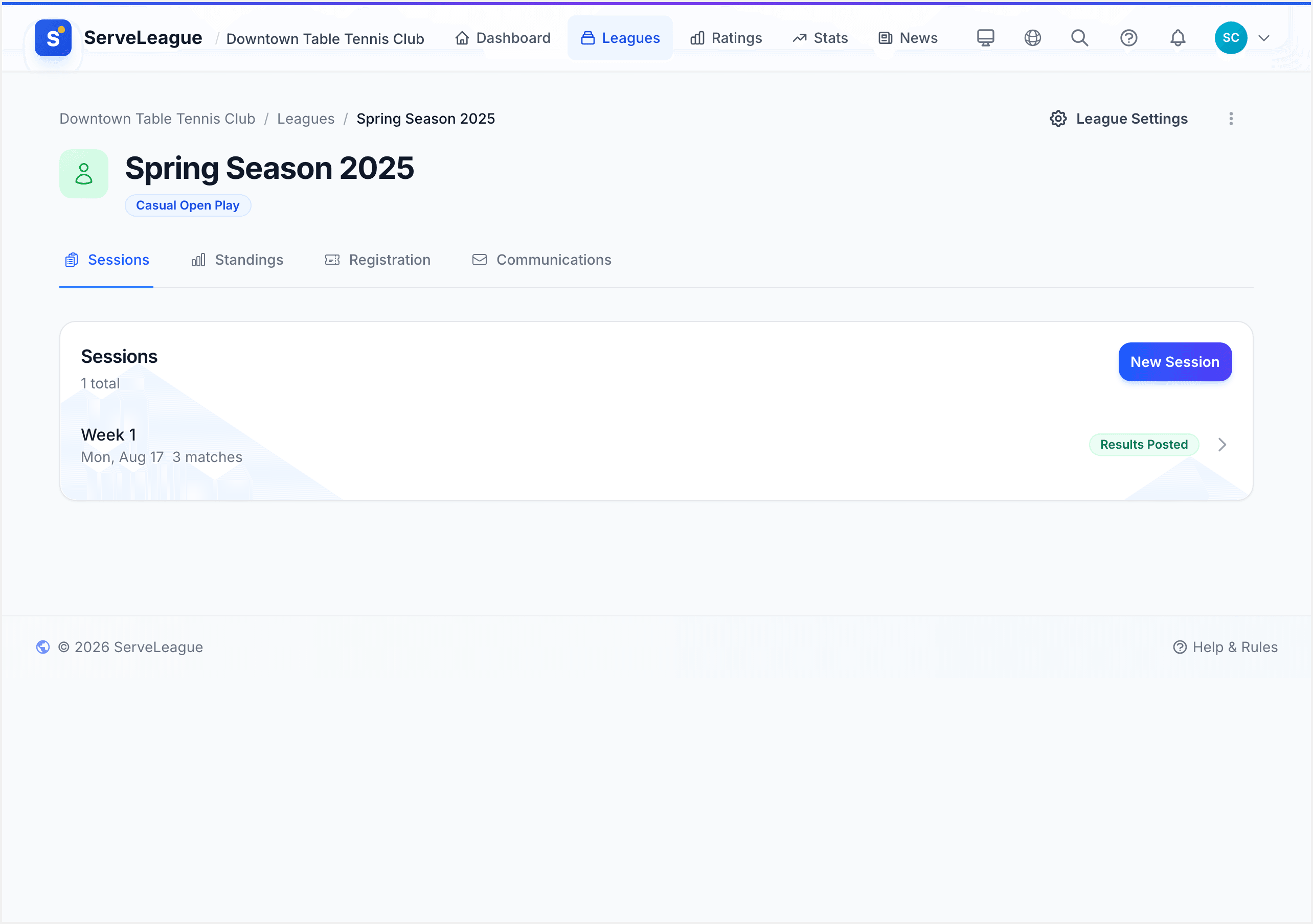
- Go to your league and open the Sessions area
- Click Bulk Create Sessions
- Set a start date, end date, and recurrence pattern (e.g. every Monday)
- ServeLeague generates draft sessions for every matching date, up to 52 sessions at once
- Review the proposed dates, remove any that fall on holidays, then confirm
[!TIP] Bulk-created sessions are always in draft status. You can rename them, adjust dates, or delete them freely before the season starts. Once a session is opened for play, its date is locked.
Reschedule Draft Sessions
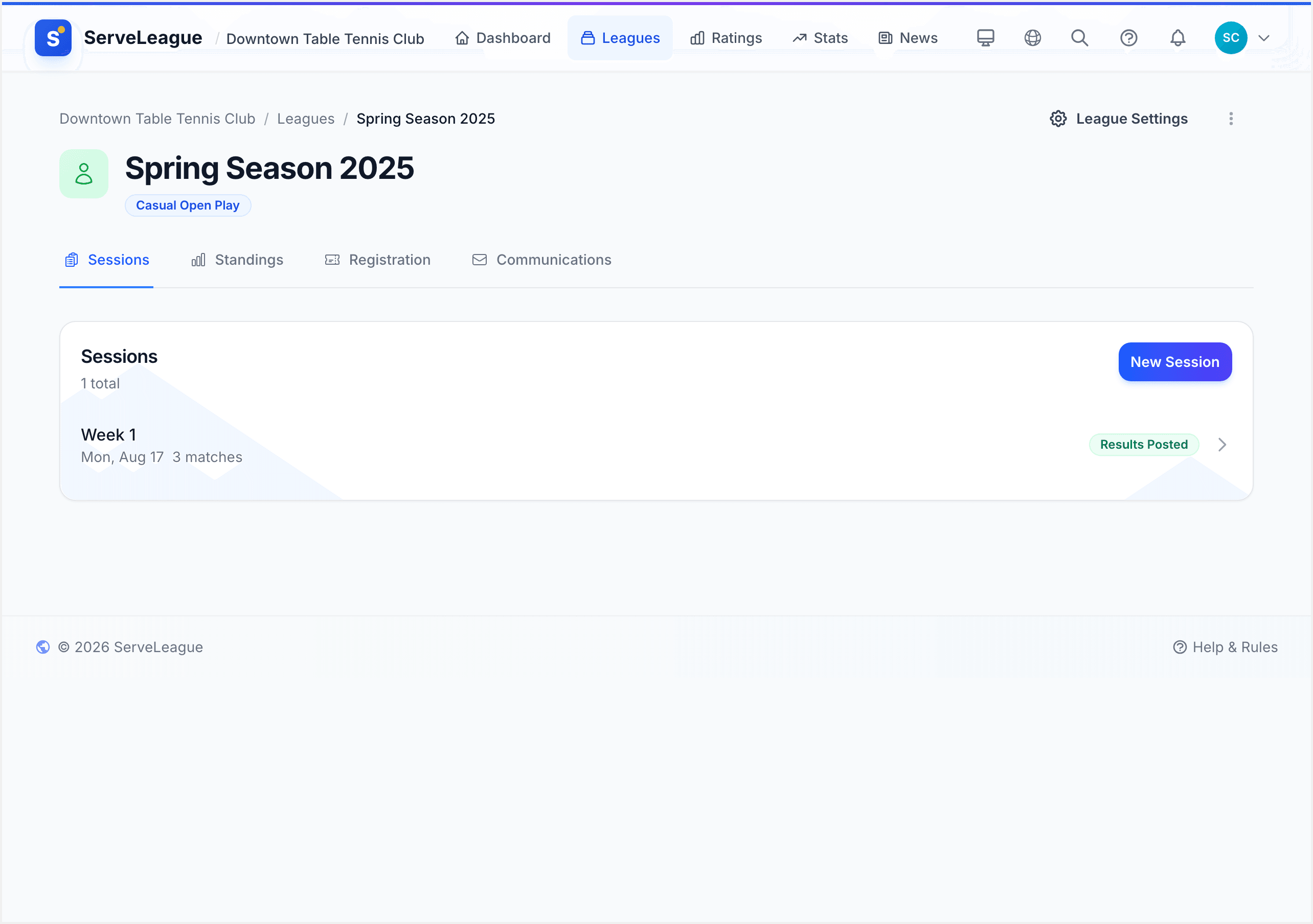
While a session is still in draft, you can move it to a different date. Select the session, click Reschedule, and pick the new date.
[!WARNING] You can only reschedule sessions that are in draft status. Once a session has been opened or finalized, its date cannot be changed.
Start the Season
When your schedule is set and your roster is confirmed, transition the league from preseason to active:
- Open the league detail page
- Click Start Season in the league header
- Confirm the action
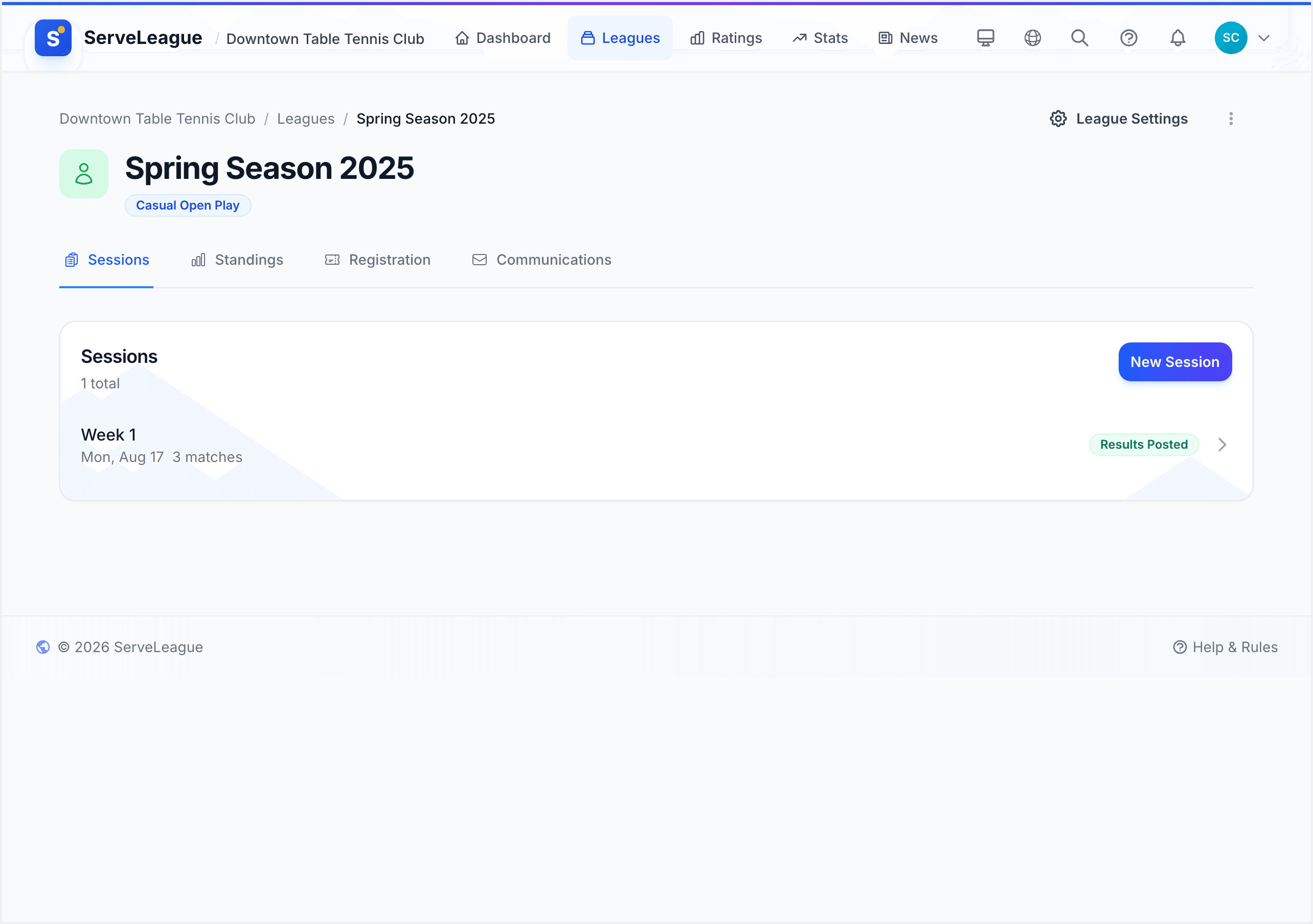
This locks registration (players can no longer self-register) and enables match entry for your sessions. Your league now appears under Active Leagues in the club dashboard.
Phase 2: Mid-Season Adjustments
Returning to Preseason
Started the season too early? You can revert an active league back to preseason, but only if no sessions have been finalized. Go to League Settings and click Return to Preseason.
Adding or Removing Sessions
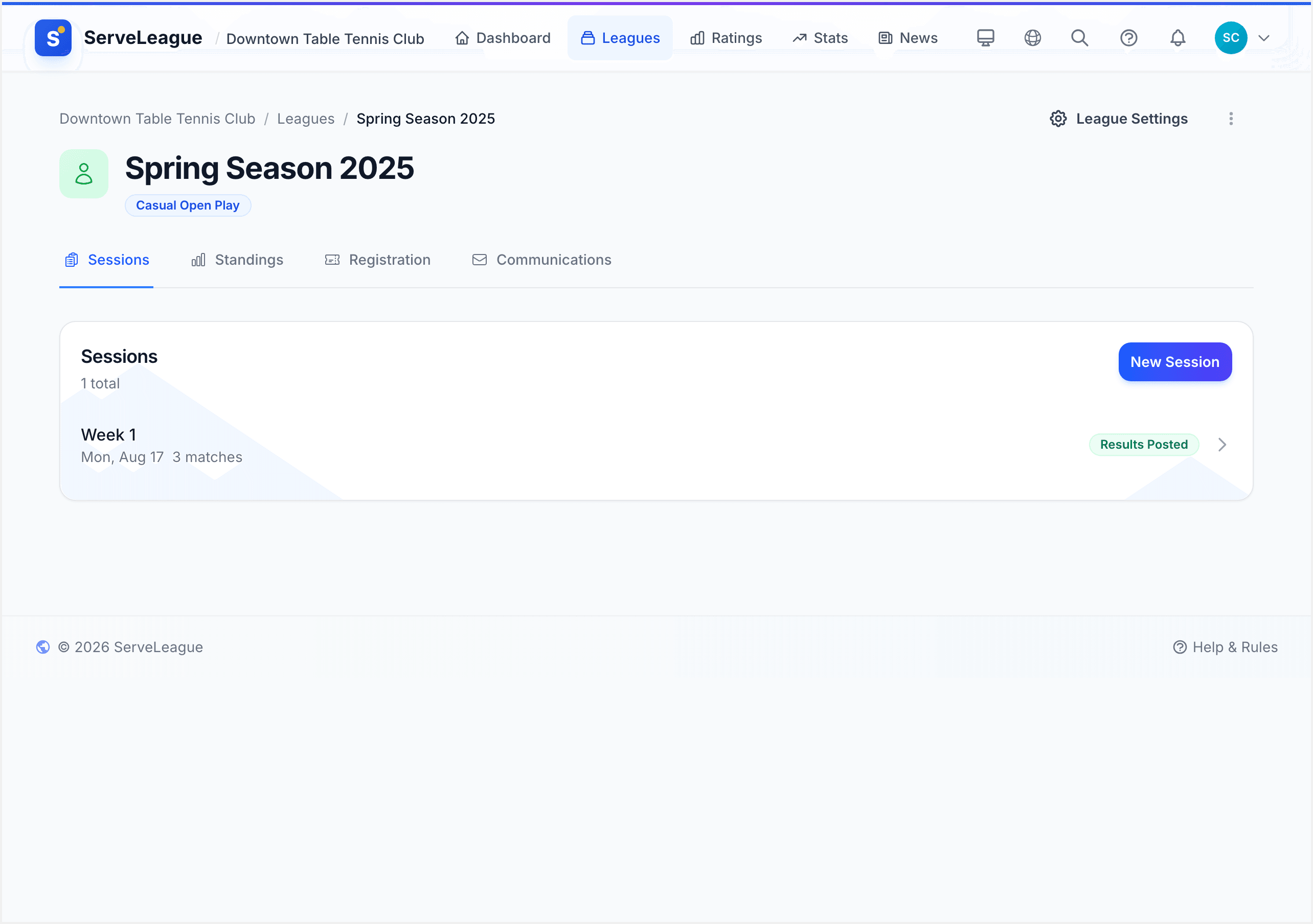
You can add new sessions to an active league at any time. Create a new session from the Sessions tab.
To remove a session, it must still be in draft status. Sessions that have been opened, played, or finalized cannot be deleted.
Monitoring Standings
After each session is finalized, ratings, merit points, and aggregate standings update automatically. Use the Standings tab to track the race as it unfolds.
Phase 3: Ending the Season
Finalize All Sessions
Before you can formally close a season, make sure every session is finalized. Review any remaining open or draft sessions:
- Draft sessions you never ran can be deleted
- Open sessions with scores should be reviewed and finalized (see Session Review & Finalization)
- Open sessions with no scores can be deleted if the night was cancelled
Review Final Standings
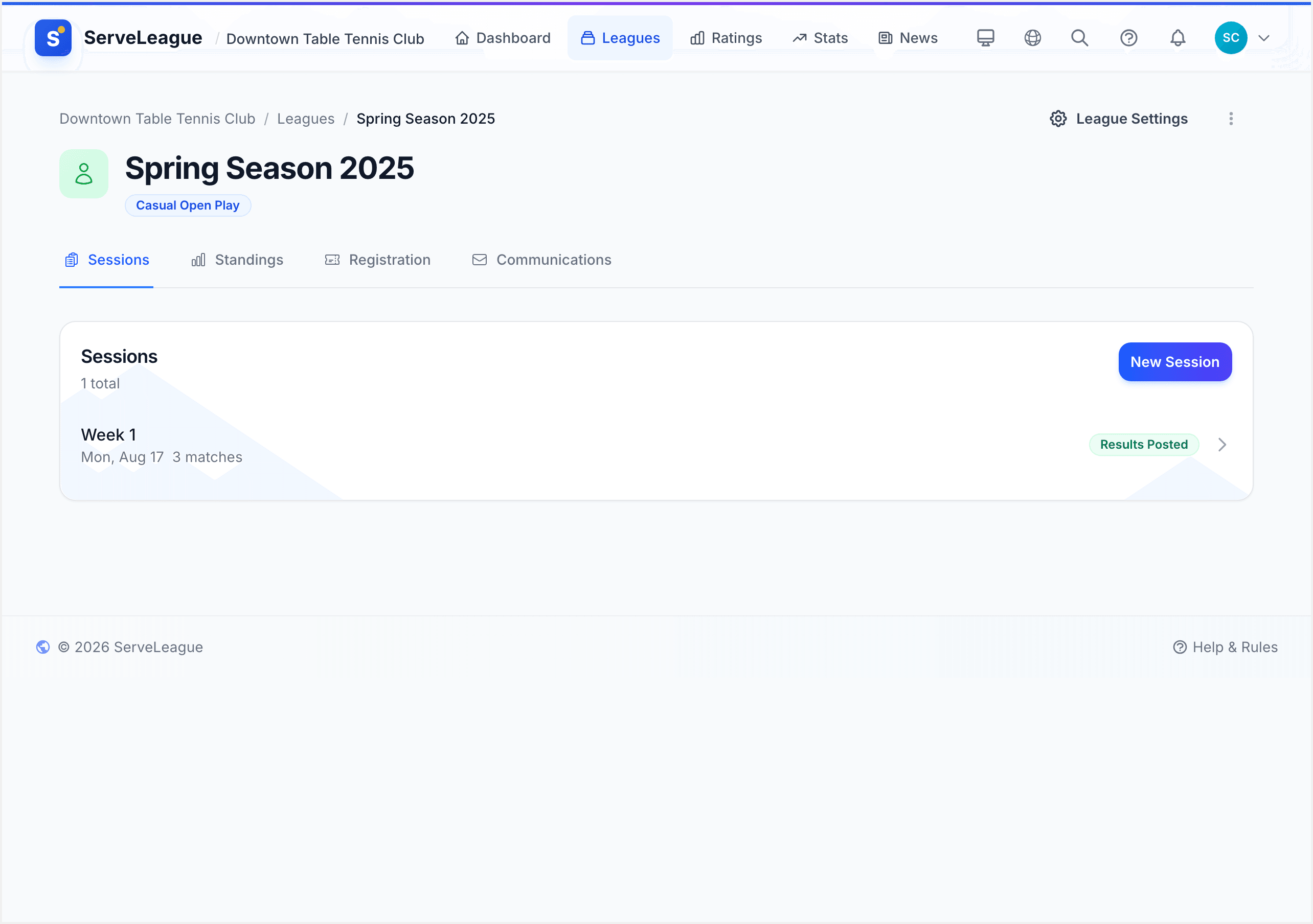
Once all sessions are finalized, your league standings are complete. Review the League Standings tab for final rankings, check Head-to-Head records for tiebreakers, and export the results for awards or social media.
Recognize Achievements
ServeLeague tracks achievements automatically: biggest upset, longest streak, most improved player. Check the Statistics section for season highlights to share with your club.
Phase 4: Archiving and Year-End
Archive the League
When a season is complete and you're ready to move on, archive the league:
- Open the league detail page
- Click the Archive action in the league header
- Confirm the archive
Archived leagues move out of the active list and into the Archived section. All data is preserved and still accessible, tucked away.
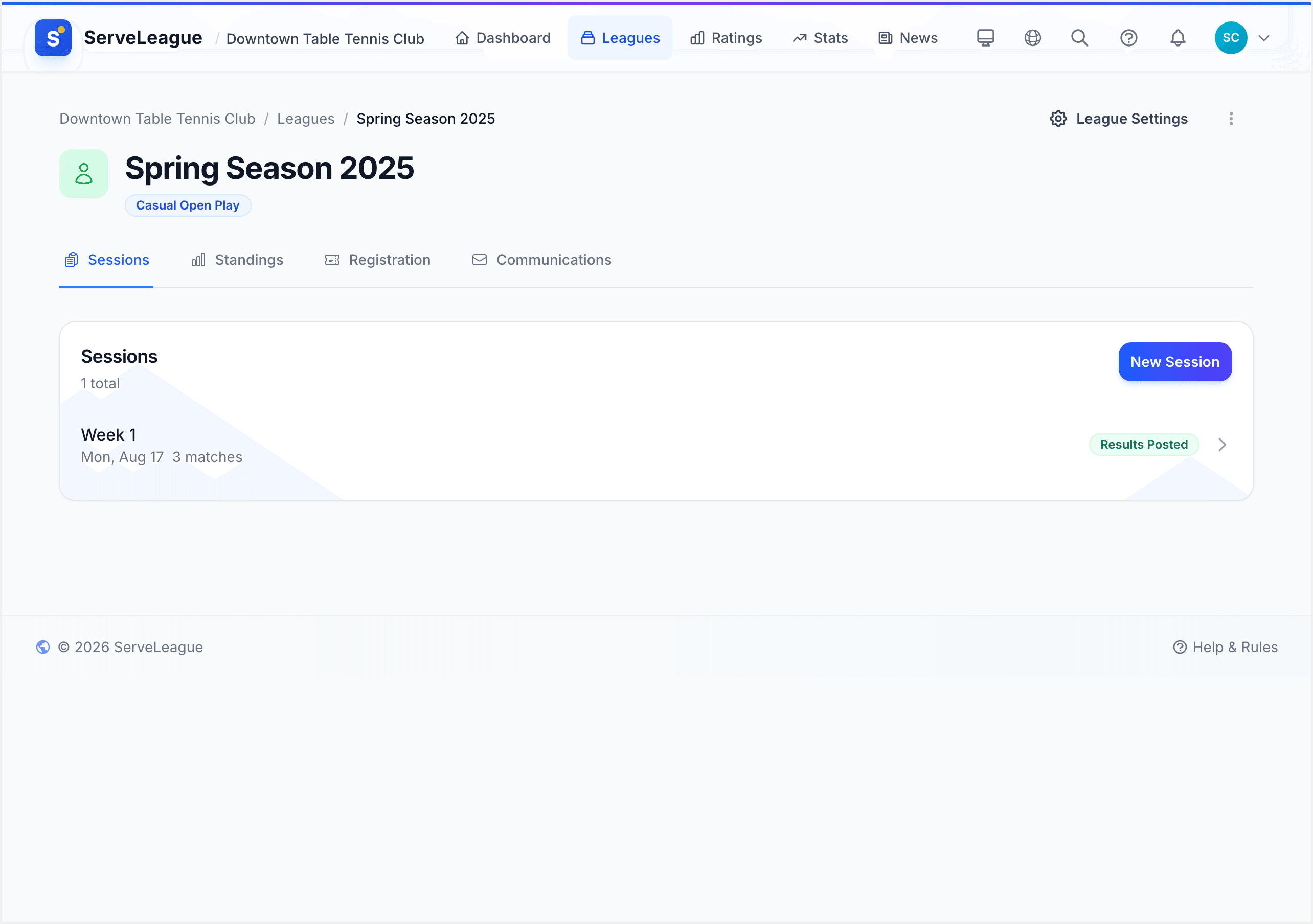
[!TIP] Archiving is reversible. You can reactivate an archived league at any time if you need to make corrections or resume play.
Starting a New Season
To run the same league again next season, you have two approaches:
Option A: Create a new league. Set up a fresh league (e.g. "Monday Night League - Spring 2026") for a completely clean slate. Player ratings carry over at the club level regardless.
Option B: Reactivate and reset. Reactivate the archived league, clear out old sessions, and return to preseason. This preserves the league's URL and history. Best for leagues where continuity matters.
For most clubs, Option A is simpler. Name each league with the season or year (e.g. "Winter 2026") so your archive tells a clear story.
Year-End Processing
ServeLeague supports automated year-end processing for clubs that want a formal annual reset:
- Configure your club's year-end date in club settings (defaults to December 31). You can set any month and day to match your club's fiscal or competition year
- When the year-end date passes, ServeLeague enters a 14-day grace period, a window for you to finalize any remaining sessions and wrap up outstanding business
- After the grace period, the system automatically:
- Creates year-start snapshots of every player's rating, a permanent record of where they stood
- Resets merit scores to zero for the new year (Elo ratings are preserved and carry forward)
- Writes history markers so year-over-year comparisons remain accurate
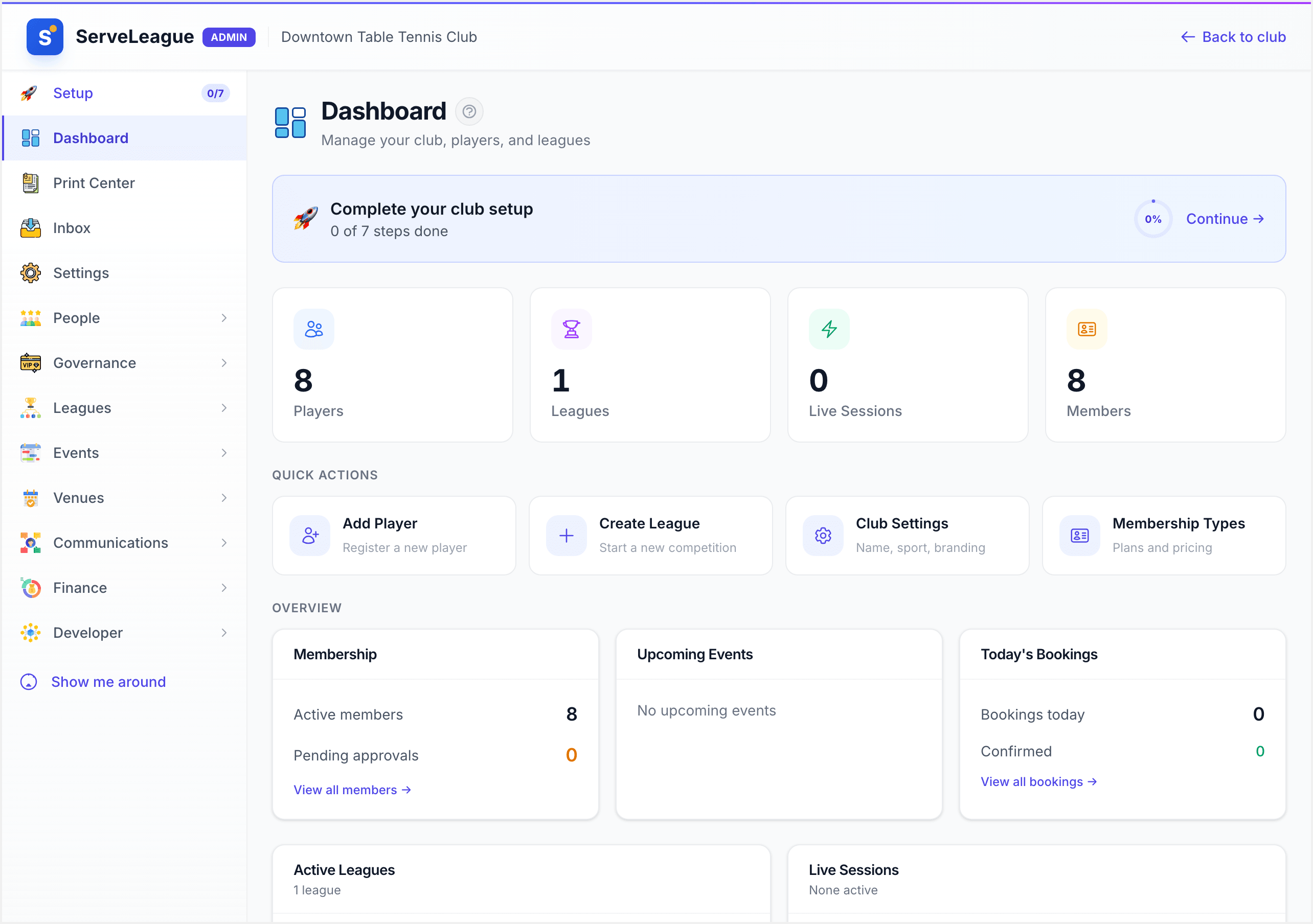
[!WARNING] Year-end processing is automatic after the grace period. Make sure all your leagues are wrapped up before the deadline. You can check your club's year-end status from the admin dashboard.
Rating Resets vs. Continuity
A common question: should you reset ratings between seasons?
- Elo ratings always carry forward. They represent a player's long-term skill level and resetting them would destroy valuable data
- Merit points reset to zero at year-end. Merit measures recent form within a year, so an annual reset keeps the competition fresh
- League standings are always per-league. When you start a new league for a new season, standings begin from zero automatically
This gives you the best of both worlds: long-term skill tracking through Elo, fresh competition through annual merit resets, and clean per-season standings.
Season Planning Checklist
Use this checklist when setting up each new season:
- Archive the previous season's league (if applicable)
- Create the new league with a clear season name
- Configure league settings (format, scoring, visibility)
- Add players to the league roster
- Bulk-create draft sessions for the full schedule
- Remove sessions that fall on known holidays
- Share the schedule with members
- Start the season when registration closes
- Monitor standings throughout the season
- Finalize all sessions at season's end
- Review final standings and share results
- Archive the completed league
What's Next?
- League Settings & Access Control: Fine-tune scoring, visibility, and registration rules for your league
- Statistics & Reports: Dive into player statistics, trends, and exportable reports
- Creating a Team League: Set up team-based competition with divisions and team standings