Session Review and Finalization
Every session follows a structured lifecycle that protects your data and gives players a fair chance to review results before ratings are committed. This tutorial walks you through the review-and-finalization flow, from locking a live session through to posting final results.
Understanding the Session Lifecycle
Every session moves through four states:
| Status | Badge Label | What's happening |
|---|---|---|
| Draft | Upcoming | Session created but not yet open for play. |
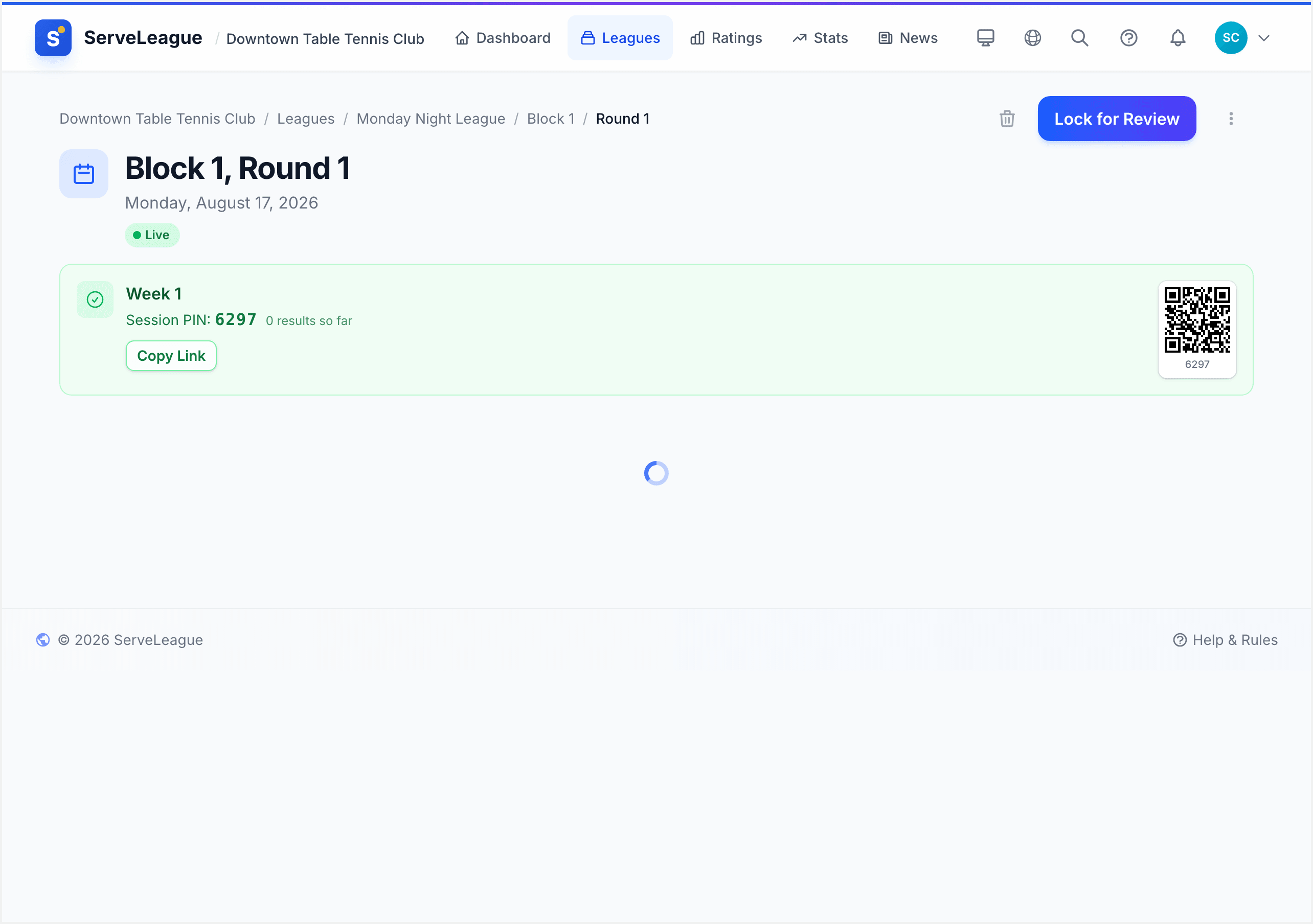
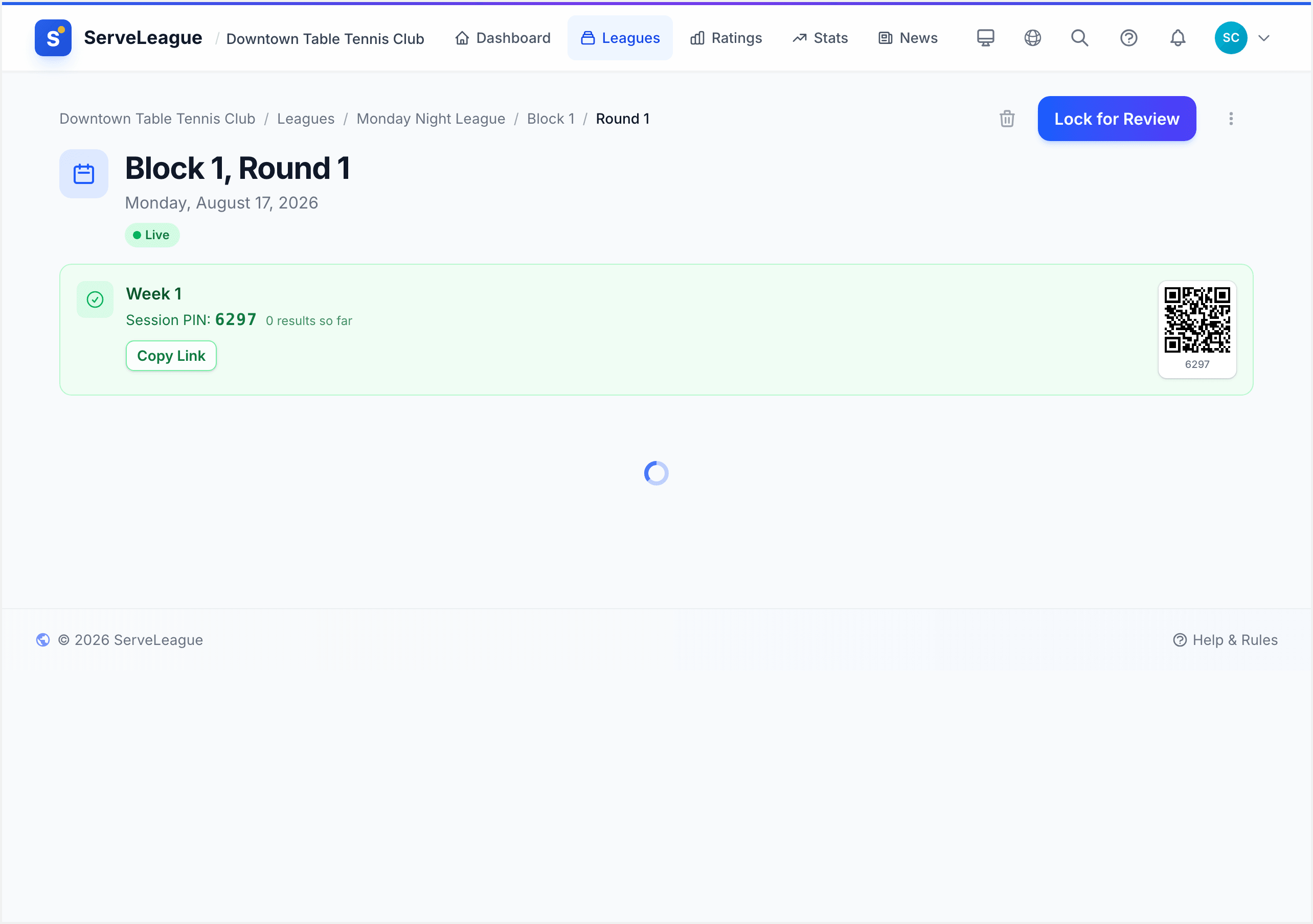
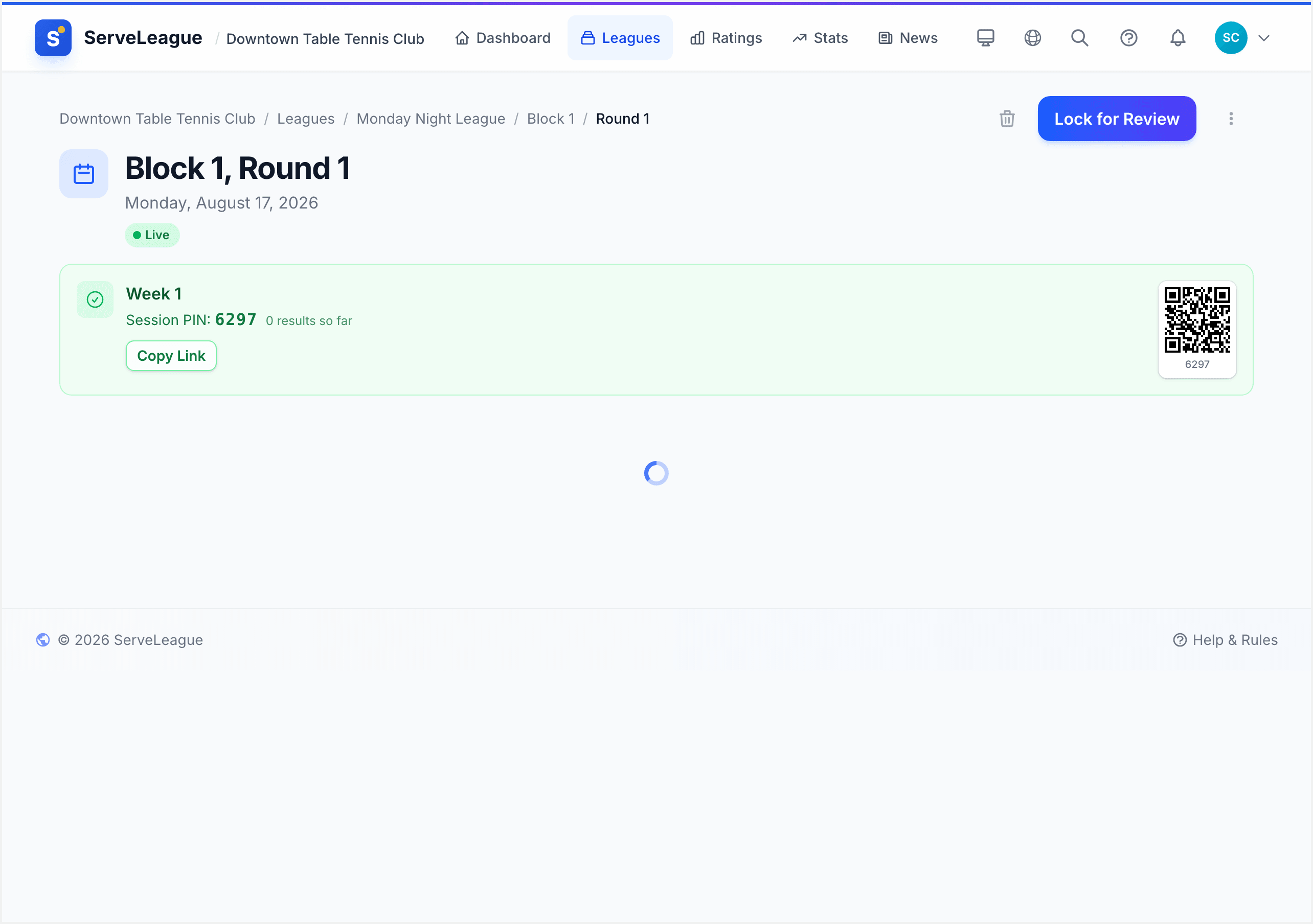
| Open | Live | Players are actively submitting match scores. |
| Locked | Under Review | Score entry is closed; admin reviews results and resolves protests. |
| Finalized | Results Posted | Ratings calculated and committed. No further changes. |
The flow is always forward, Draft → Live → Under Review → Results Posted: with one exception: you can unlock a session to return from Under Review back to Live if needed.
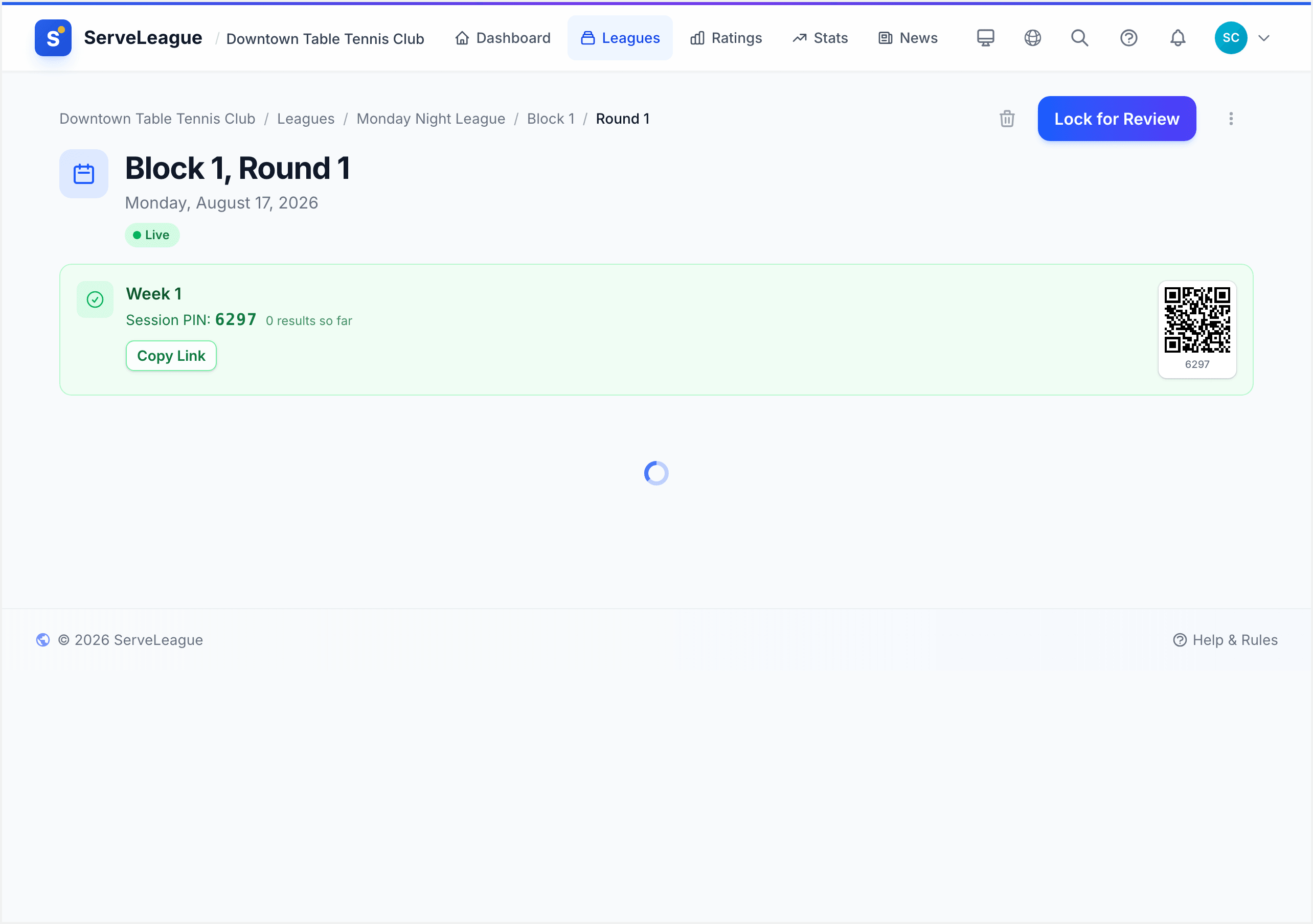
[!NOTE] The badge labels (Live, Under Review, Results Posted) are what players see on the session page. The underlying states (Open, Locked, Finalized) are what you will see referred to in admin controls.
Step 1: Lock the Session for Review
Once all matches have been played and scores entered, lock the session to begin the review period.
- Open the session page in your admin dashboard.
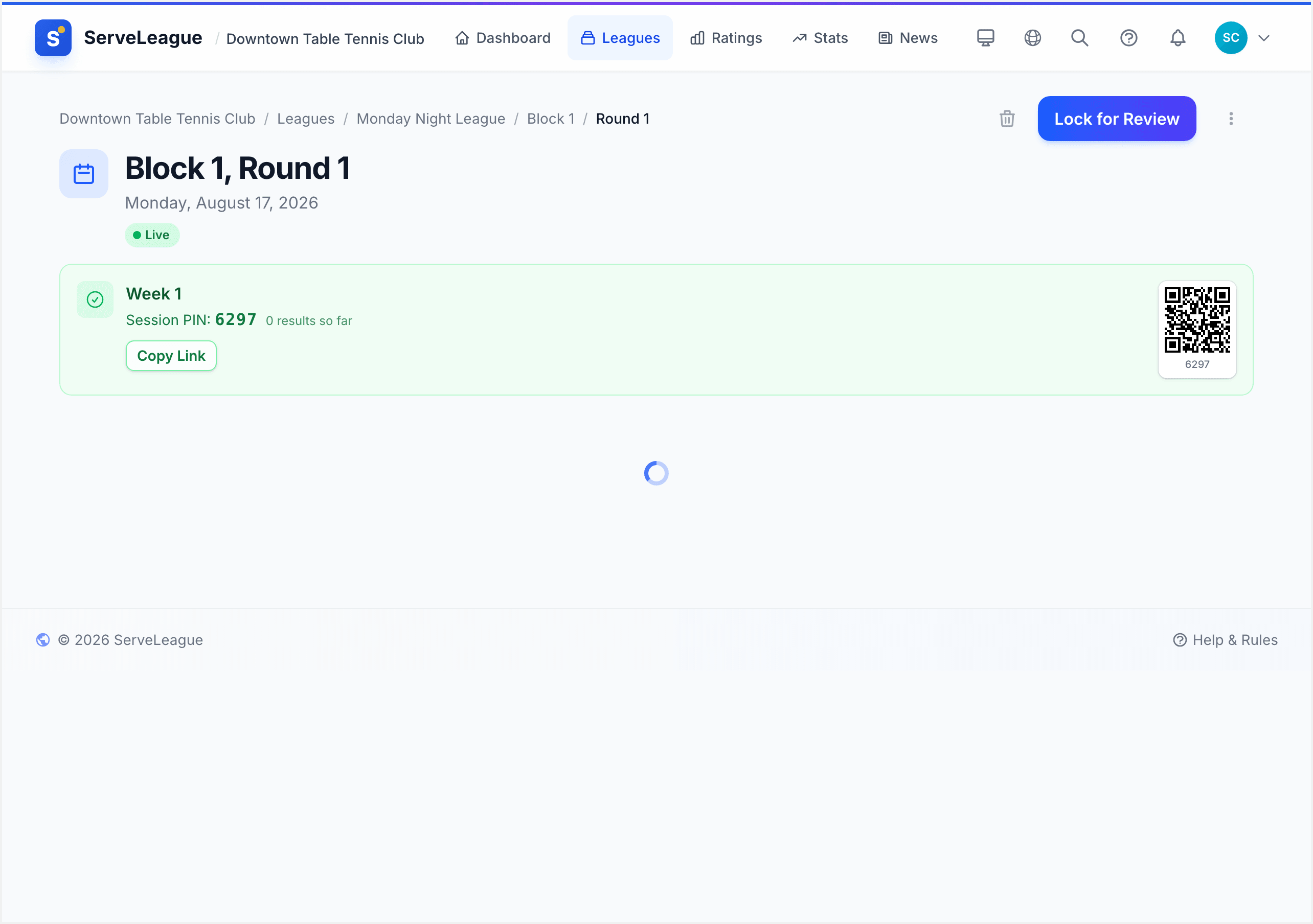
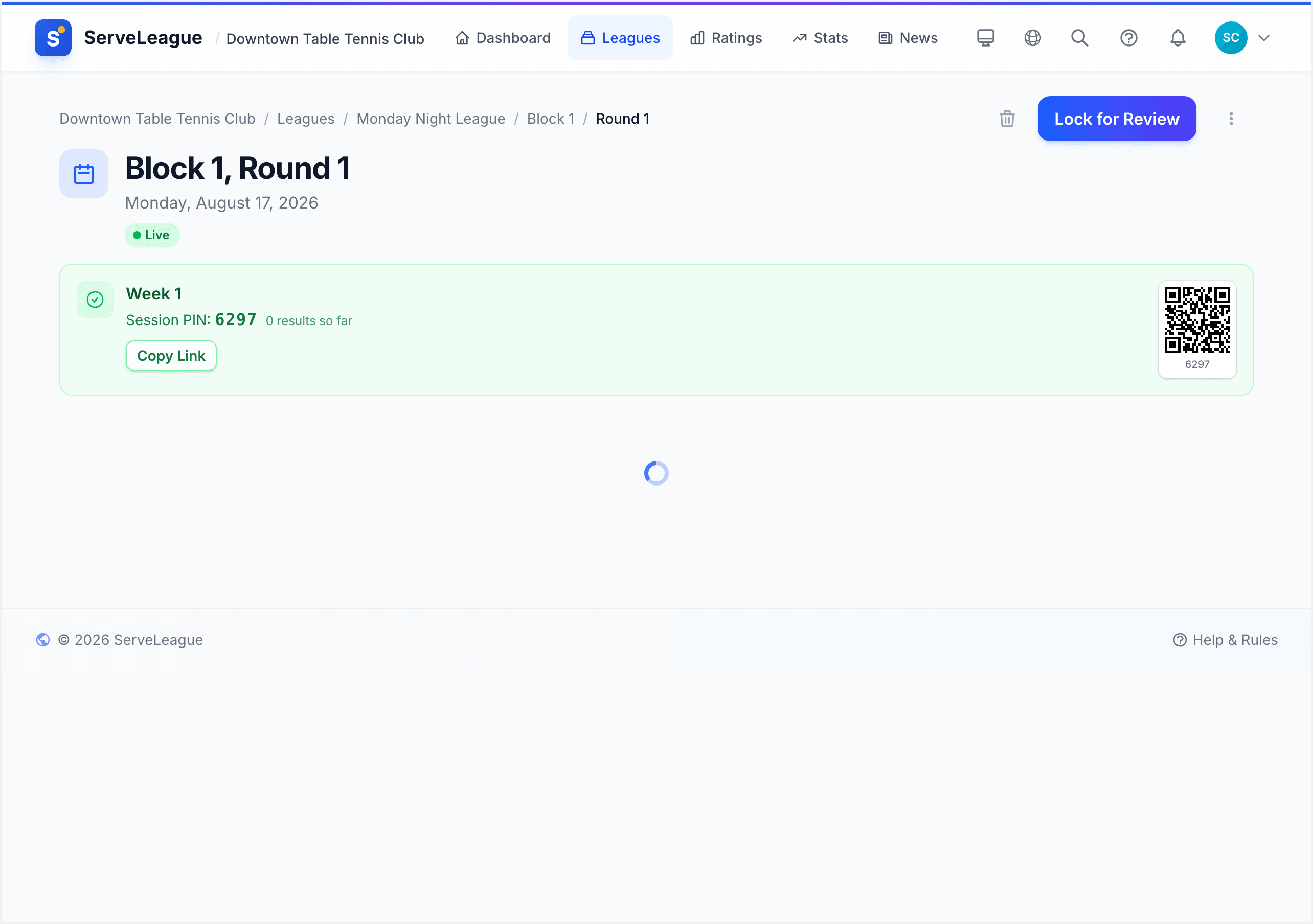
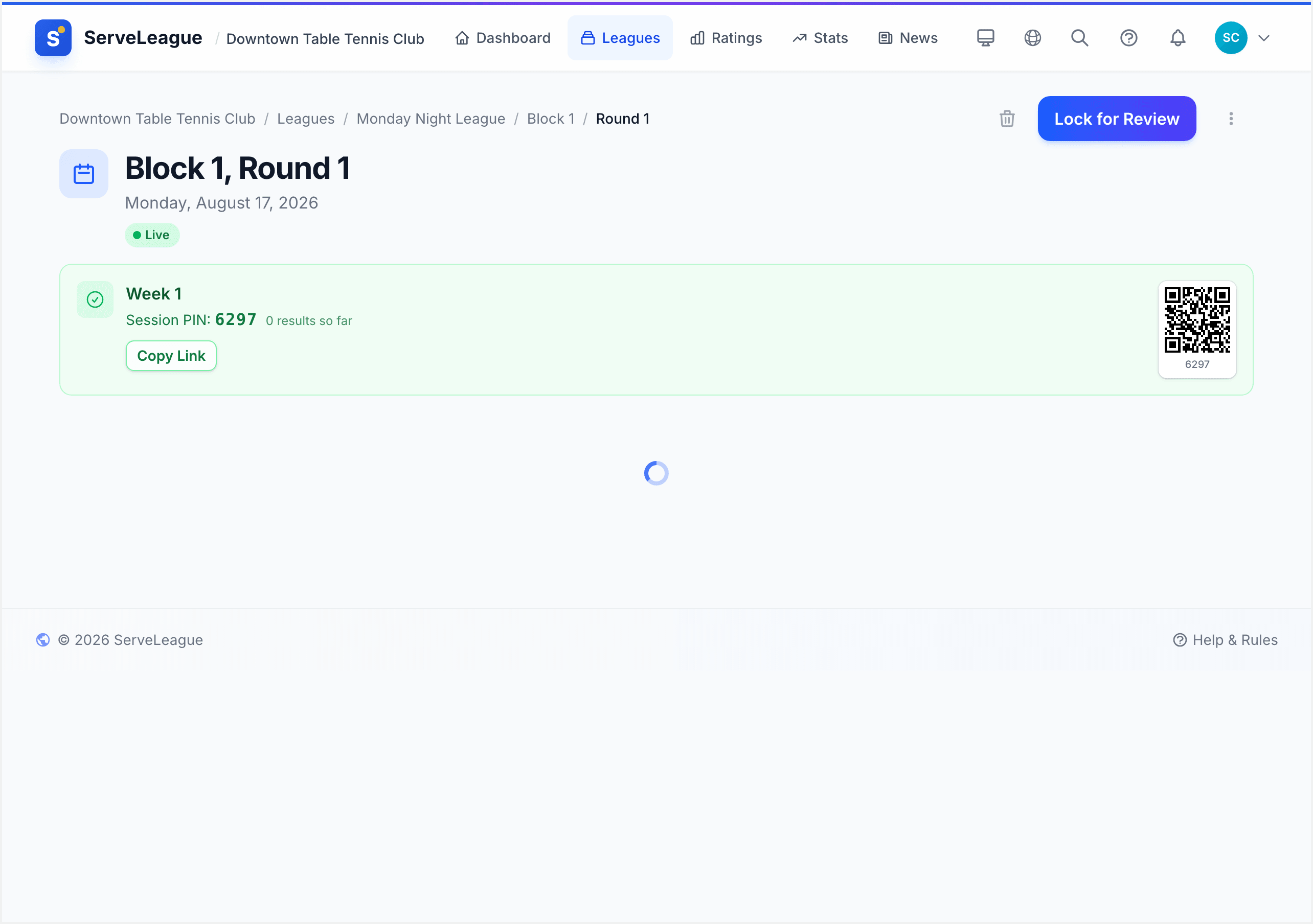
- Click the Lock for Review button in the session header area.
- A confirmation dialog appears with the title "Lock session" and a description explaining what will happen. Read through it carefully.
- Click Lock for Review in the dialog to confirm.
When you lock a session, several things change:
- Players can no longer submit new scores: the Submit Match tab disappears from the player view and is replaced by Review and Protest (see Player Self-Service).
- Players can still view all results and file protests on any match they believe has an incorrect score.
- You can still edit or delete matches as the admin, so you can fix any errors found during review.
[!TIP] You do not have to wait for every match to be entered before locking. You can lock the session early and clean up results during the review period. This is especially useful at the end of a busy play night when you want to prevent any more scores coming in while you tidy up.
Step 2: Review the Match Results
With the session locked, the session page changes to show the results in a review-focused layout. The header displays an Under Review badge so everyone knows the session is being checked.
What you see in the review view
The review page shows:
- Session statistics at the top: total matches played, total players, and the number of pending protests (if any).
- All match results listed chronologically. Each match card shows both player names, the set-by-set scores, the match type (singles or doubles), and the time it was submitted.
- Protest indicators: if a player has filed a protest on a match, a coloured banner appears directly below the match card.
Fixing match results
While the session is locked, you can still make corrections as the admin:
- Edit a match: click the Edit button on any match card to reopen the score entry screen. Correct the scores and save.
- Delete a match: remove a match that was entered against the wrong players or recorded by mistake.
- Add a match: enter a result that was missed during live play.
[!TIP] Take a few minutes to scan the match list before moving to finalization. Look for matches with unusual scores (like 11-0 across all sets) that might indicate a data-entry error.
Step 3: Handle Protests
Players can file a protest on any match while the session is in the Live or Under Review state. Each protest includes the player's name and a written description of the issue.
What a protest looks like
When a protest is filed, it appears as a banner directly below the match card in the admin's review view. The banner shows:
- The name of the player who filed the protest.
- Their description of the issue (for example, "The score in game 3 was 11-9, not 11-7").
- The date and time it was filed.
A yellow badge in the session statistics shows the count of pending protests, so you can see at a glance if any need attention.
Resolving a protest
To resolve a protest, you have two options:
- Accept, Fix the result: Click this if the player is right and the score needs correcting. After accepting the protest, edit the match to fix the scores.
- Dismiss, No action needed: Click this if the original score is correct and the protest is unfounded.
Both options include an optional response text area where you can explain your decision. This response is visible to the player, so it is a good idea to write a brief explanation, especially when dismissing.
[!WARNING] Any pending (unresolved) protests are automatically dismissed when you finalize the session. Resolve them explicitly before finalizing to ensure every dispute gets proper attention and players feel heard.
Step 4: Preview Rating Changes
Before committing results, ServeLeague shows you exactly how every player's rating will change. This preview is read-only, nothing is written to the database until you confirm.
- Click the Finalize Session button to open the finalization screen.
- The system automatically loads a preview showing each affected player, sorted alphabetically, with their projected changes:
- Singles: the change from singles matches played, shown as a number with a
+or-prefix. - Doubles: the change from doubles matches played.
- Merit: order-of-merit points earned this session.
- Singles: the change from singles matches played, shown as a number with a
- Rating increases appear in green. Rating decreases appear in red. No change is shown in neutral grey.
The preview table is scrollable if the session has many participants. If the league is configured as non-rating (for example, a social or practice league), the preview will note that no ratings are affected.
[!TIP] Use the preview to sanity-check results. If a player's rating change looks unexpectedly large, it might indicate a score was entered the wrong way around. Cancel finalization, fix the match, and preview again. You can preview as many times as you like. It is completely free and does not change any data.
Step 5: Handle Incomplete Matches
For team leagues, some matchups may have incomplete results, for example, a doubles match that was never played because a player had to leave early. The finalization screen warns you about this:
- A yellow banner appears showing how many matchups are incomplete and how many individual results are missing.
- You must check the acknowledgment checkbox confirming you want to proceed with partial results before the Finalize button becomes active.
Incomplete matches are excluded from rating calculations. Only matches with a recorded winner affect ratings.
[!NOTE] This warning only appears for team leagues with scheduled matchups. In graded and drop-in leagues, there are no pre-scheduled matches, so there is nothing to be "incomplete."
Step 6: Finalize the Session
Once you are satisfied with the results and have reviewed the preview:
- Click the Finalize Session button in the finalization screen.
- A progress indicator appears with the message: "Calculating ratings, records, and achievements."
- When complete, the session status changes to Results Posted and the badge turns green.
What happens during finalization
Behind the scenes, the finalization pipeline performs these steps in order:
- Cleans up any artifacts from a previous failed attempt (safe retry).
- Calculates rating changes for every match using pre-session starting ratings, ensuring all matches are processed as a batch.
- Applies rating updates to player profiles (singles, doubles, and merit).
- Records rating history so players can track their progression over time.
- Updates weekly gains for the Player of the Week leaderboard.
- Checks achievements (for example, reaching a new rating tier, earning a win streak badge).
- Updates match records and overall statistics.
- Marks the session as finalized: only after all calculations succeed.
If the pipeline fails at any point, the session stays locked and you can safely retry. No partial rating updates are committed.
[!IMPORTANT] Finalization is a one-way operation. Once a session is finalized, match data and ratings are permanently locked. There is no "undo finalize" button.
At this point, players visiting the session page will see a green Results Posted badge and can view the final standings. Their player profiles will reflect the updated ratings, and any new achievements will appear in the club feed.
Unlocking a Session (Going Back to Live)
Made a mistake after locking? You can unlock a session to return it to the Live state before finalizing.
- On the session page, click the Reopen Session button.
- A confirmation dialog appears warning that this will re-enable score entry.
- Click to confirm.
When you unlock a session:
- The Submit Match tab reappears for players using the session PIN.
- All existing matches and protests are preserved.
- Players can submit additional scores and file new protests.
[!NOTE] You can only unlock a session that is in the Under Review state. Once a session is finalized, it cannot be unlocked or reopened. Always double-check your results before clicking Finalize.
Key Things to Remember
- Lock before you finalize. You cannot skip straight from Live to Results Posted. The review period is mandatory.
- Preview is free. The finalization preview is read-only and can be loaded as many times as you like. Use it to catch errors early.
- Protests have a deadline. Players can protest during Live and Under Review, but not after finalization. Encourage players to raise concerns promptly.
- Ratings use starting values. All matches in a session are calculated against each player's pre-session rating, not updated mid-session. This ensures match order does not affect the outcome (see Understanding Your Rating for details).
- Failed finalization is safe. If something goes wrong, the session stays locked and you can retry without risking duplicate rating changes.
- Non-rating leagues skip calculations. If your league does not affect ratings, finalization still records results and achievements but will not change any player ratings.
Summary
The review-and-finalization workflow gives you full control over your session results before they become permanent. Lock the session to freeze score entry, review results and resolve protests, preview exactly how ratings will change, and finalize when everything looks right. Your players get transparency through the protest system, and you get confidence that every rating change is correct.
What's Next?
- Understanding Your Rating: learn how the rating system works and what the numbers mean.
- Statistics and Reports: explore session reports, player statistics, and league standings.
- Player Self-Service: see what the session experience looks like from a player's perspective.