Weekly Reports and Leaderboards
Keeping your club community engaged between sessions is one of the biggest challenges for league administrators. Weekly reports solve this by delivering a polished summary of recent play, including match highlights, rating movements, leaderboard standings, and more, directly to your members.
ServeLeague makes creating these reports fast and straightforward with AI-powered content generation, a built-in Markdown editor, and one-click publishing. This tutorial walks you through the entire process from start to finish.
Understanding Weekly Reports
Weekly reports are rich content pages that summarize your league's recent activity. They can include:
- Match highlights: notable wins, upsets, and close matches
- Rating movements: who climbed or dropped in the rankings
- Leaderboards: top players by wins, rating, or streaks
- AI-generated narratives: natural-language summaries of the week's play
- Custom commentary: your own notes, shout-outs, and announcements
Reports are published to your club's public page, and members who have notifications enabled will receive an alert when a new report goes live.
[!TIP] Clubs that publish weekly reports see significantly higher member engagement. Even a short summary keeps players connected between sessions.
Going to Weekly Reports
From your club admin dashboard, click "Competition" in the sidebar, then select "Weekly Reports". This opens the reports management page where you can view, create, and manage all your published and draft reports.
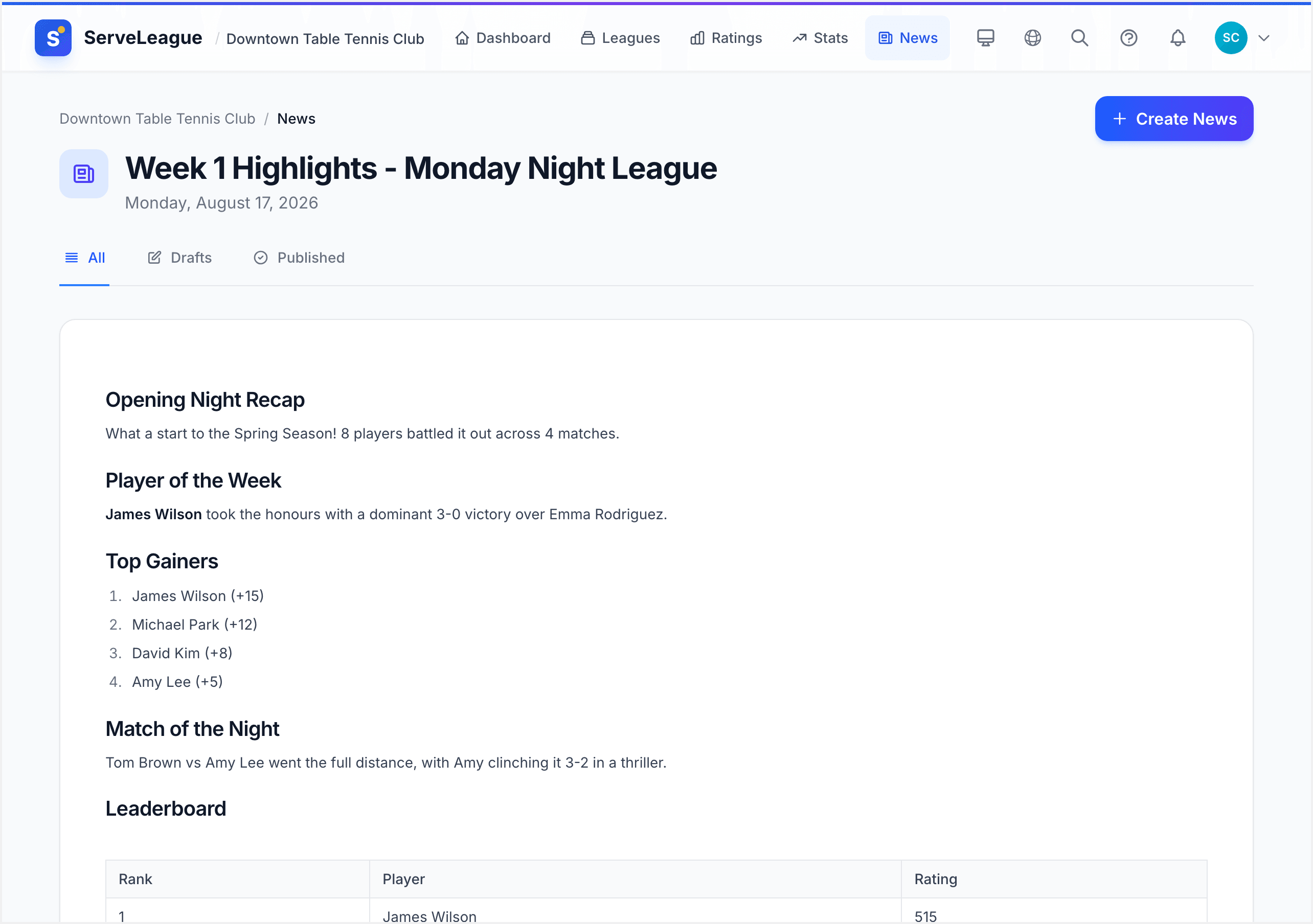
The page displays your reports in reverse chronological order. Each entry shows the report title, publish date, status (draft or published), and a quick preview of the content.
Creating a New Report
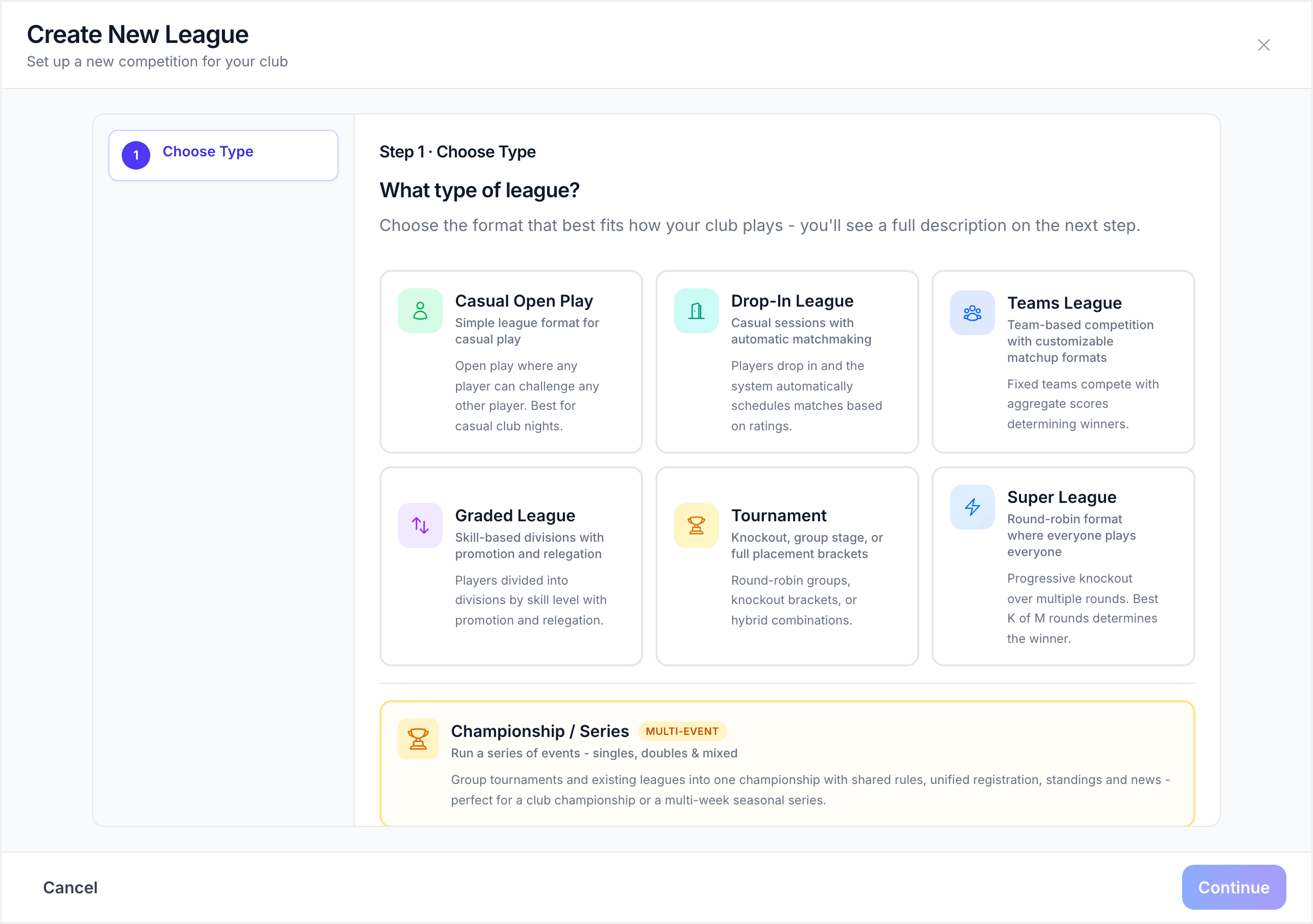
Click the "Create Report" button at the top of the page. The Create Report wizard walks you through three steps:
Step 1: Select the Scope
Choose which league and date range the report should cover. You can select:
- A specific league or all leagues in your club
- A date range, typically the past week, but you can adjust this
- Which sessions to include in the report data
The wizard automatically detects the most recent sessions and pre-selects them for you.
Step 2: Generate Content with AI
This is where ServeLeague really shines. Click "Generate with AI" to automatically create a narrative summary from your match data. The AI analyzes:
- All matches played in the selected sessions
- Rating changes and significant movements
- Win/loss streaks and notable performances
- Head-to-head rivalries and upset victories
Within a few seconds, you will see a fully written report draft appear in the editor.
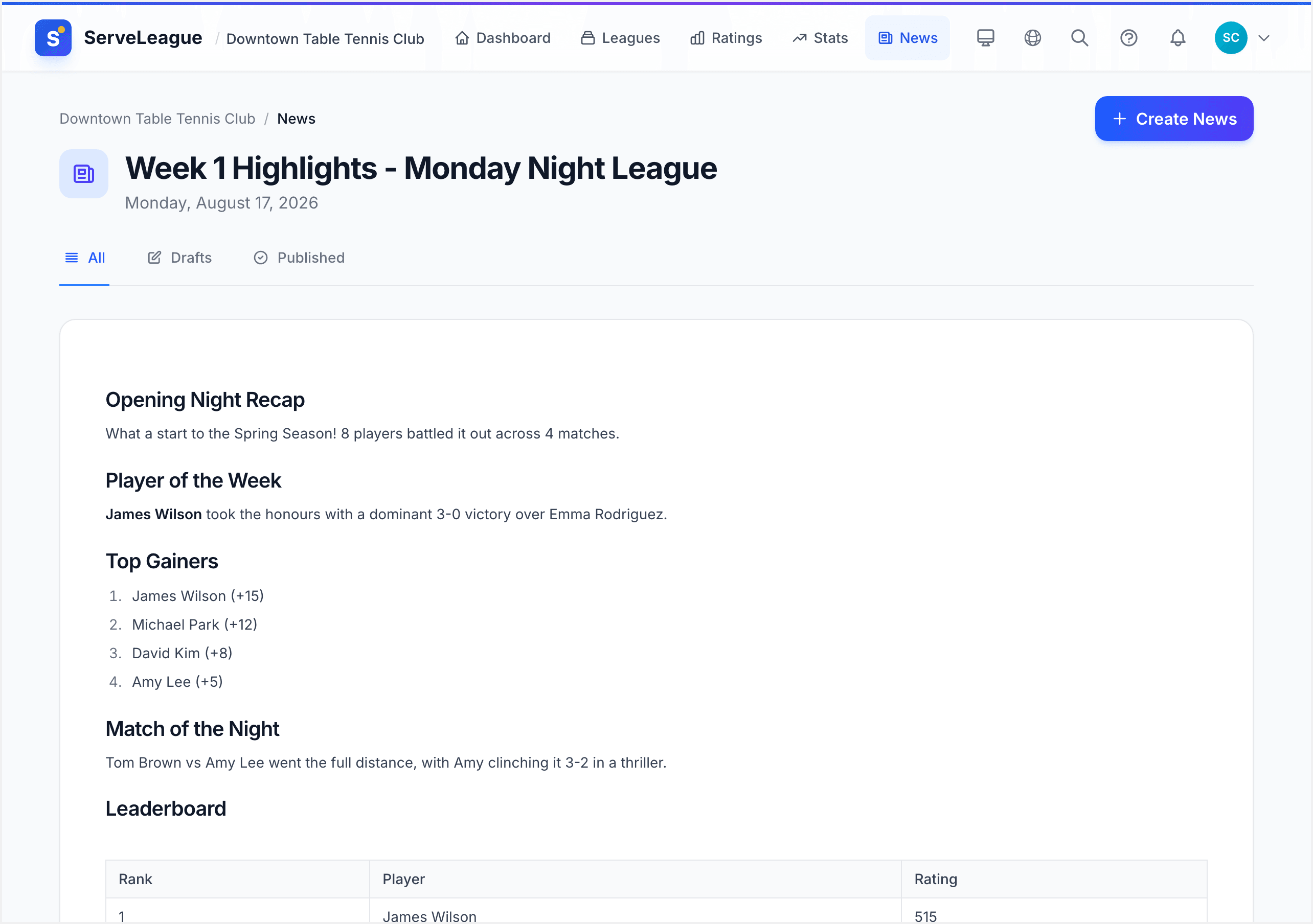
[!NOTE] AI-generated content is a starting point. You can, and should, edit it to add your own voice, correct any details, and include club-specific context that the AI might not know about.
Step 3: Edit and Customize
The report opens in a Markdown editor where you have full control over the content. You can:
- Edit the generated text: rewrite sections, add personal commentary, fix names
- Rearrange sections: drag and drop content blocks to change the order
- Add new sections: insert headers, lists, and custom paragraphs
- Include images: add photos from your sessions (upload or link)
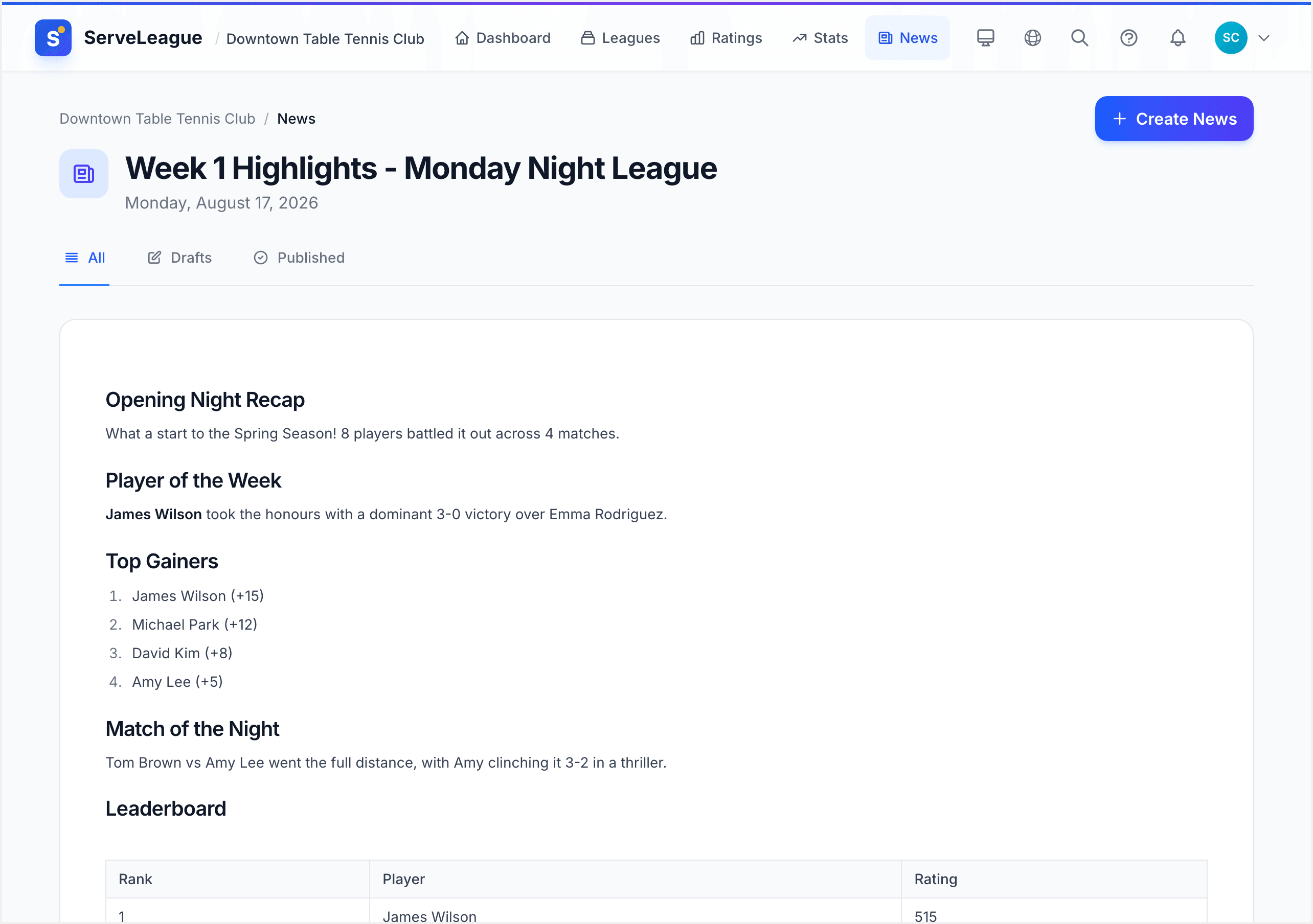
The editor supports standard Markdown syntax including headers, bold, italic, lists, tables, and links. A formatting toolbar at the top provides quick access to common formatting options.
Adding Leaderboards
Leaderboards are one of the most popular features of weekly reports. To add a leaderboard section, click "Insert Leaderboard" in the editor toolbar. You can choose from several leaderboard types:
| Leaderboard Type | What It Shows |
|---|---|
| Top Ratings | Players with the highest current ratings |
| Biggest Movers | Players with the largest rating changes this week |
| Win Streaks | Players on the longest current winning streaks |
| Most Matches | Players who played the most matches |
| Head-to-Head | Most competitive rivalries (closest match records) |
Each leaderboard is automatically populated with data from the sessions you selected. You can customize the number of players shown (default is 10) and add a title for each section.
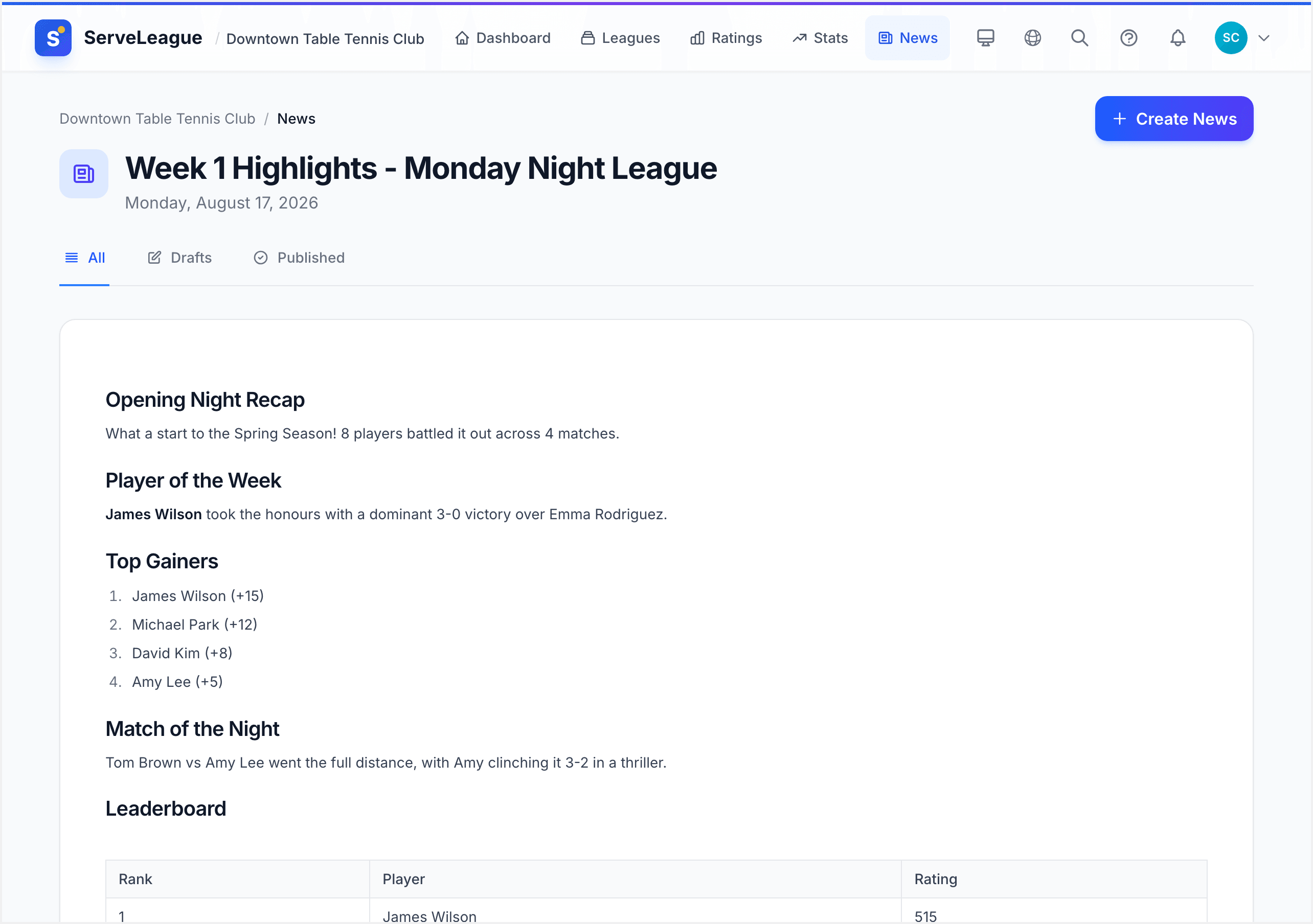
[!TIP] Including "Biggest Movers" alongside "Top Ratings" keeps the report interesting for players at all levels, not just those at the top.
Previewing Your Report
Before publishing, click the "Preview" button to see exactly how your report will appear to members. The preview shows the full Markdown content, leaderboards, and any images in the same layout your members will see.
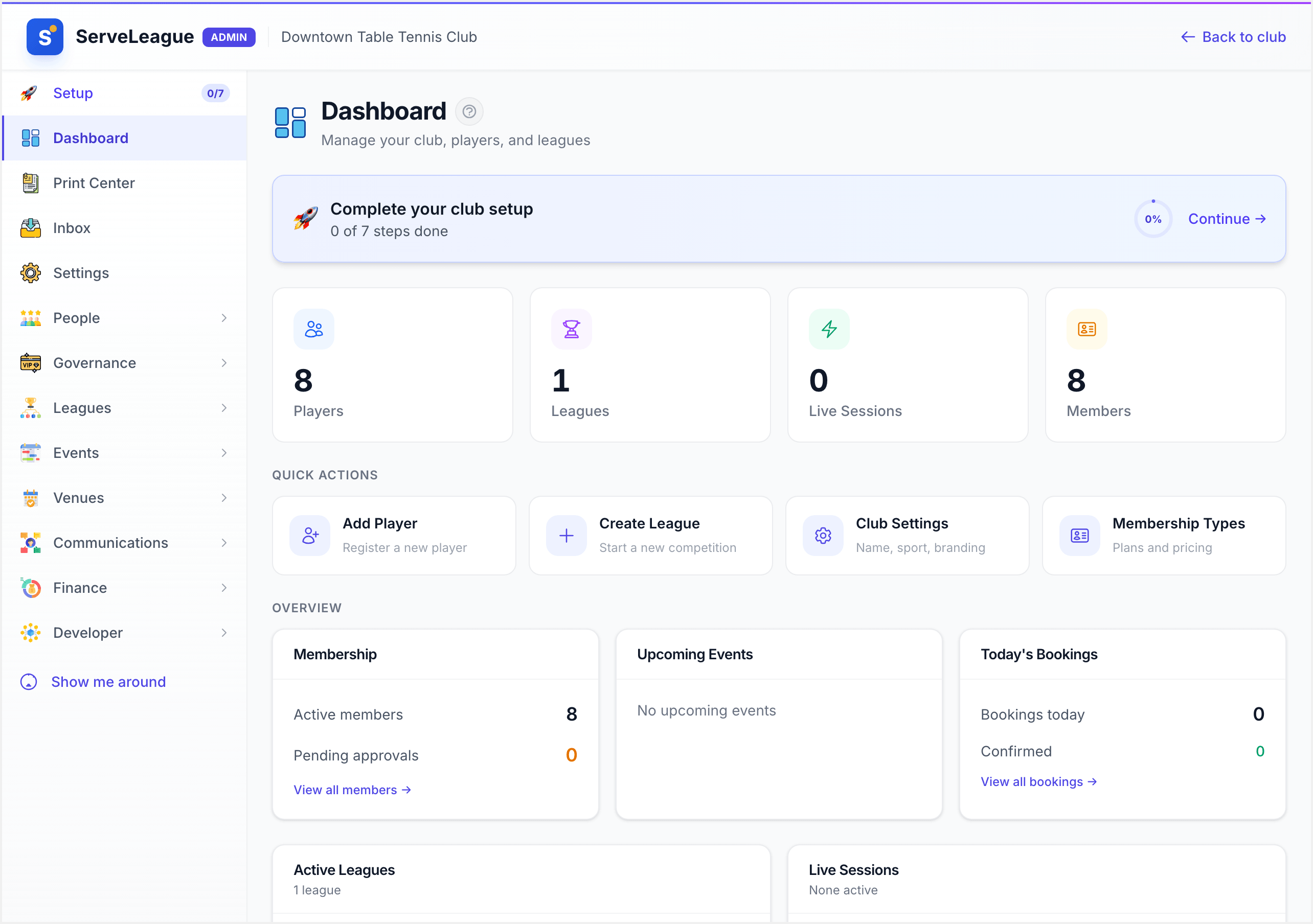
Check for:
- Formatting issues (broken headers, missing images)
- Accurate player names and statistics
- Leaderboard data looks correct
- Links to other pages work properly
Publishing and Sharing
When you are happy with the report, click "Publish". The report immediately becomes visible on your club's public page. Members with notifications enabled will receive an alert.
After publishing, you can:
- Copy the link to share on social media or messaging groups
- Edit the report: published reports can be updated at any time
- Unpublish: revert to draft status if you need to make major changes
[!NOTE] Editing a published report updates it in place. Members who have already read it will see the updated version if they revisit the page.
Managing Report History
The weekly reports page keeps a full history of all your reports. Use the search and filter options to find past reports by date, league, or content. You can also:
- Duplicate a report: use a previous report as a template for the next one
- Delete drafts: clean up reports you no longer need
- View analytics: see how many members viewed each report
Best Practices for Engaging Reports
- Be consistent: publish on the same day each week so members know when to expect it
- Highlight different players: rotate who gets mentioned to keep things fresh
- Add your personality: AI-generated content is great, but your voice makes it special
- Keep it concise: aim for 2-3 minutes of reading time
- Include a call to action: remind players about upcoming sessions or events
- Use leaderboards strategically: mix up which leaderboards you feature each week
[!WARNING] Avoid publishing reports with only AI-generated content. Taking a few minutes to personalize the report makes a big difference in how members perceive it.
Summary
Weekly reports are a powerful tool for keeping your club community engaged. With AI-generated content, customizable leaderboards, and a Markdown editor, you can create professional-quality reports in a few minutes each week. Consistency is key. The more regularly you publish, the more your members will look forward to reading them.
What's Next
- Achievements and Milestones: learn about the automated achievement system that rewards player progress
- Club News and Announcements: create standalone announcements for your club
- Understanding Your Rating: help your members understand how ratings work so they can appreciate the leaderboard context